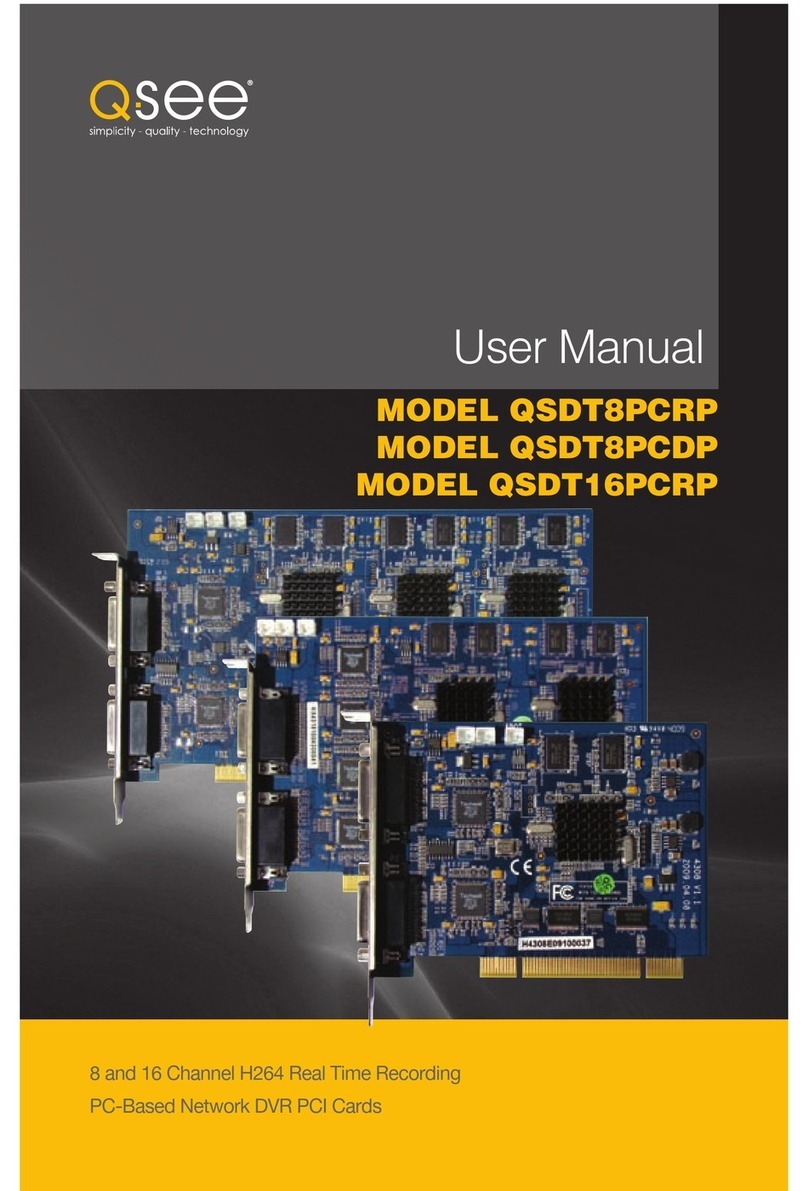
Q-See CENTRAL MANAGEMENT User manual

1
4 Channel H264 Real Time Recording
PC Based Network DVR PCI Card
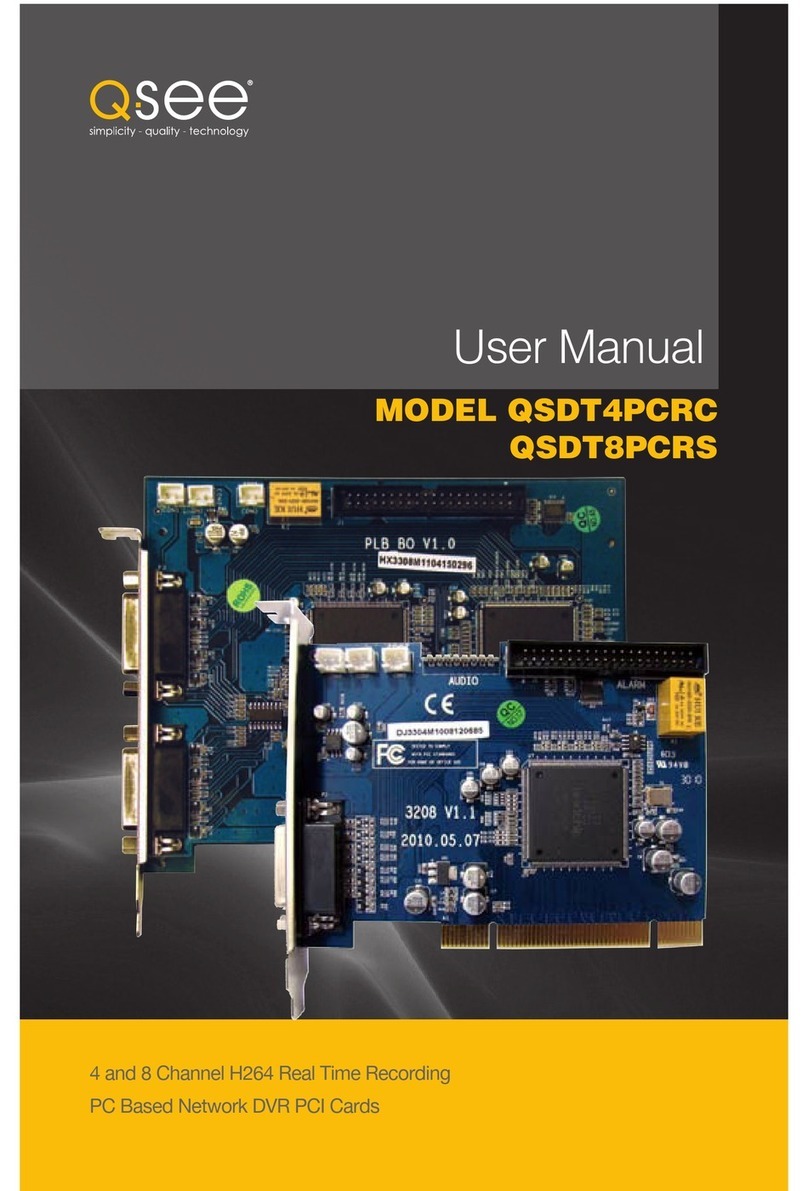
User Manual
MODEL QSDT4PCRC

2 3
© 2010, 2011 Q-See. Reproduction in whole or in part without written permission is
prohibited. All rights reserved. This manual and software and hardware described herein, in
whole or in part, may not be reproduced, translated, or reduced to any machine-readable
form without prior written approval.
Trademarks: All brand names and products are trademarks or registered trademarks of their
respective owners.
Q-See is a registered trademark of DPS, Inc.
Disclaimer: The information in this document is subject to change without notice. The
manufacturer makes no representations or warranties, either express or implied, of any kind
with respect to completeness of its contents.
Manufacturer shall not be liable for any damages whatsoever from misuse of this product.
Thank You for Choosing a Q-See Product!
All of our products are backed by a conditional service warranty covering all hardware for 12
months from the date of purchase. Additionally, our products also come with a free exchange
policy that covers all manufacturing defects for one month from the date of purchase.
Permanent upgrading service is provided for the software and is available at www.Q-See.com.
Be certain to make the most of your warranty by completing the registration form online. In
addition to warranty and technical support benefits, you’ll receive notifications of product
updates along with free downloadable firmware updates for your DVR. Register today at
www.Q-See.com!
Please see the back of this manual for exclusions.
This manual is written for the QSDT4PCRC security surveillance video capture card. This
manual was accurate at the time it was completed. However, because of our ongoing effort
to constantly improve our products, additional features and functions may have been added
since that time and on-screen displays may change. We encourage you to visit our website at
www.Q-see.com to check for the latest firmware updates and product announcements.
Throughout the manual we have highlighted warnings and other important information that will
assist you in operating your new system in a safe and trouble-free manner. Please take the
time to read and follow all instructions and pay attention to alerts as shown below:
About this Manual
NOTE! Text in blue boxes with the Information icon offer additional guidance
and explanations about how to make the most out of your card.
IMPORTANT! Red boxes with this icon indicate warnings. To prevent
possible injury or damage to the product, read all warnings before use.
Rev. 1.0 4/22/2011

4 5
1. Introduction 8
Features and Specifications 8
2. System Requirements and Specifications 10
2.1 System Requirements 10
2.2 System Specifications 11
3.
Video Capture Card Hardware and Connections
12
3.1 QSDT4PCRC Card Hardware 12
Alarm Port 13
Spot Out 14
Audio 14
Video 14
3.2 Connecting a P.T.Z. Camera 15
4. Installing the SuperDVR Software 16
4.1 Installing the Software 16
4.2 User Account Control for Windows Vista and Windows 7 18
5. Basic Operation 20
5.1 Log In 20
5.2 Display Control Panel 21
Display Modes 21
Auto Dwell Display 21
Page Flip 21
5.3 Other Controls 21
Snapshot 21
Urgent Record 21
6. Recording, Playback and Record Search 22
6.1 Recording Configuration 22
Basic Configuration 23
Record Status Panel 24
6.2 Recording Modes 24
Manual Record Mode 24
Sensor Alarm Record Mode 24
Motion Detection Record Mode 24
Schedule Recording 25
6.3 Recording to Hard Drive 27
TABLE OF CONTENTS 6.4 Record Search and Playback 28
Record Search 29
Playback 30
6.5 Other Functions 31
File Backup 31
Deleting Recorded Files 32
Capture Pictures 32
Digital Image Zoom 34
7. System Settings 35
7.1 Basic Configuration 36
Camera Display Settings 36
Video Configuration 37
7.2 Alarm Configuration 38
Alarm Types 38
Triggered Actions 39
7.3 E-map Configuration 41
Using the E-Map 42
7.4 User Configuration 43
User Rights 43
Add User 44
8. P.T.Z. Cameras 45
8.1 P.T.Z. Control Configuration 45
Protocol Setup 45
Serial Ports Setup 46
8.2 P.T.Z. Operation 46
Preset and Group Select 47
9. Remote Surveillance & Playback 48
9.1 Remote Live Surveillance 48
Remote Surveillance Server Configuration 48
9.2 Configuring Router for Remote Access 49
Part 1: Find out the IP address of the System 49
Part 2: Determine the Number of Routers on the Network 50
Part 3: Simple Port Forwarding 52
Part 4: Setting Up DMZ in Router 2 57
9.3 DDNS (Dynamic Domain Name Service) 58
Setting up DDNS 58
9.4 Accessing the DVR Using Internet Explorer 59
User Account Control for Windows Vista and Windows 7 59
Accessing the Internet Explorer Client 64

6 7
9.5 Remote playback 67
Record Playback and Control 67
Remote backup 67
9.6 System setup 70
Basic Configuration 70
Alarm Setup 71
Camera Setup 72
Schedule Configuration 72
Alarm Configuration 73
Record Configuration 73
Storage Disk 74
Motion Configuration 74
E-mail Configuration 74
9.7 P.T.Z Configuration 76
Protocol Setup 76
Serial Port Setup 76
10. Mobile Surveillance 77
10.1 Windows Mobile Pro 77
10.2 Symbian 79
8.3 iPhone and iPad 81
Installing through the iPhone or iPad 81
Installing through PC or Macintosh Computer 83
Operating Instructions for iPhone/iPad 84
8.4 Android 88
Software Installation 88
APPENDIX 93
Frequently Asked Questions 93
Quick Start instructions 98
Installation Instructions 98
Troubleshooting 98
Function Tree 100
System Configuration Tree 101
Internet Explorer Client Function Tree 102
Remote Playback Function Tree 103
Q-SEE PRODUCT WARRANTY 104
Questions or Comments? Contact Us 105

8 9
FEATURES AND SPECIFICATIONS
The QSDT4PCRC 4-Channel card allows you to add surveillance capabilities to your
computer. It uses H.264 software compression format which provides maximum file storage
with the least amount of signal loss possible. Monitor and record up to four channels in
CIF resolution with synchronous audio and video compression and transmission. Remotely
monitor your system through your network, over the Internet or using select mobile devices.
The first chapters will cover the installation of the card as well as any connections you may
wish to make. Later chapters will guide you through the installation of the SuperDVR 6.3
software which supports the QSDT4PCRC card along with how to operate the hardware and
software together.
Please make sure you operate the products strictly in accordance with applicable laws along
with following the guidance of this manual to maintain the stability of your digital surveillance
system.
This product offers the following features:
Motion detection mode
Motion detection areas are adjustable with a maximum 16 areas for each channel. Users can
also set motion detection sensitivity for each channel. The system begins to record only when
motion is detected on the channel and after motion stops it will stop recording after a certain
time period, which is adjustable by users.
Sensor alarm record mode
The system has an external alarm dongle which enables the system to support alarm input
and output.
Recycling record mode
Users can set recording storage sequence for hard drive partitions. The recording storage will
automatically switch to the next partition when the current one is full. If all the partitions are full
and recycling record mode is enabled, the oldest recorded data will be covered by new data.
Users can also set hard drive minimum storage alarm. Then once the present storage space
is less than the minimum storage and recycling record mode is not enabled, recording will
automatically stop.
P.T.Z control function
Supports many protocols: PelcoD, PelcoP, DSCP, DH-SD, Lilian, Minking, Neon, Star, VIDO,
and VISCA. Users can control multiple speed domes and integrative cameras, including pan,
tilt, zoom, focus and iris adjustment for P.T.Z devices. Supports preset points and auto scan.
User management
Different users have different rights, user names and passwords, to ensure system security.
Multi-channel display
Supports different multi-channel display modes, full screen display and auto dwell display.
Also:
n One PC can fit 1, 2 or 4 cards of the same model to control up to 16 channels total
n Supports 320x240, 704x480 (NTSC), 352x288, 704x576 (PAL) standard resolutions.
n Image color is adjustable for each channel, including contrast, brightness, hue and
saturation.
n H.264 compression format greatly reduces HDD usage.
n Powerful video playback functions, including pause, stop, fast-forward, single-frame play
and image capture.
n Supports advanced search mode. Users can search by date/time, camera, record mode,
and random combination of the three methods.
n Supports recorded file backup, delete by date/time, camera.
n Conveniently extend system functions through software upgrades.
n Supports multiple languages, including English, German, Spanish, Portuguese, Chinese
(Traditional), and other customized languages.
n CPU and storage resource saving by advanced technology
n Remote Surveillance and P.T.Z control through LAN, Intranet, and Internet.
n Supports alarm pre-record.
n Supports buzzer, e-mail alarm out.
n Can greatly decrease fragmented files while using NTFS partition.
n User-friendly graphical user interface.
INTRODUCTION CHAPTER 1

10 11
CHAPTER 2 SYSTEM REQUIREMENTS AND SPECIFICATIONS
2.1 SYSTEM REQUIREMENTS
SYSTEM REQUIREMENTS AND
SPECIFICATIONS
NOTE! If recorded disk partition’s format is FAT32 and the system has run
for a long time, the system will create a lot of data fragments that may result
in system running slowly. It’s recommended to run a disk defragmenter every
10 to 30 days. We strongly suggest that you use NTFS format for recording disk partition.
NOTE! We do not recommend AMD systems because the SuperDVR
program usually has problems communicating with the video card on the
system through the chipset on the AMD motherboard. There are often similar
problems with Intel processors on motherboards that use chipsets other then Intel, and
there are known issues with the Intel G31 chipset.
Card
PC Module QSDT4PCRC
CPU Intel P4 2.8G minimum or later Intel processor
Motherboard Intel with Intel system chipset
Hard Drive 250GB minimum
RAM 1GB minimum
Video Card
Supports MOST* AGP and PCI-E Video Cards
with 128MB of RAM or more with full Direct Draw support.
*Some newer PCI-E cards are not yet supported
OS Win 2000(SP4 above) /Win XP(SP2 above) /VISTA/Win7
DirectX 9.0
2.2 SYSTEM SPECIFICATIONS
Format: NTSC /PAL
Resolution: 320x240 / 640x480 (NTSC), 352x288 / 704x576(PAL)
Maximum Frame rate per channel: 30 fps (NTSC), 25 fps (PAL)
Screen set: resolution 1024×768, color quality 16 bits or 32 bits.
Compression code rate: 50kbps – 1.2Mbps.
Data format: H.264 (files saved as AVI)
Component Specification
Input Type D type
Video Input 4 Cameras
Display Rate (per channel) 30fps (NTSC), 25 fps (PAL)
Recording Rate (per channel) 320x240: 30fps (NTSC) 640x480:7.5fps (NTSC)/
352x248:25fps (PAL), 702x576: 6.25 fps (PAL),
Compression Format H.264 Software
Playback Resolution 320x240, 640x480(NTSC), 352x288, 704x576
(PAL)
Recorder Media HDD, USB Disk, ZIP, CD-R/W via PC
Record Mode Motion/Sensor/Schedule/Manual
Network TCP/IP
I/O Device 4Ch sensor Input, 1 Ch Relay Output (on board)
PTZ Protocol Configurable, Remote Control Capability
Remote Software Supports Internet Explorer Web Browser
Interface PCI
CHAPTER 2

12 13
CHAPTER 3 VIDEO CAPTURE CARD HARDWARE AND CONNECTIONS
VIDEO CAPTURE CARD
HARDWARE AND CONNECTIONS
3.1 QSDT4PCRC CARD HARDWARE
PICTURE 3-2
PICTURE 3-3
PICTURE 3-1
Audio In Ports
Spot Out Port
Alarm Port
Video In Dongle
ALARM PORT
Install this dongle only if you wish to use external alarm sensors. The DVR card has built-in
motion detection software which can be used to trigger alarms when motion is detected by a
camera.
Pin Port Define Interpret Pin Port Define Interpret
Pin1 Alarm_in1 Alarm Input 1 Pin21
Pin2 Alarm_in2 Alarm Input 2 Pin22
Pin3 Alarm_in3 Alarm Input 3 Pin23
Pin4 Alarm_in4 Alarm Input 4 Pin24
Pin5 Pin25
Pin6 Pin26
Pin7 Pin27
Pin8 Pin28
Pin9 Pin29
Pin10 Pin30
Pin11 Pin31
Pin12 Pin32
Pin13 Pin33
Pin14 Pin34 Alarm_Com Alarm COM
Pin15 Pin35 Alarm_NO Alarm Normal Open
Pin16 Pin36 GND Ground
Pin17 Pin37 GND Ground
Pin18 Pin38 5V Power Source (5V)
Pin19 Pin39 Alarm_NC Alarm Normal Close
Pin20 Pin40
139
240
Use of this dongle will take up an additional
I/O port on the computer.
To connect an alarm, you will need to attach
a DB25 25-pin male solder cup and solder
the wires from the alarm to the cup. The pin
order is shown in Picture 3-3.
CHAPTER 3

14 15
CHAPTER 3 VIDEO CAPTURE CARD HARDWARE AND CONNECTIONS
SPOT OUT
The Spot Out feature allows you to send selected video channels to a separate monitor.
Menus and controls will not display in this monitor. If you do not wish to use this feature then
you do not have to attach this port.
Spot Out with Multiple Cards
In situations where multiple cards are
installed, only one card can provide the signal
to the remote monitor.
Link the con2 to con1 ports on the cards,
with the last card linking to the Spot Out port
on the face plate. PICTURE 3-4
PICTURE 3-5
PICTURE 3-6
AUDIO
You will only need to install the Audio dongle if you have audio-equipped cameras,
microphones or other audio input devices.
PIN1 AUDIO-1 PIN2 GND
PIN3 AUDIO-2 PIN4 GND
PIN5 AUDIO-3 PIN6 GND
PIN7 AUDIO-4 PIN8 GND
Use of this dongle will take up an additional
I/O port on the computer.
The audio connector’s pins are mapped out
in Picture 3-5.
VIDEO
The video dongle connects to the 15-pin
receiver on the card. The four video inputs
use BNC connectors to interface with the
camera leads.
1
2
3
4
5
6
7
8
J5
GiL-G-8P-S3T2-E
9
10
11
12
13
14
15
1
2
3
4
5
6
7
8
Video
Video
Video
Video
Not Used
Not Used
Not Used
Not Used
Ground
3.2 CONNECTING A PTZ CAMERA
In order to operate a PTZ camera from the QSDT4PCRC, you will need to have first installed
the card into a PCI slot within the computer and attached the video dongle.
You will also need an RS485 to RS232 (Serial) adapter as well as having a serial port on the
back of your PC.
PTZ Camera RS485 to
Serial Adapter
PC
34
2
1
STEP 1. Connect the RS485 cables from the PTZ camera to the RS485-to-Serial Adapter
STEP 2. Connect the Adapter to the serial port on the back of the PC
STEP 3. Connect the video line from the camera to any Video In port on the DVR card
(Item 4)
You may now connect your camera to a power source.
Please see Chapter 8 for instructions on operating the PTZ camera with the SuperDVR
software.
PICTURE 3-7

16 17
CHAPTER 4 INSTALLING THE SUPERDVR SOFTWARE
INSTALLING THE SUPERDVR
SOFTWARE
CHAPTER 4
4.1 INSTALLING THE SOFTWARE
You will be controlling your security system using the SuperDVR software. It is compatible with
Windows 2000, XP, and both the 32 bit and 64 bit versions of Vista and Windows 7.
The SuperDVR software is included on the disk that comes packaged with your DVR card. It
can also be downloaded from our website at www.Q-See.com by simply searching for your
product and going to the Downloads section.
STEP 1. The software can be installed
from the CD by selecting the
appropriate button in the CD’s menu,
by copying the installer to your hard
drive and then double clicking to
begin the process.
STEP 2. Once the Setup window opens,
click Next to begin the installation.
STEP 3. Select your video format. NTSC
is the standard in North America.
Click next to continue.
STEP 4. Instruct the installer where you
want the software to be placed. Either
use the default location or select your
own. Click Next to continue.
STEP 5. Once the installation has
completed, you will be asked to press
the Finish button.
As part of the installation process, a shortcut
to the SuperDVR software will be placed on
your desktop.
You will need to restart your computer before
you can launch SuperDVR and begin setting
up your surveillance system.
PICTURE 4-1
PICTURE 4-2
PICTURE 4-3
PICTURE 4-4
PICTURE 4-5
PICTURE 4-6

18 19
CHAPTER 4 INSTALLING THE SUPERDVR SOFTWARE
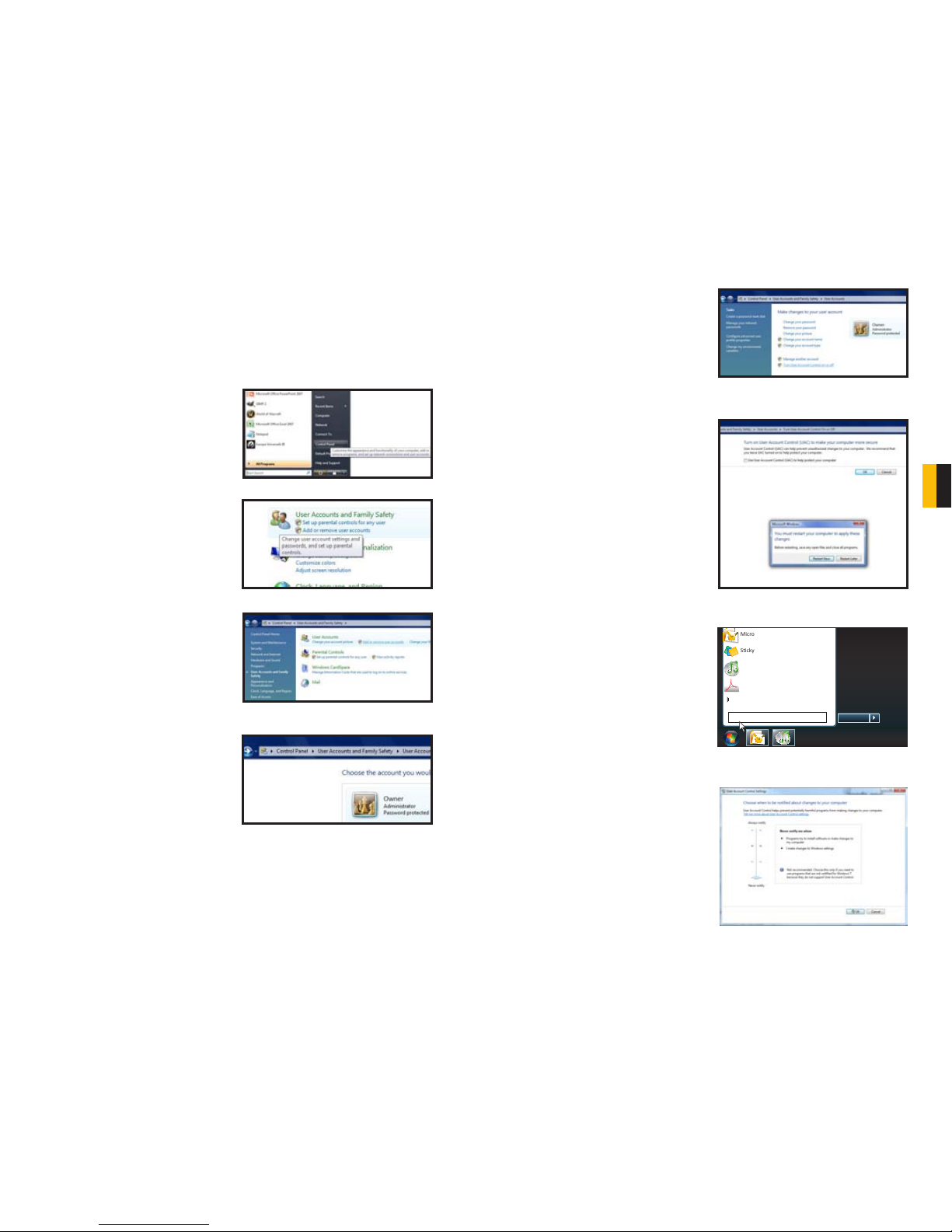
4.2 USER ACCOUNT CONTROL FOR WINDOWS VISTA AND
WINDOWS 7
Some users of computers using Windows Vista or Windows 7 operating systems may receive
an error message informing of a codec that is missing or not installed. This conflict can be
resolved by turning off User Account Control (UAC).
Windows Vista
1. Open the Control Panel (accessible by
clicking on the Windows icon in the
lower left of your screen.
2. Select User Accounts and Family
Safety.
3. Select “Add or Remove User
Account.”
4. Select the desired user account.
PICTURE 4-7
PICTURE 4-8
PICTURE 4-10
PICTURE 4-9
Windows 7
1. Open up the Start Menu (accessible by
clicking on the Windows icon in the
lower left of your screen.
2. Type “uac” into the search bar and hit
ENTER. The User Account Control
will open or you will be offered a link
to click to open it.
3. Move slider to lowest setting and press
OK.
Microso Office Outlook 2007
Scky Notes
All Programs
Devices and Printers
Default Programs
Help and Support
Shut down
iTunes
Adobe Acrobat
uac
PICTURE 4-13
PICTURE 4-14
5. Select Turn User Account Control
on or off
6. Uncheck the box next to “Use User
Account Control (UAC) to help protect
your computer.”
7. You will then be asked to restart your
computer for the change to take
effect.
PICTURE 4-11
PICTURE 4-12
Other manuals for CENTRAL MANAGEMENT
1
This manual suits for next models
1
Table of contents
Other Q-See PCI Card manuals
Popular PCI Card manuals by other brands

ICP DAS USA
ICP DAS USA PCI-1002H user manual

Exsys
Exsys EX-60102 manual

Chelsio Communications
Chelsio Communications T5 Series Installation and user guide

Conrad Electronic
Conrad Electronic 97 46 71 operating instructions

Micro Innovations
Micro Innovations USB650A Quick installation guide

KTI Networks
KTI Networks KF-310 user guide