Beyond Navigation English
……………………………………………………………………………………………………………………………………………………………………………………….
……………………………………………………………………………………………………………………………………………………………………………………….
www.Qstarz .com
3
E. Cha ging you batte y
For the first time usin the BT-Q1000XT/TR-Q1000XT, please char e
battery until it is fully char ed. Take the power cable and connect it
to the power jack (mini USB type) and rechar e throu h USB cable,
travel char er or car ci arette adaptor. This will be in to char e the
battery. Char in time is 3 hours typically.
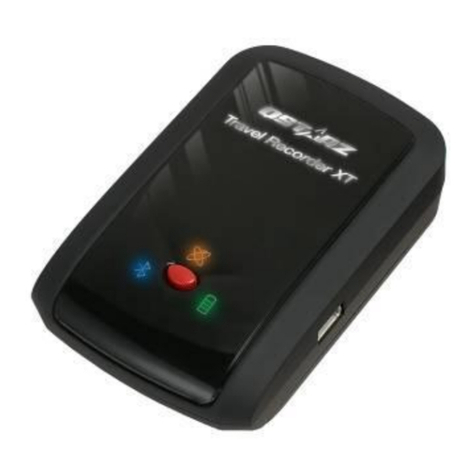
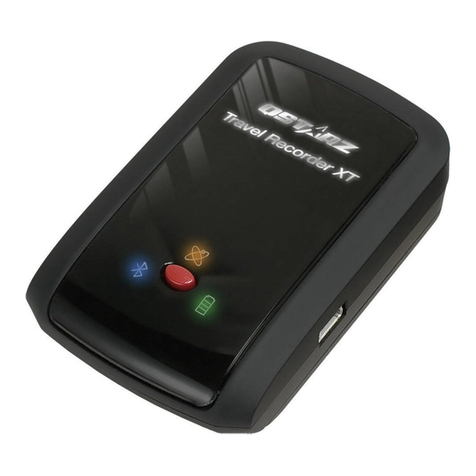
- When the Power LED is Red, battery power
is low status. Please rechar e.
- When the Power LED is Green, the battery is
under char in mode.
- When the Power LED is off, the battery is fully
char ed.
F. Setup BT-Q1000XT/TR-Q1000XT
F-1 Install the USB D ive and softwa e utility (Only suppo t
Mic osoft Windows XP / Vista/Win7)
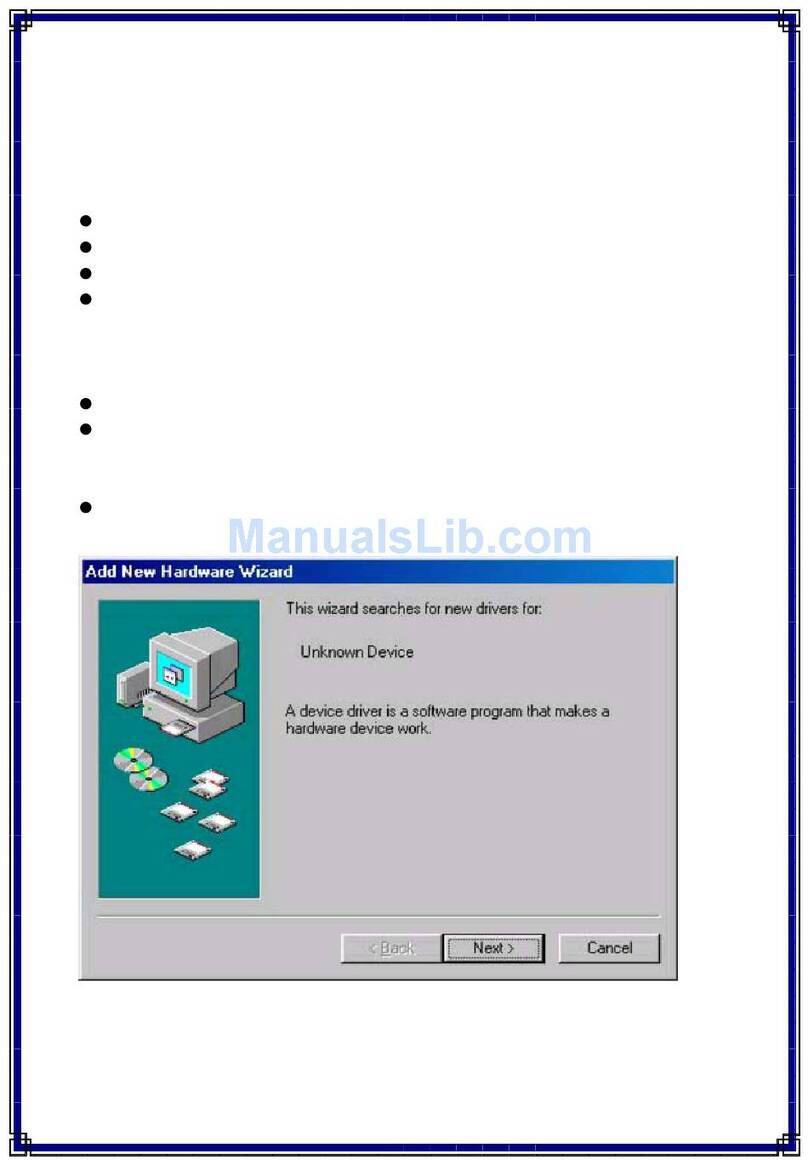
Please insert the Driver CD to your computer, and find the
BT-Q1000XT/TR-Q1000XT to install the software utility packa e. This
software packa e contains USB driver and QTravel™ software inside.
F-2 Install Google Ea th
BT-Q1000XT/TR-Q1000XT supports to show your travel path directly
on Goo le Earth. Please o to http://earth. oo le.com for ettin the
free download of Goo le Earth, and then install it to your computer.
G. Sta t to use
G-1 Fully cha ge the batte y when using at the fi st time
A fully char ed battery can last up to 42 hours continuously
operation (under optimum conditions).
G-2 Getting satellite fix with BT-Q1000XT/TR-Q1000XT
BT-Q1000XT/TR-Q1000XT is built in GPS module which needs to be
used in outdoor environment. When switch on your
BT-Q1000XT/TR-Q1000XT, the GPS will start to acquire the satellites
position. Once the GPS position is fixed, GPS LED will be flashin , and
then BT-Q1000XT/TR-Q1000XT can be used to record the travel path.