English
……………………………………………………………………………………………………………………………………………………………………………………….
.........................................................................................................................................................................................
4 www.Qstarz.com
Afterthepairingcomplete,thesystemwillthenfindaquickconnect
device“QstarzGPS”inBluetoothManager.Infurtheruse,youjust
needtoclickittoconnecttothisBluetoothGPSReceiver.
F‐3ChecktheSerialPortinBluetoothSetting
AftercompletepairingwiththeReceiver,pleaseclick“SerialPort”to
confirmtheassignedCOMport.IfyouusePDA/PCtopairtheGPS
Receiver,pleasecheck“OutboundCOMport”.
F‐4ActivateG‐MousefunctionviaUSBconnection
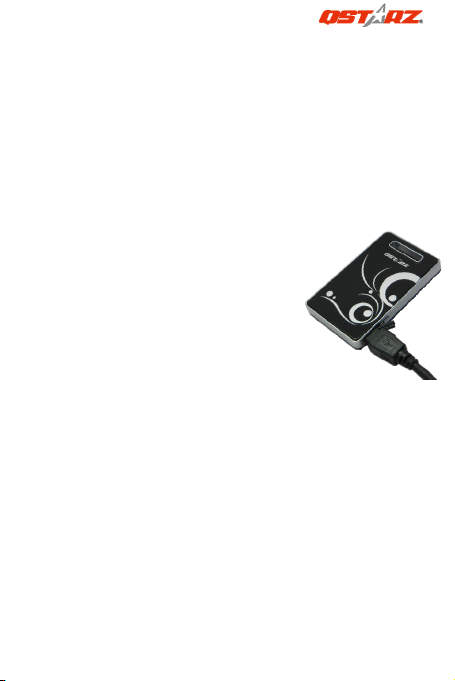
1.InstalltheUSBDriver(OnlysupportMicrosoftWindowsXP/Vista)
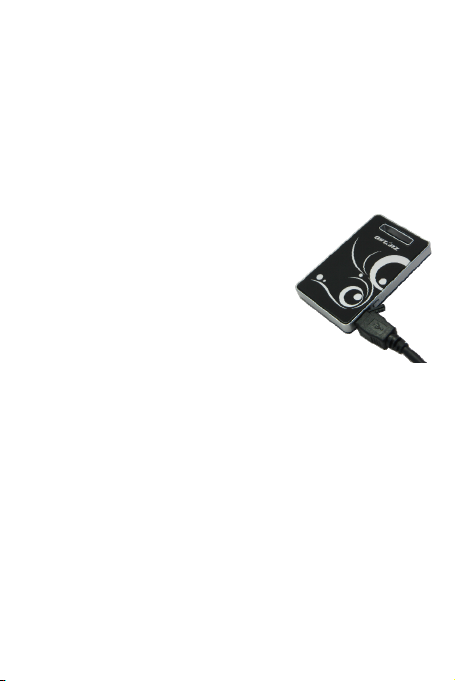
2.ConnectBT‐Q890withyourPC
3.ChecktheCOMportno.yourPCisassignedforBT‐Q890
Goto<Start>\<Settings>\<PanelControl>\<Performanceand
Maintenance>\<System>andSelect<Hardware>tabandthenclick
<DeviceManager>.Expandthe<Ports(COM&LPT)>andcheck“GPS
USBSerialInterfaceDriver”toseewhichCOMportisforBT‐Q890.
F‐5SetcorrectSerialPortinyourmapsoftware
Activateyournavigationsoftwareandmakesuretoselectthe
correct“SerialPort”.
NOTE1:InthemapsoftwaresuchasTomTom,youmightneedto
changepreferenceandset“OtherBluetoothGPS”accordingto
PDA/phonemodel.Insomecasepleaseconsultmapsoftware
companytovarythesettingifyouhaveissueonpositioning.
NOTE2:Theremightbespecificsettingrequirementpernavigation
software.SuchasTomtom,pleasedeleteotherGPSsettingsunder
Tomtomsoftware,andkeeponeonly.
F‐6SwitchofftheBluetoothfunction
SwitchoffGPSfunctioninyourPDA/Smartphone/PC,thenthe
Bluetoothconnectionwillbedisconnectedautomatically.Thenput
BT‐Q890powerswitchto“OFF”position.