manuals.online logo
Brands
  1. Home
  2. •
  3. Brands
  4. •
  5. QZ
  6. •
  7. Docking Station
  8. •
  9. QZ QZ-HD01 User manual

QZ QZ-HD01 User manual

Popular Docking Station manuals by other brands

Durr Dental VISTACAM2 Installation and operating instructions

Durr Dental

Durr Dental VISTACAM2 Installation and operating instructions

DLO TransDock Direct user manual

DLO

DLO TransDock Direct user manual

Lenovo USB-C Mini Dock user manual

Lenovo

Lenovo USB-C Mini Dock user manual

Sony Dream Machine XDR-DS12iP user manual

Sony

Sony Dream Machine XDR-DS12iP user manual

ATEN UC-2000 user manual

ATEN

ATEN UC-2000 user manual

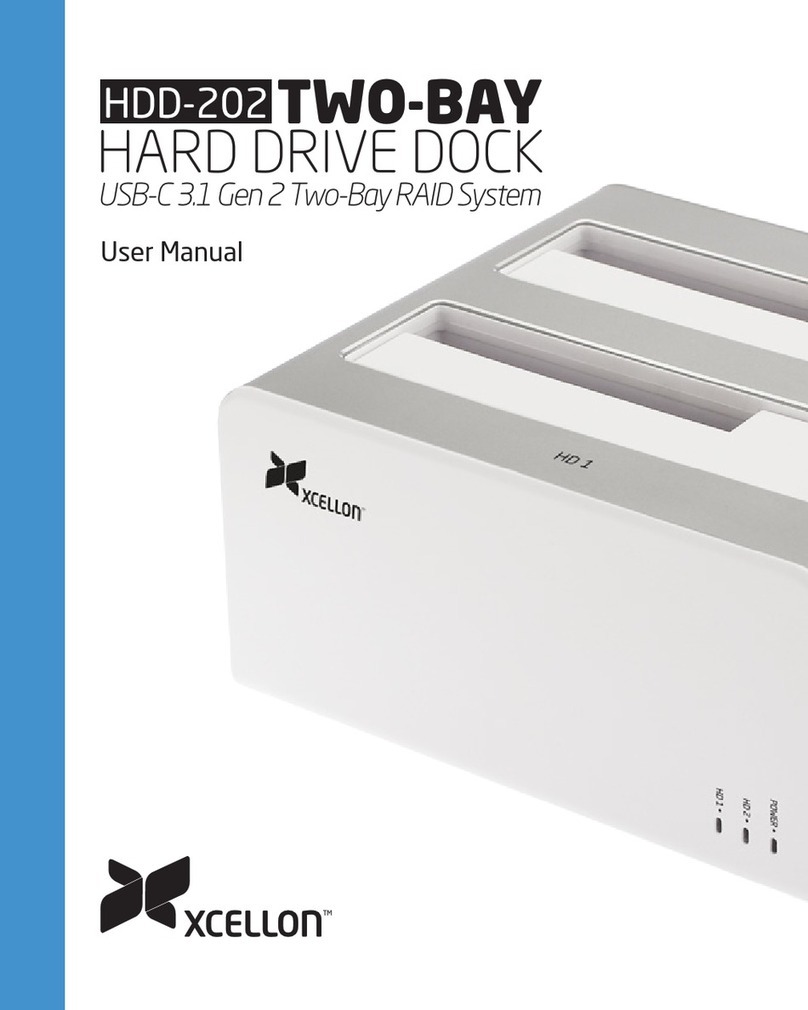
Xcellon HDD-202 user manual

Xcellon

Xcellon HDD-202 user manual

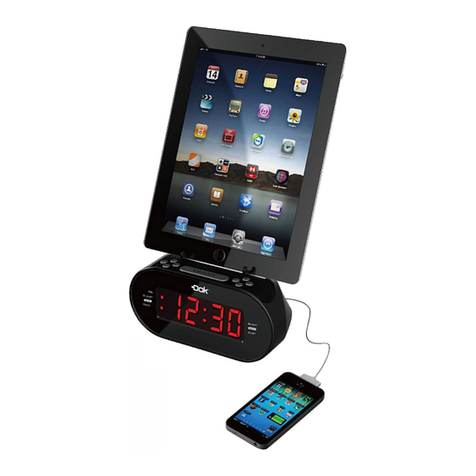
Dok CR09 user guide

Dok

Dok CR09 user guide

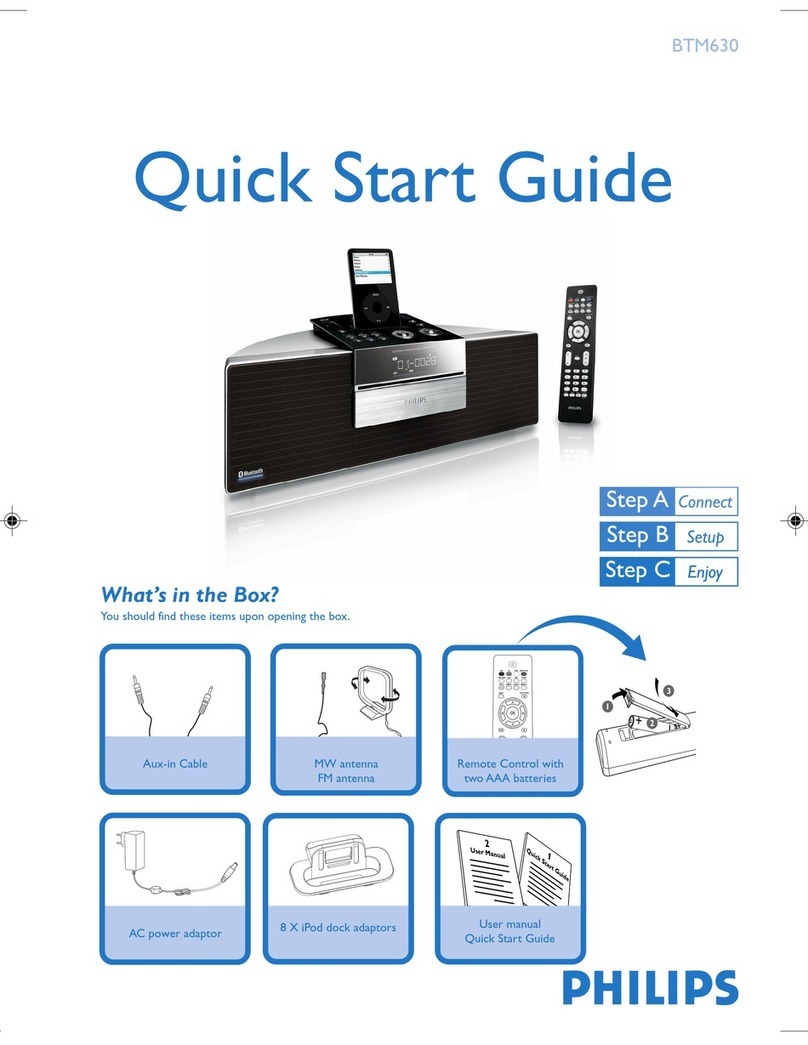
Philips BTM630/12 quick start guide

Philips

Philips BTM630/12 quick start guide

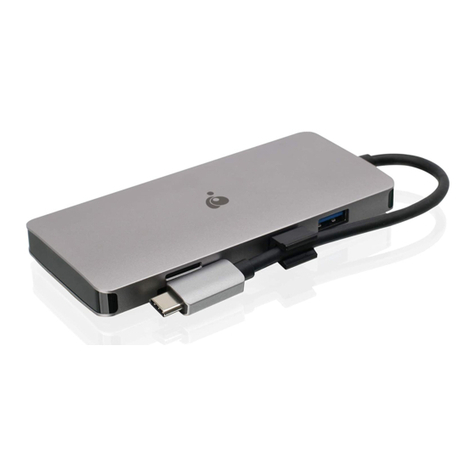
IOGear Travel Pro GUD3C09 quick start guide

IOGear

IOGear Travel Pro GUD3C09 quick start guide

iHome iP15 instruction manual

iHome

iHome iP15 instruction manual

VITURE ONE MOBILE DOCK quick start guide

VITURE ONE

VITURE ONE MOBILE DOCK quick start guide

CipherLab 8001 quick guide

CipherLab

CipherLab 8001 quick guide

Pyle PIPDSP2 owner's manual

Pyle

Pyle PIPDSP2 owner's manual

Targus DOCK315EUZ user guide

Targus

Targus DOCK315EUZ user guide

Philips DC190/79 user manual

Philips

Philips DC190/79 user manual

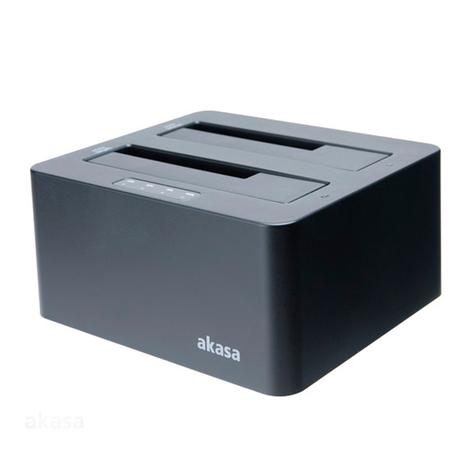
Akasa DuoDockX3 AK-DK08U3-BK user manual

Akasa

Akasa DuoDockX3 AK-DK08U3-BK user manual

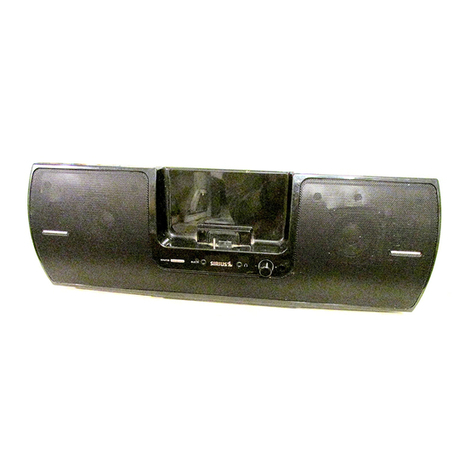
Sirius Satellite Radio SUBX2082808a Installation and user guide

Sirius Satellite Radio

Sirius Satellite Radio SUBX2082808a Installation and user guide

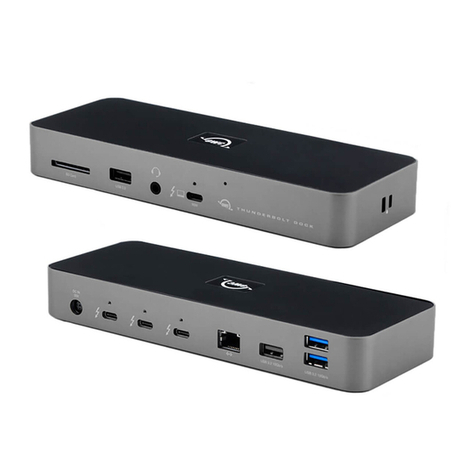
OWC Thunderbolt Dock user guide

OWC

OWC Thunderbolt Dock user guide

manuals.online logo
manuals.online logoBrands
  • About & Mission
  • Contact us
  • Privacy Policy
  • Terms and Conditions

Copyright 2025 Manuals.Online. All Rights Reserved.

Page 1of 3
Questions? We’re here to help!
support@qzonline.in |www.qzonline.in
QZ is registered trademark of Yugadi Electronics. All rights reserved.
All other trademarks are the property of their respective owners.
Welcome Guide
USB 3.1 SATA Hard Drive Dock
QZ-HD01
Introduction
‘Slide in the drive, hook-up the USB cable to the computer, turn it on, and start moving files’ – The QZ
USB 3.1 SATA Hard Drive Dock is as easy as it is said. No drivers to install, no tools required, made of top
quality components this hard drive dock is designed for convenience and performance.
Package Content
QZ USB 3.1 SATA Hard Drive Dock
1m USB 3.1 cable
12V 2A AC power adapter
Welcome Guide
Specifications
ProductName
USB
3.1
SATA Hard Drive Dock
ProductModel
QZ
-
H
D01
Chipset
ASMedia ASM11
53E
Supported HDD and SSDs
2.5
”
and 3.5
”
SATA I, II, and III
HDD,SSD
and hybrid drives
Power Input
12V 2A, AC
Power Adapter Included
Supported Systems
Windows
10/
8.1/8/7/Vista/XP, Mac OSx10.4 or above
Output Interface
USB
3.1
Dimensions
180 x 120 x 40 mm
Weight
372 g
Color
Black
Driver
No need, Plug and Play
Page 2of 3
Questions? We’re here to help!
support@qzonline.in |www.qzonline.in
QZ is registered trademark of Yugadi Electronics. All rights reserved.
All other trademarks are the property of their respective owners.
Features
Supportsall 2.5”/3.5” SATA I, II, III HDD/SSD/Hybrid drives of any capacity
SupportSATA III (6Gbps) / SATA II (3Gbps)/ SATA I (1.5Gbps)
Incorporated with ASMedia ASM1153E chipset for best performance and wider compatibility.
UASP (USB Attached SCSI Protocol) support for even faster drive data transfer performance, up
to 20%, (UASP requires UASP capable host controller and OS).
Easy installation, no tools or drivers required
Power button for powering off drive when not in use. Drive sleeps automatically on OS power
events or 10 minutes of idle.
LED indicates power status and data activity
SuperSpeed USB 3.1 support data transfer rates up to 5 Gbps (actual rate depend on drive
specifications and computer USB host controller)
Backward compatible with USB 2.0, USB 1.1 at their native speed
Plug and play, supports hot swap
Installation Guide
Slide drives gently along the top of docking station bay, with SATA connectors aligned. Do not exert
force. Drives will attach and seat into the SATA connector with the drive centered in the dock, cradled
with space for airflow on both edges, so no fan is required. Drives are easily removed and reinserted
with no cables or connectors to attach.
Note
The following Seagate SATA drive models may require a firmware upgrade, downloadable from the
Seagate official site, before use:ST3000DM001/9YN166/3TB ST2500DM001/9YN16L/2.5TB
ST2000DM001/9YN164/2TB ST1000DM003/9YN162/1TB ST500DM005
FAQs
Why my drive gets hotduring use?
It is normal for drives to become hot (50 ⁰C) during use.
Why am I experiencing slower data transfer rate than 5Gbps?
The USB 3.1 transfer rate is 5Gbps. Several variables could affectthe USB transfer rate - drive
specifications and computer USB host controller.
Page 3of 3
Questions? We’re here to help!
support@qzonline.in |www.qzonline.in
QZ is registered trademark of Yugadi Electronics. All rights reserved.
All other trademarks are the property of their respective owners.
To achieve USB 3.1 speeds, you must have a USB 3.1 controller in your laptop or desktop, with available
ports. The USB 3.1 standard specifies that port connectors will be blue, so it’s easy to identify them.
Microsoft Windows systems should install latest manufacturer USB 3.1 host controller drivers and
Windows Updates for best results. Apple Mac OS X systems require latest operating system updates for
best compatibility.
The product, however, is backward compatible with USB 2.0 so you can use or move the docking station
to any USB-capable computer, and have it work at full function, just at their native speeds USB 2.0 Hi-
Speed devices (rates up to 480Mbps), and USB 1.1 Full/Low Speed devices (rates 12/1.5 Mbps)
What sizes of SATA drives are supported?
QZ USB 3.1 SATA Hard Drive Dock has been tested with drives up to 6TB.
Note that particular operating systems may have their own limits. For example, Windows XP limits drive
size to 2TB per partition.
Will this hard drive dock work with USB 3.1 Hubs?
We recommend connecting the QZ USB 3.1 SATA Hard Drive Dock directly to a USB 3.1 port on your
computer for best results. The ASMedia chipset is a solid performer, and does usually work with hubs
but because of issues that can occur between different manufacturers USB 3.1 systems and USB 3.1
hubs we recommend connecting this hard drive dock directly if you experience any problems.
Why isn’t the dock visible under ‘My Computer’ when I plug it in?
The issue may have caused due to these reasons:
a. Conflicting drive names. If the hard drive has been used on a different computer and was given the
name C: then it will cause conflicts if the computer it is currently being used with already has a drive
named C:. Go to ‘Computer Management’, select “Disk Management’, locate the external hard drive,
and then assign a different name to it.
b. The hard drive may have been configured to operate with another OS. Formatting hard drive could
resolve this issue
Warranty
QZ offers unprecedented 12 month limited warranty on all its products.
Claim procedure? Hey, relax! It’s no big deal! Enjoy using this product. You may never need to.
If at all needed, give us a shout at our friendly customer support.