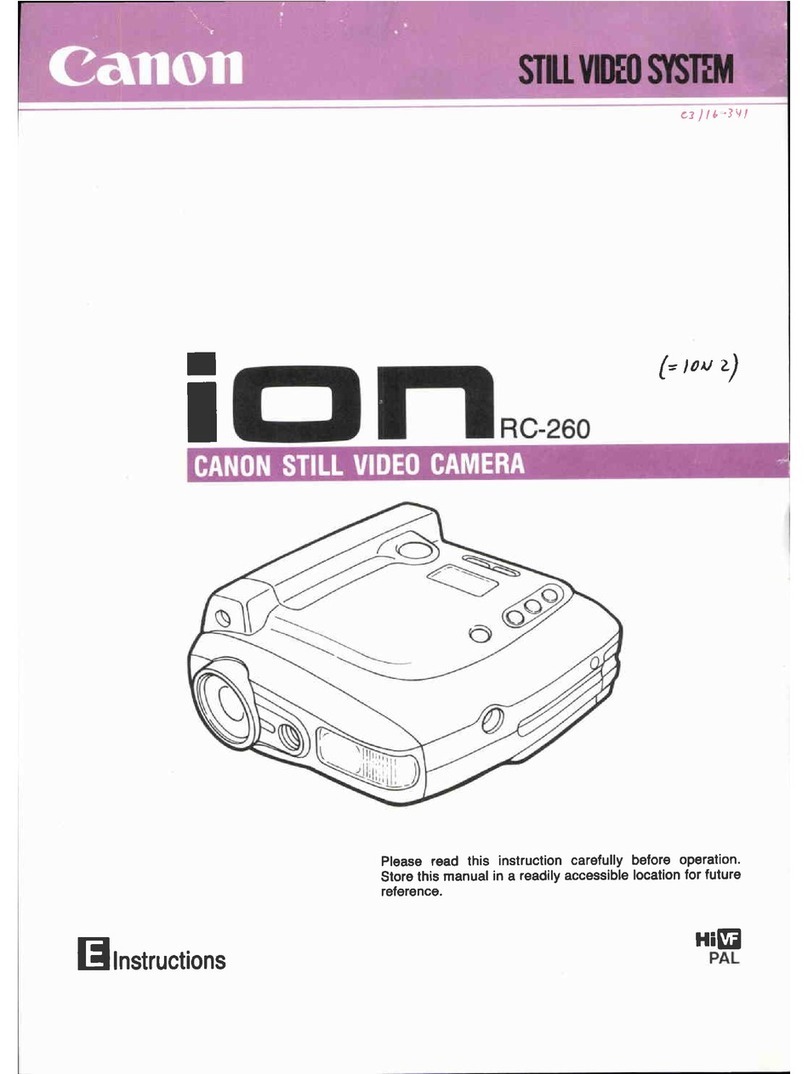
RCA CC9360 User manual

Digital
Camcorder
User’s Guide
Changing Entertainment. Again.
CC9360

To reduce risk of injury, charge only rechargeable batteries recommended by the
manufacturer for this product. Other types of batteries may burst causing damage and
personal injury.
FCC Regulations state that unauthorized changes or modifications to this equipment
may void the user’s authority to operate it.
i
This symbol indicates
"dangerous voltage"
inside the product that
presents a risk of
electric shock or
personal injury.
WARNING
To reduce the
risk of fire or
electric shock, do
not expose this
product or AC
charger to rain or
moisture.
To reduce the risk of electric
shock, do not remove cover (or
back). No user serviceable parts
inside. Refer servicing to qualified
service personnel.
This symbol
indicates
important
instructions
accompanying the
product.
WARNING
RISK OF ELECTRIC SHOCK
DO NOT OPEN
Product Registration
Please fill out the product registration card and return it immediately. Returning
this card allows us to contact you if needed.
Keep your sales receipt for proof of purchase to obtain warranty parts and service
and attach it here. Record the serial number and model numbers located on the
bottom of the camcorder.
Model No. ______________________________________________________
Serial No. _______________________________________________________
Purchase Date. __________________________________________________
Purchased From. _________________________________________________
Important Information

1
Table of Contents
Table of Contents
(continued on the next page)
Chapter 1: Connections & Setup
Parts Checklist ......................................................................................... 6
Buttons and Controls ............................................................................. 7
Getting Started ....................................................................................... 9
Unpack the camcorder and accessories .......................................... 9
Adjust the hand strap ...................................................................... 9
Attach the lens cap ........................................................................ 10
Attach the power supply ............................................................... 10
Turn on the camcorder................................................................... 11
Set the LIGHT switch to AUTO ....................................................... 11
Insert a cassette tape ..................................................................... 12
Use the LCD monitor or viewfinder to see what’s recording ...... 13
Start recording ............................................................................... 14
Play your recording ........................................................................ 14
Turn off the camcorder .................................................................. 15
Powering the Camcorder ..................................................................... 15
Charging the Battery ..................................................................... 15
Battery Level Icon ........................................................................... 18
Battery Care and Storage .............................................................. 18
Using the Power Supply ................................................................. 19
Using the Shoulder Strap ..................................................................... 20
Setting the Date and Time ................................................................... 21
Setting the Tape Recording Speed ...................................................... 22
Chapter 2: Using the Monitors
Seeing What You Are Recording ......................................................... 24
Using the LCD Monitor .................................................................. 24
Using the Viewfinder ..................................................................... 25
On-screen Icons ..................................................................................... 26
Warning Icons ................................................................................. 26
Recording and Playback Icons ....................................................... 27
Other Icons ..................................................................................... 32

2
Table of Contents
Chapter 3: Recording
Recording Details .................................................................................. 34
Journalistic Shooting ...................................................................... 34
Self-Recording ................................................................................ 35
Digital and Optical Zooming ......................................................... 35
Using Steady Pix™.......................................................................... 37
Using the Video Light .................................................................... 38
Time Code Display .......................................................................... 39
Selecting a Snapshot Mode ........................................................... 40
Taking Snapshots ............................................................................ 42
Blank Search ................................................................................... 43
Recording Tips ...................................................................................... 44
Chapter 4: Playback
Playback Options .................................................................................. 46
Basic Playback ................................................................................. 46
Still Playback Mode ........................................................................ 48
Shuttle Search ................................................................................. 48
Frame-By-Frame Playback .............................................................. 49
Choose your Connection ...................................................................... 50
Connecting to a TV (or VCR) with Audio/Video Input Jacks ........ 50
Connecting to a TV (or VCR) with an S-Video Input Jack ............ 51
Playback on a TV (or VCR) with Audio/Video Input Jacks............ 52
Dubbing to a VCR ........................................................................... 53
Dubbing to Another Digital Video Camcorder ............................ 54
Chapter 5: Advanced Features
Using the Menus For Advanced Adjustment...................................... 56
Menu Definitions .................................................................................. 57
Camera Menu ................................................................................. 57
Manual Menu ................................................................................. 58
System Menu .................................................................................. 58
Display Menu .................................................................................. 59

3
Table of Contents
Using the Advanced Features .............................................................. 61
Night Mode .................................................................................... 61
Fade/Wipe Effects ........................................................................... 62
Program AE With Special Effects ................................................... 65
Exposure Control ............................................................................ 68
Iris Lock ........................................................................................... 69
Focusing .......................................................................................... 70
White Balance Adjustment ............................................................ 72
Date/Time Insert ............................................................................. 73
Wide Mode ..................................................................................... 74
Wind Cut ......................................................................................... 76
Resetting the Camcorder Defaults ................................................ 76
Chapter 6: Downloading to a PC
Connecting to a Computer ............................................................ 78
Chapter 7: Other Information
Troubleshooting.................................................................................... 80
Final Notes ............................................................................................ 83
Power .............................................................................................. 83
Date/Time Settings ......................................................................... 83
Video Recording ............................................................................. 84
Tapes ............................................................................................... 85
Care and Cleaning ................................................................................ 86
After Using the Camcorder ............................................................ 86
Cleaning The Camcorder ............................................................... 86
Proper Care and Storage ............................................................... 87
Tape Care and Storage ................................................................... 87
Things to Avoid .............................................................................. 88
Traveling Tips ........................................................................................ 88
Specifications ........................................................................................ 89
Limited Warranty .................................................................................. 91
FCC and Industry Canada Information ................................................ 95
Optional Accessories ............................................................................ 96
Accessories Order Form .................................................................. 99
Index .................................................................................................... 103

This page intentionally left blank.

5
Chapter 1
Connections & Setup
Chapter Overview:
• Parts Checklist
• Buttons and Controls
• Getting Started
• Powering the Camcorder
• Using the Shoulder Strap
• Setting the Date and Time
• Setting the Tape Recording Speed
Changing Entertainment. Again.

6Chapter 1
Connections & Setup
Shoulder strap
Part # ACS091
Camcorder
Parts Checklist
Make sure the box includes the items shown here:
Caution: Only use the power supply provided with this unit. Using other power
supplies may damage the unit.
AC power supply
Part # 250814
Battery pack
Part # 247800
Lens cap
Part # 252975
Audio/ Video
adapter cable
Part # 252885

Connections & Setup
Chapter 1 7
Buttons and Controls
BLANKSEARCH
FOCUS
+
+
BAT. RELEASE
Viewfinder MENU/
BRIGHT
dial
SNAPSHOT
button Power Zoom / VOL lever
FOCUS / BLANK
SEARCH button
Power switch
Recording Start/
Stop button
BAT.
RELEASE
switch
Eyepiece
focus control
Video light
Microphone
Hand
strap
Jack cover

8Chapter 1
Connections & Setup
EXPOSURENIGHT
MODE
BACK
LIGHT
P. A E
MENU/
BRIGHT
SNAP
SHOT
CHARGE
W
-
+
BAT. RELEASE
BLANK SEARCH
VOL.
FOCUS
EXPOSUREBACK
LIGHT
NIGHT
ALIVE
P
.AE
MENU/
BRIGHT
SNAP
SHOTVOL.
CHARGE
LIGHT
OFF
AUTO
ON
DVIN/OUT
OPEN/EJECT
Playback buttons (also P.AE, NIGHT MODE,
EXPOSURE, and BACK LIGHT buttons)
Camcorder bottom view
LCD monitor
Speaker
LIGHT
switch DV IN/OUT
jack
AV
SERVICE
S
Jack cover open
S -Video
jack
Service
jack
AV
jack
CHARGE
indicator
OPEN/EJECT
switch
Tripod
mounting
sockets
BAT.
RELEASE
switch
MENU/
BRIGHT
dial
FOCUS/
BLANK
SEARCH
button
SNAPSHOT button
Power
Zoom/
VOL
lever
Table of contents
Other RCA Camcorder manuals






RCA
RCA Small Wonder EZ2110 series User manual
RCA
RCA CC4371 User manual
RCA
RCA CC9370 User manual
RCA
RCA Small Wonder EZ2100 series User manual
RCA
RCA EZ205 Small Wonder User manual
RCA
RCA AutoShot CC6291 User manual
RCA
RCA CC635 User manual
RCA
RCA CC618 User manual
RCA
RCA CC176 User manual
RCA
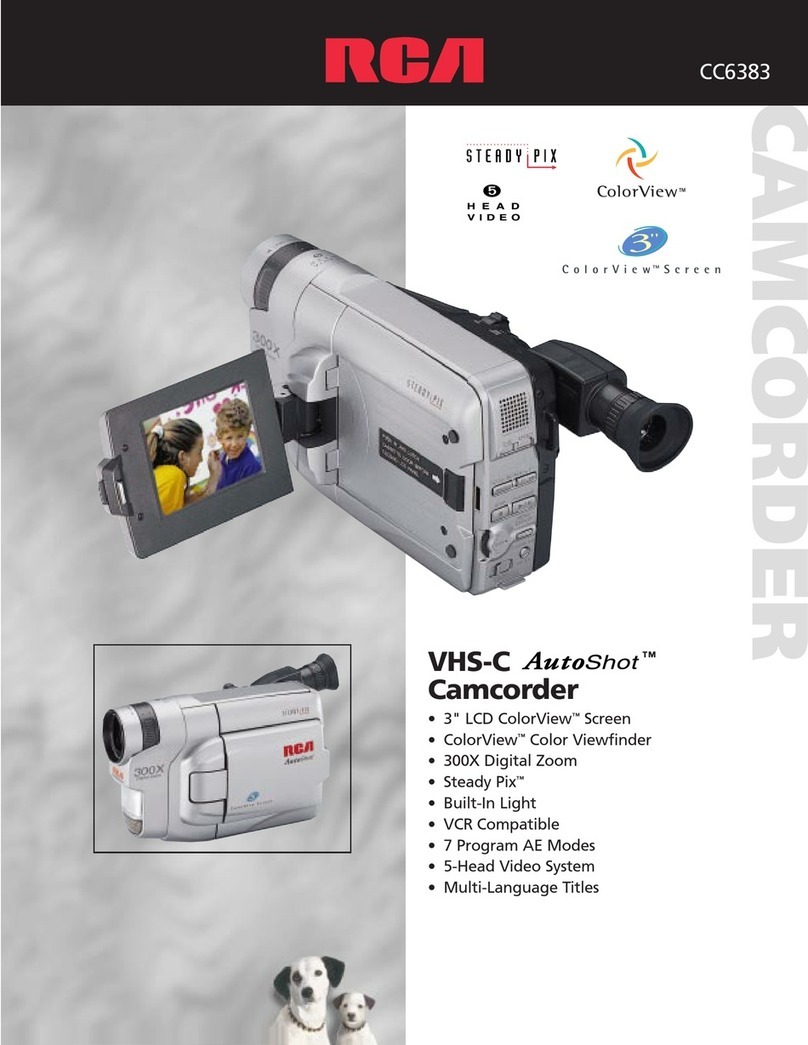
RCA Autoshot CC6383 User manual