●Create a new page in a notebook by pressing the next button. Note that you must have
written or sketched on a page before you are able to create a new page. [Image of device
with ring around right button]
Quick sheets
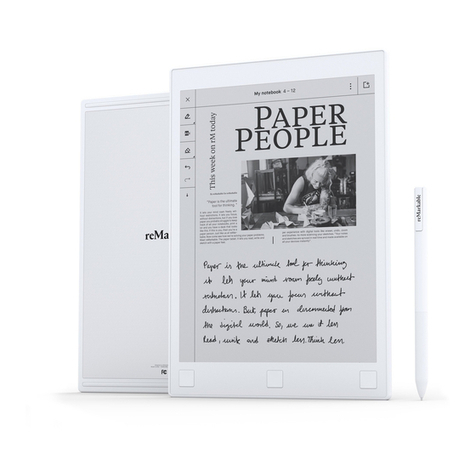
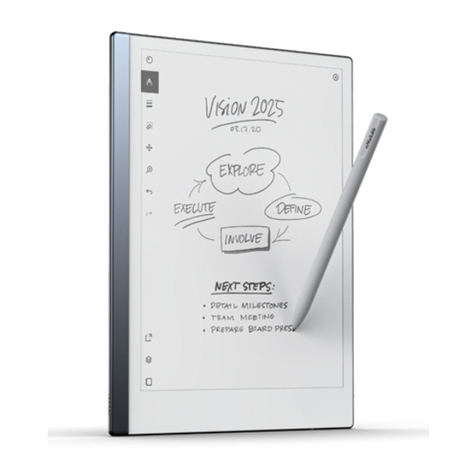
The reMarkable comes with a default notebook for taking quick notes on the go, without having to
create a new notebook. Quick sheets are always available from My files, and it cannot be moved or
deleted. Create a new page by clicking the Quick sheet-button in the upper right corner.
Templates
Templates are preset formats that can be used when writing or drawing in your notebooks. For
example, you can choose the ruled template if you want to have lined paper when you’re writing,
the music template if you’re writing musical notes or weekly schedule if you’re planning your week.
How to choose a template:
2. Tap the more icon (three dots) in the top menu. [ICON?]
3. Tap the template icon. Choose the template you want to use.
4. Tap done. The selected template will be used for all new pages within that notebook. The
template can be changed at any time.
Learn more
●Read more about the different Tools
●LiveView enables you to share your notebook live with friends and colleagues
●Share your notebooks by email directly from the reMarkable
2.2 Documents
Documents are PDF-files imported through the desktop or mobile application and onto your
device. Read and take notes in a document, and share to email directly from your device.
View all pages inside a document by tapping the page overview-icon. Go back to the one-page
view by clicking the one-page icon.
Organize your documents by moving them into folders. All your documents will appear in the
filtered Document section on your reMarkable, regardless of how they are organized.
Crop a document
Use the crop tool to hide margins for an improved reading experience. All pages in the document
will be cropped when using the tool. No edits will be made to your file, and you can adjust and
remove the crop whenever you want. Crop view is only available for documents.
How to crop a document:
1. Open the document you want to crop.
2. Tap the specific menu (three dots) on the top menu bar and find Crop.
3. Adjust the box to include everything you want to be visible. Tap crop to save the changes.
Tap Cancel to reverse the adjustment.
4. Repeat the action to adjust the cropping.
(Images or GIF here)
Learn more
●Import documents by using the desktop app