5
Web Interface
The SAFESTOP-HD web interface includes a live camera view,
conguration and focus options, and allows recorded video to
be downloaded. The web interface must be accessed with a PC
and web browser.
Use the following procedure to access the web interface using
the default IP address:
Connect the PC to the SAFESTOP-HD’s Ethernet port with
1.
a standard Ethernet cable.
Ensure the SAFESTOP-HD and PC are receiving power
2.
and have started up (this may take a few seconds).
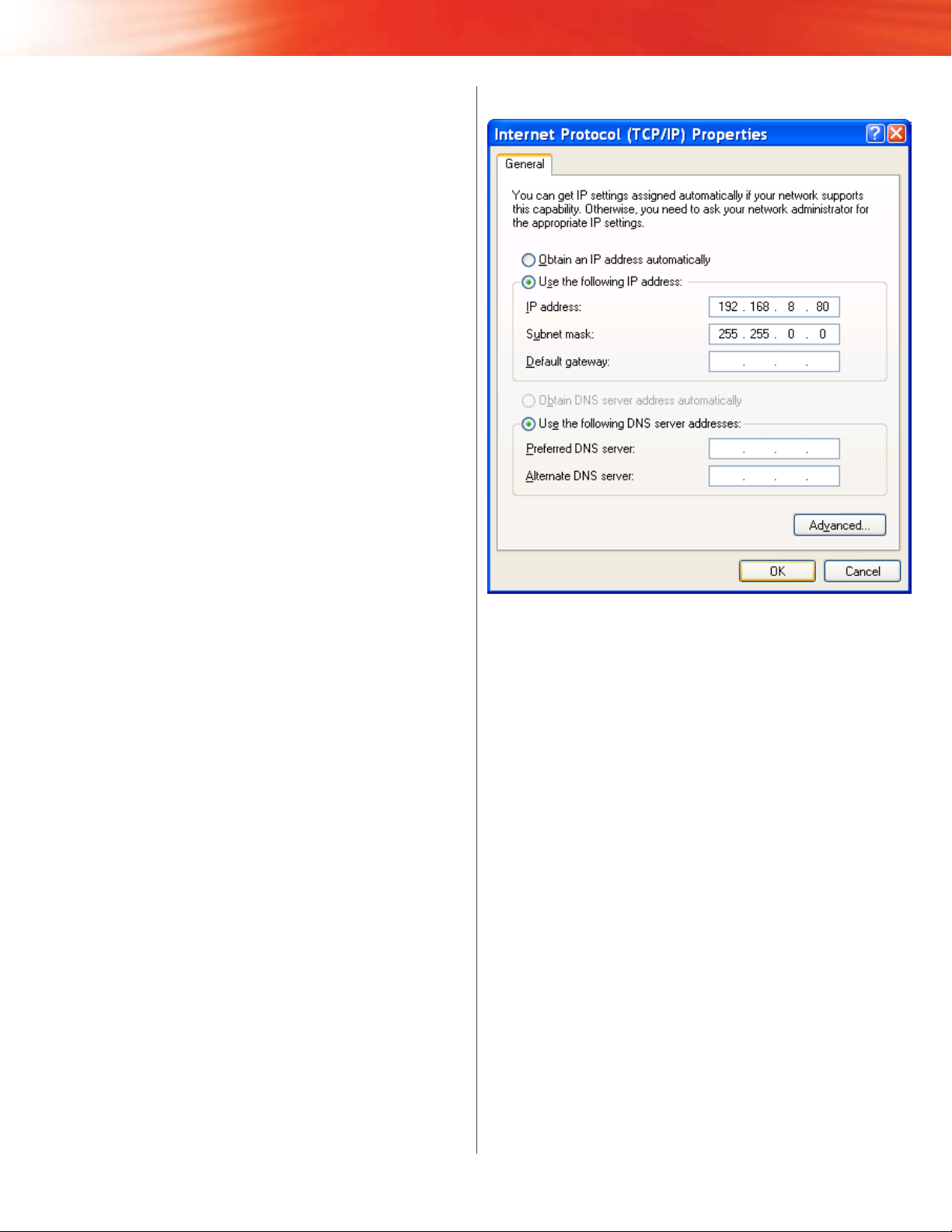
Open the Internet Protocol (TCP/IP) Properties window
3.
for the LAN connection you are using.
In Windows, open Network Connections. Right-click the LAN
connection and select Properties. In the list of items, select
Internet Protocol (TCP/IP) and then click Properties.
Select the
4. Use the following IP address option.
Enter
5. 192.168.8.80 in the IP address eld.
Enter
6. 255.255.0.0 in the Subnet mask eld.
This eld normally defaults to 255.255.255.0. Ensure the
correct 255.255.0.0 subnet is entered.
Leave all other elds blank.
7.
Click8. OK on the Internet Protocol (TCP/IP) Properties
window and then click OK on the Local Area Connection
Properties window.
Your PC’s IP address and subnet mask are now congured.
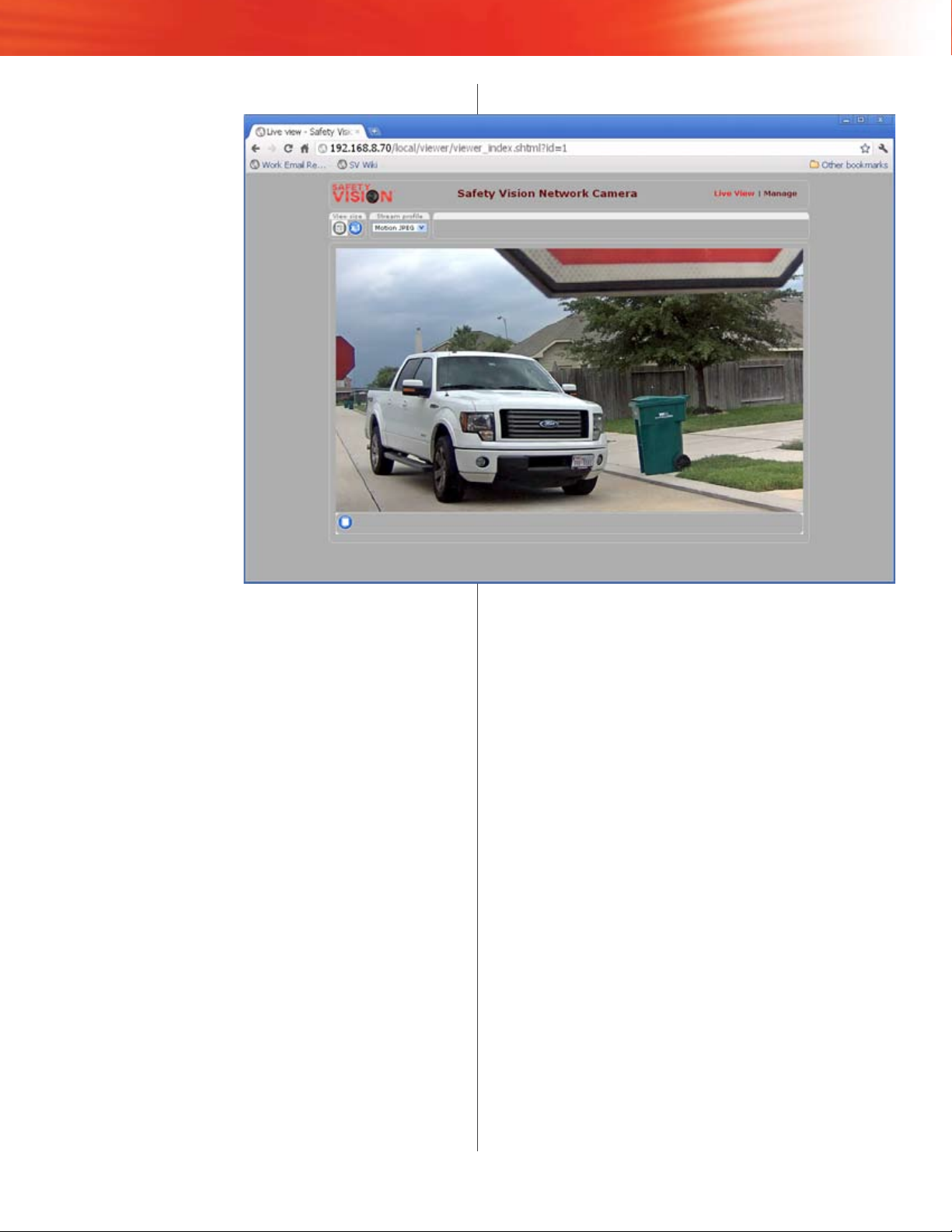
On a web browser, navigate to
9. 192.168.8.70/local.
A Login prompt appears.
Enter the user name and password and click
10. Login.
The default user name is root and the default password is
pass.
The conguration web interface launches.
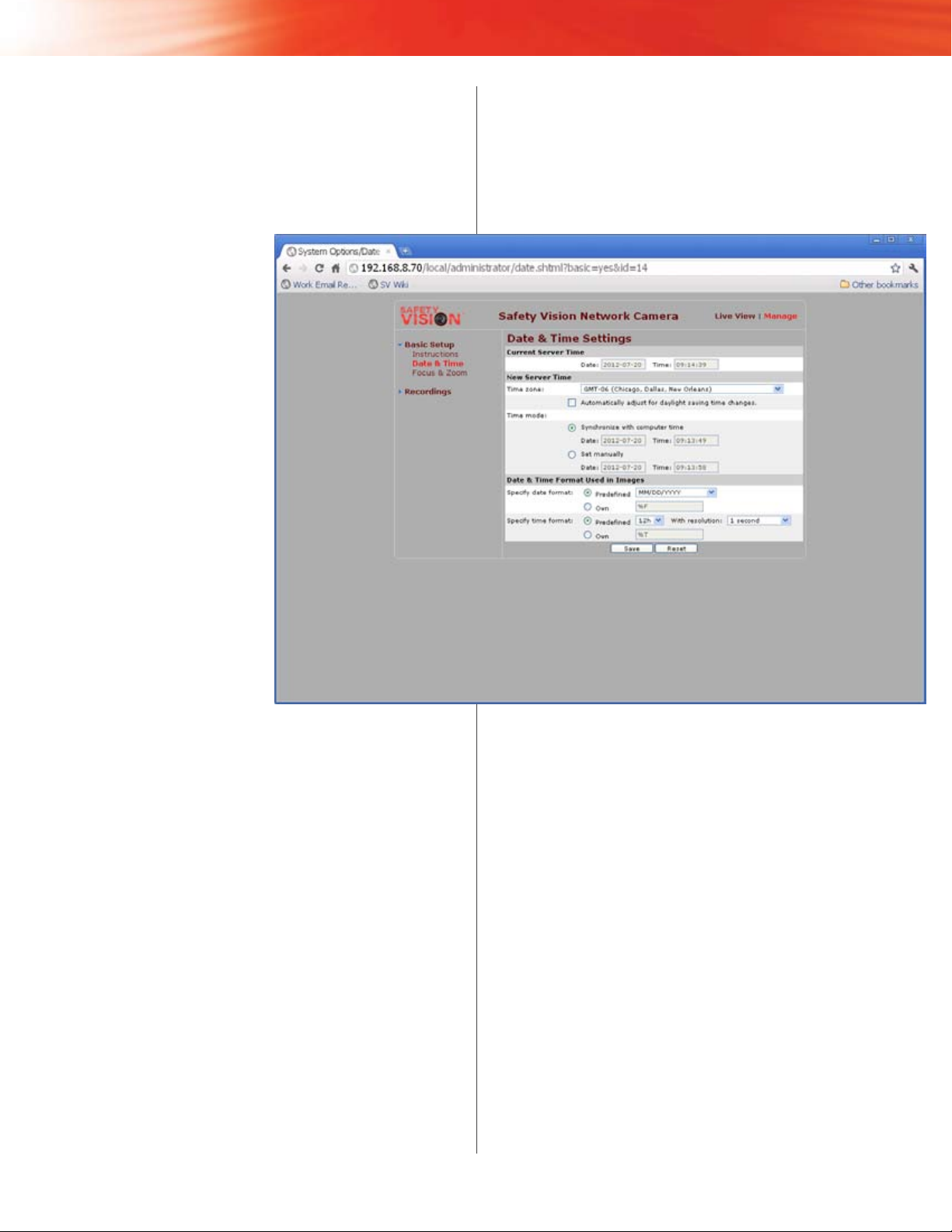
Access dierent pages of the web interface by clicking on
the links on the left side of the screen. The SAFESTOP-HD’s
rmware version and MAC address are displayed below the
basic setup instructions.
NOTE: Steps 9 and 10 can be automated
with a link on your desktop. Go to
www.safetyvisionftp.com/software
and download the shortcut installation
program. Run this program to install a
link on your desktop. This link will open
your browser, navigate to the correct
address, and log in, all automatically.