manuals.online logo
Brands
  1. Home
  2. •
  3. Brands
  4. •
  5. SANHO
  6. •
  7. Storage
  8. •
  9. SANHO iUSBPORTHD User manual

SANHO iUSBPORTHD User manual

Other SANHO Storage manuals

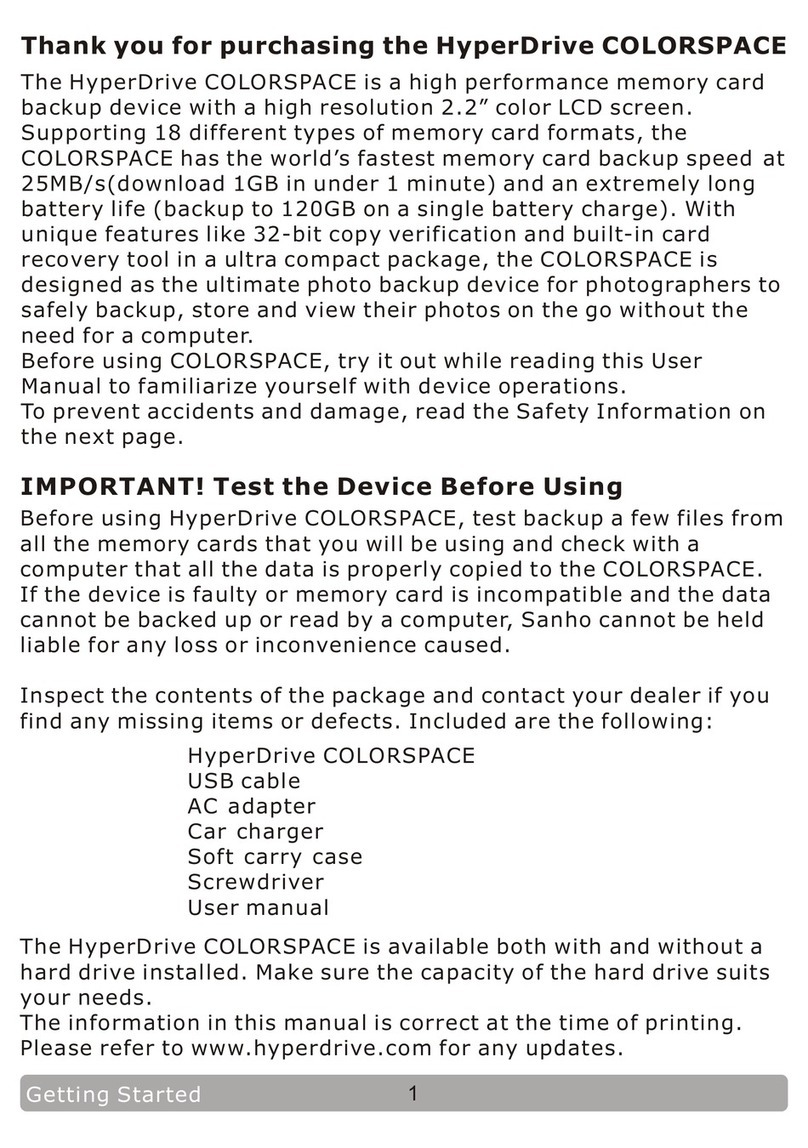
SANHO HyperDrive COLORSPACE User manual

SANHO

SANHO HyperDrive COLORSPACE User manual

SANHO HyperDrive SPACE User manual

SANHO

SANHO HyperDrive SPACE User manual

Popular Storage manuals by other brands

IBM 40/80 GB HH DLTVS user guide

IBM

IBM 40/80 GB HH DLTVS user guide

Synology DiskStation DS716+II Quick installation guide

Synology

Synology DiskStation DS716+II Quick installation guide

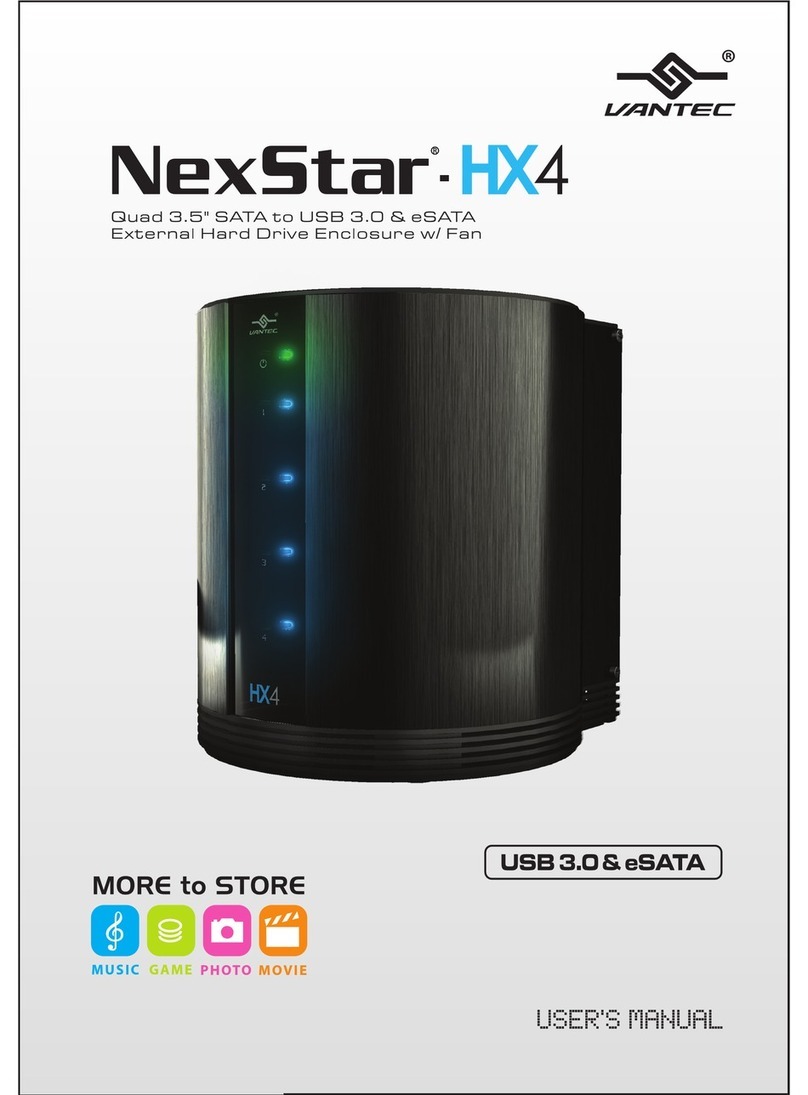
Vantec NexStar-HX4 user manual

Vantec

Vantec NexStar-HX4 user manual

LaCie Christofle Galet datasheet

LaCie

LaCie Christofle Galet datasheet

LaCie Rugged Thunderbolt user manual

LaCie

LaCie Rugged Thunderbolt user manual

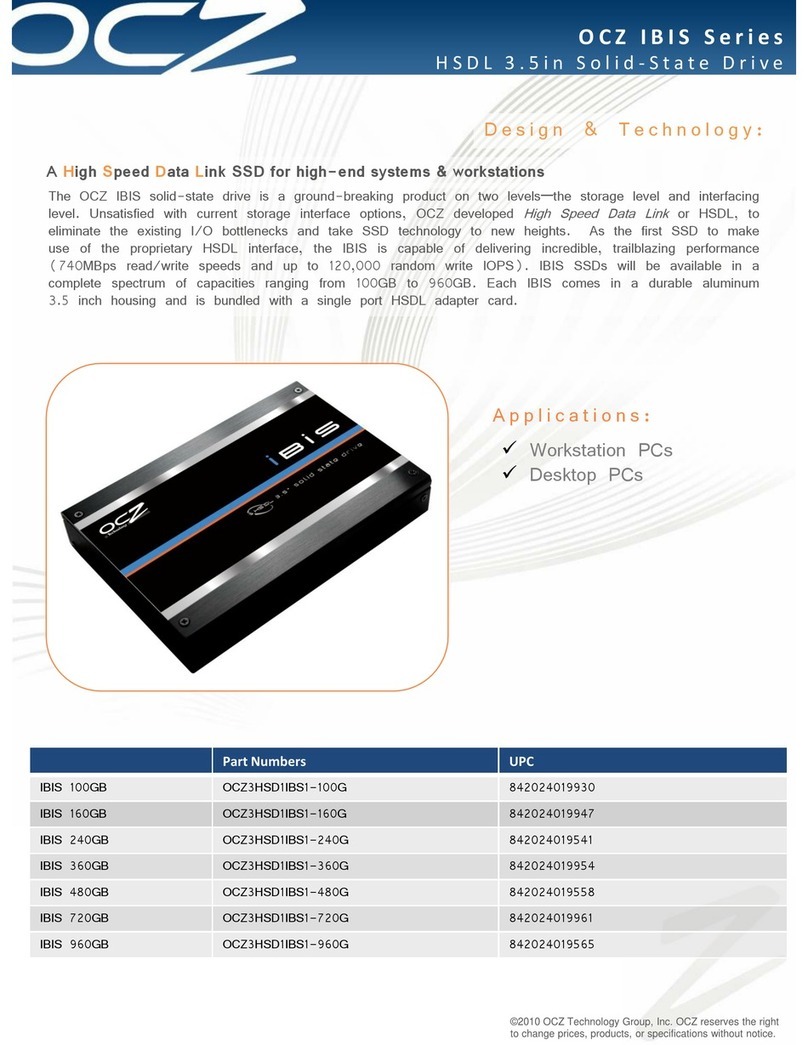
OCZ IBIS datasheet

OCZ

OCZ IBIS datasheet

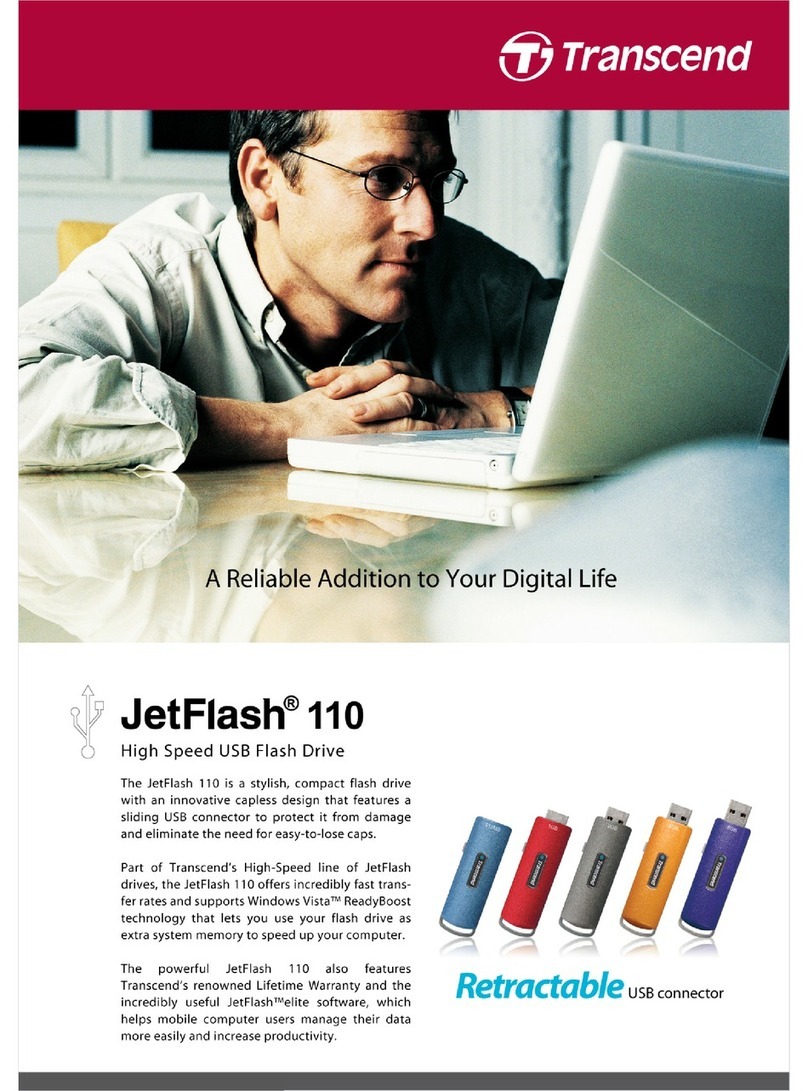
Transcend JetFlash 110 Brochure & specs

Transcend

Transcend JetFlash 110 Brochure & specs

QNAP TS 32PXU Series user guide

QNAP

QNAP TS 32PXU Series user guide

LaCie RUGGED RAID user manual

LaCie

LaCie RUGGED RAID user manual

Freecom CLS DOCK Quick install guide

Freecom

Freecom CLS DOCK Quick install guide

PNY Attache P-FD64MBATT3 install guide

PNY

PNY Attache P-FD64MBATT3 install guide

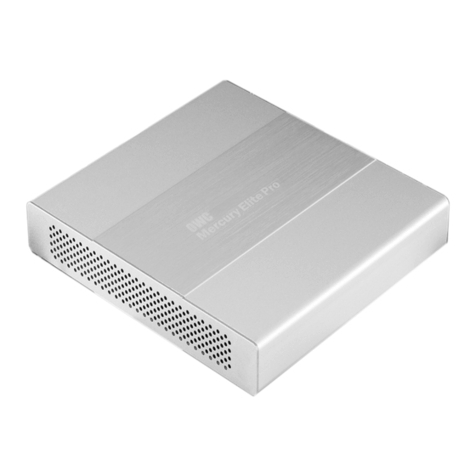
OWC Mercury Elite Pro Dual mini Assembly manual

OWC

OWC Mercury Elite Pro Dual mini Assembly manual

OLT 6x6 Maximizer Assembly manual

OLT

OLT 6x6 Maximizer Assembly manual

Transcend JetFlash 160 Specifications

Transcend

Transcend JetFlash 160 Specifications

Thunderbolt 600 user manual

Thunderbolt

Thunderbolt 600 user manual

Intel RAID High Availability user guide

Intel

Intel RAID High Availability user guide

LaCie 12big Thunderbolt 3 Quick install guide

LaCie

LaCie 12big Thunderbolt 3 Quick install guide

Spectra Logic T-Series Spectra T50e quick start guide

Spectra Logic

Spectra Logic T-Series Spectra T50e quick start guide

manuals.online logo
manuals.online logoBrands
  • About & Mission
  • Contact us
  • Privacy Policy
  • Terms and Conditions

Copyright 2025 Manuals.Online. All Rights Reserved.

User Manual
www.hyperdrive.com
1. This device complies with Part 15 of the FCC Rules.
Operation is subject to the following two conditions:
(1) This device may not cause harmful interference.
(2) This device must accept any interference received, including
interference that may cause undesirable operation.
2. Changes or modifications not expressly approved by the
party responsible for compliance could void the user's authority
to operate the equipment.
NOTE: This equipment has been tested and found to comply
with the limits for a Class B digital device, pursuant to Part 15 of
the FCC Rules. These limits are designed to provide
reasonable protection against harmful interference in a
residential installation.
This equipment generates, uses and can radiate radio
frequency energy and, if not installed and used in accordance
with these instructions, may cause harmful interference to radio
communications. However, there is no guarantee that
interference will not occur in a particular installation. If this
equipment does cause harmful interference to radio or
television reception, which can be determined by turning the
equipment off and on, the user is encouraged to try to correct
the interference by one or more of the following measures:
Reorientate or relocate the receiving antenna.
Increase the separation between the equipment and
receiver.
Connect the equipment into an outlet on a circuit different
from that to which the receiver is connected.
Consult the dealer or an experienced radio/TV technician
for help.
RF warning statement:
The device has been evaluated to meet general RF exposure
requirement. The device can be used in portable exposure
condition without restriction.
FCC STATEMENT
Sanho warrants to the end user, that this product, excluding content
and/or software supplied with or on the product, will be free from
material defects in manufacture, will conform to Sanho's published
product specifications, and will be fit for normal use during the Warranty
Period specified below commencing on the date of purchase, provided
that the product is legally placed on the market.
To make a warranty claim please contact Sanho at the telephone
number below or e-mail [email protected] within the Warranty
Period and provide proof of purchase (showing date and place of
purchase and name of the reseller) and product name, type and
number. You may return the product after first obtaining a Return
Material Authorization number and following any other guidelines listed.
For further information see www.hypershop.com. Sanho may at its
option repair this product or provide you with an equivalent product; and
if unable to repair or replace the product, will refund the purchase price.
Sanho will not be liable for indirect or consequential damage (including
loss of data), or for damage caused by improper use (including use in
an incompatible device and use not in accordance with the instructions),
or by improper installation, unprofessional repair, modification or
accident. This constitutes Sanho's entire liability which will never
exceed the price you paid for it, plus the necessary costs you made for
the warranty claim. Sanho products must not be used in applications
where failure could threaten injury or life, such as life support systems.
National, state and local laws may grant you other rights that are not
affected by this warranty.
Warranty Period: 1 Year
Sanho Corporation
47456 Fremont Blvd.
Fremont, CA 94538, U.S.A.
Tel: +1-408-737-7878
Additional terms and conditions can be found at www.hypershop.com
Usage of this product constitutes acceptance of these terms and
conditions.
Sanho Manufacturer's Limited Warranty

Content
What's In The Box
Using iUSBport As USB Charger
Using iUSBport As Wireless Storage
Accessing iUSBportHD Storage
Before Unplugging USB Mass Storage Device
Normal Shutdown
Changing SSID & Password
Connecting iUSBport to an Existing WiFi Network
View Hard Drive S.M.A.R.T. Info
Options of iUSBportHD
Accessing iUSBportHD in Mac OS
Accessing iUSBportHD in Windows
Standard Network Service List
Copy
Specification
Battery Charging
USB Connection to PC
ing Memory Card to iUSBportHD
Upgrading the Firmware
What's In The Box
USB 2.0
Host Port
Power Button
WiFi
Indicator
Battery Indicator
LCD
Micro USB
Charging Port
Main Unit
This User Manual
Micro USB Charging Cable
SDXC Slot
HDD
Indicator
Micro USB 3.0
Device Port
USB 3.0 Cable
(This accessory is not included in the product package.)
Battery Charging
The product package does not include a USB charger. We
recommend that you use a tablet (e.g. iPad) USB charger
(5V/2.1A) to charge the battery.
The battery indicator will light up orange during charging. When
the battery is fully charged, the battery indicator will turn green.
(~6hrs to full charge from empty)
Battery
Indicator
USB Charger
USB Connection to PC
Turn off iUSBportHD before connecting it to a computer via
USB.
We recommend using the USB cable
provided with iUSBportHD.
Tip
The computer would not detect the iUSBportHD if it is
turned on.
U ModSB e
Using iUSBport As USB Charger
Connect device to USB port
Press & hold power button
for 3 seconds
iUSBport is able to function as a USB charger for a wide range
of mobile devices.It outputs 5V,1A from its USB port, allowing it
to charge one USB device like smartphone.
When done press power button again to turn off iUSBport
USB charging indicator is
flashing
Using iUSBport As Wireless Storage
Connect device to USB port
Insert the SDXC card
Press power button and release it when the LCD lights up.
Wait for 30 seconds until WiFi indicator is flashing.
LCD displays all system information.
iUSBHD_xxx
<Password>
199.0.0.1
Battery Icon
HDD Icon
HDD Suspended
HDD Working
USB Storage IconSD Card Icon
SSID
Password (AP)
AP Name (Client)
Extra Information
Go to "Settings" in your WiFi device (e.g. iPad, iPhone)
Select from the list of WiFi networks.
iUSBHD_xxxx
iUSBHD_xxxx