manuals.online logo
Brands
  1. Home
  2. •
  3. Brands
  4. •
  5. Sima
  6. •
  7. Media Converter
  8. •
  9. Sima CT-Q1 User manual

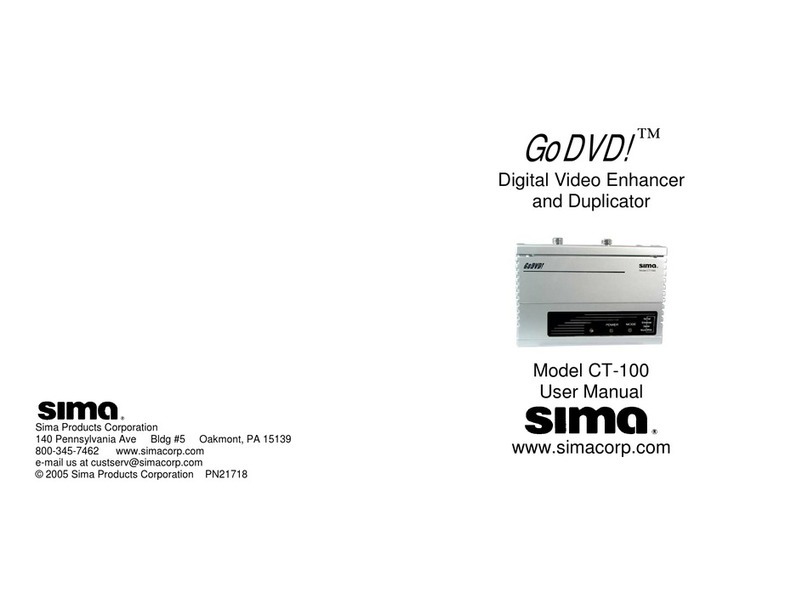
Sima CT-Q1 User manual

Other Sima Media Converter manuals

Sima SCW-2 User manual

Sima

Sima SCW-2 User manual

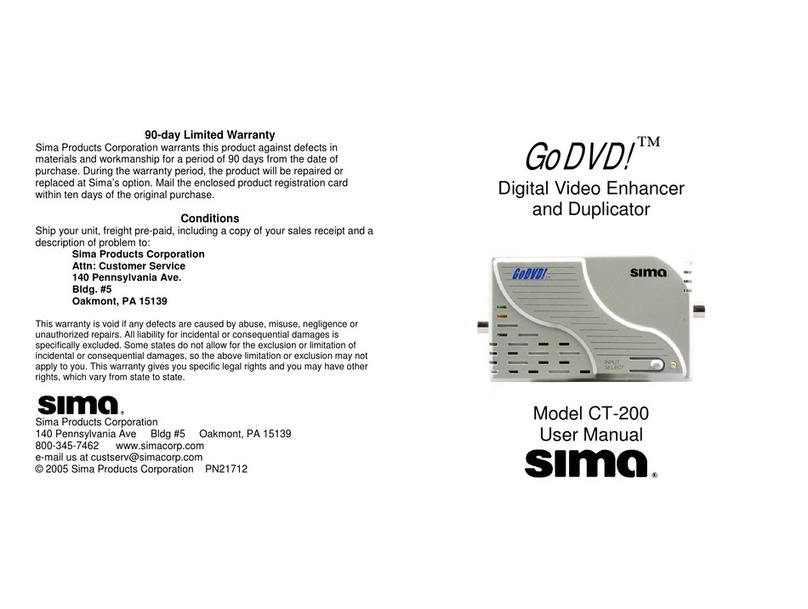
Sima GoDVD! CT-200 User manual

Sima

Sima GoDVD! CT-200 User manual

Sima CT-200 Instruction Manual

Sima

Sima CT-200 Instruction Manual

Sima GoDVD! CT-200 User manual

Sima

Sima GoDVD! CT-200 User manual

Sima GoDVD! CT-100 User manual

Sima

Sima GoDVD! CT-100 User manual

Sima SVC-2 User manual

Sima

Sima SVC-2 User manual

Sima CopyThis! CT-1 User manual

Sima

Sima CopyThis! CT-1 User manual

Sima PAL-83 User manual

Sima

Sima PAL-83 User manual

Sima SED-2 User manual

Sima

Sima SED-2 User manual

Sima SED-VA User manual

Sima

Sima SED-VA User manual

Sima GoDVD! CT-2 User manual

Sima

Sima GoDVD! CT-2 User manual

Sima Copythis CT-1 Instruction Manual

Sima

Sima Copythis CT-1 Instruction Manual

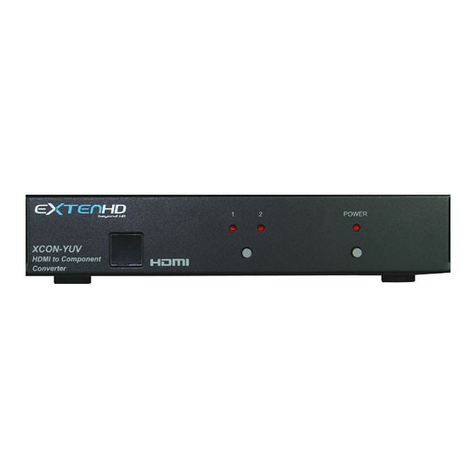
Sima eXtenHD XCON-YUV User manual

Sima

Sima eXtenHD XCON-YUV User manual

Sima CT-2 Instruction Manual

Sima

Sima CT-2 Instruction Manual

Sima SED-CM User manual

Sima

Sima SED-CM User manual

Popular Media Converter manuals by other brands

TR-Electronic CMS582M-4096/4096 IOL DMS 14H7 KRF Assembly instructions

TR-Electronic

TR-Electronic CMS582M-4096/4096 IOL DMS 14H7 KRF Assembly instructions

Korenix JetCon 2301S user manual

Korenix

Korenix JetCon 2301S user manual

StarTech.com ET91000LCOAM manual

StarTech.com

StarTech.com ET91000LCOAM manual

Alesis AI-3 Reference manual

Alesis

Alesis AI-3 Reference manual

Caton Vpro 5100 user guide

Caton

Caton Vpro 5100 user guide

Cypress CSC-5500 Operation manual

Cypress

Cypress CSC-5500 Operation manual

H&B TX-100 Installation and instruction manual

H&B

H&B TX-100 Installation and instruction manual

Bolin Technology D Series user manual

Bolin Technology

Bolin Technology D Series user manual

IFM Electronic Efector 400 RN30 Series Device manual

IFM Electronic

IFM Electronic Efector 400 RN30 Series Device manual

GRASS VALLEY KUDOSPRO ULC2000 user manual

GRASS VALLEY

GRASS VALLEY KUDOSPRO ULC2000 user manual

Linear Technology DC1523A Demo Manual

Linear Technology

Linear Technology DC1523A Demo Manual

Lika ROTAPULS I28 Series quick start guide

Lika

Lika ROTAPULS I28 Series quick start guide

Weidmuller IE-MC-VL Series Hardware installation guide

Weidmuller

Weidmuller IE-MC-VL Series Hardware installation guide

Optical Systems Design OSD2139 Series Operator's manual

Optical Systems Design

Optical Systems Design OSD2139 Series Operator's manual

Tema Telecomunicazioni AD615/S product manual

Tema Telecomunicazioni

Tema Telecomunicazioni AD615/S product manual

KTI Networks KGC-352 Series installation guide

KTI Networks

KTI Networks KGC-352 Series installation guide

Gira 0588 Series operating instructions

Gira

Gira 0588 Series operating instructions

Lika SFA-5000-FD user guide

Lika

Lika SFA-5000-FD user guide

manuals.online logo
manuals.online logoBrands
  • About & Mission
  • Contact us
  • Privacy Policy
  • Terms and Conditions

Copyright 2025 Manuals.Online. All Rights Reserved.

Sima Products Corporation
140 Pennsylvania Ave Bldg #5 Oakmont, PA 15139
800-345-7462 www.simacorp.com
e-mail us at custserv@simacorp.com
© 2005 Sima Products Corporation PN21719
Video Enhancer
and Duplicator
Model CT-Q1
User Manual
Notice: Use of this product for unauthorized duplication of
copyrighted material from DVD, VHS or other media is
strictly prohibited under the federal Copyright laws unless
the copy qualifies as a fair use under the Copyright laws.
FCC Information
This equipment generates and uses radio frequency energy and if not
installed and used properly, that is, in strict acceptance with the
manufacturer’s instructions, may cause interference to radio and television
reception. It has been type tested and found to comply with the limits for a
Class B computing device in accordance with the specifications in Subpart J
of Part 15 of FCC Rules, which are designed to provide reasonable
protection against such interference in a residential installation. However,
there is no guarantee that interference will not occur in a particular
installation. If this equipment does cause interference to radio and television
reception, which can be determined by turning the equipment off and on,
the user is encouraged to try to correct the interference by one or more of
the following measures:
* Re-orient the receiving antenna
* Relocate this equipment with respect to the receiver
* Move this equipment away from the receiver.
* Plug this equipment into a different outlet so that this equipment and
receiver are on different branch circuits.
If necessary, the user should consult the dealer or an experienced
radio/television technician for additional suggestions. The user may find
“How to Identify and resolve Radio/Television Interference Problems”
prepared by the FCC helpful. The booklet is available from the U.S.
Government Printing Office, Washington, DC 20402, Stock No. 004-000-
00345-4
90-day Limited Warranty
Sima Products Corporation warrants this product against
defects in materials and workmanship for a period of 90
days from the date of purchase. During the warranty
period, the product will be repaired or replaced at Sima’s
option. Mail the enclosed product registration card within
ten days of the original purchase.
Conditions
Ship your unit, freight pre-paid, including a copy of your
sales receipt and a description of problem to:
Sima Products Corporation
Attn: Customer Service
140 Pennsylvania Ave.
Bldg. #5
Oakmont, PA 15139
This warranty is void if any defects are caused by abuse,
misuse, negligence or unauthorized repairs. All liability for
incidental or consequential damages is specifically excluded.
Some states do not allow for the exclusion or limitation of
incidental or consequential damages, so the above limitation
or exclusion may not apply to you. This warranty gives you
specific legal rights and you may have other rights, which vary
from state to state.

Troubleshooting
Device does not
operate
No picture
Picture rolling
Possible Solutions
• Press Input select switch to toggle between composite
and s-video inputs.
• Has correct mode (AV, Line, Tuner, etc.) been set on the
VCR or DVD
• Correct connecting cable?
• Have the RCA cables been mixed up at the input and
output of the playback and record devices ?
• Is the Power light on? If not, there is no power.
• Is the connecting cable of the plug-in adapter
damaged?
• TV does not support 50/60 Hz scan rates.
Specifications
Input Connectors
Composite Video (RCA jack) x 1 / S-video (mini-din) x 1
Note: input selection switch toggles between composite and s-video input source.
Output Connectors
Composite Video (RCA jack) x 1 / S-video (mini-din) x 1
Power: DC 7.5V 500mA
Dimensions: 4.5”(W) x 2.5”(L) x .75”(H)
This package includes: (1) Model CT-Q1, (1) RCA style Video Cable (1)
7.5V, 500 mA AC adapter and This Instruction Manual
Congratulations on your purchase of Sima Video Enhancer- Model CT-Q1.
S-Video Connection
The CT-Q1 should be connected between your playback VCR or camcorder
and the recording VCR or DVD as shown below. Note: Regardless of which
input is used, both outputs continuously deliver an output signal. Only the
video cables are to be connected to CT-Q1. Audio cables should be connected
directly between the playback and recording units. With Hi-8 or S-VHS capability,
connect your S-video cables to CT-Q1.
Playback
Camcorder, VCR
Composite Connection
Operation
1. Connect the Ct-Q1 unit as shown on page 3.
2. Select the appropriate input by pressing the Input select switch. Green
indicator light signifies Composite signal. Orange indicator light signifies
S-video input signal.
3. Select the desired video enhancement mode by pressing the Video
Enhancement button. The button cycles between six enhancement modes
as follows:
Pressing the button six times begins the cycle again.
4. The LED indicator light shows which Input format and Enhancement
mode are selected. For example, a steady green light means you have
selected a composite input signal and will output in the Normal video
mode. An orange blinking light indicates an S-video input signal with one
of three enhancement modes. Use the steady indicator light as a fixed
point to determine the desired enhancement mode. Review the chart
below to determine the correct setting. If unsure which video
enhancement mode is selected, look at your video monitor while toggling
through the options.
5. Select A/V input on your recording VCR or DVD and press RECORD.
6. Then press PLAY on your playback device.
Playback
Camcorder, VCR