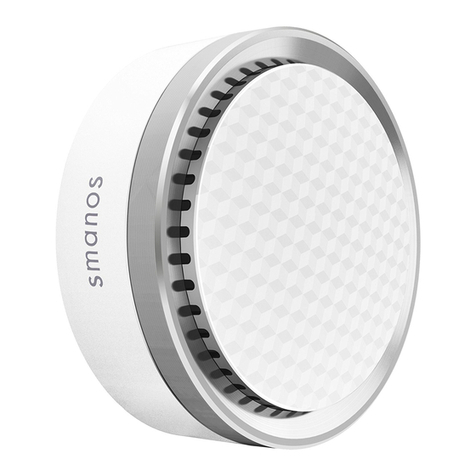
1. Install the DUT (smanos K2 Smart Hub)
1.1. Download the “smanos home” App
You can search “smanos home” inApp Store or scan the QR codes as below.
1.2. Sign Up/In
If you have not registered an account with smanos, please press “Sign up” just below
the “Sign in” icon on the app, and follow the instructions to create your account first.
If you do not receive an account verification code in your email inbox during the
registration process, please remember to check your spam/junk folder and make sure
the notice has not been blocked by your service provider.
Once you have an account with us, please select the “Sign in” icon and enter your
email address and password to log in.
Press the “+” button on the Device List. Tap on [K2 Smart Hub], then follow the
configuration steps to set up your K2 Hub with your home Wi-Fi.
1.3. Setup the K2 Smart Hub
1. Plug the power adapter into a wall socket and into the K2 Hub, slide the Power
Switch from OFF to ON, wait until the white light flashes blue.
2. Connect the K2 to Your Smartphone
Use the Pin to press the Wi-Fi Configuration Button 3 seconds, the light flash red and
blue alternately.
3. Go to your phone’s Wi-Fi settings, look for and select "smanos K2" hotspot to
connect your mobile to the Hub. When connected, return to your “smanos home” app.
4. Enter Wi-Fi Details for Your K2 Smart Hub Select your 2.4GHz Wi-Fi network
from the display list, and enter the Wi-Fi network password. The Hub will connect to
the selected Wi-Fi network. This binding process should take about one minute.
5. When a successful connection is established, the indicator will stop blinking. Now,
your smanos K2 Hub is successfully set, enjoy a smart and secure life!
2. Certification Product Documentation
D.2 Controllers - Inclusion / Exclusion
I. Inclusion:
1. Click [ ] icon on the up-right corner and select [ ] icon to enter the interface