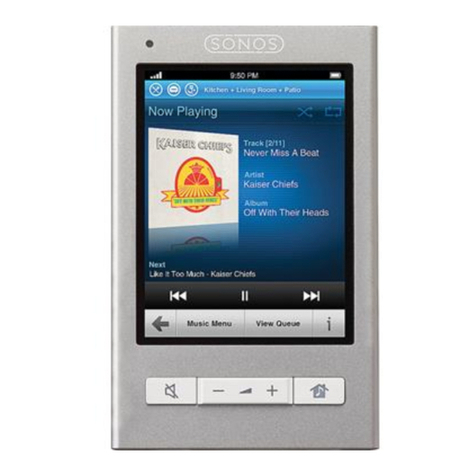
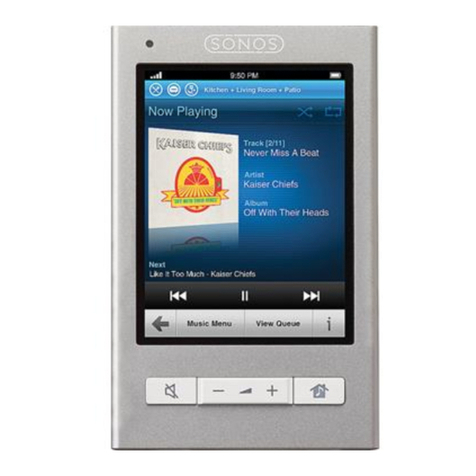
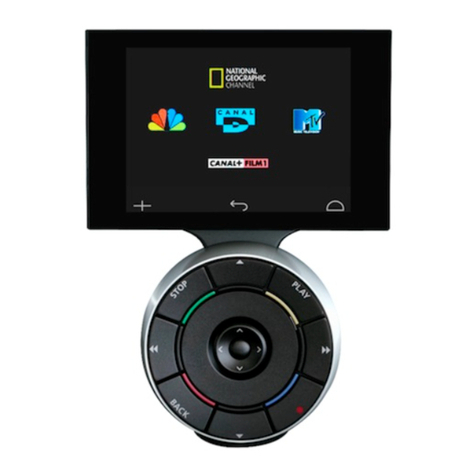
Sonos CONTROL User manual

Sonos®CONTROL
Product Guide

THIS DOCUMENT CONTAINS INFORMATION THAT IS SUBJECT TO CHANGE WITHOUT NOTICE.
No part of this publication may be reproduced or transmitted in any form or by any means, electronic or mechanical, including but not limited to
photocopying, recording, information retrieval systems, or computer network without the written permission of Sonos, Inc.
Sonos and all other Sonos product names and slogans are trademarks or registered trademarks of Sonos, Inc. Sonos Reg. U.S. Pat. & Tm. Off.
Sonos products may be protected by one or more patents. Our patent-to-product information can be found here:
sonos.com/legal/patents
iPhone®, iPod®, iPad® and iTunes® are trademarks of Apple Inc., registered in the U.S. and other countries.
Windows® is a registered trademark of Microsoft Corporation in the United States and other countries.
MPEG Layer-3 audio decoding technology licensed from Fraunhofer IIS and Thomson.
Sonos uses MSNTP software, which was developed by N.M. Maclaren at the University of Cambridge.
© Copyright, N.M. Maclaren, 1996, 1997, 2000; © Copyright, University of Cambridge, 1996, 1997, 2000.
All other products and services mentioned may be trademarks or service marks of their respective owners.
November 2014
©2004-2014 by Sonos, Inc. All rights reserved.

Sonos CONTROL
You can use your CONTROL to enjoy the music you love all around your home.—simply pick a room, pick a song, and tap Play
Now.
Already have Sonos?
If you are adding a SONOS CONTROL to an existing Sonos system, see "Adding a Sonos CONTROL" on page 1.
Note: The SONOS CONTROL requires that you have one or more Sonos players and a wireless
router set up in your home. Sonos components are sold separately.
New to Sonos?
It takes just a few steps to get your Sonos system up and running. Unpack the Sonos components you purchased and refer to
the Quickstart Guide included in the box. Set up at least one Sonos component before adding the SONOS CONTROL to your
music system.
Getting Started
Adding a Sonos CONTROL
If you are setting up a new Sonos system, Sonos recommends you set up at least one Sonos component before adding the
Sonos CONTROL to your music system.
Note: The Sonos CONTROL is compatible with Sonos software version 3.0 or later. If you are
adding to an existing Sonos system, use a different controller to check for software updates.
Once you update your Sonos system, you can add the Sonos CONTROL.

Product Guide
2
Once you’ve got one or more rooms set up, connect the power adapter to the back of the charging cradle (included) and plug
the cradle into a power outlet. Place the Sonos CONTROL into the charging cradle to wake it up (the screen will come alive
when it’s ready), and then follow the CONTROL’s on-screen instructions to add it to your Sonos system.

SONOS CONTROL 3
Tour the Sonos CONTROL
Navigation
Rooms Touch to select a room to play music in, to view the music
selections playing in each room, or to create or modify room groups
in order to share the same music across rooms.
You can also use this button to lock the Sonos CONTROL so that
nothing happens when you touch the screen (such as when cleaning
the screen, or carrying the CONTROL in your pocket.)
To lock the Sonos CONTROL, touch and hold for two (2)
seconds. To unlock, simply touch and hold the button again.
Music menu Touch to browse or select music, access playlists, and change the
default settings for a Sonos component.

Product Guide
4
Playback Controls
Play / Pause Toggles between playing and pausing the current track.
Next / Fast Forward Jumps to the start of the next track in the music queue.
Touching and holding this control displays the track position slider
while you move forward through the current track.
Previous / Rewind If you are more than 3 seconds into the track, this control returns to
the start of the current track; if you are less than 3 seconds into the
track, this control jumps to the start of the previous track.
Touching and holding this control displays the track position slider
while you skip backward through the current track.
Sensors and Indicators
Light sensor The light sensor automatically turns on the button backlights based
upon the brightness of the environment.
Wireless signal strength
indicator
Indicates the current strength of the CONTROL’s wireless signal.
Battery charge indicator Indicates the CONTROL’s remaining battery charge.
View Queue Touch to view the tracks in the current queue.
Back Touch to return to the previous screen.
Info & Options Touch on the Now Playing screen to view additional choices or
view more information for a music selection.

SONOS CONTROL 5
Volume
Volume Control Use the volume control buttons to increase (+) or decrease (-) the
volume in any room, or across a room group.
Mute Temporarily silences the music in a room. Touch again to unmute.
To mute all rooms, touch and hold for 3 seconds. Touch and hold for
3 seconds to unmute all rooms.
Settings
Lock
You can lock the Sonos CONTROL so that nothing happens when you touch the LCD touch screen or buttons.
Choose one of the following options:
• From the Settings menu, select Controller Settings -> Lock Controller.
Or,
• Touch and hold for two (2) seconds.
When ready to unlock, simply touch and hold for two (2) seconds.
Sounds
The Sonos CONTROL makes a clicking sound when you touch a selection. You can choose to turn all sounds on, turn all
sounds off, or enable keyboard sounds only.
From the Settings menu, select Controller Settings -> Controller Sounds.
Light Sleep
The Sonos CONTROL will go into light sleep (the screen will turn off) to preserve the battery life when it is unused for a
specified period of time. When motion is detected or a button is pressed, the Sonos CONTROL awakens immediately.
From the Settings menu, select Controller Settings -> Sleep Timer Undocked/Docked.
•Sleep Timer Docked (when CONTROL is seated in charging cradle)
•Sleep Timer Undocked (when CONTROL is not seated in charging cradle or attached to power)
Screen Brightness
1. From the Settings menu, select Controller Settings -> Screen Brightness.
2. Drag your finger across the slider to adjust the brightness of the controller screen.
Button Brightness
1. From the Settings menu, select Controller Settings -> Button Brightness.
2. Drag your finger across the slider to adjust the brightness of the buttons on your controller.

Product Guide
6
The button brightness is controlled by the light sensor, so the button brightness will vary depending upon your
environment (such as whether it’s night or day, or whether your are inside or outside your home.)
Motion sensor
The Sonos CONTROL has a motion sensor to automatically wake it up when motion is detected. Select this setting if you wish
to disable the motion sensor.
From the Settings menu, select Controller Settings -> Advanced Settings -> Motion Sensor.
Language
Use this setting to change the language setting for your Sonos CONTROL.
From the Settings menu, select Controller Settings -> Advanced Settings -> Language.
Turning Off the Controller
1. Touch Controller Settings from the Settings menu.
2. Touch Advanced Settings -> Turn Off Controller.
To turn it back on, simply place the controller into the charging cradle. Use this setting to put your Sonos CONTROL into deep
sleep anytime it will not be in use for an extended period of time, or when you are transporting the controller to another
destination. (The Sonos CONTROL cannot be turned off while it is seated in the charging cradle.)
Recharging
The Sonos CONTROL can be recharged by placing it in the Sonos Charging Cradle. The Battery Charge Indicator on your
controller displays the current battery charge level. To extend the battery life, it’s best not to let the Lithium Ion battery
discharge completely before recharging. Keep the controller seated in the charging cradle when not in use, as this type of
battery does not suffer from memory effect and can be charged anytime.
If the battery charge begins to run low, a message will appear on your controller screen indicating that it’s time to recharge.
Simply place it in the cradle to recharge.
If you should miss this message and the CONTROL’s battery discharges completely, simply place the controller into the
charging cradle. The CONTROL’s light sensor will turn orange, indicating that a reset is in process. It will take a few
minutes for the controller screen to wake up.
Battery Replacement
After several years (depending upon usage), the battery on your CONTROL may not hold a charge as long as it once did. You
can purchase a replacement battery (visit our Web site at www.sonos.com for more information), and then follow the
instructions below to replace the battery.
Caution: Risk of explosion if battery is replaced by incorrect type. Dispose of used batteries
according to the instructions. (Check with your local waste or recycling company to determine
the proper disposal method in your area.)

SONOS CONTROL 7
1. Remove the battery door on the back of your CONTROL.
Slide the battery door
back, and then lift it off
2. Remove the existing battery by gently pulling the gray battery tab toward you to dislodge the battery, and then lift up to
remove.
3. Remove the protective wrap from the new battery.
4. Insert the battery into the battery compartment with the Sonos logo facing out, making sure the battery snaps gently
into place.
5. Close the battery door.
6. Place the Sonos CONTROL into the charging cradle to wake it up.
Managing Rooms
Sonos lets you enjoy music in up to 32 rooms, inside or out. You can play a different song in every room or play the same
song in every room. Group the kitchen and patio together when you’re barbecuing; group the rooms throughout your home in
perfect synchronization for a party; or leave all your rooms ungrouped so that everyone can make a different music choice.
You can also create a stereo pair with two PLAY:1®s, PLAY:3™s, or PLAY:5®s in the same room to enhance your listening
experience.
Grouping Rooms
Any number of rooms can be grouped together to play the same audio in synchrony.
• You can group or ungroup rooms while music is playing.
• You can group all the Sonos players in your house with one touch by choosing Select All.
• You can group rooms first and then select the music you want to play, or you can add room(s) to a location where music
is already playing. Any rooms you group will automatically drop their current music queue and begin to play the music
from the selected room.
• If you want to be able to play a music queue later, save the queue as a Sonos playlist before you group the rooms. See
"Sonos Playlists" on page 23 for more information.

Product Guide
8
1. Press .
2. Touch Group to the right of the room you want to group with other rooms.
3. Check the rooms you want to add to this group, and then touch Done.
If you want to group all the rooms in your house, touch Select All from the Group Rooms screen. All of your Sonos
components will play the same music in synchrony until you remove rooms from the group.
Ungrouping Rooms
1. Press .
2. Touch Group to the right of the room group you want to change.
3. Uncheck the room(s) you want to remove from the group, and then touch Done.
Renaming a Room
If you name a Sonos product incorrectly, or if you move it to another room, you can rename it to suit your preference.
1. From the Settings menu, touch Room Settings. If you wish to change the name of a BRIDGE, touch BRIDGE Settings
instead.
2. Touch to select the room you wish to change.
3. Touch Room Name.
4. Choose one of the following options:
• Drag your finger to scroll the room list, and touch to select the one you want.
• Or, touch Enter New to type a unique name. Use the keyboard to enter the name, and then touch OK.
Other manuals for CONTROL
2
Table of contents
Other Sonos Remote Control manuals