manuals.online logo
Brands
  1. Home
  2. •
  3. Brands
  4. •
  5. Ssl
  6. •
  7. Car Receiver
  8. •
  9. Ssl SD10.1B User manual

Ssl SD10.1B User manual

Other Ssl Car Receiver manuals

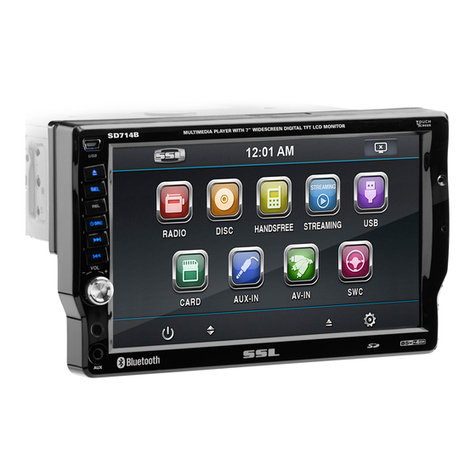
Ssl SD714B User manual

Ssl

Ssl SD714B User manual

Ssl SD990TS User manual

Ssl

Ssl SD990TS User manual

Ssl SD511MB User manual

Ssl

Ssl SD511MB User manual

Ssl SD160UA User manual

Ssl

Ssl SD160UA User manual

Ssl SDC24USA User manual

Ssl

Ssl SDC24USA User manual

Ssl SD720MI User manual

Ssl

Ssl SD720MI User manual

Ssl SD735 User manual

Ssl

Ssl SD735 User manual

Ssl SD325B User manual

Ssl

Ssl SD325B User manual

Ssl DDC28B User manual

Ssl

Ssl DDC28B User manual

Ssl DD890I User manual

Ssl

Ssl DD890I User manual

Ssl DDML28B User manual

Ssl

Ssl DDML28B User manual

Ssl SD545M User manual

Ssl

Ssl SD545M User manual

Ssl DD661B User manual

Ssl

Ssl DD661B User manual

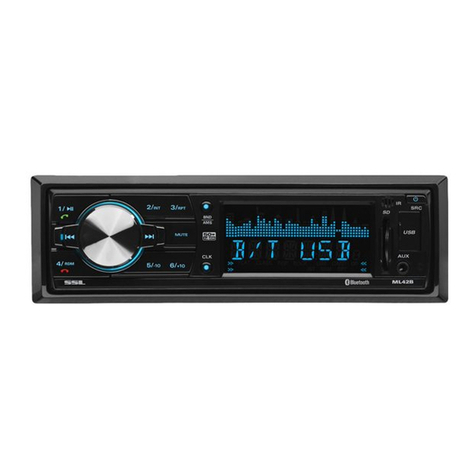
Ssl ML42B User manual

Ssl

Ssl ML42B User manual

Ssl SD875TSB User manual

Ssl

Ssl SD875TSB User manual

Ssl DDML28B User manual

Ssl

Ssl DDML28B User manual

Ssl SD730M User manual

Ssl

Ssl SD730M User manual

Ssl S559C User manual

Ssl

Ssl S559C User manual

Ssl DD662B User manual

Ssl

Ssl DD662B User manual

Ssl SD705M User manual

Ssl

Ssl SD705M User manual

Ssl ML43B User manual

Ssl

Ssl ML43B User manual

Ssl SD810TS User manual

Ssl

Ssl SD810TS User manual

Ssl SD802 User manual

Ssl

Ssl SD802 User manual

Ssl SD743TST User manual

Ssl

Ssl SD743TST User manual

Popular Car Receiver manuals by other brands

Panasonic CQ-C3301N null

Panasonic

Panasonic CQ-C3301N null

Alpine CDE-133BT null

Alpine

Alpine CDE-133BT null

JVC CD Receiver KW-XG701 null

JVC

JVC CD Receiver KW-XG701 null

JVC KD-LH7R null

JVC

JVC KD-LH7R null

Panasonic CQ-C8803N null

Panasonic

Panasonic CQ-C8803N null

Panasonic CQ-C5302W null

Panasonic

Panasonic CQ-C5302W null

Panasonic CQ-C5355N null

Panasonic

Panasonic CQ-C5355N null

Panasonic CQ-C7703W null

Panasonic

Panasonic CQ-C7703W null

Panasonic CQ-C7703N null

Panasonic

Panasonic CQ-C7703N null

JVC KD-G407 null

JVC

JVC KD-G407 null

Clarion ADB365MP null

Clarion

Clarion ADB365MP null

Motorola VWA63 Service manual

Motorola

Motorola VWA63 Service manual

Nextar D3201 instruction manual

Nextar

Nextar D3201 instruction manual

Alpine CDE-163BT owner's manual

Alpine

Alpine CDE-163BT owner's manual

Pioneer DEH-P645R installation manual

Pioneer

Pioneer DEH-P645R installation manual

Axxera XDMA7600 Installation & owner's manual

Axxera

Axxera XDMA7600 Installation & owner's manual

XM OnyX quick start guide

XM

XM OnyX quick start guide

Sound Storm STM93R user manual

Sound Storm

Sound Storm STM93R user manual

manuals.online logo
manuals.online logoBrands
  • About & Mission
  • Contact us
  • Privacy Policy
  • Terms and Conditions

Copyright 2025 Manuals.Online. All Rights Reserved.

-1-
Content
Content..............................................................................................
Installation steps...............................................................................
General knowledge about remote control...........................................
Locations and Names of controls on main unit...................................
Locations and Names of controls on remote control..........................
Same functions in any work source...................................................
Radio operation................................................................................
BT Operation....................................................................................
Disc/USB/card operation...................................................................
1. Loading or unloading a disc, USB or card.....................................
1.1 Loading a disc, USB or card.......................................................
1.2 Unloading a disc, USB or card....................................................
2. Popping up Function Icons-board................................................
2.1 Function Icons-board of Digital Video/VCD/MPEG4/Image
/MP3/WMA.................................................................................
2.2 CD interface..............................................................................
3. Function of controls on the touch screen/main unit/remote
control........................................................................................
AUX IN operation..............................................................................
Rear View Camera.............................................................................
Troubleshooting...............................................................................
Specification....................................................................................
1
2
7
8
9
10
13
16
19
19
19
20
20
20
21
22
31
32
33
34

-2-
1. Remove the chassis from Slide Bracket Housing;
1) Press the REL button to release the control panel ;
2) Hold the right side of the control panel to pull it rightwards a little and then to
you for removing it ;
3) Remove the PLASTIC FRAME from the chassis (see the Installation diagram);
4) Insert the 2 KEY PLATES into the grooves at the both sides of the chassis till
they click(see the Installation diagram);
5) Pulling the two KEY PLATES to remove the chassis from the Slide Bracket
Housing ;
2. Mount the Sliding Bracket Housing in the position of car multi-media system and
bend some tabs of Sliding Bracket Housing to fix it.
3. Connecting all wires:
1) Connecting all wires according ot the wiring diagram on next page;
INSTALLATION STEPS
REL button
12
-3-
NOTE:
1. Must use 4 ohms impedance of speakers.
2. After connecting parking Line, video on screen of control panel
will be displayed only after
3. Before finishing wiring, do not attach control panel onto chassis.
applying parking brake.
SUBWOOFER GREY
VIDEO INPUT YELLOW
RCH RED
LCH WHITE
REAR AUDIO OUTPUT
LCH WHITE
RCH RED
VIDEO OUTPUT YELLOW
FRONT A/V OUTPUT
REAR CAMERA INPUT YELLOW
BROWN
PINK (B+)12V
REAR CAMERA SWITCH
(B-)PARKING BRAKE
GREY
GREY/BLACK
FRONT
RCH SPK.
VIOLET
VIOLET/BLACK
WHITE
WHITE/BLACK
GREEN
GREEN/BLACK
REAR
LCH SPK.
AUTO ANTENNA
BLUE
GROUND(B-)
MEMORY BACK-UP(B+)
IGNITION SWITCH(B+) RED
YELLOW
BLACK
REAR
RCH SPK.
FRONT
LCH SPK.
CHOKE
BOX
RADIO ANTENNA JACK
ISO CONNECTOR
IT’S DISABLED
Hollow
Bulge
1
2
-4-
2) Attaching the control panel onto the chassis;
(1) Insert the left side of the control panel into the hollow of the chassis .
(NOTE : the “bulge” point on the control panel must be attached into the hollow
of the chassis .)
(2) Gently push the right side of the control panel till you feel a “ Click” .
3) Testing it for making sure that it can work properly .
4. Installing chassis according to the installation diagram on next page:
1) Insert the chassis of the car multi-media system into the Sliding Bracket Housing.
2) Use the metal strap to fix the rear part of chassis.
5. Installing the monitor refer to next next page.
* Uninstalling the chassis:
1) removing the monitor refer to next next page
2) Remove the metal strap from the chassis ;
3) Remove the control panel from the chassis;
4) Remove the plastic frame from the chassis;
5) Insert 2 key plates into the left and right sides of the chassis and draw the chassis
out of the sliding bracket housing.
Installation Diagram
-5-
If you want to take CHASSIS out of the SLIDE BRACKET HOUSING, first remove
the PLASTIC TRIM OUT of the both sides away, then insert the two KEY PLATE into
left and right side of chassis as above illustration.
DASH BOARD
METAL MOUNTING
STRAP
HEX NUT
SPRING WASHER
PLAIN WASHER
TAPPING SCREW
CONSOLE
SLIDE BRACKET
HOUSING
HEX BOLT
SCREWDRIVER
TABS
KEY PLATE
KEY PLATE PLASTIC FRAME
Installing the monitor.
1) Press the OPEN/MONITOR-ANGLE button to slide the monitor holder out and
stand it up.
2) Insert the 2 bulges of the monitor into the 2 hollows of the monitor holder and
flip up the monitor, then push the top middle part of the monitor to make the
monitor attach onto the monitor holder.
Removing the monitor.
1) Push the MONITOR REL to detach the monitor from the monitor holder;
2) Hold the top part of the monitor to pull away from the monitor holder and lift it
up to remove it.
-6-
Hollow
Bulge
Hollow
Bulge
MONITOR REL
1. Removing insulating sheet
If
)
)
)
.
)
)
)
.
)
)
using remote control for the first time, you
can see an insulating sheet at the bottom
side of remote control as right.
you must remove the insulating sheet as right.
Otherwise, the remote control is disabled.
2. Replace lithium cell
If the electric energy of lithium cell is weak,
replace it.
1 Press and hold the movable block as direction
indicated by arrow 1 as right, at one time pull
cell holder out of remote control as direction
indicated by arrow 2 as right.
2 Replace the old cell by a new one with (+)
polarity side upward as right.
3 Insert the cell holder into remote control again
as right.
3 Note about using remote control
1 You should face the emitting window of remote control towards the sensor
window of the unit.
2 Operation angle for front panel: About 30 degree
3 The distance between the emitting window of remote control and the sensor
window of the unit : < 5M .
4 Warning for lithium cells of remote control
leakage may cause damage to remote control.1 Cell
2Do not throw cells into fire, it may cause explosion.
.
3.To avoid risk of accident, keep cells out of reach of children.
GENERAL KNOWLEDGE ABOUT REMOTE CONTROL
-7-
-8-
Locations and Names of Controls on Main Unit
1. AUX IN JACK
2. USB PORT and COVER
3. SEL BUTTON and VOL KNOB
4. REL BUTTON
5. IR SENSOR WINDOW
6. RESET BUTTON
7. EJECT BUTTON
8. POWER/SOURCE BUTTON
9. BAND/ BUTTON
10. MUTE BUTTON
11. >>| BUTTON
12. |<< BUTTON
13. >|| BUTTON
14. SD/MMC CARD SLOT
15. LCD SREEN
16. OPEN BUTTON
17. MICROPHONE
18. BUTTON
Control Panel
Sliding Pl ate diagram after removing Co ntrol Panel
6
14
2 3
4
7
9
1
11
10
8 5
13
16
15
17
12
18
MIC
-9-
1
2
6
10
11
3
20
21
33
9
12
17
34
23
4
5
7
8
13
14
15 16
18
19
22
24
25
26
27
28
29
30
31
32
Locations and Names of Controls on Remote Control
16. VOL- BUTTON
17. SEL BUTTON
18. SETUP BUTTON
19. GOTO or * BUTTON
20. >|| BUTTON
21. STOP BUTTON
22. AUDIO or MO/ST BUTTON
23. ZOOM or ANGLE BUTTON
24. EQ or LOUD BUTTON
25. CLK BUTTON
26. ^ BUTTON
27. >>| BUTTON
29. > BUTTON
30. V BUTTON
31. |<< BUTTON
32. INT or 3 BUTTON
33. 6 BUTTON
34. +10 or # BUTTON
35. AF or 9 BUTTON
36. TA or 0 BUTTON
37. RPT or 2 BUTTON
38. 5 BUTTON
39. 7 and 8 BUTTON
28. ENTER BUTTON
1. POWER/SOURCE BUTTON
2. MUTE BUTTON
3. or REDIAL BUTTON
4. BUTTON
5. Or PAIR BUTTON
6. MENU or SW BUTTON
7. >> BUTTON
8. SUBTITLE or LO/DX BUTTON
9. < BUTTON
BAND or OSD
<< BUTTON
12. A/PS or TITLE/PBC BUTTON
13. TOP or 1 BUTTON
14. VOL+ BUTTON
15. RDM or 4 BUTTON
10. BUTTON
11.
35
36
37
38
39