manuals.online logo
Brands
  1. Home
  2. •
  3. Brands
  4. •
  5. SwitchBee
  6. •
  7. Home Automation
  8. •
  9. SwitchBee Central Unit Service manual

SwitchBee Central Unit Service manual

This manual suits for next models

6

Popular Home Automation manuals by other brands

Elko RF KEY manual

Elko

Elko RF KEY manual

Truth Hardware Sentry II installation instructions

Truth Hardware

Truth Hardware Sentry II installation instructions

FIBARO FGWPA-111 user manual

FIBARO

FIBARO FGWPA-111 user manual

Hezborg BGR8016B product manual

Hezborg

Hezborg BGR8016B product manual

MYDLINK Pro Series Quick installation guide

MYDLINK

MYDLINK Pro Series Quick installation guide

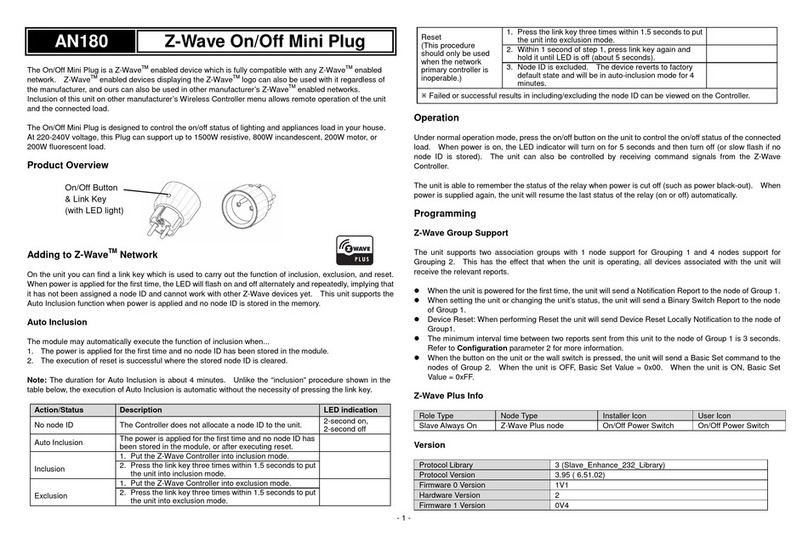
EVERSPRING AN180 manual

EVERSPRING

EVERSPRING AN180 manual

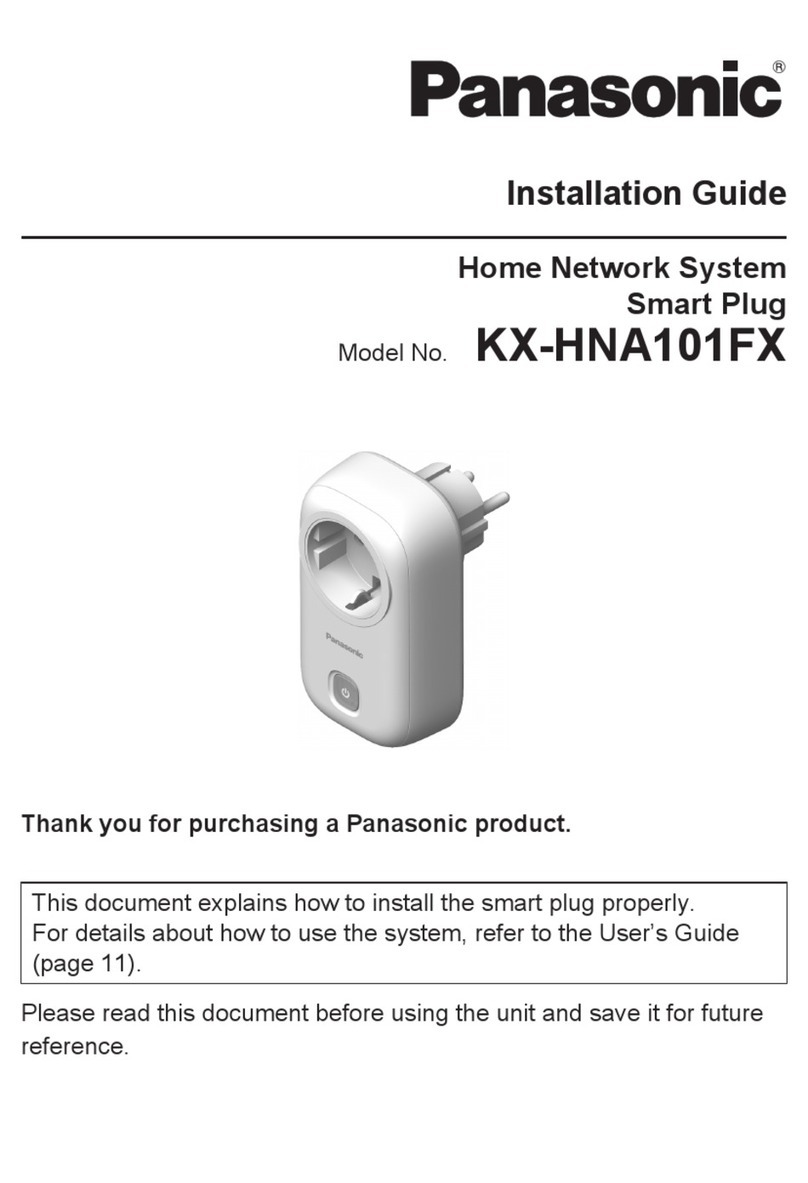
Panasonic KX-HNA101FX installation guide

Panasonic

Panasonic KX-HNA101FX installation guide

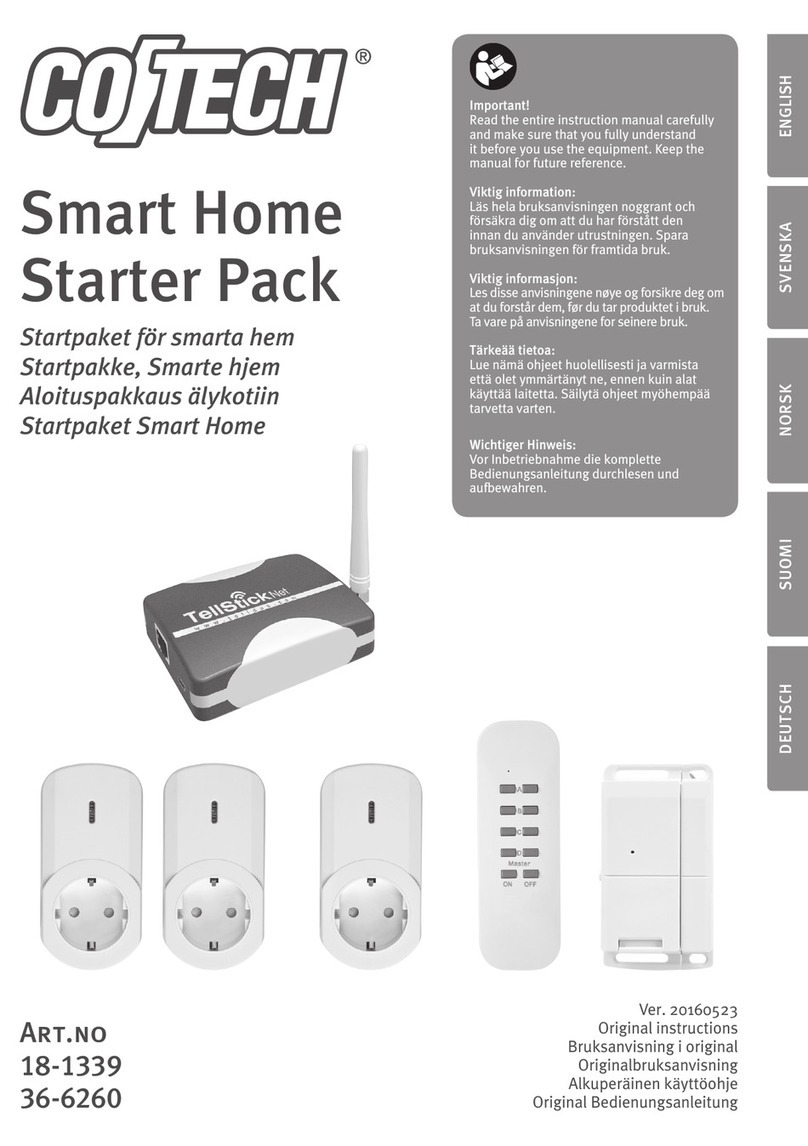
Coltech 18-1339 Original instructions

Coltech

Coltech 18-1339 Original instructions

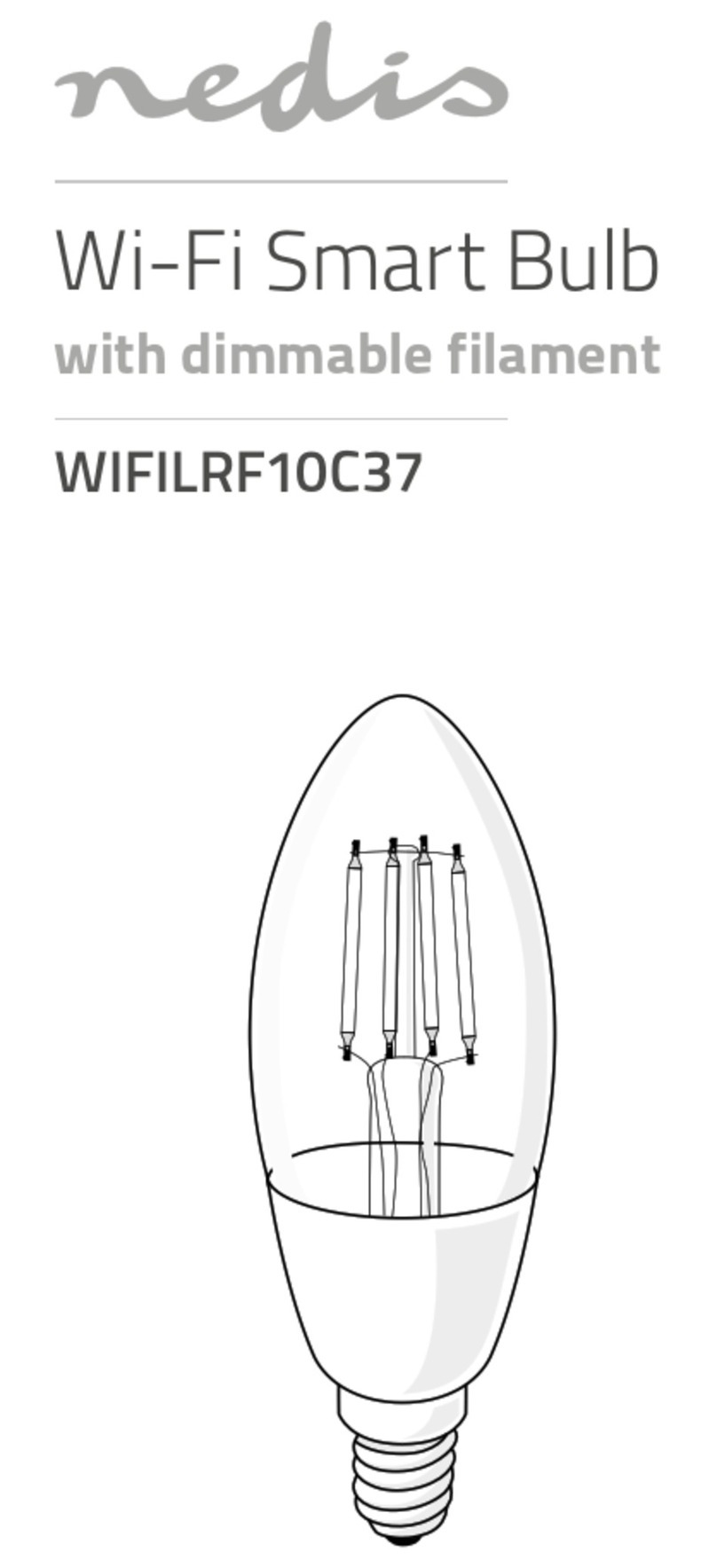
nedis WIFILRF10C37 quick start guide

nedis

nedis WIFILRF10C37 quick start guide

Veho TA45 manual

Veho

Veho TA45 manual

Nexa ZPR-111 manual

Nexa

Nexa ZPR-111 manual

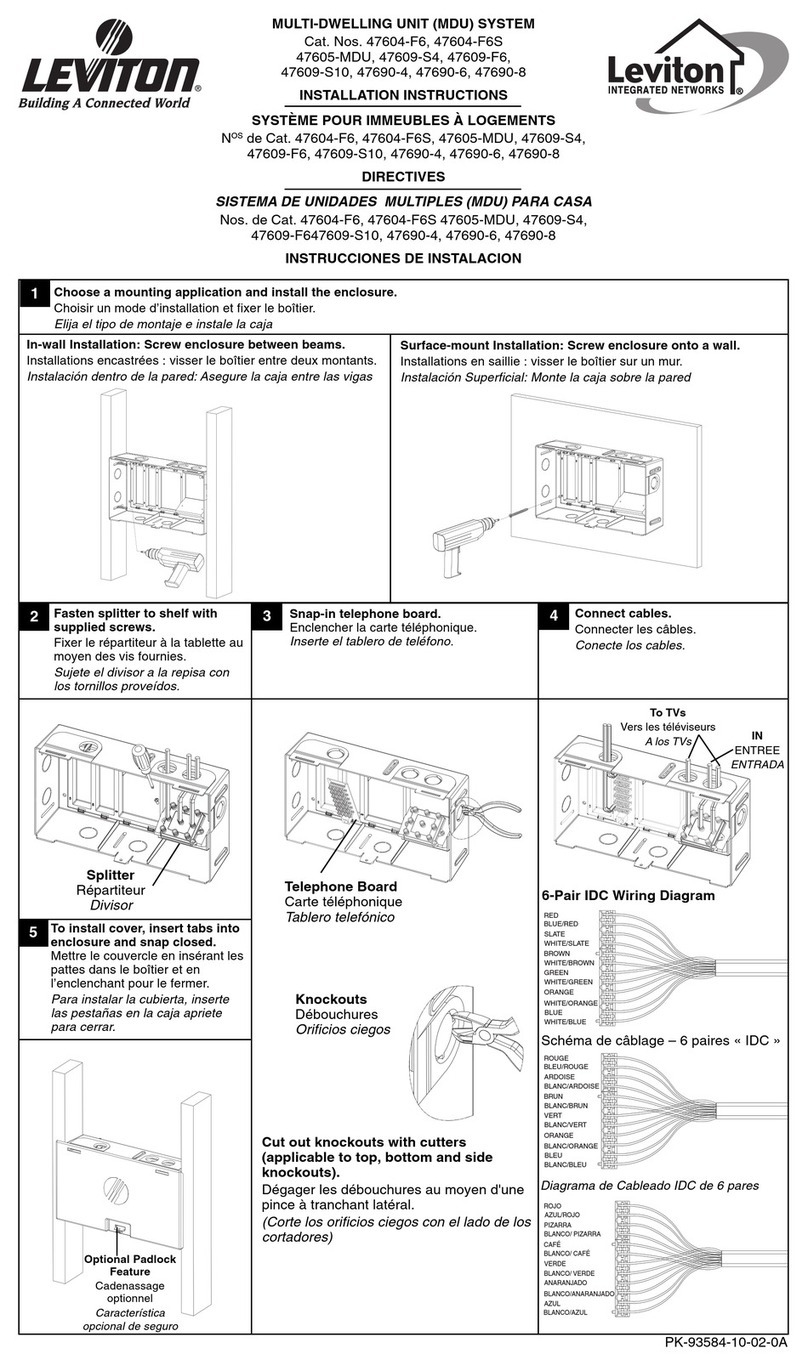
Leviton 47604-F6 installation instructions

Leviton

Leviton 47604-F6 installation instructions

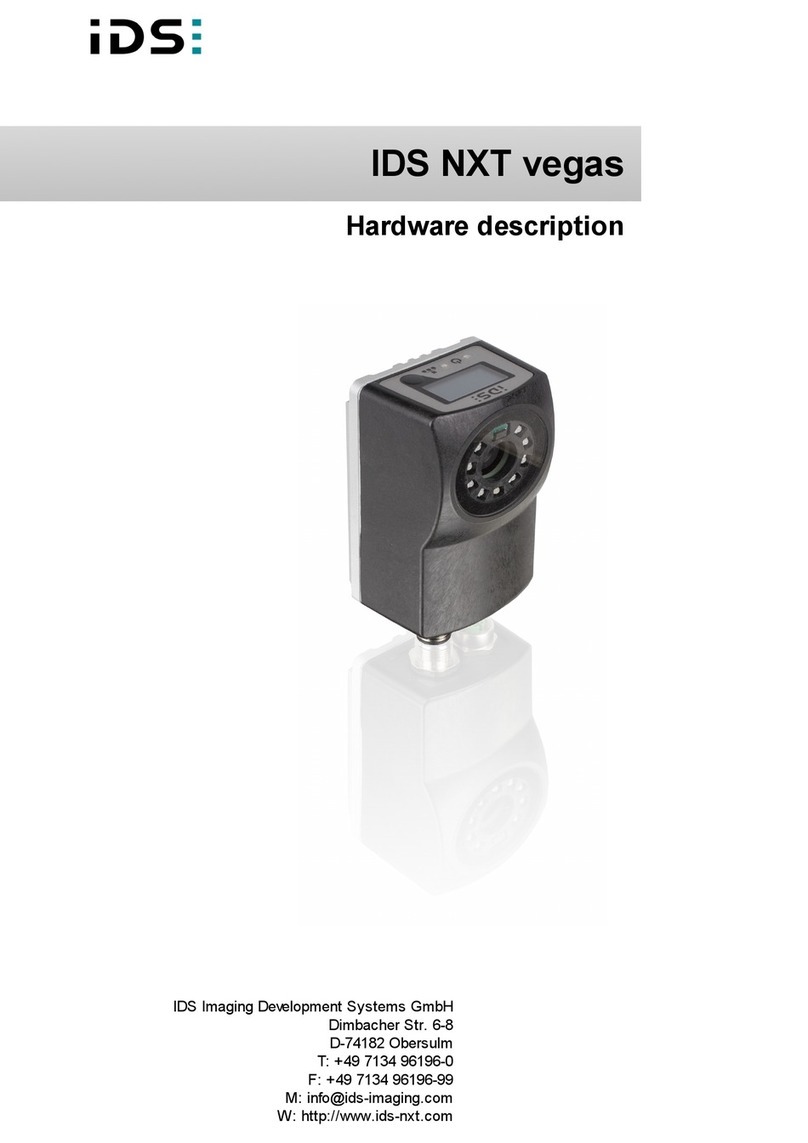
IDS NXT vegas Hardware description

IDS

IDS NXT vegas Hardware description

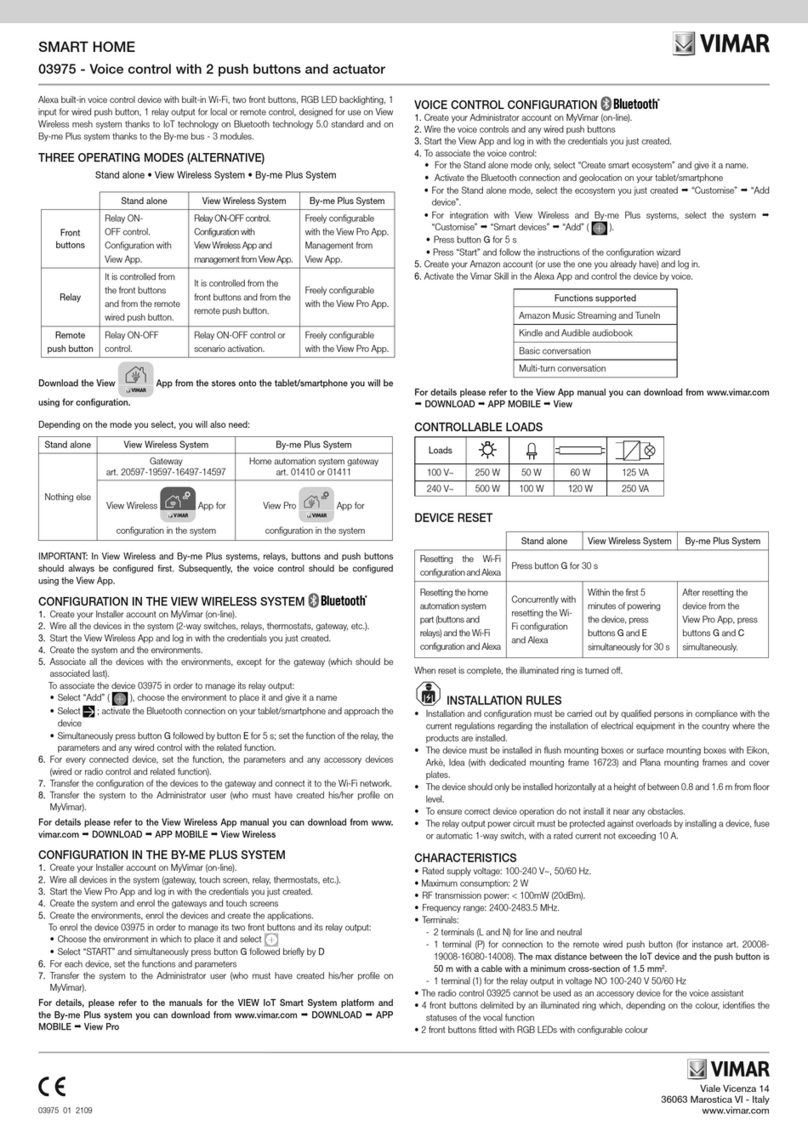
Vimar 03975 user manual

Vimar

Vimar 03975 user manual

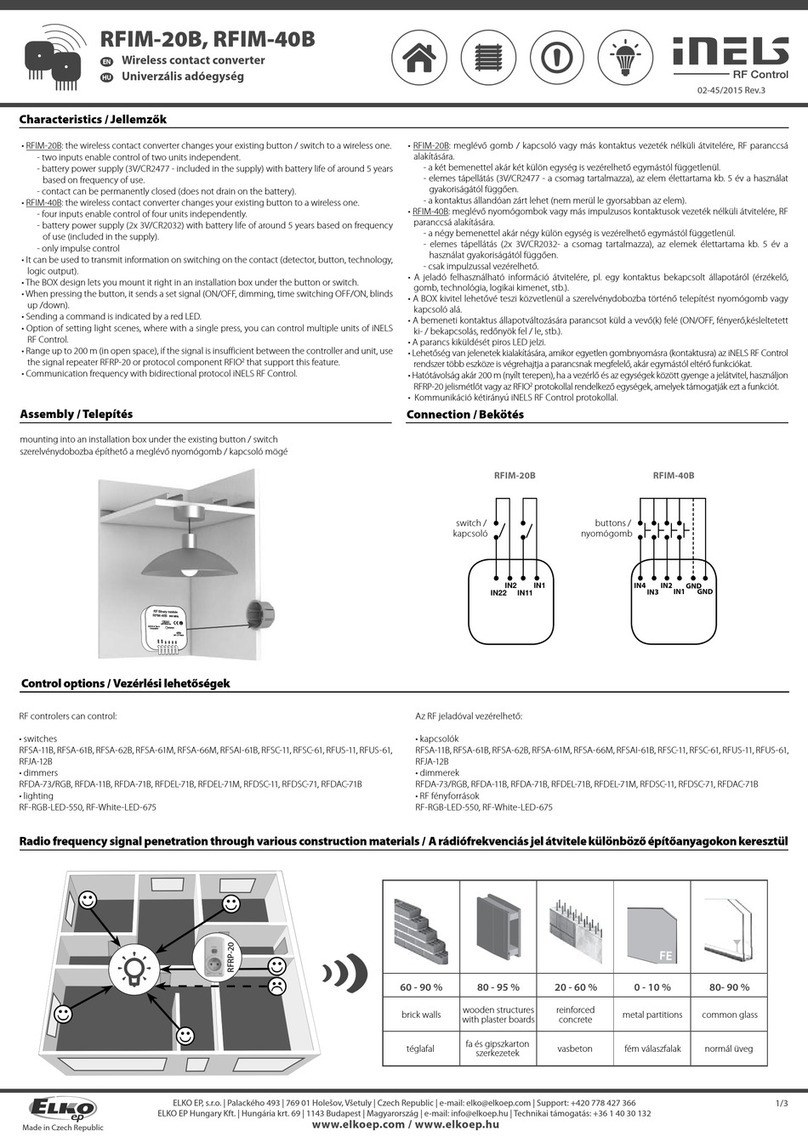
iNels RFIM-20B manual

iNels

iNels RFIM-20B manual

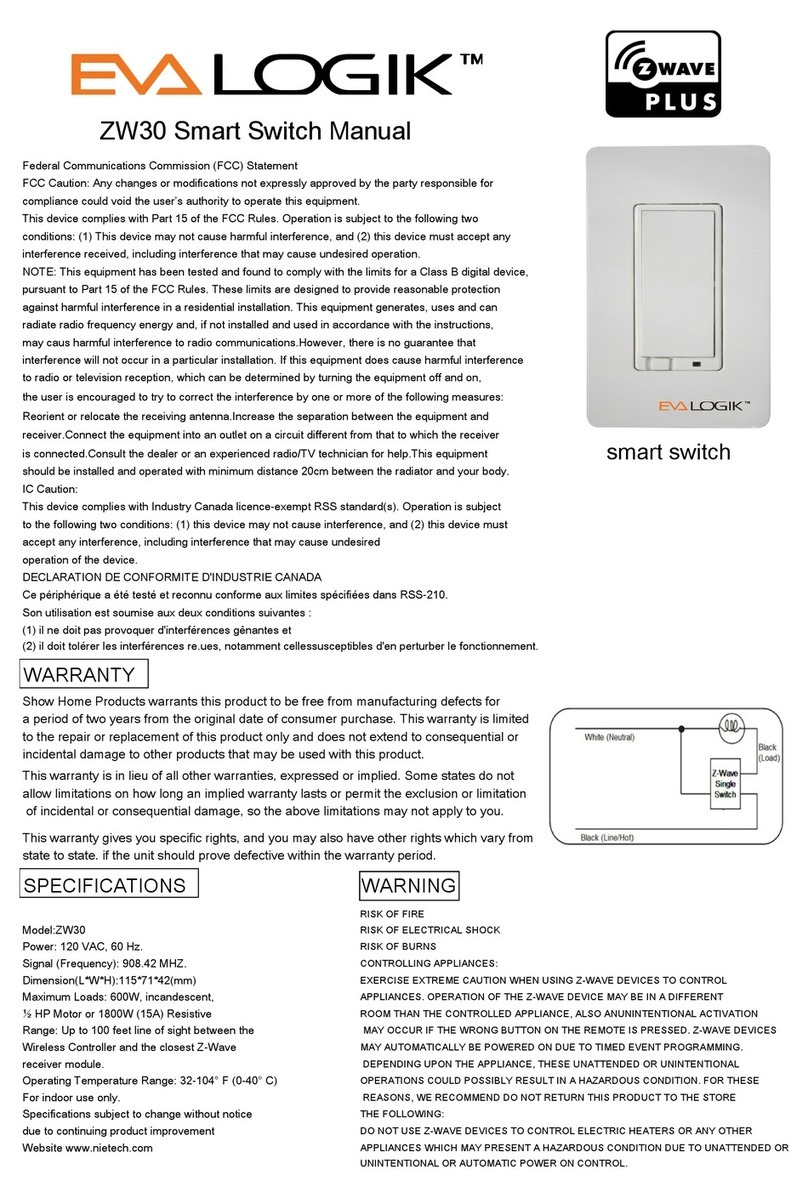
EVA Logik ZW30 manual

EVA Logik

EVA Logik ZW30 manual

Leviton ODCØP-S0W installation instructions

Leviton

Leviton ODCØP-S0W installation instructions

Vertilux VTi CELTIC DC Programming instructions

Vertilux

Vertilux VTi CELTIC DC Programming instructions

manuals.online logo
manuals.online logoBrands
  • About & Mission
  • Contact us
  • Privacy Policy
  • Terms and Conditions

Copyright 2025 Manuals.Online. All Rights Reserved.

Connect the Power adapter to the central unit.
Connect the LAN cable to the central unit and to your home router.
Status: Ready
Status of the Central Unit
Status: Start-up

loading, system
is not ready.
Status: Start-up

Status: Ready
Looking for
internet

Status: Ready
Looking for
remote access.
Works with: CU Ver 1.3.3(4) +, Android App Ver 1.3.3(3) +, and IOS Ver 1.3.5 +
Install the App “SwitchBee” from Google Play or App Store.
Make sure your phone is connected to the same WiFi network as
your router and Central Unit.
1.
2.
3.
4.
5.



screen enter a name for your smart home.
The pairing screen is displayed.
Download the App
circle blinks to indicate that pairing has started.
The switch can be tested, before moving onto the next switch.
to the main screen.
6.
7.
8.
9.
10.

switch name, switch room and switch icon.
To pair more switches at a later stage, press “EDIT”, “+”, “ADD SWITCH”.
If there is a neutral wire present, we recommend to connect it to N.
1-SW-SSR
1 way module light control:
Connect the live wire into LIN,
and the return or lamp to L1.
2-SW-SSR
2 way module light control:
Connect the live wire into LIN,
and the returns/lamps into L1
and L2.
3-SW-SSR
3 way module light control:
Connect the live wire into LIN,
and the returns/lamps into
L1,L2 & L3.
1-SW-R16-D
Power switch control module:
Connect the live wire into LIN,
and the return or load into L1.
Connect the neutral wire into N.
(In some boiler switches there
are 2 neural wires).
The power switch control
module MUST have a neutral
wire connected!
If there is a neutral wire present,
we recommend to connect it to N.
1-SW-R16-D
Power switch control module:
Connect the live wire into LIN,
and the return or load into L1.
Connect the neutral wire into N.
(In some boiler switches there
are 2 neural wires).
The power switch control
module MUST have a neutral
wire connected!
1-M-SSR
Motor control module:
Connect Live to LIN,
Motor-Down to L1,
Motor-Up to L2.
2-M-SSR
2 Motor - control module:
Connect Live to LIN,
Motor1-Down to D1,
Motor1-Up to U1, Motor2-Down
to D2,
and Motor2-Up to the red wire.
If there is no neutral bridge U2
to N, just like 3-M-SSR 
If there is a neutral wire present, we recommend to connect it to N.

Motor module with 2 light controls:
If there is a Neutral wire present:
Connect Live to LIN, Motor-Down
to DN. Connect Motor-Up to the
red wire. Connect the returns/lamps
into L1 and L2. Connect any Neutral
wires to N.
We Recommend this type of



Motor module with 2 light controls:
If there is NO Neutral wire present:
Connect Live to LIN, Motor-Down to DN.
Connect Motor-Up to N, connect the red
wire to the same N connector.

present do not follow the steps above.
Change both switches to Switchbee modules.
The primary module (the one connected to the lamp), needs to be paired as

as a Two Way module.
Picture 01
Picture 02
Picture 03
Two Way Switches
2. If the primary switch is connected to a lamp,
and the secondary switch has no lamp/load
and the secondary does not have a neutral.
(Picture 2). Obtain a special TW module
from your supplier and install as in (Picture2),
Pair the TW module as the 2 way switch
3. If the primary switch is connected to the lamp,

also connected to a lamp. (Picture 3).
Pair L1 on the 2-SW-SSR module as a Two Way
(No new wiring needed).
1. If the primary switch is connected to the lamp,
and the secondary switch has no lamp/load and
the secondary has a neutral. (Picture 1).
Pair the secondary module as a 2 way module,
and select which corresponding module
it should work with.




Socket IR – Setup
The IR socket only works with the following hardware versions:
CU Ver 1.3.3(4) +, Android App Ver 1.3.3(3) +, and IOS Ver 1.3.5 +
1. Insert the smart socket into the wall outlet.
1.1. First setup the socket as a regular Socket and only then as an IR Device


socket, example (AC Socket)

press (“EDIT”, “+”, “Add Switch”), Fill in the detais and select OK.