TASCAM US-2x2/US-4x4 3
1 – Introduction
Features
o24-bit/96kHz audio interface
oMultiple1analog signals (L/R) can be input simultaneously
and output to a computer by USB at the same time
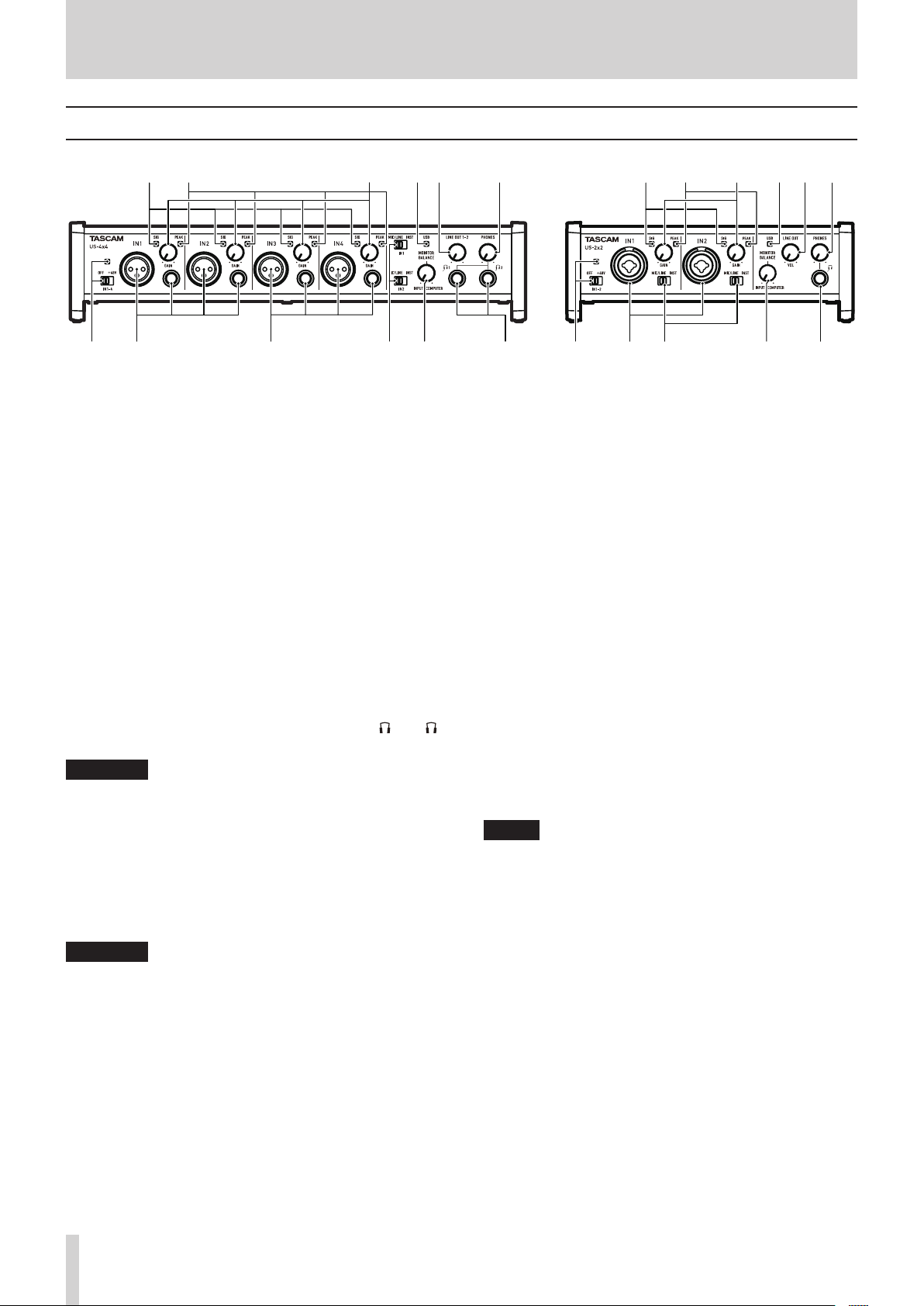
oMultiple XLR mic inputs (balanced2) and standard TRS jack
inputs (balanced3/unbalanced4)
oElectric guitars and basses, for example, can be connected to
the standard TS jack inputs when the MIC/LINE INST switch
is set to INST (instrument input)5
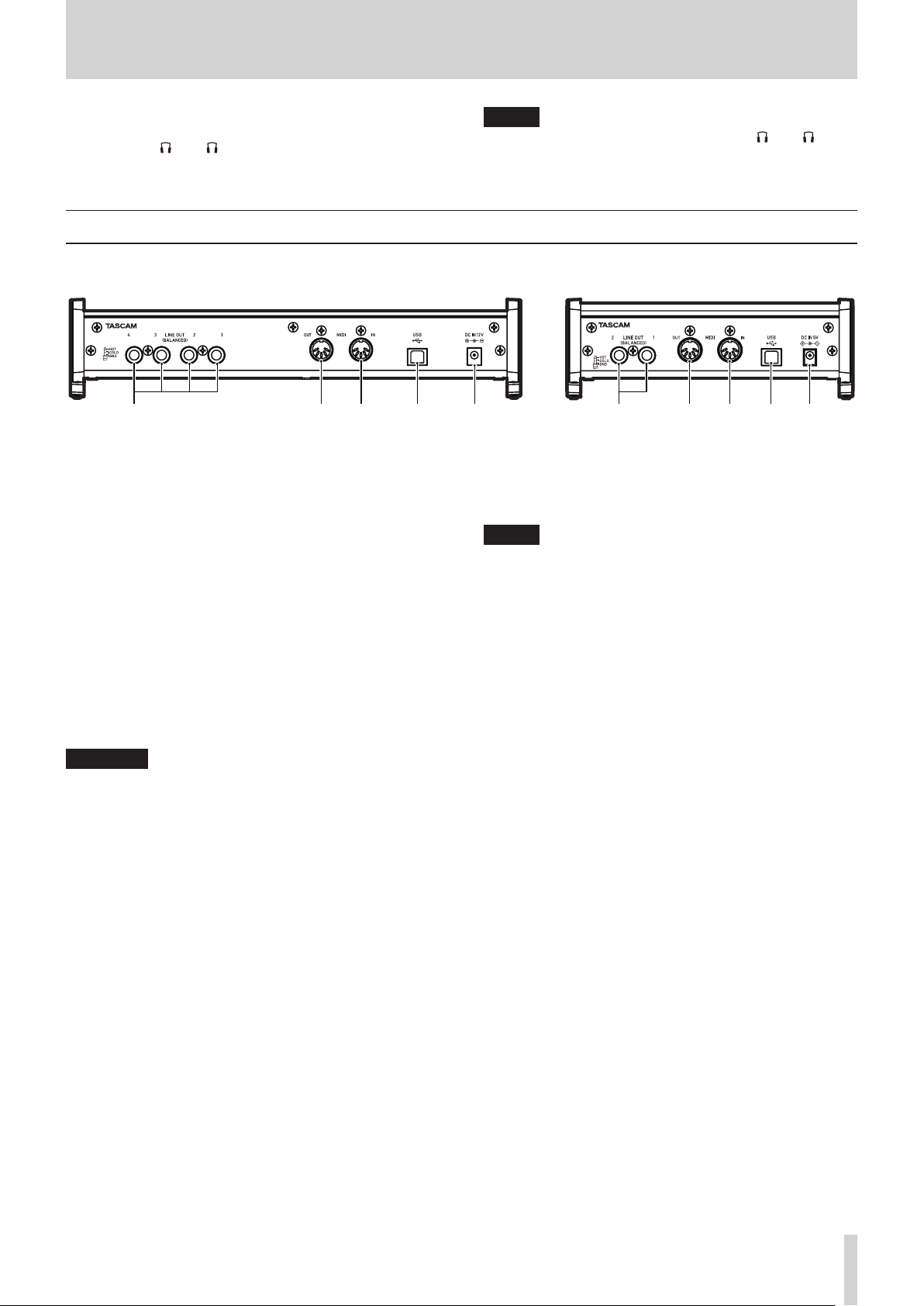
oBalanced stereo line6and headphone7outputs
oMIDI IN and OUT connectors
oDirect monitoring function allows input monitoring with low
latency
oUSB port (USB-B type, USB 2.0 standard)
Use the included USB cable to connect the unit to a
computer. To connect to an iOS device, use a Lightning to
USB Camera Adapter made by Apple Inc.
CAUTION
When using a US-2x2 that is connected to a computer, it will
operate using USB bus power.
Since the power supply is insufficient when using the
unit connected by USB to an iOS device, however, please
purchase a separate external power supply device for this
use. (When using a US-4x4, always connect the included AC
adapter.)
oSoftware mixer function convenient for live broadcasting and
karaoke (for Windows)
oDAW software included
1US-2x2: 2 inputs, US-4x4: 4 inputs
2XLR-3-31 equivalent
US-2x2: 2 inputs, US-4x4: 4 inputs
The US-2x2 has XLR/TRS combo jacks
3Standard 6.3mm (1/4") TRS stereo jack
(MIC/LINE INST switch set to MIC/LINE)
US-2x2: 2 inputs, US-4x4: 4 inputs
4Standard 6.3mm (1/4") TRS stereo jack
(MIC/LINE INST switch set to INST)
US-2x2/US-4x4: both 2 inputs
5Only IN1-IN2 on the US-4x4
6Standard 6.3mm (1/4") TRS stereo jack
US-2x2: 2 outputs, US-4x4: 4 outputs
7Standard 6.3mm (1/4") stereo jack
US-2x2: 1 output, US-4x4: 2 outputs
8Note about computer operation
If you are unsure about anything related to the basic operation
of a computer when it is mentioned in an explanation in this
manual, please refer to the computer operation manual.
To use this unit with a computer, dedicated software must be
installed on the computer.
For details about software installation, see “Installing the
dedicated software” on page 6.
Conventions used in this manual
The following conventions are used in this manual.
oButtons, connectors and other physical parts of this unit are
written using a bold font like this: PHONES knob.
oInformation shown on the computer display is written like
this “OK”.
oAdditional information is provided as necessary as tips, notes
and cautions.
TIP
These are tips about how to use the unit.
NOTE
These provide additional explanations and describe special
cases.
CAUTION
Failure to follow these instructions could result in injury,
damage to equipment or lost recording data, for example.
Trademarks and copyrights
oTASCAM is a trademark of TEAC CORPORATION, registered in
the U.S. and other countries.
oMicrosoft, Windows, Windows Vista and Windows Media
are either registered trademarks or trademarks of Microsoft
Corporation in the United States and/or other countries.
oApple, Mac, OS X and macOS are trademarks of Apple Inc.
oIOS is a trademark or registered trademark of Cisco in the U.S.
and other countries and is used under license.
oASIO is a trademark of Steinberg Media Technologies GmbH.
oOther company names, product names and logos in this
document are the trademarks or registered trademarks of
their respective owners.
Using the TEAC Global Site
You can download this Reference Manual and the Owner’s
Manual necessary for this unit from the TEAC Global Site (http://
teac-global.com/).
1. Open the TEAC Global Site (http://teac-global.com/).
2. In the TASCAM Downloads section, click the desired
language to open the Downloads website page for that
language.
NOTE
If the desired language does not appear, click Other
Languages.
3. Click the product name in the “Search by Model Name”
section to open the Downloads page for that product.
4. Select and download the Owner’s Manual that are needed.