manuals.online logo
Brands
  1. Home
  2. •
  3. Brands
  4. •
  5. Taylor
  6. •
  7. Weather Station
  8. •
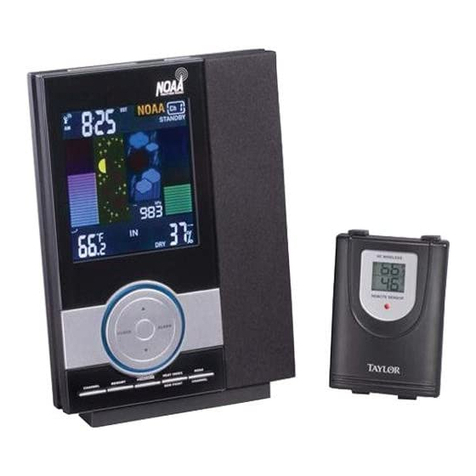
  9. Taylor 1527 User manual

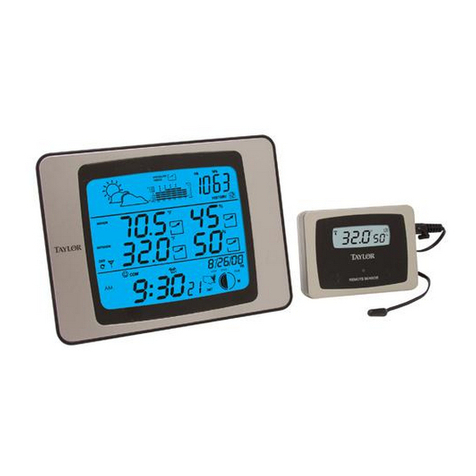
Taylor 1527 User manual

Other Taylor Weather Station manuals

Taylor 1434 Instruction Manual

Taylor

Taylor 1434 Instruction Manual

Taylor 1380 User manual

Taylor

Taylor 1380 User manual

Taylor 1732 User manual

Taylor

Taylor 1732 User manual

Taylor WeatherGuide 1525 User manual

Taylor

Taylor WeatherGuide 1525 User manual

Taylor 1383 User manual

Taylor

Taylor 1383 User manual

Taylor 1733 User manual

Taylor

Taylor 1733 User manual

Taylor 1507 User manual

Taylor

Taylor 1507 User manual

Taylor 2753 User manual

Taylor

Taylor 2753 User manual

Taylor 2752N User manual

Taylor

Taylor 2752N User manual

Taylor 1528 User manual

Taylor

Taylor 1528 User manual

Taylor 1743 User manual

Taylor

Taylor 1743 User manual

Taylor 5287333 User manual

Taylor

Taylor 5287333 User manual

Taylor 1512 User manual

Taylor

Taylor 1512 User manual

Taylor 1381 User manual

Taylor

Taylor 1381 User manual

Taylor 2752 User manual

Taylor

Taylor 2752 User manual

Taylor WeatherGuide 1526 User manual

Taylor

Taylor WeatherGuide 1526 User manual

Taylor 1524 User manual

Taylor

Taylor 1524 User manual

Taylor Heritage 5262313 User manual

Taylor

Taylor Heritage 5262313 User manual

Taylor WeatherGuide 1525 User manual

Taylor

Taylor WeatherGuide 1525 User manual

Taylor Leading the Way in Accuracy 1458 User manual

Taylor

Taylor Leading the Way in Accuracy 1458 User manual

Taylor 1506 User manual

Taylor

Taylor 1506 User manual

Taylor 1528 User manual

Taylor

Taylor 1528 User manual

Taylor 2751 User manual

Taylor

Taylor 2751 User manual

Popular Weather Station manuals by other brands

Bresser 7000016000000 instruction manual

Bresser

Bresser 7000016000000 instruction manual

Auriol AHFL 433 A1 operating instructions

Auriol

Auriol AHFL 433 A1 operating instructions

Hyundai WS 2202 instruction manual

Hyundai

Hyundai WS 2202 instruction manual

NexSens G2-HYDROMET quick start

NexSens

NexSens G2-HYDROMET quick start

IROX HBVR761 UV-X user manual

IROX

IROX HBVR761 UV-X user manual

La Crosse Technology C86371 instruction manual

La Crosse Technology

La Crosse Technology C86371 instruction manual

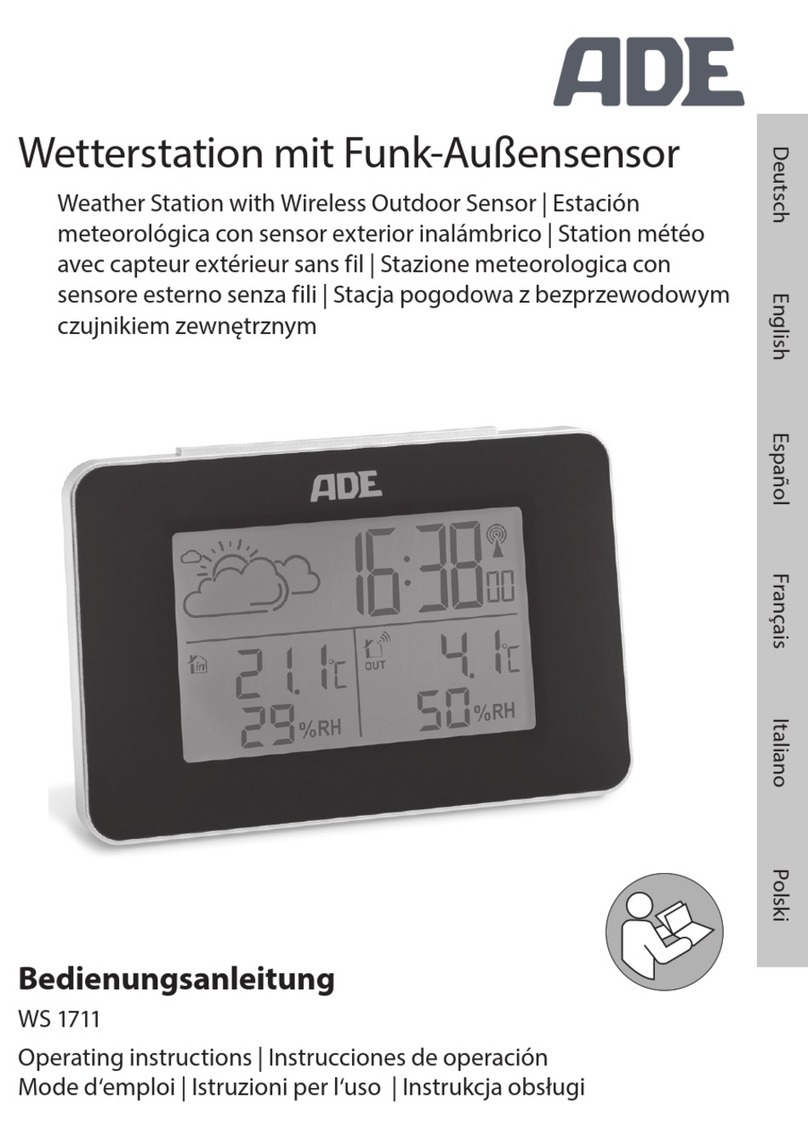
ADE WS 1711 operating instructions

ADE

ADE WS 1711 operating instructions

WAREMA EWFS Weather station eco Operating and installation instructions

WAREMA

WAREMA EWFS Weather station eco Operating and installation instructions

Auriol z29592 Operation and safety notes

Auriol

Auriol z29592 Operation and safety notes

Auriol 296289 Operation and safety notes

Auriol

Auriol 296289 Operation and safety notes

Hyundai WS 2266 instruction manual

Hyundai

Hyundai WS 2266 instruction manual

La Crosse Technology WS-2210 Operation manual

La Crosse Technology

La Crosse Technology WS-2210 Operation manual

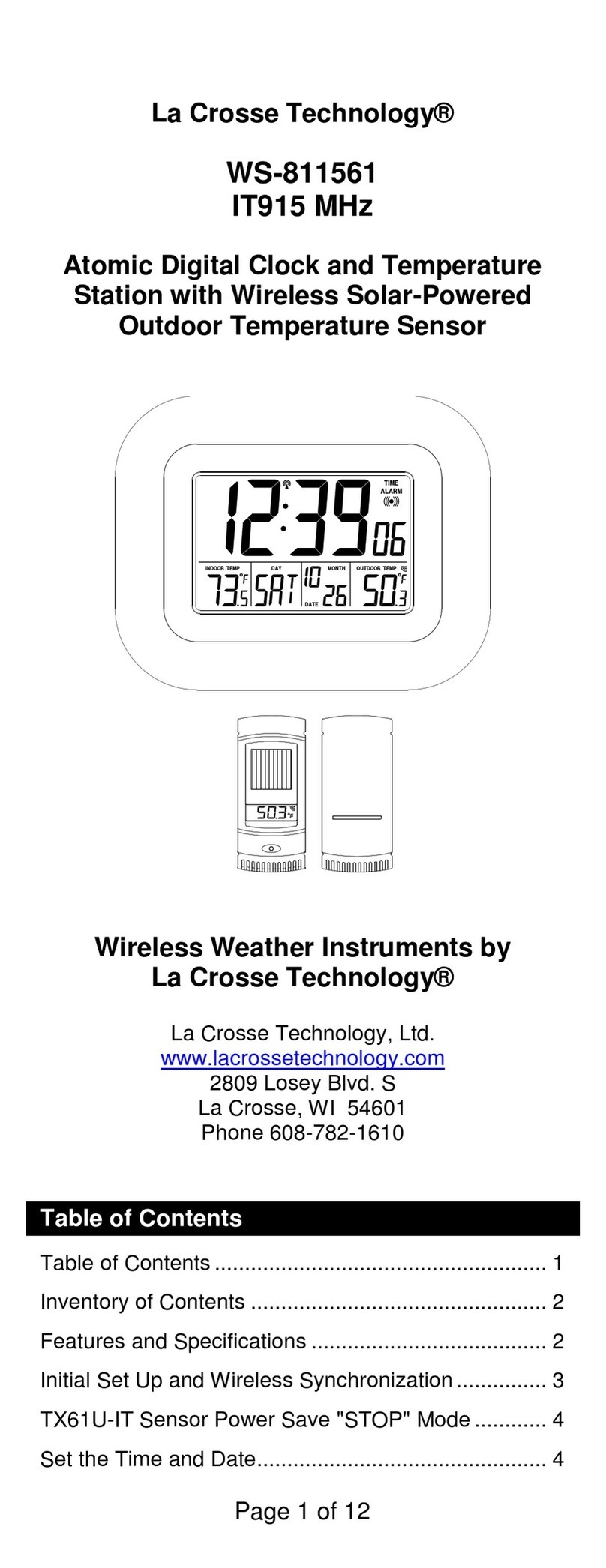
La Crosse Technology WS-811561 manual 

La Crosse Technology

La Crosse Technology WS-811561 manual 

Ventus W177 owner's manual

Ventus

Ventus W177 owner's manual

National Geographic VA Colour RC instruction manual

National Geographic

National Geographic VA Colour RC instruction manual

Instant Transmission MA 10410 instruction manual

Instant Transmission

Instant Transmission MA 10410 instruction manual

Lutron Electronics PHB-318 Operation manual

Lutron Electronics

Lutron Electronics PHB-318 Operation manual

Oregon Scientific Alizé BAR266 user manual

Oregon Scientific

Oregon Scientific Alizé BAR266 user manual

manuals.online logo
manuals.online logoBrands
  • About & Mission
  • Contact us
  • Privacy Policy
  • Terms and Conditions

Copyright 2025 Manuals.Online. All Rights Reserved.

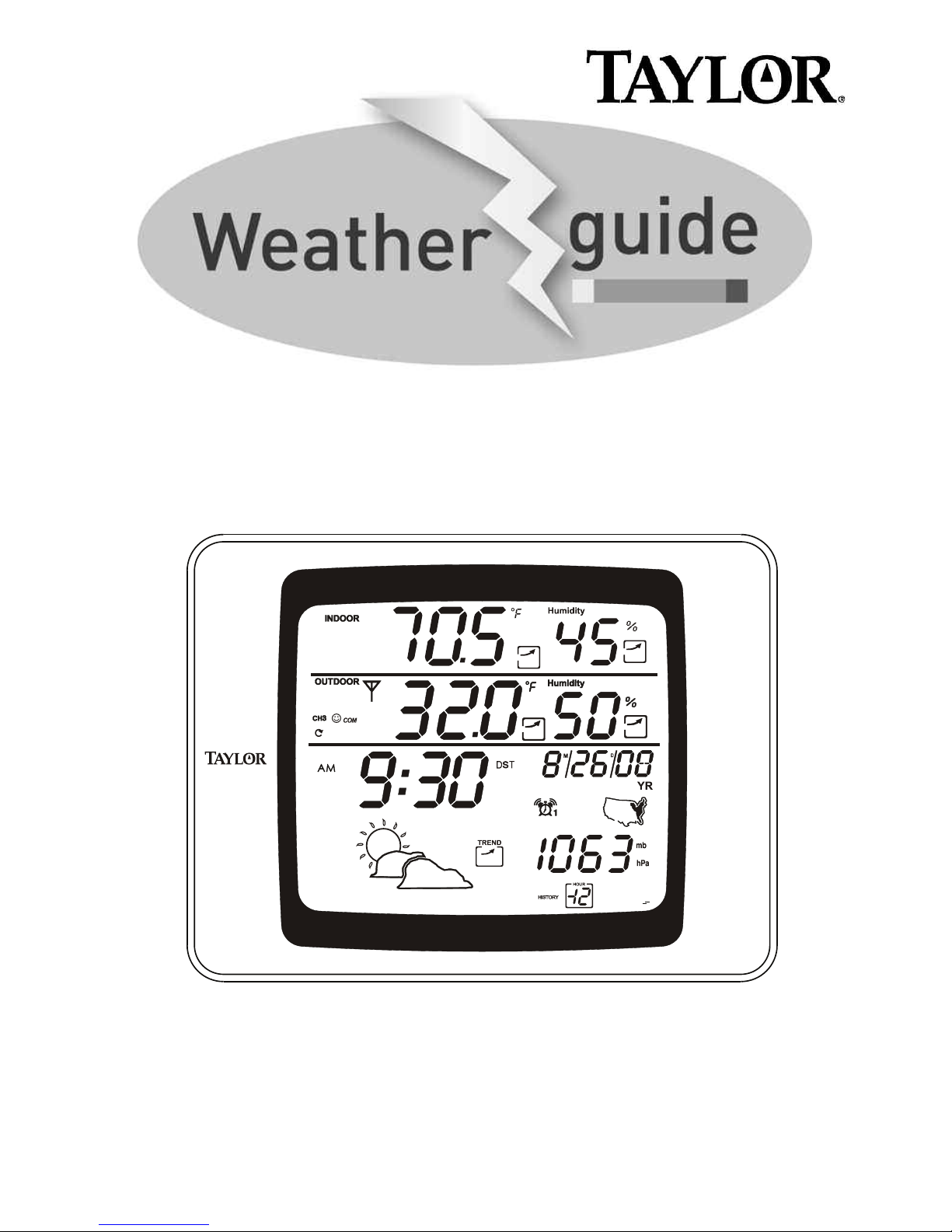
WeatherGuide™System with Remote Sensor
Instruction Manual
1
by
1527
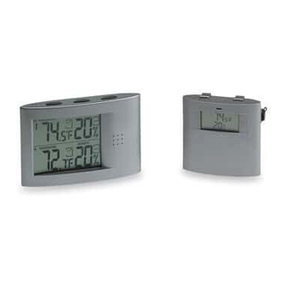
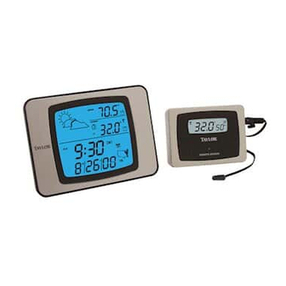
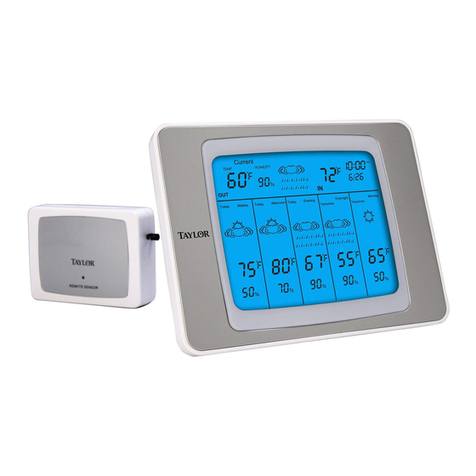
W lcom to th Taylor®W ath rGuid Syst m. Simple, reliable,
accurate…it allows you to monitor indoor or outdoor locations from
one room.The base unit reads indoor conditions, while the remote
sensor wirelessly reports outdoor weather conditions back to the base
unit for an all-in-one weather display.
Plan your work day, play day, v ry day. Now that’s smart!
Table of Contents
Powering the WeatherGuide™..................................................................3
ow to Set Up the WeatherGuide™ ......................................................3
ow to Display the WeatherGuide™ ......................................................5
Atomic Clock
Atomic Clock Setting ................................................................6
Manual Clock Setting..................................................................7
Alarm ............................................................................................8
Snooze ........................................................................................10
ow to Read the WeatherGuide™........................................................11
Temperature/ umidity Displays ............................................12
Minimum/Maximum Records ................................................13
Barometric Pressure ................................................................14
istory Records........................................................................14
Programming Altitude ..............................................................15
Comfort Level Readings..........................................................16
Temperature/ umidity Trends ..............................................16
Weather Forecast ....................................................................17
Backlight......................................................................................18
°F/°C Switch ..............................................................................18
Low Battery Display ................................................................18
TroubleShooting
Disconnected Signals................................................................19
Transmission Collision ............................................................20
Problem Solving ........................................................................20
Precautions ................................................................................21
2

To Power your WeatherGu de™
Bas Unit
Your WeatherGuide™ base unit may be powered by either an AC
adaptor (included) or 2 AAA batteries (not included).
Adaptor pow r – insert the connector end of the adaptor into
the jack on the side of the base unit. Plug the other end into the
proper electrical outlet.
Batt ry Pow r – Remove the battery compartment cover on
the back of the unit. Install 2 AAA batteries. Replace the battery
compartment cover.
Important: Power the base unit before installing batteries in the re-
mote sensor, or the units’ transmissions may not properly connect.
R mot S nsor
Unscrew the 4 screws securing the remote sensor’s battery compart-
ment cover located on the back of the unit. Install 2 AAA batteries.
(Tip: Lithium batteries are recommended in extremely cold or hot lo-
cations.)
How to Set up Your WeatherGu de™System
First, power up the base unit, using either the AC adaptor or 2 AAA
batteries. Next, install 2 AAA batteries into the remote sensor.
Place the base unit as close as possible to the remote unit.
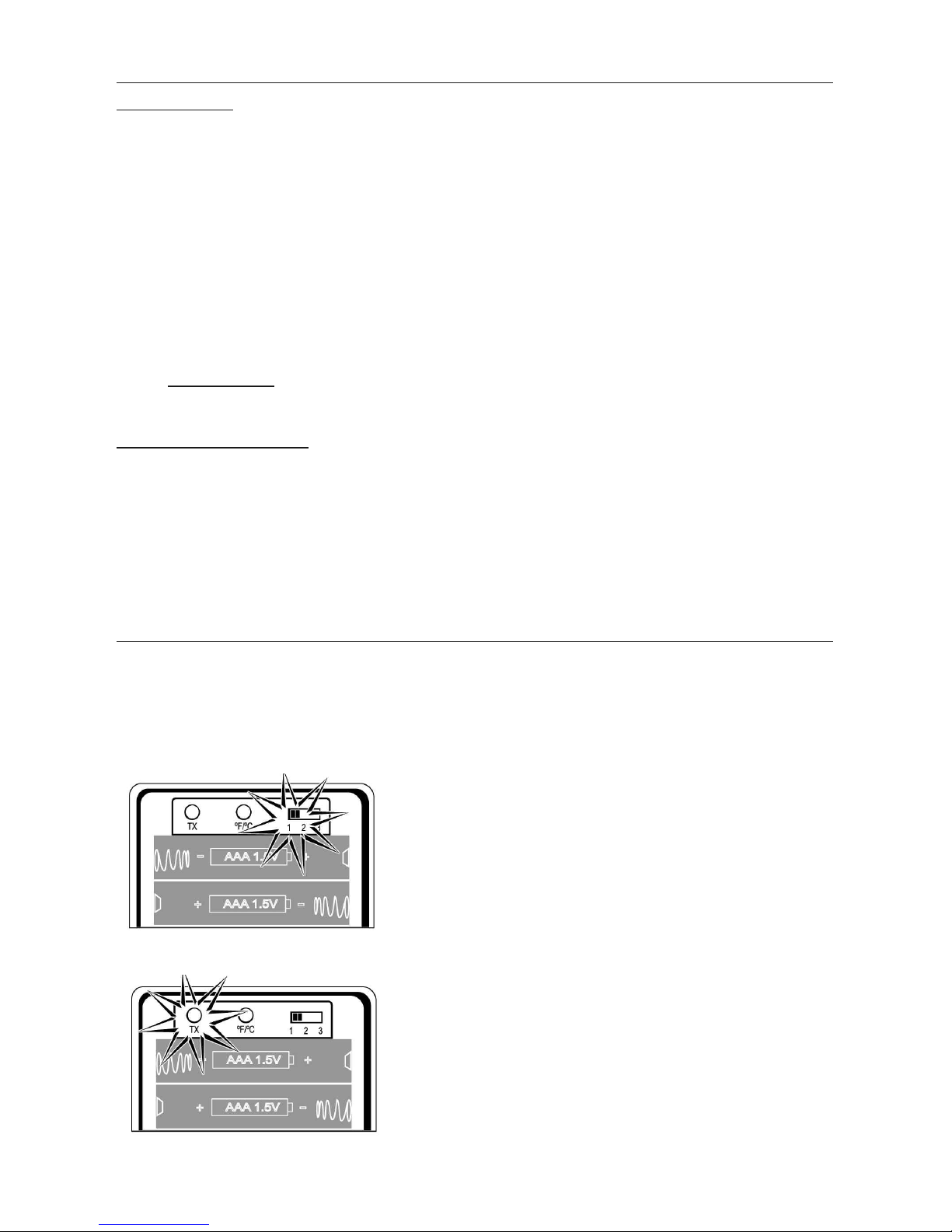
There is a Channel switch in the remote
sensor battery compartment. Move the
switch to Channel 1.
Press the “TX” button located inside the
remote sensor battery compartment.This
will send a transmission signal to the base
unit.The red LED Indicator light will flash
when a signal is transmitted.
3
Move channel switch
to Channel 1
ress the Tx button to send
transmission signal to base unit
If the transmission is successful, the remote
sensor readings and a “ ” icon will appear
on the base unit. If dashes are still displayed
on the receiver unit, press the Tx button
again.
To change the remote sensor’s tempera-
ture display to Celsius, press the “+C/F”
button inside the remote’s battery com-
partment.
Replace the remote’s battery compart-
ment cover.
The remote will automatically transmit readings to the base unit.
• The first remote registered will transmit every 53 seconds.
• If a second remote is registered, it will transmit every 56 seconds.
• If a third remote is registered, it will transmit every 59 seconds.
Not : A maximum of 3 remote sensor units can be registered.
Should you purchase one or two additional remote units (Model 1536,
sold separately) to expand your thermometer monitoring capabilities
to multiple locations, slide the C switch to Channel 2 to register the
second sensor and select Channel 3 to register the third sensor.The
Channel number assigned will appear on the remote’s LCD screen.
4
Transmission successful
Select °F or °C for remote
How to D splay your WeatherGu de™
Tabl top – use the Table Stand on the back of the base and remote
sensor units
Wall – use the keyhole on the back of the base and remote sensor units.
Base Unit Remote Sensor
Bas unit location –
Place the unit indoors in a well-ventilated location away from direct sunlight.
R mot s nsor location –
The transmission range of the remote sensor is 200 feet.The effective
transmission range is vastly affected by obstacles such as walls, sheds,
trees, etc.Try various set ups for the best results. Shorten the distance
between receiver and remote units when necessary. Place indoor in a
well ventilated location away from direct sunlight. Place the sensor in
a dry, shaded area. Direct sunlight will heat the casing and inflate tem-
peratures readings.
Important: Though the remote unit is weather proof, it should be
placed away from direct sunlight, rain, snow and should never be sub-
merged in water.
A maximum of 3 remote sensor units can be registered. One
remote sensor is included.To purchase additional Remote
Sensors (Taylor model 1536), please visit www.partshelf.com.
5
K yhol
Tabl Stand
Atom c Clock and Calendar
Your WeatherGuide™ has a radio-controlled clock/calendar that sets
itself to the radio signal transmitted by the U.S.Atomic Clock located
in Colorado.To synchronize the atomic clock:
1. Press and hold the “-PMCE/RCC”
button on the back of the base unit.The
unit will beep.The antenna icon will
flash on the screen.
Please note: reception may take
2-10 minutes.
2. When the icon is steady, the
Atomic Clock has been successfully
synchronized.
3. Choose your time zone by pressing the
“PMCE/RCC” button.
Pl as not : If the icon disappears, the Atomic time signal is not
available at the moment.Try another location later away from possible
sources of interference, such as mobile phones, appliances, computers,
refrigerators,TVs, etc. Daytime conditions such as sunlight and other
atmospheric interferences can affect synchronization; try setting the
clock during evening hours. Please note:if the signal is weak, it may take
up to 24 hours for the atomic clock to establish a connection. In the
meantime, the clock may be manually set. Once the atomic signal is
found, it will override the manually programmed time and date.
The Atomic Clock will have a daily synchronization at 2:05 am Pacific
Time every day. Each reception cycle is 2.5 minutes minimum and 10
minutes maximum.
6
ress and hold - MCE/RCC to
synchronize atomic clock. Release
when unit beeps.
ress MCE/RCC to choose
time zone.
Steady Icon = Atomic clock
synchronized
(may take up to 24 hours to
capture signal).
7
How to Set the Clock Manually
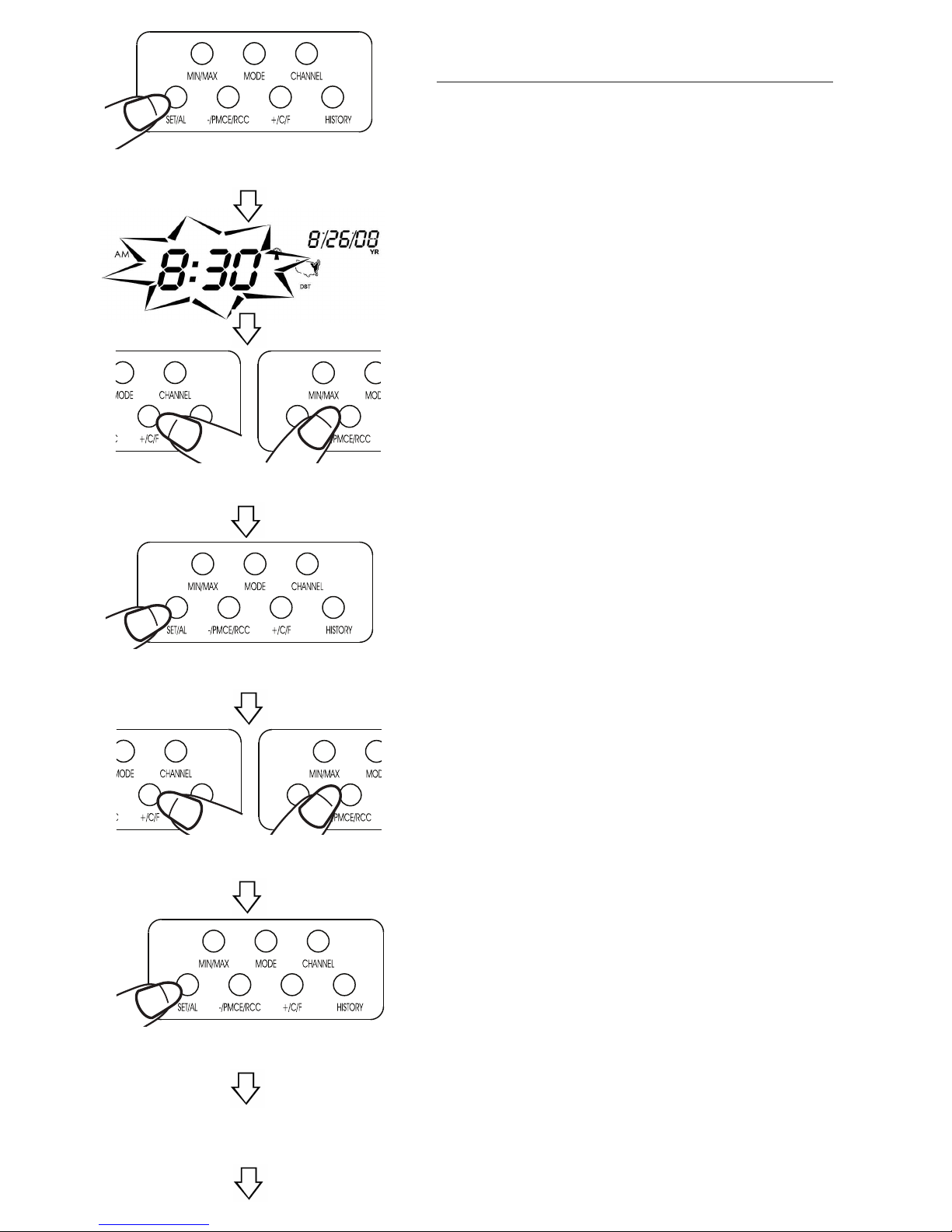
To manually s t th clock:
1. Press and hold the “SET/AL” button.
The unit will beep.
2. Press “+C/F” or “-PMCE/RCC” to
set the seconds to zero. Press
“SET/AL” to enter.
3. Press “+C/F” or “-PMCE/RCC” to
change the hours. Press “SET/AL” to
enter.
4. Press “+C/F” or “-PMCE/RCC” to
change the minutes. Press “SET/AL”
to enter.
5. Press “+C/F” or “-PMCE/RCC” to
choose either the month/date or
day/month display. Press “SET/AL” to
enter.
6. Press “+C/F” or “-PMCE/RCC” to
change the year. Press “SET/AL” to
enter.
7. Press “+C/F” or “-PMCE/RCC” to
change the month or day. Press
“SET/AL” to enter.
8. Press “+C/F” or “-PMCE/RCC” to
change the date or month. Press
“SET/AL” to enter.
9. Press “+C/F” or “-PMCE/RCC” to
choose a language* display. Press
“SET/AL” to enter.
10. Press “+C/F” or “-PMCE/RCC” to
choose either the 12 or 24 hour
time display. Press“SET/AL” to enter.
11. The clock/calendar is now set.
(*language options are: EN (English), DA
(Danish), ES (Spanish), NE (Dutch), FR
(French), IT (Italian), GE (German).)
ress and hold SET/AL to start
clock setting
ress +C/F or - MCE/RCC to
reset seconds.
ress SET/AL to enter seconds.
ress +C/F or - MCE/RCC to
change minutes.
ress SET/AL to enter minutes.
Repeat to set rest of
clock/calendar settings.
Tip: old down the “+C/F” or
“-PMCE/RCC” buttons to advance the dig-
its quickly.
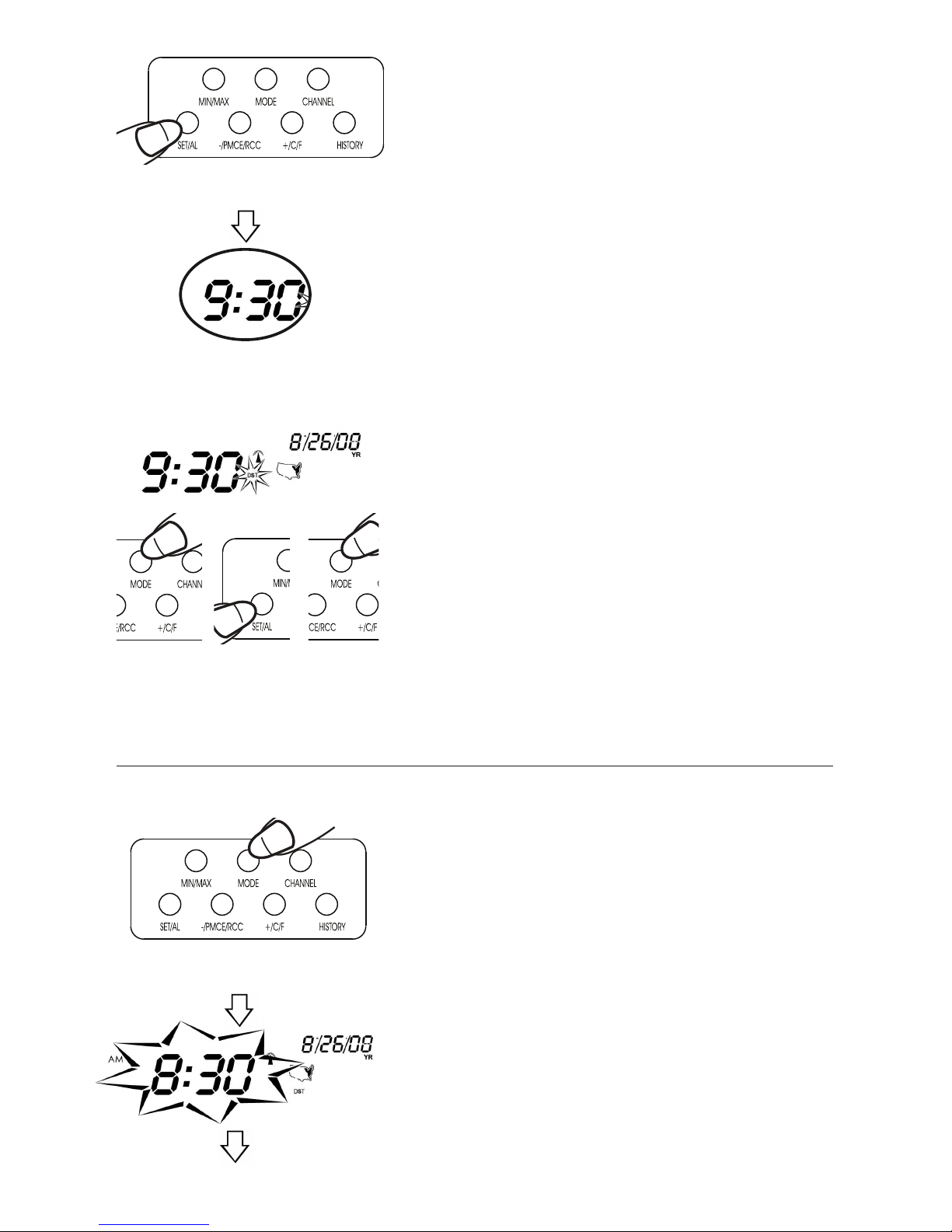
Daylight Savings Tim – to turn DST
on, press “MODE” until “OFF” appears in
the clock digits. Press and hold the
“SET/AL” button until it switches to “ON”.
DST is now on. Press “MODE” to return
to the clock display.
How to Set the Alarm
Your WeatherGuide™ has 2 separate alarm settings.
To s t on alarm:
1.Press the “MODE” button on the back of
the base unit.The unit will beep.The clock
time changes to the alarm time. “A1” ap-
pears next to the time.
8
ress Mode, then press and
hold SET/AL, then press Mode
to change DST.
ress SET/AL after choosing
12/24 hour time.
Clock is set
ress MODE to start alarm
setting
A1
2. Press and hold the “SET/AL” button.The
unit will beep and the alarm’s hour digits
will flash.
3. Press “+C/F” or “-PMCE/RCC” to
change the hours. Press “SET/AL” to enter.
The minutes will flash.
4. Press “+C/F” or “-PMCE/RCC” to
change the minutes. Press “SET/AL” to
enter.The unit will return to the clock dis-
play.
5.A icon by the time indicates Alarm
1 is active.The unit will return to the clock
display after approximately 15 seconds, or
press “MODE” until the clock display re-
turns.
To s t two alarms:
Press the “MODE” button until A2 appears.
Repeat programming steps for A1.
A icon by the time indicates
Alarm 2 is active.
9
ress and hold SET/AL
Alarm 1 is active
Alarm 2 is active
Hour digits flash
ress +C/F or - MCE/RCC to
change hours.
ress SET/AL to enter hours.
Minutes digits flash.
Repeat to set minutes.
To turn off th alarm:
Press “MODE” until the Alarm display ap-
pears. Press the “SET/AL” button. The
alarm icon will disappear. The alarm is
turned off.
Snooz f atur
Press the “Snooze/Light” button on the top
of the base unit to silence the alarm for 5
minutes.
A icon will flash as long as the snooze is
active.The snooze will deactivate when the
alarm is turned off.
10
ress Snooze/Light to silence alarm
ress Mode then SET/AL to turn
off alarm
No alarm icon = alarm is off.