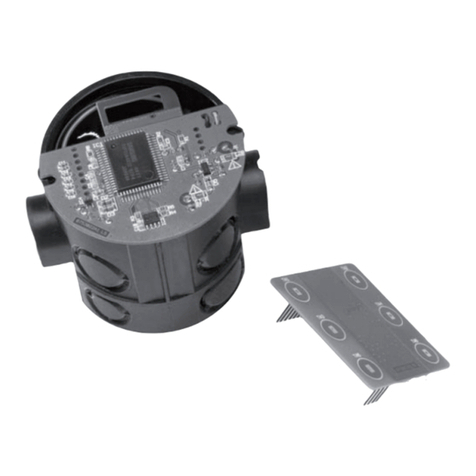
Tesira Tec-1i Specification sheet

Biamp Systems, 9300 SW Gemini Drive, Beaverton, Oregon 97008 U.S.A. (503) 641-7287 www.biamp.com
Tesira®
TEC-1s & TEC-1i
Operation/Installation
Manual
October 2012

2
TABLE OF CONTENTS
TESIRA ETHERNET CONTROL (TEC-1) FEATURES..........................3
FRONT PANEL. . . . . . . . . . . . . . . . . . . . . . . . . . . . . . . . . . . . . . . . . . . . . . . . . . . . . . . 4
Setup and Use ................................................... 4
Display......................................................... 4
Capacitive-touch Scroll Wheel....................................... 4
BACK PANEL .......................................................5
Connectors...................................................... 5
SET UP .......................................................... 6-9
Device Setup Mode ............................................... 6
Edit Device ID ................................................... 7
Edit Network Conguration ......................................... 7
Edit Unlock Code ................................................. 8
Edit Display Brightness . . . . . . . . . . . . . . . . . . . . . . . . . . . . . . . . . . . . . . . . . . . . 8
Edit Timeouts ................................................... 8
View Device Information........................................... 9
Reset to Factory Defaults .......................................... 9
Exit ........................................................... 9
INSTALLATION .................................................. 10-13
TEC-1s Surface Mount Installation .................................. 10
TEC-1i Flush Mount Installation .................................... 11
Wiring ........................................................ 13
SPECIFICATIONS ...................................................14
WARRANTY........................................................15
FCC COMPLIANCE ..................................................16
EC DECLARATION ..................................................17
EU RoHS COMPLIANCE ..............................................18

3
TESIRA ETHERNET CONTROL (TEC-1)
TEC-1 Tesira Ethernet Control is a remote control for Tesira systems. It offers a simple, intuitive interface for
end users and can be installed and congured to t the unique needs of a particular application. The device
connects via standard Ethernet cabling and is powered over Ethernet, eliminating the need for custom cabling
and local power sources. Multiple remote control panels can be connected over large distances using standard
network technology.
FEATURES
• Adjustment and/or initiation of up to 32 selectable system volumes and actions
• Volumes are any individual or grouped system levels, including inputs, outputs, matrix
cross-points, etc.
• Actions are any individual or grouped system operations, including presets, source selection, mutes,
ducking, combining, etc.
• Control functions are programmed in the Tesira system design software
• High contrast OLED (Organic Light-Emitting Diode) display with a wide viewing angle
• The display brightness can be adjusted to t the ambient light present in the application and can auto-
matically dim when not in use
• Capacitive touch technology eliminates protruding and moving parts to increase product reliability and
longevity while simplifying cleaning
• TEC-1s surface mounts or ush mounts to most walls with a wide variety of mounting holes to
accommodate standard US and international back boxes. TEC-1i ush mounts to any wall; mounts using
the retrot plate (included) or installs in a Raco®254 box for North American installation (not included)
• 330' (100m) Ethernet cable length can be extended with standard PoE network technology (routers,
switches, hubs, media converters)
• Connects with standard RJ45 or insulation displacement connector (IDC)
• Covered by Biamp Systems’ ve-year warranty
TEC-1i TEC-1s

4
TEC-1 FRONT PANEL
Setup and Use
The Tesira software provides an intuitive interface for setup and programming of the TEC-1. The information
supplied by this manual relates to physical connections and device setup. For more details on software setup,
please consult the Tesira Help File.
Display
A graphic OLED (Organic Light-Emitting Diode) display with white characters on a black background shows a
list of all control items available from that panel, as well as the last selected item. If a control item includes
a volume control assignment, the bottom of the display will show a graphical representation of a volume bar
with the current level indicated to the right (percentage of maximum level).
Capacitive-touch Scroll Wheel
The capacitive-touch sensor provides a sleek interface for menu navigation and selection. The glossy-nish nger
groove allows for scrolling through and selecting available control items, as well as adjusting volume.
Select
Latch
Scroll

5
TEC-1 BACK PANEL
Connectors
Two Ethernet connectors—one rear-facing RJ45 and one top-facing insulation displacement connector
(IDC)—are provided for connecting to the network. Only one connector may be used. The RJ45 and IDC
utilize unshielded twisted pair (UTP) wiring to connect to a Tesira system. This connection is made to the
Ethernet port of a Tesira unit, either directly (single station) or via a network switch, and carries control
data over Ethernet.
The TEC-1 is powered using IEEE 802.3-2008 Power over Ethernet protocol as Class 1 devices. Either a PoE-
capable network switch or a PoE injector is required to power the device; there are no other provisions for
power inlet.
TEC-1
Ethernet switch
with PoE
TEC-1
Ethernet switch
without PoE
AC Power
PoE
injector

6
TEC-1 SET UP
Device Setup Mode
The TEC-1 can be congured without connecting to a functional Tesira network. To enter setup mode,
connect the TEC-1 to a PoE source and place the jumper or any metal object across the locksmith pins.
When conguration is complete, remove the jumper and attach it to only one pin to resume normal
operation. Please note: many of the conguration settings can be accessed via the Tesira software.
The cursor has two modes: select and modify. In select mode, the cursor appears as a gray box. When
scrolling through the available items in the list, the gray box will highlight the current selection.
On elds that can be modied, use the Select button to transition to and from modify mode. In modify mode,
the cursor appears as an outline box. Use the scroll wheel to adjust the setting up or down.
Some screens have additional buttons that are used to accept (OK), reset, or cancel changed settings. Use the
scroll wheel to navigate the cursor to these buttons and press the Select button. The OK button saves the set-
ting and exits the screen. The Reset button clears the setting and does not save it. The Cancel button exits the
screen without saving the setting.
Locksmith: Bridge
jumper pins to enter
setup mode
“Select” mode in
device setup menu
“Modify” mode in
device setup menu

7
TEC-1 SET UP
Edit Device ID
To name the unit, scroll to the ID Tag icon and press the Select button. Use the scroll wheel and Select button
to select the desired characters. Scroll to the icon and select it to delete the previous character. The default
Device ID is “TEC-1ID 01”. The Device ID must match that of a corresponding block in the Tesira design. More
than one unit may be identied with the same design block (same ID). Device IDs may also be assigned via
Device Maintenance in the Tesira software.
Edit Network Conguration
To edit the network conguration, scroll to the Network icon and press the Select button. The default setting
(Auto) allows the device to receive its network conguration from a DHCP server. This allows TEC-1 to be
discovered by a Tesira device that also has default settings. The default hostname is “TEC-1-” followed by its
serial number. Select the hostname to edit it in a similar way of editing the device ID. The network settings
may instead be assigned via Device Maintenance in the Tesira software.
To specify a static IP address, change the “Auto IP?” to Static and select the IP address. TEC-1 will display the
Edit IP Address screen where the IP address, network mask, and gateway can be edited. Resetting the IP
address sets the IP address, network mask, and gateway back to 0.

8
TEC-1 SET UP
Edit Unlock Code
To set password protection, scroll to the Key icon and press the Select button. Use the scroll wheel and Select
button to choose the desired characters. During normal operation, holding down the Select button for ve sec-
onds will lock the unit, and the user will be prompted for the Lock Code before obtaining access. Lock Codes
may also be assigned via Device Maintenance in the Tesira software.
Edit Display Brightness
To change the brightness of the OLED panel, scroll to the Display Brightness icon and press the Select button.
Use the scroll wheel and Select button to make adjustments. The rst setting represents the normal opera-
tional display brightness, and the second setting represents the dim display brightness. Display brightness
cannot be assigned via Device Maintenance in the Tesira software.
Edit Timeouts
To change the lock, dim, and sleep timeouts, scroll to the Timeout icon and press the Select button. Use the
scroll wheel and Select button to make a selection. The Timeout can range from 5 seconds to 30 minutes or
none for the lock and dim timeouts; the sleep timeout cannot be none. Timeouts may instead be assigned via
Device Maintenance in the Tesira software.

9
TEC-1 SET UP
View Device Information
To view information regarding the specic unit, scroll to the Information icon and press the Select button. The
Serial Number, MAC Address, Firmware Version, Hostname, IP Address, network mask, and gateway are dis-
played. This is non-editable information. The Serial Number is helpful in identifying physical units/locations
when naming them via Device Maintenance in the Tesira software. The IP address information is useful only
when TEC-1 receives an IP address automatically to indicate what IP address it received. Use the scroll wheel
to navigate through the list of information. Press the Select button to exit this screen.
Reset to Factory Defaults
To reset to factory defaults scroll to the reset icon with the exclamation point and press the Select button.
To conrm, scroll to the Yes button and press the Select button. Otherwise selecting No will return back to
the device setup screen. Resetting to factory defaults clears all device maintenance parameters and restores
them to their default values. When resetting to factory defaults the rmware version remains unchanged.
Exit
To exit the setup screen, scroll to the Exit Door icon and press the Select button.

10
TEC-1s INSTALLATION
Surface Mount Installation
The TEC-1s surface mounts to most walls and has a wide variety of mounting holes that accommodate
standard US and international back boxes.
Use a screw driver or other suitable tool to engage the latch at the bottom of the TEC-1s to detach the back
enclosure. When installing the TEC-1s using the RJ45 connector, guide the Ethernet cable through the rear
opening before attaching the TEC-1s to the wall. Connect the RJ45 and snap the front enclosure into the reten-
tion holes. When installing the TEC-1s using the IDC, use a drill bit to create a hole in the top, side, or rear
of the back enclosure along the indentations. Remove the Ethernet cable jacket and shielding.
84mm
3.3"
USA, Japan, Australia EUR
including Germany, Sweden,
UK, Netherlands
60mm
2.36"
Italy
84mm
3.3"
Indentations
Wire here for use with IDC
This manual suits for next models
1
Table of contents