manuals.online logo
Brands
  1. Home
  2. •
  3. Brands
  4. •
  5. TP-Link
  6. •
  7. Security Camera
  8. •
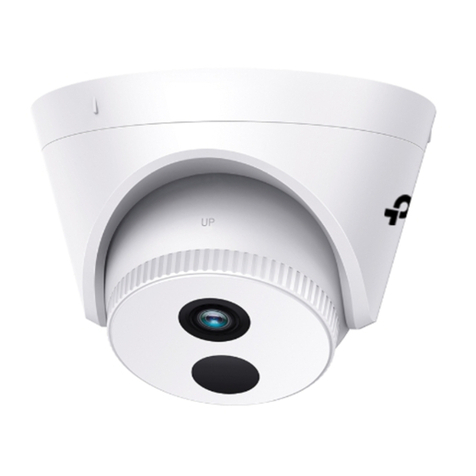
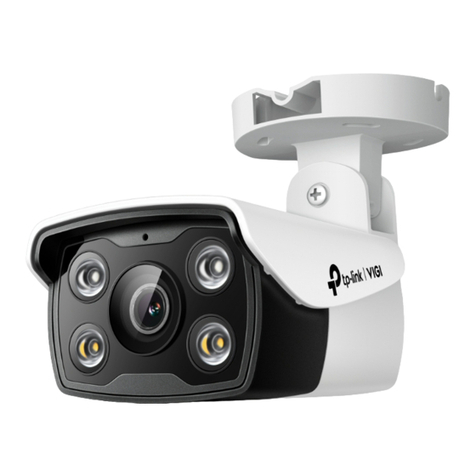
  9. TP-Link VIGI C540 User manual

TP-Link VIGI C540 User manual

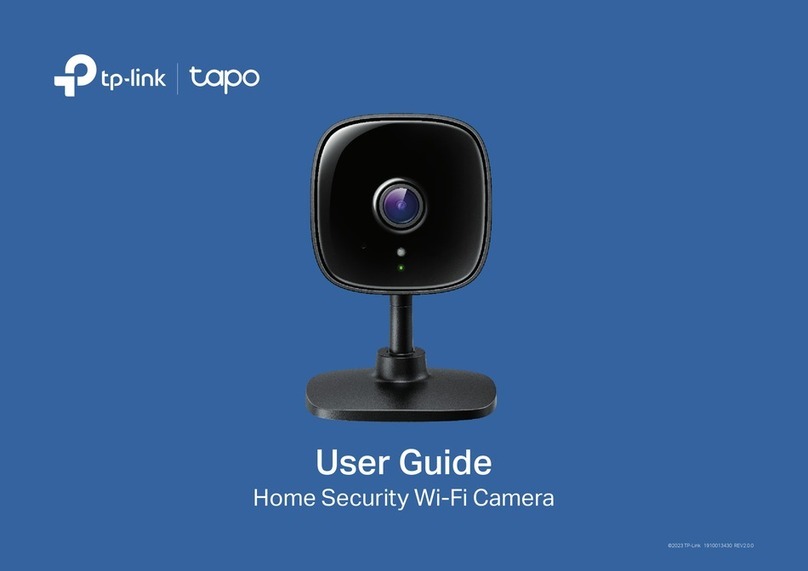
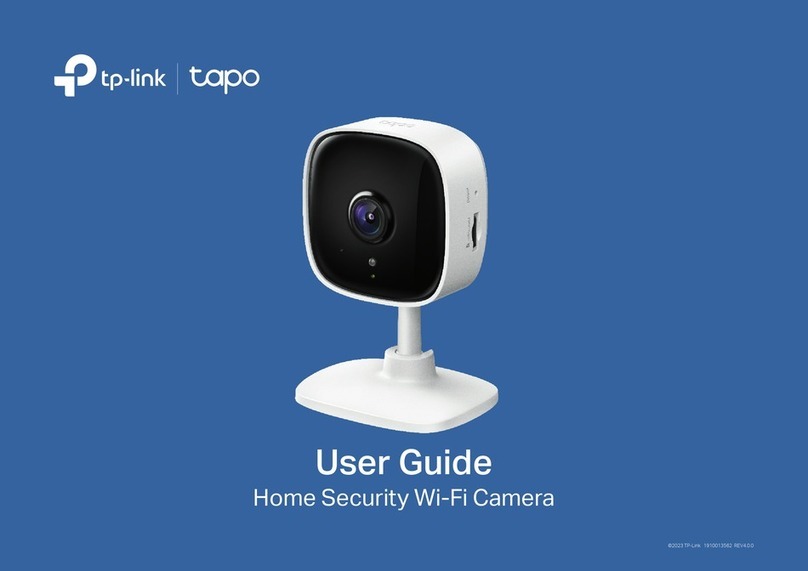
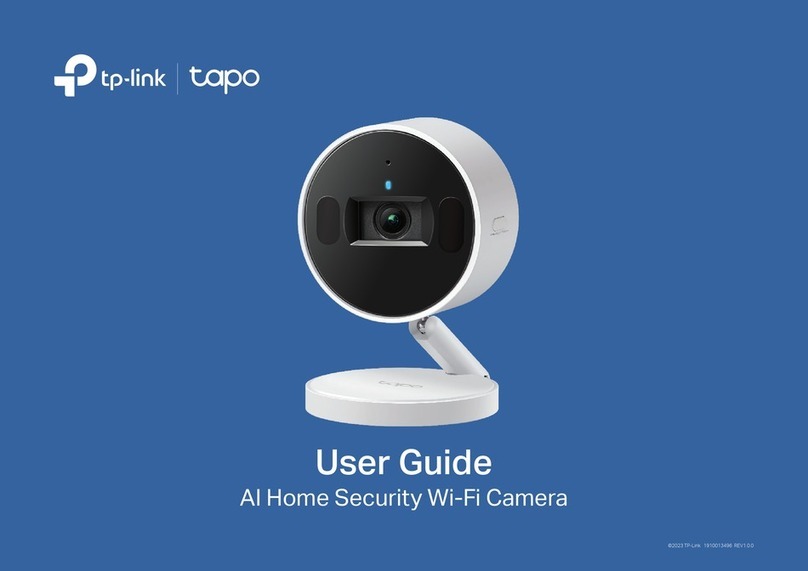
Other TP-Link Security Camera manuals

TP-Link KC300S2 User manual

TP-Link

TP-Link KC300S2 User manual

TP-Link VIGI C400HP User manual

TP-Link

TP-Link VIGI C400HP User manual

TP-Link TL-SC3430 User manual

TP-Link

TP-Link TL-SC3430 User manual

TP-Link VIGI User manual

TP-Link

TP-Link VIGI User manual

TP-Link TL-SC3430 User manual

TP-Link

TP-Link TL-SC3430 User manual

TP-Link tapo C500 User manual

TP-Link

TP-Link tapo C500 User manual

TP-Link C400 User manual

TP-Link

TP-Link C400 User manual

TP-Link VIGI C300P User manual

TP-Link

TP-Link VIGI C300P User manual

TP-Link Kasa Smart KC310 User manual

TP-Link

TP-Link Kasa Smart KC310 User manual

TP-Link VIGI C340-W-4 User manual

TP-Link

TP-Link VIGI C340-W-4 User manual

TP-Link Tapo C111 User manual

TP-Link

TP-Link Tapo C111 User manual

TP-Link TL-SC3171 User manual

TP-Link

TP-Link TL-SC3171 User manual

TP-Link Tapo C310 User manual

TP-Link

TP-Link Tapo C310 User manual

TP-Link TL-SC3230 User manual

TP-Link

TP-Link TL-SC3230 User manual

TP-Link Kasa Cam Outdoor User manual

TP-Link

TP-Link Kasa Cam Outdoor User manual

TP-Link TL-SC3130 User manual

TP-Link

TP-Link TL-SC3130 User manual

TP-Link TL-SC3130G User manual

TP-Link

TP-Link TL-SC3130G User manual

TP-Link Kasa Smart KC300 User manual

TP-Link

TP-Link Kasa Smart KC300 User manual

TP-Link VIGI User manual

TP-Link

TP-Link VIGI User manual

TP-Link Tapo C100 User manual

TP-Link

TP-Link Tapo C100 User manual

TP-Link VIGI C400HP V2 User manual

TP-Link

TP-Link VIGI C400HP V2 User manual

TP-Link Tapo C100 User manual

TP-Link

TP-Link Tapo C100 User manual

TP-Link tapo C125 User manual

TP-Link

TP-Link tapo C125 User manual

TP-Link tapo C310P2 User manual

TP-Link

TP-Link tapo C310P2 User manual

Popular Security Camera manuals by other brands

ADEMCO RapidDome Owners Operating & Installation Guide

ADEMCO

ADEMCO RapidDome Owners Operating & Installation Guide

EverFocus EBA2880 user manual

EverFocus

EverFocus EBA2880 user manual

Honeywell OptiCAM-IR Installation and setup guide

Honeywell

Honeywell OptiCAM-IR Installation and setup guide

Uniq UC-600 user manual

Uniq

Uniq UC-600 user manual

OPTICOM NVD-120-S datasheet

OPTICOM

OPTICOM NVD-120-S datasheet

Steren CCTV-221 instruction manual

Steren

Steren CCTV-221 instruction manual

Arm Electronics C420BCDNVFIR Features

Arm Electronics

Arm Electronics C420BCDNVFIR Features

Eneo PLD-2036PTZ installation guide

Eneo

Eneo PLD-2036PTZ installation guide

Axis AXIS M20 Series installation guide

Axis

Axis AXIS M20 Series installation guide

Panasonic KX-HCM230 operating instructions

Panasonic

Panasonic KX-HCM230 operating instructions

COP-USA CC15NV-SL Specifications

COP-USA

COP-USA CC15NV-SL Specifications

Active Silicon HARRIER H.264 quick start guide

Active Silicon

Active Silicon HARRIER H.264 quick start guide

Motorola Avigilon 1.3C-H5SL-BO1-IR installation guide

Motorola

Motorola Avigilon 1.3C-H5SL-BO1-IR installation guide

INSTEON 2864-232 user manual

INSTEON

INSTEON 2864-232 user manual

Wisenet XNB-6002 quick start guide

Wisenet

Wisenet XNB-6002 quick start guide

Axis M5525-E user manual

Axis

Axis M5525-E user manual

Vitek VTC-IR62NZ922 user guide

Vitek

Vitek VTC-IR62NZ922 user guide

Panasonic WV-SF342 Specifications

Panasonic

Panasonic WV-SF342 Specifications

manuals.online logo
manuals.online logoBrands
  • About & Mission
  • Contact us
  • Privacy Policy
  • Terms and Conditions

Copyright 2025 Manuals.Online. All Rights Reserved.


Quick Start Guide
*Images may dier from actual products.
Appearance
*The camera’s standard power supply is 12V DC (14W) or PoE (802.3af/at).
Power Supply Interface
(12V DC)
5
Status LED
6
7
Built-in Microphone
2
RJ45 Network Interface
(supports PoE)*
Infrared LED
3
White LED
4
1
1
2
3
4
5
Package Contents
Network Camera Waterproof Cable
Attachments
Quick Start Guide
Quick
Start
Guide
Option 1: Wall/Ceiling Mounting
1. Stick the mounting template to the desired mounting place. Drill 4 screw holes
according to the template.
2. Insert the anchors into the holes, use the provided screws to x the camera’s
bracket to the wall or ceiling.
Installing Waterproof Cable Attachments
Wall Mounting
Install the waterproof cable attachments for the network interface when the camera is installed outdoors.
Note: Make sure each part is securely attached and the waterproof rings are ush to keep out water.
1. Route the network cable through the following components in order: x nut,
waterproof ring, and then the waterproof jacket.
2. Fix the O-ring to the network interface of the camera and connect the network
cables.
1
Mount Camera
Fix Nut Waterproof
Ring
O-ring Network
Interface
Waterproof
Jacket
OR
Mounting Template
Anchor
Self-tapping Screw
Anchor
Self-tapping Screw
Mounting Template
Option 2: Pole Mounting
1. Thread each of the two cable ties through the slits on the back of the camera’s
bracket indicated below.
2. Slip the two cable ties through the pole. Tighten them to rmly attach the pole.
Cable Tie
Cable Tie
6
Status LED Indication
Blinking Red Slowly
Blinking Red Quickly
Blinking Green Quickly
Solid Green
Solid Red Starting up
Disconnecting from the internet
Working normally and connecting to the internet.
Camera upgrading
Camera resetting
7 Speaker
8Micro SD Card Slot
Insert a micro SD card for local storage. Initialize the SD card via VIGI app before
recording videos.
9Reset Button
Long press the button to reset the camera to factory settings.
8
9
Note: Before inserting the micro SD card or resetting
the camera, rotate the sphere and unfasten the two
xed screws to remove the cover.
3. Attach the network interface with the waterproof jacket, then twist to lock.
4. Insert the waterproof ring into the waterproof jacket. Rotate the x nut to secure
it to the waterproof jacket.
Mounting Template
Anchors x 4 Screws x 4
©2022 TP-Link 7106509846 REV2.0.0
Note: Make sure that the wall is strong enough to withstand 3 times the
weight of the camera and mounting bracket .
More Management Methods
1. Download the VIGI Security Manager on your
computer at
https://www.tp-link.com/support/download/vigi-s
ecurity-manager/.
2. Install the VIGI Security Manager and open it.
3. Cameras on the same network as your computer
can be automatically discovered. Go to Settings >
Discovered Devices, click + Add to activate your
discovered cameras by setting passwords, and
follow the instructions to add your cameras.
Method 1: Via the VIGI Security Manager
(Windows only)
You can also access and manage your cameras via any of the methods below.
View live video and modify camera settings on
your computer.
Method 3: Via a Web Browser
View live video and modify camera settings via a
web browser.
1. Find the camera's IP address on your router’s client
page.
2. On your local computer, open a web browser and enter
https://camera's IP address (https://192.168.0.60 by
default).
3. Select your Country/Region and Time Zone.
4. Set a password to activate the camera.
Done. You can view the live video on the Preview page, and
go to the Settings page to change camera settings.
Method 2: Via the TP-Link VIGI App
Remotely view live video, manage cameras, and
get instant alerts.
1. Download and install the TP-Link VIGI app.
2. Open the TP-Link VIGI app and log in with your
TP-Link ID. If you don’t have an account, sign up rst.
3. Tap the + button on the top right and follow the app
instructions to activate and add your cameras.
or
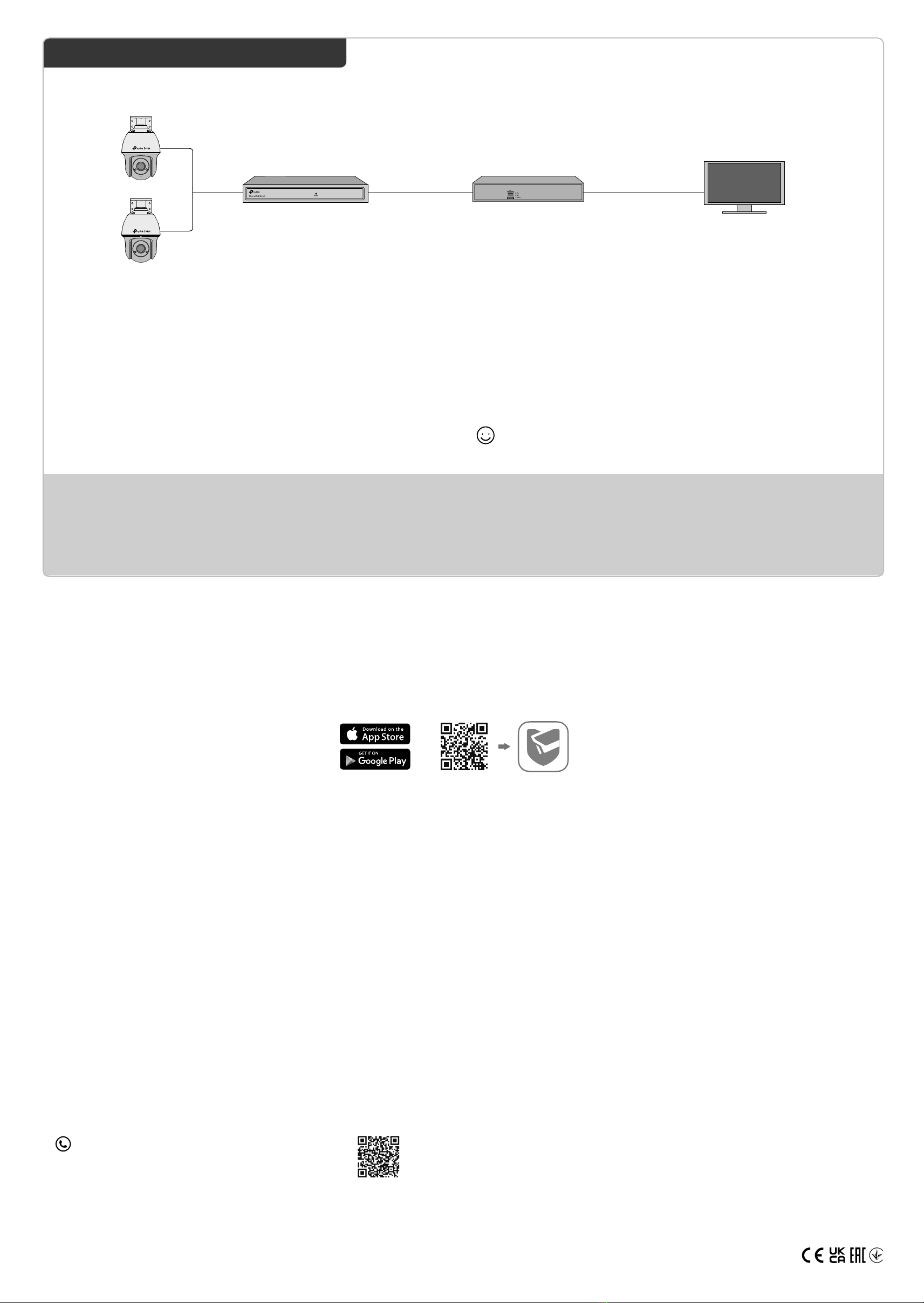
2Use Your Camera with an NVR
VIGI NVR
Monitor
Network Device
(e.g., Switch or Router)
The camera works with an NVR for easier batch access and management.
*Here we use a VIGI NVR as an example.
Frequently Asked Questions (FAQ)
Q1: What can I do if no cameras are discovered?
• Refresh to discover your camera again.
• Make sure the camera is powered on.
• Make sure your camera and NVR/computer are in the same subnet. If not, use the VIGI
Security Manager to set camera’s network parameters.
• Try to add your cameras manually.
• For other NVR brands, make sure you have activated the camera by setting a password
via the VIGI Security Manager or TP-Link VIGI app.
Q2: How do I reset the camera?
• Rotate the sphere and unfasten the two xed screws to remove the cover. Long press the
reset button until the Status LED starts blink red quickly,
Q3: What should I do if I forgot the password of the camera?
• You can check the password of the camera via VIGI NVR or VIGI Security Manager.
For more details, refer to NVR and Security Manager’s User Guides.
• You can reset the camera and activate it again on the VIGI app. During the activation
process, you can set a new password.
Q4: What should I do if the SD card is not working properly?
• Make sure you are using a micro SD card.
• Unplug the SD card and insert it again. Make sure you have inserted the SD card
correctly.
• It’s recommended to use a Class 10 micro SD card or higher, with storage from 8 GB to
256 GB.
• Make sure you have initialized the microSD card in TP-Link VIGI app.
• If the problem still persists, contact our technical support.
• Do not use any other chargers than those recommended.
• Do not use damaged charger or USB cable to charge the device.
• Do not attempt to disassemble, repair, or modify the device. If you need service, please contact us.
• Adapter shall be installed near the equipment and shall be easily accessible.
• Keep the device away from fire or hot environments. DO NOT immerse in water or any other liquid.
• The power adapter must be used indoors. Make sure that the temperature of the power adapter is
within 0-40°C.
TP-Link hereby declares that the device is in compliance with the essential requirements and other
relevant provisions of directives 2014/30/EU, 2014/35/EU, 2009/125/EC, 2011/65/EU and
(EU)2015/863. The original EU Declaration of Conformity may be found at
https://www.tp-link.com/en/support/ce/
TP-Link hereby declares that the device is in compliance with the essential requirements and other
relevant provisions of the Electromagnetic Compatibility Regulations 2016 and Electrical Equipment
(Safety) Regulations 2016.
The original UK Declaration of Conformity may be found at https://www.tp-link.com/uk/ukca
Network Camera
Network Camera
Step 2. Power On the Cameras
Power on your cameras with the PoE power supply or an external power
supply.
Caution: The camera’s standard power supply is 12V DC (14W) or PoE
(802.3af/at). The power source should comply with Power Source Class 2 (
PS2) or Limited Power Source (LPS) of IEC 62368-1.
Step 1. Connect the Hardware
Connect your cameras to the same network as your NVR (as
shown above).
Step 3. Add Cameras with the NVR
Before you start, make sure the NVR is working properly.
1. Right click on the Live View screen and click Add Camera.
2. Select your camera and click + to add your camera directly. If you have disabled
Plug and Play on your NVR, create a password or use a preset password for your
camera.
Note: If you can’t nd your camera, refer to FAQ-Q1.
Done! You can now view live video and manage cameras.
Using your cameras with other NVR brands:
Step 1: Power on your cameras and connect them to the network.
Step 2: Activate the camera using the VIGI Security Manager or TP-Link VIGI app (refer to the next section).
Step 3: Refer to the NVR’s User Manual to add cameras.
For more questions, please refer to https://www.tp-link.com/support/faq/2850/
For technical support and other information, please visit
https://www.tp-link.com/support, or simply scan the QR code.