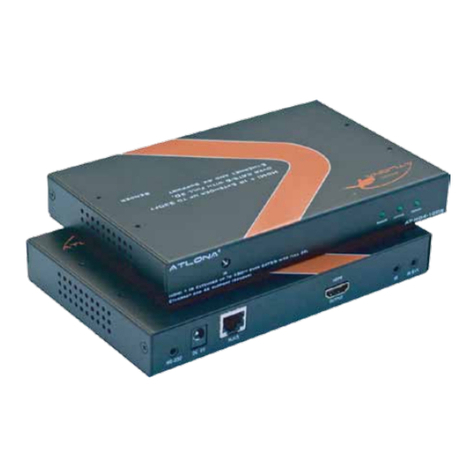
User Manual ~ UNIV RSAL PCI BUS XT ND R Model PCIEXT64U and PCIEXT64UB
Installing and running PCINT EXE under
32-bit Windows Vista TM
, XP TM
or 2000 TM
To install the Windo s Vista/XP/2000 version of live
insertion soft are, copy files A:\WINNT\PCINT.EXE
and PCIEXT64.SYS to a directory that is in your path
statement, such as your C:\WINNT directory. If you
ish to run the soft are under the old Win NT OS, copy
file PCIEXT64.OLD onto PCIEXT64.SYS, Ho ever,
this old version ill not run under Win XP. To run the
soft are, 1) Be sure a good UUT is plugged into the
PCIEXTU, and 2) the “Slot Po er” s itch is on, and
then open a DOS indo and type CD C:\WINNT and
then type PCINT. Or, alternatively, click on the “Pcint”
icon, or hit the RUN item on the toolbar, and type
C:\WINNT\PCINT.EXE and then click RUN.
Before running the software un er Win ows Vista
for the very first time, you mus right click on the
“Pcint” icon, then click on “Properties”, then click on
“Compatibility”, then click on “Privilege level”, then
click on “Run this program as an a ministrator”, an
then click “OK”. After this, the program may be run
any time by merely clicking on the “Pcint” icon.
Finding your UUT’s configuration registers
When PCINT.EXE starts up, you ill see a indo
entitled “PCI Device List” ith a list of PCI devices in it.
Hence, if there are 8 PCI devices in your system, you ill
see eight items on the list. Not all of these PCI devices
are plug-in-boards - some are motherboard PCI chips.
One of these evices is the UUT that is plugge into
your PCIEXT64U or UB. You ill need to find out
hich of these devices is the UUT’s.
You may be able to recognize the particular device that is
on the extender by its description. Double click on the
name of this device. A ne indo entitled “Edit PCI
Configuration Space” ill appear hich displays the first
16 configuration registers of that PCI device. The first
register in each indo (register 0) is the vendor ID
number. Verify that the ven or ID you see is the
correct one for your UUT. If you do not kno the
vendor ID of your UUT, ask the manufacturer of the
UUT. If the vendor ID you see does not match the one
kno n to be for your board, exit this indo by clicking
on OK, and then get back to the list by clicking on File
and then clicking on Probe PCI List. Then select a
different board, and verify that it displays the vendor ID
kno n to be correct for your UUT.
A detailed description of each register’s function is
contained in the PCI Local Bus Specification, although
for most production applications of the PCIEXT64U/UB,
it is not necessary to note the contents of these registers.
We just save the contents of these registers, so that e
can po er off and remove the UUT and then later restore
these contents hen inserting a ne UUT (of the same
type as the one removed) on the PCIEXT64U or UB.
Saving a UUT’s configuration registers
and restoring them into a new UUT
Once you are in the correct indo (entitled “Edit PCI
Configuration Space”) for your UUT, the contents you
see of the first 16 configuration registers of your
UUT have alrea y been save in a memory buffer,
and you can no turn off the slot power for your UUT,
remove the UUT and replace it ith another UUT.
Then, turn the slot power on and restore the ne
UUT’s registers by clicking on “Write to Device” and
then clicking “OK” in the Write Confirmation indo .
Your ne UUT should no be accessible to the system
in the same manner as the old one as.
You may test as many identical UUTs as you like ithout
having to save the registers each time. Just turn off the
slot power switch, plug in the new UUT, turn on the
slot power switch an click on Write to Device an
then “OK” in the Write Confirmation menu, to initialize
each ne ly inserted device.
Saving the UUT configuration registers to a
file on disk (Optional)
Saving UUT configuration registers to disk is only
necessary if you ill be exiting the PCINT.EXE program
before you s ap UUTs. You may optionally save UUT
configuration register contents to disk (after first clicking
on Probe PCI List and selecting your UUT from the list),
by leaving the “Edit PCI Configuration Space” indo ,
clicking on OK, then clicking on File and then “Save as”.
Then, type in a file to store the configuration data to.
Restoring UUT configuration registers from
a file on disk (Optional)
It is normally not necessary to save information to disk,
although any configuration setup previously saved to disk
may be recalled by clicking “File”, then “Open” and then
selecting the name of the file into hich you had
originally stored your data. A device list should appear.
Click on the evice name for your boar . The “Edit
PCI Configuration Space” indo ill appear. Verify
that the Ven or ID is the correct one for your UUT
and then click on “Write to Device”. If you reboot
your system, o not restore configuration register
5/3/2010- REV I COPYRIGHT 2010 Ultravie Corporation (925) 253-2960