manuals.online logo
Brands
  1. Home
  2. •
  3. Brands
  4. •
  5. Unify
  6. •
  7. Telephone
  8. •
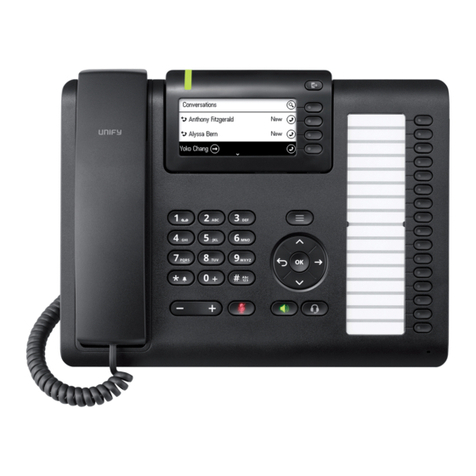
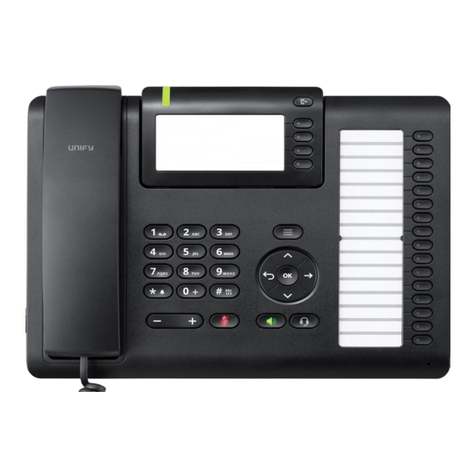
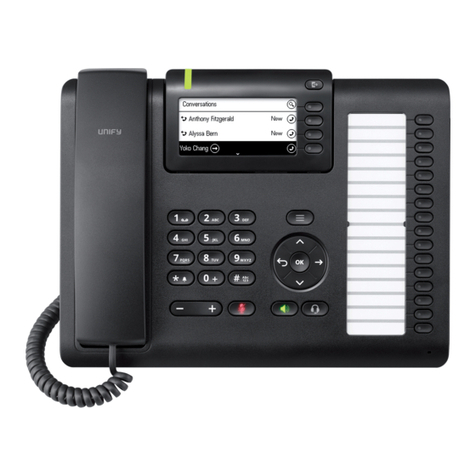
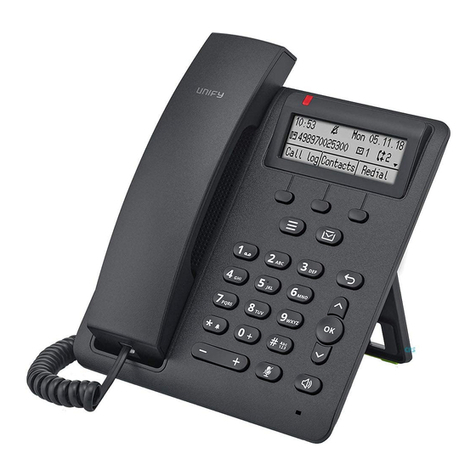
  9. Unify SwyxPhone L64 User manual

Unify SwyxPhone L64 User manual

Other Unify Telephone manuals

Unify OpenScape CP200 User manual

Unify

Unify OpenScape CP200 User manual

Unify OpenScape Desk Phone CP100 User manual

Unify

Unify OpenScape Desk Phone CP100 User manual

Unify OpenScape DECT Phone R6 User manual

Unify

Unify OpenScape DECT Phone R6 User manual

Unify OpenScape Desk Phone CP400T User manual

Unify

Unify OpenScape Desk Phone CP400T User manual

Unify OpenStage 40 SIP User manual

Unify

Unify OpenStage 40 SIP User manual

Unify OpenScape CP200 User manual

Unify

Unify OpenScape CP200 User manual

Unify OpenScape CP400 User manual

Unify

Unify OpenScape CP400 User manual

Unify OpenScape CP700 User manual

Unify

Unify OpenScape CP700 User manual

Unify OpenScape Key Module 400 User manual

Unify

Unify OpenScape Key Module 400 User manual

Unify OpenScape CP200 Operator's manual

Unify

Unify OpenScape CP200 Operator's manual

Unify OpenScape CP200T User manual

Unify

Unify OpenScape CP200T User manual

Unify Wireless Service Gateway WSG User manual

Unify

Unify Wireless Service Gateway WSG User manual

Unify OpenScape CP200 User manual

Unify

Unify OpenScape CP200 User manual

Unify OpenStage 20 T User manual

Unify

Unify OpenStage 20 T User manual

Unify OpenScape WLAN Phone WL4 User manual

Unify

Unify OpenScape WLAN Phone WL4 User manual

Unify OpenStage 10 T Instruction Manual

Unify

Unify OpenStage 10 T Instruction Manual

Unify OpenScape HiPath 4000 User manual

Unify

Unify OpenScape HiPath 4000 User manual

Unify OpenStage 60/60 G User manual

Unify

Unify OpenStage 60/60 G User manual

Unify OpenScape CP700 Reference guide

Unify

Unify OpenScape CP700 Reference guide

Unify OpenStage 40 User manual

Unify

Unify OpenStage 40 User manual

Unify OpenScape Desk Phone CP400T User manual

Unify

Unify OpenScape Desk Phone CP400T User manual

Unify OpenStage 15 User manual

Unify

Unify OpenStage 15 User manual

Unify OpenScape DECT Phone R6 User manual

Unify

Unify OpenScape DECT Phone R6 User manual

Unify Atos OpenScape CP110 User manual

Unify

Unify Atos OpenScape CP110 User manual

Popular Telephone manuals by other brands

Philips BaseLine Pro manual

Philips

Philips BaseLine Pro manual

V-tech i6772 user guide

V-tech

V-tech i6772 user guide

BT FREELANCE XD 5100 quick start guide

BT

BT FREELANCE XD 5100 quick start guide

Uniden 1360 user guide

Uniden

Uniden 1360 user guide

Fanvil D800 user manual

Fanvil

Fanvil D800 user manual

Avaya IP500 user guide

Avaya

Avaya IP500 user guide

NEC Univerge SV9100 installation manual

NEC

NEC Univerge SV9100 installation manual

Amanda MiniSOHO Installation and programming manual

Amanda

Amanda MiniSOHO Installation and programming manual

Hitachi SelecSet 900 Series user guide

Hitachi

Hitachi SelecSet 900 Series user guide

mPTech HAMMER BS21 quick start guide

mPTech

mPTech HAMMER BS21 quick start guide

NEC 2000IVX user guide

NEC

NEC 2000IVX user guide

ooma Phone Genie quick start guide

ooma

ooma Phone Genie quick start guide

Siemens Gigaset S450 user guide

Siemens

Siemens Gigaset S450 user guide

Clarity RC100 operating instructions

Clarity

Clarity RC100 operating instructions

GE 2-9480 user guide

GE

GE 2-9480 user guide

Geemarc PHOTOPHONE 155 user guide

Geemarc

Geemarc PHOTOPHONE 155 user guide

Interquartz Gemini IQ333 operating instructions

Interquartz

Interquartz Gemini IQ333 operating instructions

SSS Siedle HT 840-0 operating instructions

SSS Siedle

SSS Siedle HT 840-0 operating instructions

manuals.online logo
manuals.online logoBrands
  • About & Mission
  • Contact us
  • Privacy Policy
  • Terms and Conditions

Copyright 2025 Manuals.Online. All Rights Reserved.

SwyxPhone L64 QUICKSTART
Enter your PIN and confirm it with OK..
Now you can receive and place calls with your number.
Use the defined function keys to access the following functions:
Use the navigation buttons to navigate through the menu:
1 Control elements
2 Logging on
3 Menu mode
Put call on hold/Retrieve
Call transfer
Start a conference
䢳䢳䢼䢴䢺
Mon, 06 Jun 2017
Konversationen
Service/Settings
Hauptmenü
䣌䣱䣰䣧䣵䢮䢢䣌䣱䣪䣰
LED
Display
Hörer
Esc key
Numeric keypad
Navigation keys
Volume control
Microphone button
Unconditional
Call Forwarding
Option keys
Function keys
Headset button
Speaker button
OK
Arrow button "Up"
• Scroll up
Arrow button "Back"
• Cancel action
• Delete a character
• Menu level higher
OK Button
• Confirm input
• Execute action
• Menu level lower
Arrow button "Forward"
Where applicable:
• menu level lower
Arrow button "Down"
• Scroll down
1. Enter the number or select the number from the Phonebook.
2. Then, lift the handset in order to initiate the dialing procedure.
For using the hands free telephone, press the Speaker button or the OK button.
If a headset is connected, press the Headset button .
Answer the call by lifting the handset.
For using the hands free telephone, press the Speaker button or the OK button.
If a headset is connected, press the Headset button .
1. To mute the microphone, press the Microphone button .
2. To unmute the microphone, press the button again.
4 LEDs
The line is free - it is idle.
Active call
An incoming call is being signalled. The line is busy.
The connection is on hold.
Line is disabled for a wrap up time.
5 Start call
When making outgoing external calls, you may need to dial the exchange code to get
public line access.
6 Pick up call
7 Mute microphone
SwyxPhone L64 QUICKSTART
You are having a call via handset and want to switch to using hands free equipment.
Press the Speaker button and keep it pressed while you put the handset on the
hook.
You are now telephoning via hands free equipment.
Lift the handset off the hook to deactivate the hands free equipment.
1. Select the menu item Call Swap with the arrow buttons and press the OK button.
The first caller is put on "Hold" and hears music on hold.
2. Dial the number of the second subscriber and confirm with OK.
Switch between the subscribers by selecting Call swap in the menu.
You have an active call and want to transfer the call to another subscriber.
1. Use the arrow buttons to select the menu item Call transfer.
The caller is put on "Hold" and hears music on hold.
2. Dial the number of the second subscriber or select a number from the phonebook and
confirm with OK.
The subscribers are now connected and you can go on hook.
You have an calls on two lines and want to initiate a conference.
Select the menu item Conference with the arrow buttons and confirm your selection
with OK.
You are now in a conference with both subscribers.
You hear the busy tone while calling an internal subscriber.
1. Select the menu item Callback Request with the arrow buttons and confirm your selec-
tion with OK.
When the subscriber finishes the call, this is indicated with an acoustic signal. The
message Pick up Callback appears in the display.
2. Lift the handset to be connected to the subscriber.
8 Activating the hands free equipment during a call
9 Initiate a second call (Call Swap)
10 Connecting subscribers
11 Starting a conference
12 Callback on busy
If you didn‘t answer a Callback on busy, the list Missed Callbacks will be displayed.
New voicemails are displayed and additionally sent to you by email.
1. Use the arrow buttons to select the Voicemail available option.
2. Confirm your selection with OK to listen to the voicemails. Follow the instructions.
1. Select the menu item Call forwarding in the main menu.
2. Select the call forwarding type you want to modify (Unconditional, Busy, No Reply) and
press OK.
3. Define whether a call should be forwarded to Voicemail or to a phone number.
4. Confirm your entry with OK.
You have set the destination number for call forwardings.
Deactivating Call Forwarding Unconditional quickly
press the Unconditional Call forwarding button and confirm with OK.
You can define which calls ought to be received on which line of your SwyxPhone.
1. Select the menu item Configuration | Lines in the main menu.
2. Choose the line you want to configure and confirm with OK.
You can now adjust the settings for incoming and outgoing calls and block a line for
a wrap up time after each call.
You can assign other functions to the Function keys of the desk phone or the key
module.
1. Select the menu item Configuration | Function keys in the main menu.
2. Press the function key you want to configure.
The current function is shown on the display.
3. Select the menu item Modify with the arrow buttons and the function of your choice.
4. Confirm your selection with OK.
You can use the following functions:
13 Listening to voice messages
14 Configure and Enable Call Forwarding
15 Line keys
16 Set function keys
Function Explanation
Line key Represents a futher line
Speed dial Abbreviated dialing buttong
Call transfer Connects the active line and a line on hold
Do not disturb Incoming calls are only signalized visually
Secondary call Accept or reject a second call during a call
Caller list Displays the last 20 incoming calls

SwyxPhone L64 QUICKSTART
Hold Active line is on hold
Phonebook Opens the Phonebooks (Personal and Global)
Redial Displays the 20 telephone calls you have made most recently
Speaker Switches the speaker on or off or activates a line
Pick up call Picks up a signaled call
Call forwarding Switches Call Forwarding Unconditional on or off
Call swap Switches between several lines
Mute Switches the microphone on or off during a call
Headset key Activates/Deactivates a headset
Disconnect Terminates the active connection
Incoginito Suppresses your telephone number for the next call
Voicemail The voicemail inquiry call starts
Conference Starts a conference
Callback request Requests a Callback
Log off user Logs the user off
(Alternatively, select the menu item Log off in the main menu
to log off the current user)
Function Explanation
09/2019 - Subject to technical changes. All of the product and brand
names mentioned here are registered trademarks of the respective manu-
facturers.
Complete user documentations can be found under
swyx.com/products/support/documentation.html