VABSCE VB-007 User manual


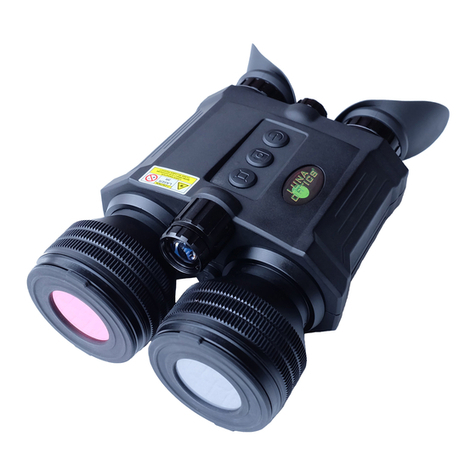
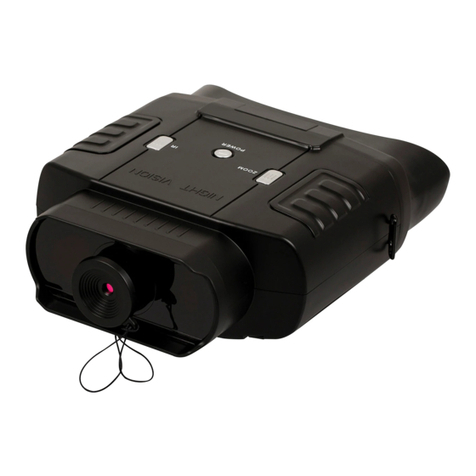
Congratulations on your purchase of this high quality night vision binoculars device. Use this device
to view your surroundings in low light conditions or even in complete darkness with the built-in
infrared light. You can even take pictures and video using the device which can be stored on a TF
card. This device can also be used to take photos and video during the day. Use the supplied A/V
cable to view your images on a television or download the images to your computer using the
supplied USB cable. Also includes a neck strap and handy storage pouch.
Accessories
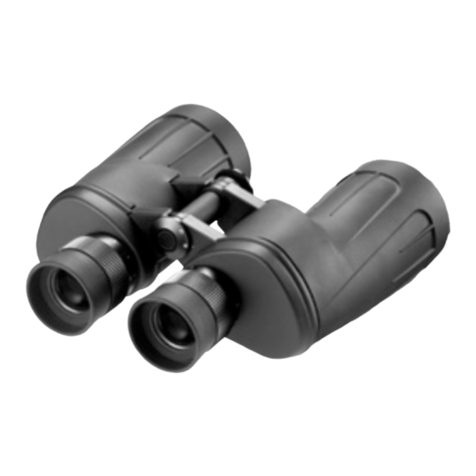
1x Night vision binoculars device
1x Mini USB cable
1x Power bank holder
1x A/V cable
1x Storage pouch
1x User manual
Over View

Parts overview:
1.Ocular 9.TV out
2.Power button 10. Battery cover
3.IR button 11.Objective lens focus wheel
4.Zoom button 12.Objective lens
5.Mode button 13. Infrared filter
6.Snap button 14.IR Illuminator
7.USB port 15. Infrared zoom
8.TF card slot 16.Tripod adapter

Battery Installation
Open battery compartments and install the 8XAA batteries being sure to follow the polarity
markings inside the battery compartment.
Close the battery covers.Please pay attention to the direction of covers.
Inserting / Removing the TF card
Insert the TF card into the TF card port and push until it locks in place.
To remove the installed TF card, please push the TF card inward to release it.
Storage capacity: 8GB or above is recommended
Note: The device will show the icon " "if the micro SD card in not installed.
Turning On the Night vision binoculars device
Power On: Press the power button still for about several seconds to start the Night vision binoculars
device.
Turning Off the Night vision binoculars device
Power Off: Press the power button for about several seconds to turn off the Night vision binoculars
device.
Key Button Functions
【MODE】Toggles between Video / Photo / Playback / Menu
【SNAP】
In video mode: Press to take video. To stop recording, press this button again.
In photo capture mode: Press to take photo.
In playback mode: Press to Play or delete the video.
In Menu mode: Press to select.
【ZOOM】
In video mode: Press to zoom out.
In photo capture mode: Press to zoom out.
In playback mode: Press to select the next picture or video
In menu mode: Press to select the previous menu listing.
【IR】
In Video/Photo mode: Press to turn on the infrared light. With each additional
click, the IR brightness will increase
In playback mode: Press to select the previous photo or video.
In menu mode: Press to select the next menu listing.

Taking Photo and Video Function
Taking a photo: Press the [MODE] button and select the capture photo mode. The icon
will appear in the top left corner of the screen. It means you enter the photo function. Press the
[SNAP] button to take photos.
Taking a video: Press the [MODE] button and select the video mode. The icon will appear
in the top left corner of the screen. It means you enter the video function. Press the [SNAP] button to
start recording video and press the [SNAP] button again to stop recording.
Watching stored videos and photos: Press the [MODE] button and select playback mode . You
may then look through your saved photos/videos with the [Zoom] or [IR] buttons.[Zoom] or [IR]
buttons can be used for choosing the previous page or next page.
Deleting Stored Videos and Photos: In playback mode, press the [SNAP] button to enter the menu.
You will be given the options to play or to delete the image or video.While deleting the photo, you
will see the menu by pressing the [SNAP] button .The first one is “Delete”.You can choose
“Delete,Delete All or Exit” by [ZOOM] or[IR] . While playing or deleting the videos,you will
see the menu by pressing the [SNAP] button.The first one is “Play”.You can choose
“Play,Delete,Delete All or Exit” by [ZOOM] or[IR] button .
The screen display during 【Playback】mode
Delete Photos

Play/Delete
Videos
Focusing the image
Target the object you would like to view and turn the focusing wheel located just below the objective
lens until the image on the screen is sharp and clear.The focusing wheel is No.11 in Parts overview
picture.

Adjust infrared projection angle
You can adjust infrared projection angle from 5.2°to 10.2°by No.15 in Parts overview picture.
LCD Display Information.
Your screen display in photo mode
1 Icon displaying that you are in Photo Mode
2 Brightness of IR from 1 to 5 (while plugging in USB power supply the IR brightness
from 1 to 7)
3 Remain capacity quantity
4 Digital zoom
5 Battery power
6 Backlight from 0 to 15

Your screen display in video mode
1 Icon displaying that you are in Video Mode
2 Brightness of IR from 1 to 5(while plugging in USB power supply the IR brightness
from 1 to 7)
3 Remaining time of recording
4 Digital zoom
5 Battery power
6 Backlight from 0 to 15
LCD Display Information.
Press [MODE] four times continuously and enter menu mode.
Note: [ZOOM] means “up” . [IR] means “down” . [SNAP] means “ok” button. After setting, you
can press [MODE] again to exit the menu.

Your screen display during menu mode
Format SD
Select to format the TF card
Format is an operation that initializes a partition on a disk or disk. This
usually causes all files in the existing disk or partition to be erased.You
can choose yes or no by [ZOOM] and [IR] .Lastly press [SNAP] to
confirm.
Power Save
Power off mode :The NV can be set to automatically shut down when
not operating after the selected period of time.

You can choose off 5min.,15 min.,30 min or cancel. For turning the
device off automatically. The buttons of selection and confirmation is the
same as mentioned before.Then choose cancel to exit.
Date
ZOOM: UP IR: DOWN SNAP: OK
Find Date input function by [ZOOM] and [IR]. Press [SNAP] to confirm
and start to set the date .[ZOOM] means up . [IR] means down .
[SNAP] means “ok” button. After setting, you can press [MODE] again
to exit.
Time
ZOOM: UP IR:DOWN SNAP:OK
Find time input function by [ZOOM] and [IR]. Press [SNAP] to confirm
and start to set the date .[ZOOM] means up . [IR] means down .
[SNAP] means “ok” button. After setting, you can press [MODE] again
to exit.
Table of contents