IP Toolbox
IP Toolbox is a utility program that helps users to locate the camera(s) in local area network that
computer is connected to. Please note that IP Toolbox works only in Microsoft Windows XP, Microsoft
Windows Vista, and Microsoft Windows 7 or above. Steps to get the utility program running are listed
below.
1. Download the IP Toolbox’s folder to local computer. The latest IP Toolbox can be found on Vicon’s
website Camera Software Download page, vicon-security.com
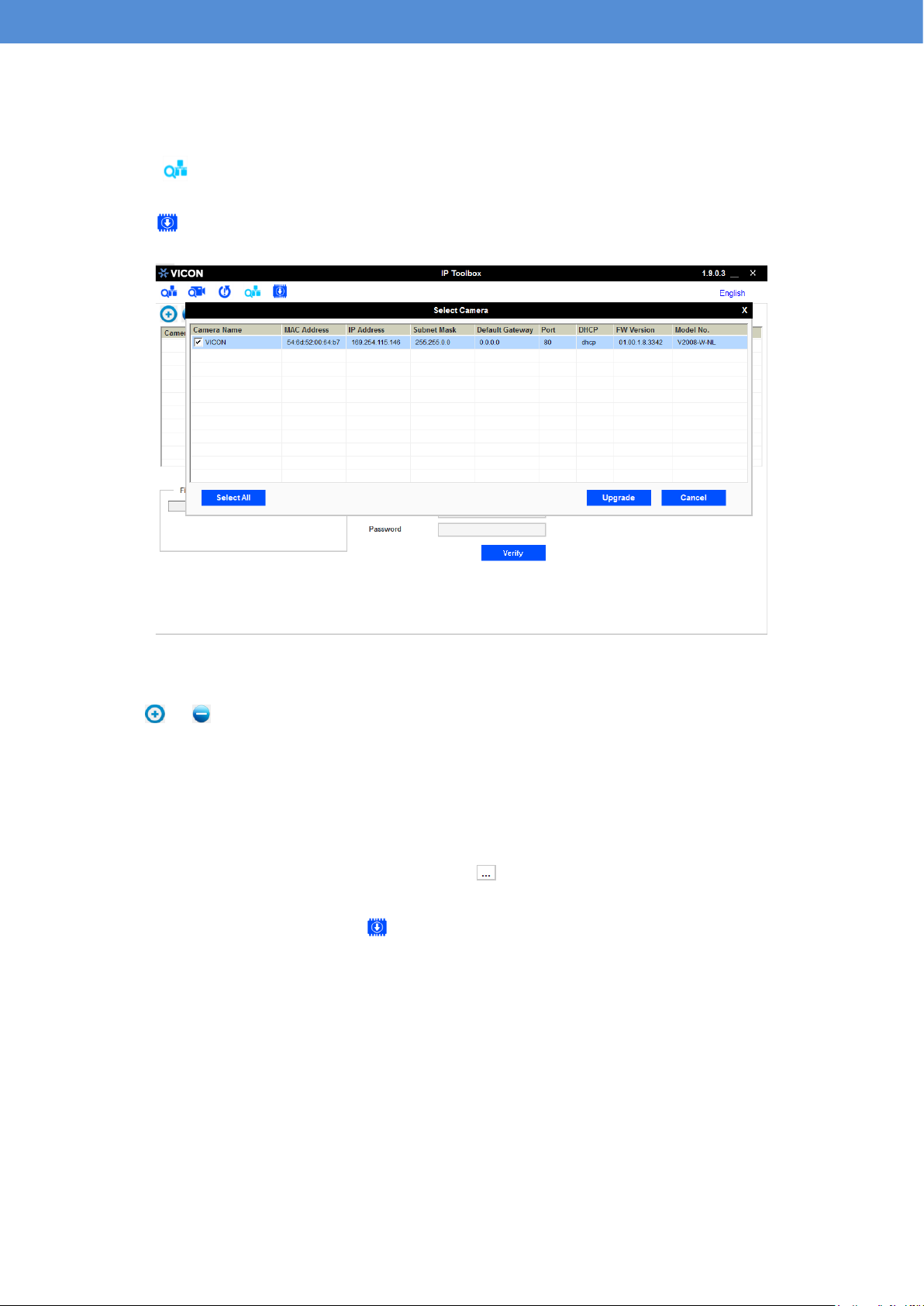
2. Double click on IP Toolbox.exe in the IP Toolbox’s folder, and the IP Toolbox window should pop
out as below.
Figure: IP Toolbox
3. The window lists information of camera(s) in operation at the present time. Click one of the cameras
in the list for which you want to configure the network settings.
4. Configure the following settings as needed.
User Name & Password: Before performing any operation to any listed camera, please enter username
and password for the selected camera, and then click “Verify” for authentication purposes.
Camera Name: Enter a descriptive name for the camera.
Network Settings: If you have a DHCP server on your network to assign IP addresses to network
devices, enable the “dhcp” option from dropdown menu of IP MODE. Otherwise, select “manual” to
manually enter the values for IP Address, Subnet Mask, Gateway and HTTP Port fields.
Click “Save” to enable the settings. Click “Cancel” to discard the settings.
5. Press “View” button; the designated browser page of the selected camera will pop out. Please
input the corresponding User Name & Password to log in to the specific page of camera.
6. Press “Refresh” button; all the cameras currently connected to the network will appear on the
list.
7. Press “Initialize” button; there are three options, Software default, Hardware default, and
Reboot camera, for user to perform the factory default or reboot the camera. After clicking the
preferred item, the warning message will appear. Please confirm again before you perform the
selected function.
8. The “Filter” button on the upper-right corner allows user to perform filtering search, which means