II-A- 6. Once you have correctly entered your Stride, Weight and Age, push the Exit button twice
and you will be back at the STEPS screen.
You have now entered the important data that the DashTrak requires to accurately calculate its
various metrics such as; Distance, Calorie Burn, Aerobic Pace, and Heart Rate data using the
optional WalkStyles HR Transmitter (instructions for use included in HR Transmitter package).
Next, you should review the Features in Section IV to personalize your DashTrak and to learn
about the Data and Menu Screens.
III. DashTrak Setup and Activating your Platinum Member Account
Remember, you need to charge your DashTrak for at least 2 hours before you begin this
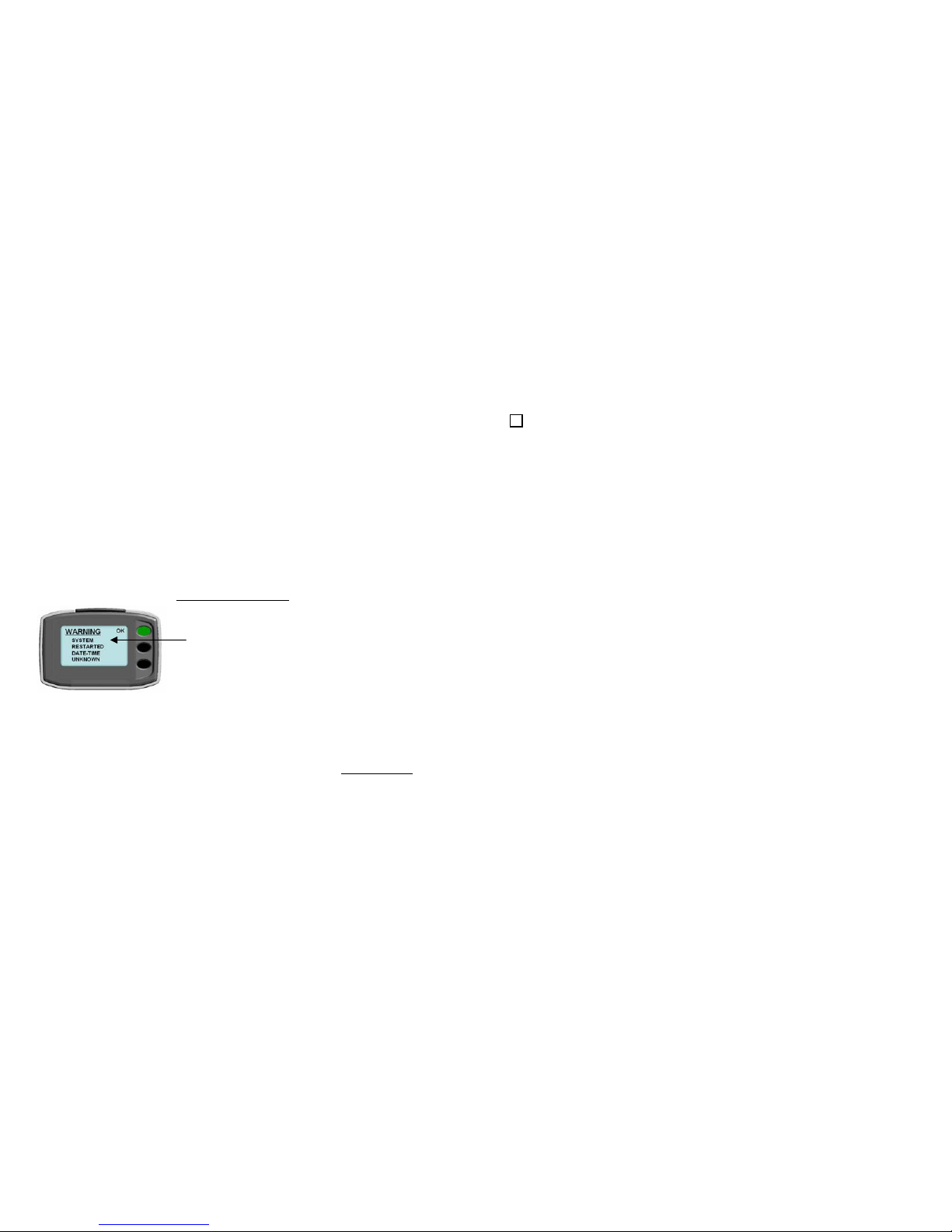
process. After charging, when you remove the DashTrak from the charging unit, if you see a
warning about SYSTEM RESTARTED DATE-TIME UNKNOWN, disregard the warning and push
the Next and Exit buttons until you see the STEPS screen. In the future, if you see this warning, it
means your battery was fully discharged prior to re-charging and you will need to re-sync the
DashTrak clock to your account on the WalkStyles.com web site (see USER TIPS, RE-SYNCING
DASHTRAK TO WEB SITE, page 13).
While you are in the STEPS screen with the DashTrak open, confirm that the counting
mechanism is working by tapping it several times against the palm of your hand. The readout
should increase with each tap.
►DO NOT CONNECT THE DASHTRAK TO THE USB CABLE YET!
III-A. Initializing your Platinum Member account
1. If you have a Pre-Paid Subscription Code, have a Platinum Member subscription commitment
or you are upgrading your DashTrak experience by becoming a Platinum Member subscriber,
open Microsoft Internet Explorer and navigate to www.WalkStyles.com.
a. If you ARE already a Basic Member, log in to your account and then click on Go Platinum
(located to the right of the step statistics )and then select Subscribe Now and follow the
directions entering your Pre-Paid Subscription Code, if applicable, into the box under Plan
Type & Codes on the Billing Page (see Picture 2). You will be asked for your credit card
information to facilitate the monthly subscription payment. If you are using a Pre-paid
Subscription Code, the billing will start once the pre-paid period concludes. After registering,
while you are still logged into your account, click on the HOME menu option and then refer
to Section III-A-2, page 6.
6
III-A-1- b. If you are NOT already a Basic Member, click on the menu option JOIN US. Under
Platinum Membership at the bottom of the page, enter your zip code and then click on the
Subscribe Today button and follow the directions providing the information as requested.
This information will be used to set up your user profile so that other members (if you
choose) can search you out to walk and/or form a club and vice versa. If you have a Pre-
Paid Subscription Code, when you get to the Billing Page, enter it into the box under Plan
Type & Codes (see Picture 2). You will also be asked for your credit card information. This
will be used to facilitate your monthly subscription payment. If you are using a Pre-paid
Subscription Code, monthly billing will start once the pre-paid period concludes. As a new
member (not upgrading from a Basic Member) you will be sent a temporary password to
your registered e-mail account. Retrieve the password and then log in to your new
Platinum Membership account at www.WalkStyles.com using your e-mail address and
temporary password. Change your password as prompted then refer to Section III-A-2.
III-A-2. After registering as a Platinum Member, or upgrading to Platinum from Basic Membership,
navigate to your Personal Home Page and click on the Enter Steps button located in the
MY ACTIVITY SUMMARY section of the page. A pop-up window will appear asking if
you will Upload or Manually enter steps in to your Platinum Member account. In order to take
advantage of all of the features of the DashTrak, we recommend that you select Upload
and then click on the Submit button. If you have already set up your account to Manually
enter steps prior to acquiring your DashTrak, you will need to change your Step Entry
Mechanism setting by going to the My Account / Site Preferences menu options and then
proceed with item III-A-3.
If you are going to be a Manual DashTrak User of your Platinum Member account, skip steps
III-A-3 and III-B, and if you have not already done so, set up your DashTrak for Manual use as
discussed in Section II, page 3, of this guide.
Picture 2
Enter pre-paid code here