manuals.online logo
Brands
  1. Home
  2. •
  3. Brands
  4. •
  5. Winbook
  6. •
  7. Laptop
  8. •
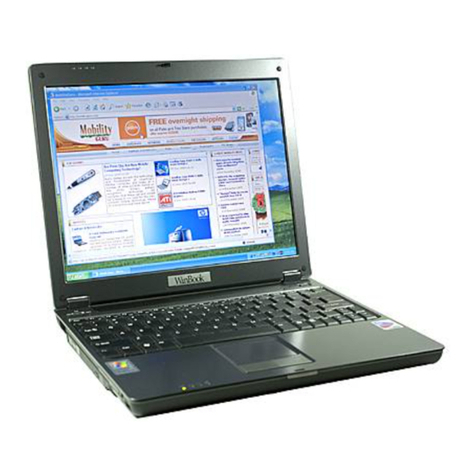
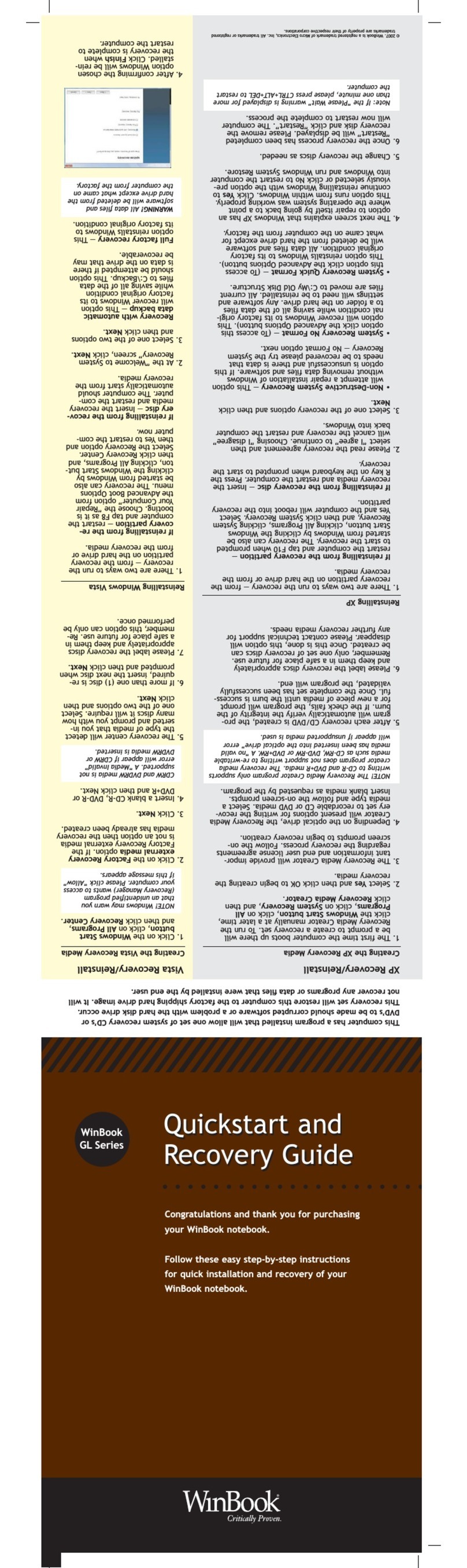
  9. Winbook C100 User manual

Winbook C100 User manual

Other manuals for C100

2

This manual suits for next models

2

Other Winbook Laptop manuals

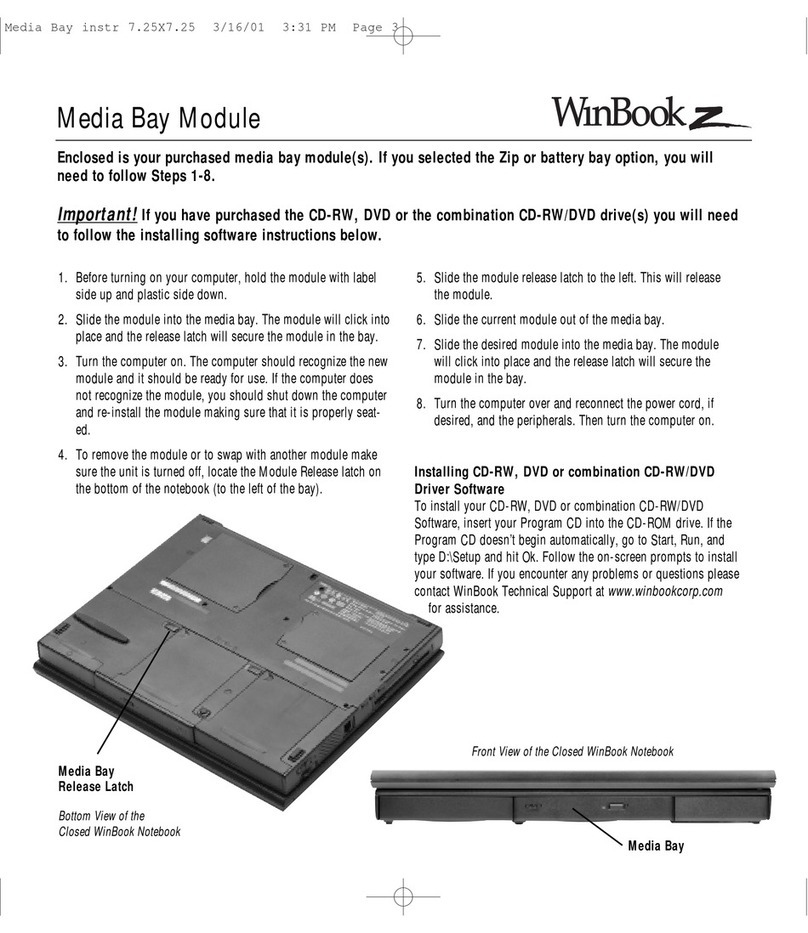
Winbook Z1 Manual

Winbook

Winbook Z1 Manual

Winbook XL User manual

Winbook

Winbook XL User manual

Winbook V100 User manual

Winbook

Winbook V100 User manual

Winbook LM User manual

Winbook

Winbook LM User manual

Winbook N3 User manual

Winbook

Winbook N3 User manual

Winbook Z1 User manual

Winbook

Winbook Z1 User manual

Winbook XP5 User manual

Winbook

Winbook XP5 User manual

Winbook J1 User manual

Winbook

Winbook J1 User manual

Winbook X Series X2 User manual

Winbook

Winbook X Series X2 User manual

Winbook SLC User manual

Winbook

Winbook SLC User manual

Winbook W100 User manual

Winbook

Winbook W100 User manual

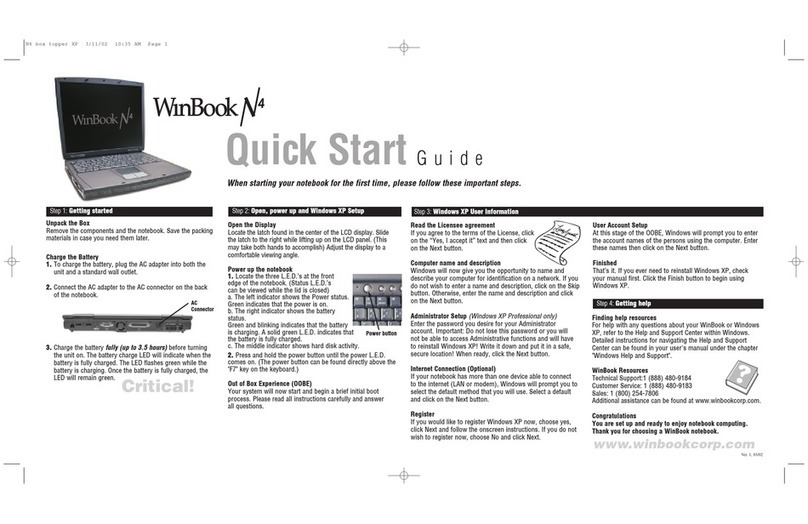
Winbook N4 User manual

Winbook

Winbook N4 User manual

Winbook x4 User manual

Winbook

Winbook x4 User manual

Winbook V100 User manual

Winbook

Winbook V100 User manual

Winbook CW140 User manual

Winbook

Winbook CW140 User manual

Winbook XP User manual

Winbook

Winbook XP User manual

Winbook SX DX User manual

Winbook

Winbook SX DX User manual

Winbook J4 User manual

Winbook

Winbook J4 User manual

Winbook N4 User manual

Winbook

Winbook N4 User manual

Winbook FX User manual

Winbook

Winbook FX User manual

Winbook SI User manual

Winbook

Winbook SI User manual

Winbook XLi User manual

Winbook

Winbook XLi User manual

Winbook C100 User manual

Winbook

Winbook C100 User manual

Winbook N4 Instruction Manual

Winbook

Winbook N4 Instruction Manual

Popular Laptop manuals by other brands

EUROCOM ARMADILLO 2 W840AU Service manual

EUROCOM

EUROCOM ARMADILLO 2 W840AU Service manual

HP EliteBook 8570p Maintenance and service guide

HP

HP EliteBook 8570p Maintenance and service guide

Toshiba L300-EZ1522 Specifications

Toshiba

Toshiba L300-EZ1522 Specifications

HP Compaq 6520s Maintenance and service guide

HP

HP Compaq 6520s Maintenance and service guide

Lenovo ThinkPad T530 null

Lenovo

Lenovo ThinkPad T530 null

IBM THINKPAD T41 - Warranty user manual

IBM

IBM THINKPAD T41 - Warranty user manual

Lenovo ThinkPad X1 Carbon user guide

Lenovo

Lenovo ThinkPad X1 Carbon user guide

Lenovo ThinkPad T400s Ghid de service şi depanare

Lenovo

Lenovo ThinkPad T400s Ghid de service şi depanare

Toshiba TE2000 user manual

Toshiba

Toshiba TE2000 user manual

Acer SP514-51N user manual

Acer

Acer SP514-51N user manual

Fujitsu P1620 - LifeBook - Core 2 Duo 1.2 GHz Getting started

Fujitsu

Fujitsu P1620 - LifeBook - Core 2 Duo 1.2 GHz Getting started

IBM ThinkPad 240 Quick reference guide

IBM

IBM ThinkPad 240 Quick reference guide

Dell G3 15 Setup and specifications

Dell

Dell G3 15 Setup and specifications

Clevo D400P Service manual

Clevo

Clevo D400P Service manual

HP EliteBook 840r G4 Maintenance and service guide

HP

HP EliteBook 840r G4 Maintenance and service guide

Clevo NL51CU Service manual

Clevo

Clevo NL51CU Service manual

Dell Inspiron 3700 Get started

Dell

Dell Inspiron 3700 Get started

Toshiba R700-S1320 Specifications

Toshiba

Toshiba R700-S1320 Specifications

manuals.online logo
manuals.online logoBrands
  • About & Mission
  • Contact us
  • Privacy Policy
  • Terms and Conditions

Copyright 2025 Manuals.Online. All Rights Reserved.

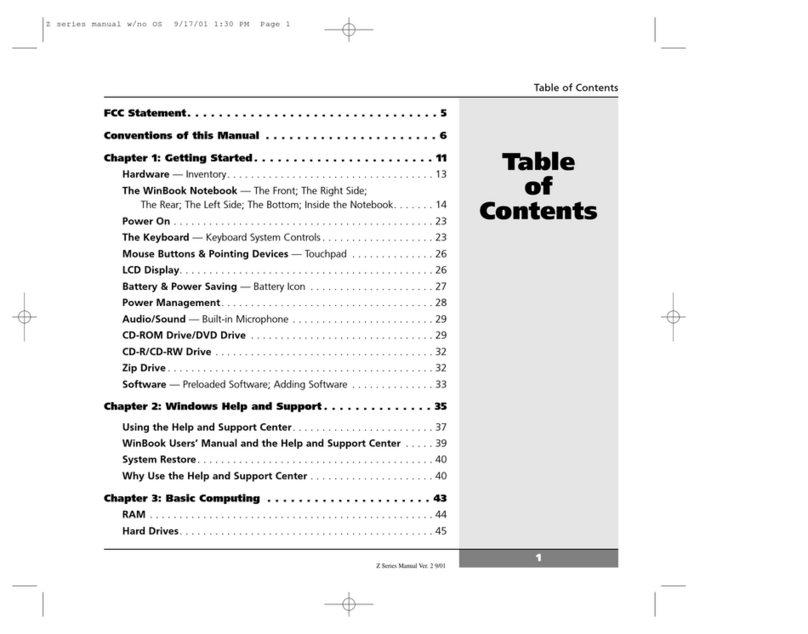
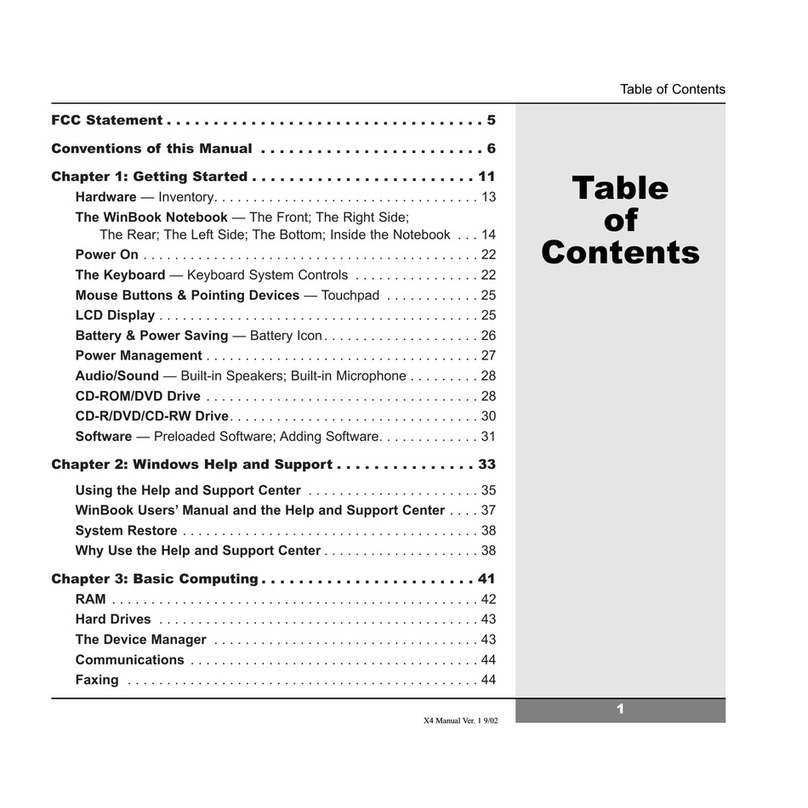
FCC Statement . . . . . . . . . . . . . . . . . . . . . . . . . . . . . . . . . . . . . . . 2
Conventions of this Manual . . . . . . . . . . . . . . . . . . . . . . . . . . . . . . 3
Chapter 1: Getting Started . . . . . . . . . . . . . . . . . . . . . . . . . . . . . . 7
Hardware — Inventory . . . . . . . . . . . . . . . . . . . . . . . . . . . . . . . . . . . . . . . . 9
The WinBook Notebook — The Front; The Right Side;
The Rear; The Left Side; The Bottom; Inside the Notebook . . . . . . . . . 1
Power On . . . . . . . . . . . . . . . . . . . . . . . . . . . . . . . . . . . . . . . . . . . . . . . . . 19
The Keyboard — Keyboard System Controls . . . . . . . . . . . . . . . . . . . . . . 19
Mouse Buttons & Pointing Devices — Touchpad . . . . . . . . . . . . . . . . . . 22
L D Display . . . . . . . . . . . . . . . . . . . . . . . . . . . . . . . . . . . . . . . . . . . . . . . 23
Audio/Sound — Built-in Speakers; Built-in Microphone . . . . . . . . . . . . . . . 24
Optical Drive . . . . . . . . . . . . . . . . . . . . . . . . . . . . . . . . . . . . . . . . . . . . . . 24
Writable Optical Drive . . . . . . . . . . . . . . . . . . . . . . . . . . . . . . . . . . . . . . . 26
Software — Preloaded Software; Adding Software . . . . . . . . . . . . . . . . . . 27
Chapter 2: Windows elp and Support . . . . . . . . . . . . . . . . . . . . 29
Using the Help and Support enter . . . . . . . . . . . . . . . . . . . . . . . . . . . . 31
WinBook Users’ Manual and the Help and Support enter . . . . . . . . . . 33
System Restore . . . . . . . . . . . . . . . . . . . . . . . . . . . . . . . . . . . . . . . . . . . . 34
Why Use the Help and Support enter . . . . . . . . . . . . . . . . . . . . . . . . . . 34
Chapter 3: Mobile Computing . . . . . . . . . . . . . . . . . . . . . . . . . . . 35
Battery Operation — Charging; Changing. . . . . . . . . . . . . . . . . . . . . . . . . 36
Power Management — WinBook Notebook Low
Power Measures; Standby and Hibernate Modes . . . . . . . . . . . . . . . . 39
Safety & Operation. . . . . . . . . . . . . . . . . . . . . . . . . . . . . . . . . . . . . . . . . . 41
Travel — Travel Tips. . . . . . . . . . . . . . . . . . . . . . . . . . . . . . . . . . . . . . . . . 43
Chapter 4: Upgrading Your System . . . . . . . . . . . . . . . . . . . . . . . 47
Memory — To Upgrade a Memory Module. . . . . . . . . . . . . . . . . . . . . . . . . 48
Upgrading the Hard Drive — To Upgrade Your Hard Drive . . . . . . . . . . . . 51
Wireless LAN (optional) — Upgrading to Wireless LAN . . . . . . . . . . . . . . 54
Firmware Upgrades . . . . . . . . . . . . . . . . . . . . . . . . . . . . . . . . . . . . . . . . . 56
Index . . . . . . . . . . . . . . . . . . . . . . . . . . . . . . . . . . . . . . . . . . . . 57
Table
of
Contents
1
Table of Contents
C Series Manual Ver. 1, 8/03

C-Series manual 0728 8/6/03 9:03 AM Page 1
Federal Communications Commission (FCC) Statement
This equipment has been tested and found to comply with the limits
for a class B digital device, pursuant to Part 15 of the FCC Rules.
Their limits are designed to provide reasonable protection against harmful
interference when the equipment is operated in a residential installation.
This equipment generates, uses, and can radiate radio frequency energy,
and if not installed and used in accordance with the instruction manual,
may cause harmful interference to radio communications. However, there
is no guarantee that interference will not occur in a particular installation.
If this equipment does cause harmful interference to radio or television
reception, which can be determined by turning the equipment off and
on, the user is encouraged to try to correct the interference by one or
more of the following measures:
• Reorient or relocate receiving antenna.
• Increase the separation between equipment and receiver.
• Connect the equipment into an outlet on a circuit different from
that to which the receiver is connected.
• Consult the dealer or an experienced radio/TV technician for help.
Notice 1:
Any changes or modifications not expressly approved by the party
responsible or compliance could void the user’s authority to operate
the equipment.
Notice 2:
Shielded interface cables and AC power, if any, must be used in order
to comply with emission limits.
WinBook Series User’s Manual
2
C-Series manual 0728 8/6/03 9:03 AM Page 2
3
Preface
Conventions of This Manual
Using this manual will help you get the most from your Win ook®
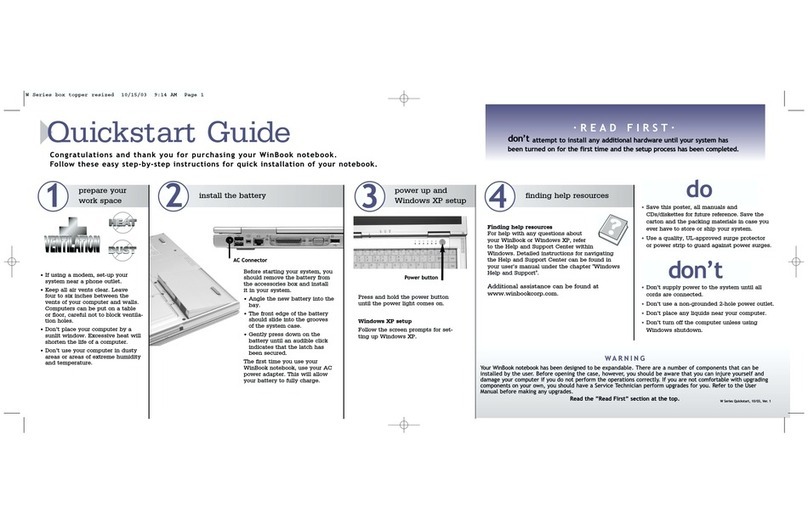
notebook computer. Keep the manual and the Quickstart Guide with
your Win ook notebook to refer to when you want information and
help. If you are an experienced user of computers and/or Microsoft’s
Windows®operating systems, you might find it useful to read Chapter
1 on the features specific to your Win ook notebook and then take
advantage of the HTML-based help located in the Help and Support
center in Windows. The hypertext links will enable you to move more
quickly to the information you require. If you are a less experienced
user, you should read through the manual carefully before using your
system. Whether or not you are an experienced user, you should consult
the Help and Support Center if you encounter any problems with your
Win ook notebook. You will find answers there to many common
problems or errors.
efore proceeding, you should be aware of some of the conventions
of usage in this manual:
• Specific keyboard keys to be typed are indicated in square
brackets: [Tab].
• Combinations of keys are indicated with a plus sign between the keys:
[Shift]+[Tab]. For a combination of keys, you should depress the keys
simultaneously. You might also find it easier to hold down the control
keys ([Alt] or [Shift] or [Ctrl]) of the combination and then press the
final key of the combination.
Every attempt has
been made to keep
this manual current,
but there might be changes
between the writing of this
manual and your purchase
of the WinBook notebook.
C-Series manual 0728 8/6/03 9:03 AM Page 3
In order to get the optimal usage out of your Win ook notebook,
you should remember the following:
• Read through all the instructions for your Win ook notebook,
including this manual and the Quickstart Guide that came with
your computer.
• Keep the area free of static electricity and magnetic fields.
These can damage the computer and/or diskettes.
WinBook Series User’s Manual
4
Windows has a built in application for supplying feature rich help and
support content called the “Help and Support Center”. Through the use
of the Help and Support Center, you may find more detailed information
about your machine and its operating system as well as tips and problem reso-
lutions. This symbol will help you to directly find the information you are looking
for by supplying the keywords that should be searched for within the Help and
Support Center. For specific information on how to use the Help and Support
Center, refer to the “Windows Help and Support” chapter in this manual.
The exclamation symbol
identifies information
which is important for
you to read to avoid damage
to the computer, loss of data,
or personal injury.
The pencil symbol indi-
cates that you should take
note of the accompanying
information.
This identifies information
that you might find partic-
ularly helpful in using your
computer or this manual.
This warning cautions
you against actions which
might be destructive to
your data or might disrupt proper
system operation.
C-Series manual 0728 8/6/03 9:03 AM Page 4
5
Preface
• e sure to discharge static electricity from your body before
touching the computer or keyboard.
• Use the same caution you would with any electronic equipment.
Keep food, drinks, smoke and ashes away from your computer.
Store the computer in an area that is not exposed to direct sunlight
or heating ducts. Keep the computer away from sources of excessive
moisture. Damage to the computer caused by immersion is not
covered by the warranty.
• When cleaning the computer or its components, apply the proper
cleaning solutions or sprays only to the cloth, not to the computer
or its components.
• If there is ever a need to disconnect internal components other
than those mentioned in the instructions that came with your
system, please have this done by a qualified service technician.
• You should never attempt to physically repair a CD-ROM, CD-R/RW
or DVD drive or diskette drive yourself.
• Do not attempt to repair or open a battery yourself. The battery should
not be exposed to extreme heat, as explosion can result. Proper battery
disposal is required. Do not dispose of a battery in regular waste.
• Do not block the cooling fans on the sides or bottom of your unit.
C-Series manual 0728 8/6/03 9:03 AM Page 5
The information in this document and the associated WinBook notebook Help file is
subject to change without notice and should not be construed as a commitment by the
manufacturer.
The manufacturer assumes no responsibility for any errors or omissions that might
appear in this document or the associated WinBook notebook Help file.
The software described in this document is furnished under a license and may be
used and copied only in accordance with the terms of such license. No responsibility
is assumed for the use or reliability of software or equipment that is not supplied by
the manufacturer or its affiliated companies.
Restricted Rights: Use, duplication, or disclosure by the U.S. Government is subject
to restrictions as set forth in subparagraph (c) (1) (ii) of the Rights in Technical Data
and Computer Software clause at DFARS 252.227-7 13.
Acknowledgements
WinBook®is a registered trademark of WinBook Computer Corporation. MS-DOS,
Internet Explorer, Windows®XP is a registered trademark of Microsoft Corporation.
Active Desktop is a registered trademark of Intel Corporation. All other trademarks
and registered trademarks are property of their respective corporations.
Copyright Notice
Duplication or reproduction of this manual in any form without prior permission from
Micro Electronics, Inc. represents an infringement of copyright.
©2 3 WinBook Computer Corporation
Manual Version 1.
Release Date: August 2 3
WinBook Series User’s Manual
6
C-Series manual 0728 8/6/03 9:03 AM Page 6
Chapter 1:
Getting Started
7
Chapter 1: Getting Started
C-Series manual 0728 8/6/03 9:03 AM Page 7
WinBook Series User’s Manual
Your Win ook notebook is designed for those who need the full power
of a desktop PC in a thin, light and easily portable package. You can
take the power of your computer almost anywhere you go. The battery
power of your computer allows you to use the computer even where there
are no electrical outlets. You can add optional elements to your system
(Floppy Disk Drive, Port Replicator) that connect to your US port and
expand its use as a desktop system. You can also use the PCMCIA port
and the LAN to connect to devices and computers, expanding the usability
of your system.
8
Continuous use of a keyboard may cause repetitive stress injuries
or discomfort, including carpal tunnel syndrome, tendonitis and
tenosynovitis. You should seek medical advice if you feel any aching,
numbing or tingling in your arms, wrists or hands.
Suggestions for maximizing comfort in using a keyboard include:
• Take frequent breaks from typing
• Maintain a straight wrist position
• Avoid resting on your wrists while typing
• Use a light touch on keys
• Ensure that your chair, work surface, monitor and keyboard
are in the correct positions to keep your back and neck straight,
your shoulders relaxed and your elbows at your sides.
Consult your doctor or other health professional for medical advice
on how to reduce your risk of injury or discomfort from continuous
keyboard use.
WARNING
C-Series manual 0728 8/6/03 9:03 AM Page 8
ardware
Inventory
When you unpack your Win ook notebook, check all the items you
ordered are present and in good condition. Check the inventory checklist
that came in the Win ook notebook box to be sure that all the components
and optional components you ordered are included. If anything is missing
or damaged, contact Customer Service immediately.
Checklist follows:
• Win ook notebook, with built-in CD-ROM, DVD, CD-RW,
Combo (CD-RW and DVD) or DVD-R/RW Drive
• S-Video Out Adapter Cable
• Primary attery
• AC Power Adapter
• Power Cord
• This Manual
• Quickstart Guide
• Warranty Information Card
• Phone cord
• Any other optional components ordered
Note: The WinBook notebook uses proprietary accessories that are
designed specifically for your WinBook computer (such as a port
replicator) and you should only use those items that have been approved
for your computer. Contact WinBook for information about obtaining
approved accessories and upgrades. f you use items that are not approved
for use with this computer, you might cause the computer to malfunction
or to emit electromagnetic radiation in excess of local regulations. This
does not apply to non-proprietary accessories such as PC cards, USB
devices, printers, etc.
9
Chapter 1: Getting Started
The primary battery
for your WinBook
notebook is shipped
in the accessory box. You
will need to install the battery
before use. See Chapter 3 for
instructions, if needed.
C-Series manual 0728 8/6/03 9:03 AM Page 9
WinBook Series User’s Manual
The WinBook Notebook
efore you begin using your Win ook notebook, you should take a
moment to familiarize yourself with the various ports, bays, connectors,
and indicators that make up your system.
The Front
(Figure 1.1)
The Lock Switch enables/disables the easy start buttons. Slide the lock
to the right to disable functionality.
The Easy Start Buttons give you one touch access to CD player
functions when the unit is off. From left to right the button functionality
is: Play/Pause, Previous Track, Next Track, Volume Up, Volume Down
and Stop.
Note: The 6th button (CD function Stop) is also used to enable/disable
the wireless LAN card while in Windows.
The Easy Start uttons also provide one touch access to your favorite
applications when the unit is booted into Windows. The factory default
application for easy start button #1 is the Internet rowser. Pressing this
button will launch Microsoft Internet Explorer. The default application for
easy start button #2 is the Email client. Pressing this button will launch
Microsoft Outlook Express. Easy start buttons #3, #4 and #5 are undefined
Figure 1.1: Front View of the Closed WinBook Notebook
Save the inner box
and all inserts and
inner packaging. If you
later need to ship or store
the system, you will find these
handy to have. All software is
preloaded onto the hard drive of
your WinBook notebook. Copies
of the Windows installation files
are also stored on your hard
disk, so that you will not need
the CD to add Windows features
or drivers to your system.
10
Easy Start
Buttons
Microphone
Jack
Card
Reader
Audio Line
Out
CD Player
Stop Button or
Wireless LAN
on/off
Unlock/Lock
Switch
C-Series manual 0728 8/6/03 9:03 AM Page 10