manuals.online logo
Brands
  1. Home
  2. •
  3. Brands
  4. •
  5. XL displays
  6. •
  7. Tablet Accessories
  8. •
  9. XL displays iPadQuad User manual

XL displays iPadQuad User manual

Other XL displays Tablet Accessories manuals

XL displays Linear iPad 360 User manual

XL displays

XL displays Linear iPad 360 User manual

XL displays 01733 511 030 User manual

XL displays

XL displays 01733 511 030 User manual

XL displays MoonBase User manual

XL displays

XL displays MoonBase User manual

Popular Tablet Accessories manuals by other brands

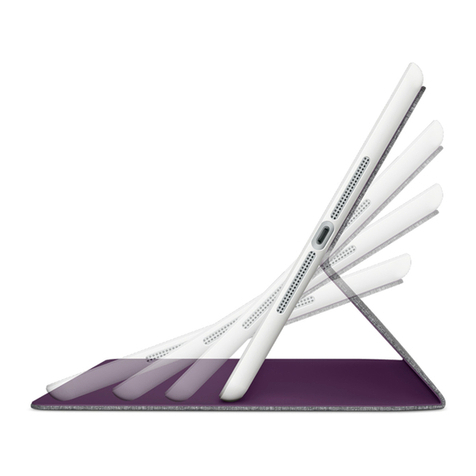
Logitech Logitech Keyboard Case user manual

Logitech

Logitech Logitech Keyboard Case user manual

Enabling Devices 4090 user guide

Enabling Devices

Enabling Devices 4090 user guide

Armodilo ALUR Assembly instructions

Armodilo

Armodilo ALUR Assembly instructions

Thor’s Drone World Lifthor Mjolnir user manual

Thor’s Drone World

Thor’s Drone World Lifthor Mjolnir user manual

EARTO A1876 user manual

EARTO

EARTO A1876 user manual

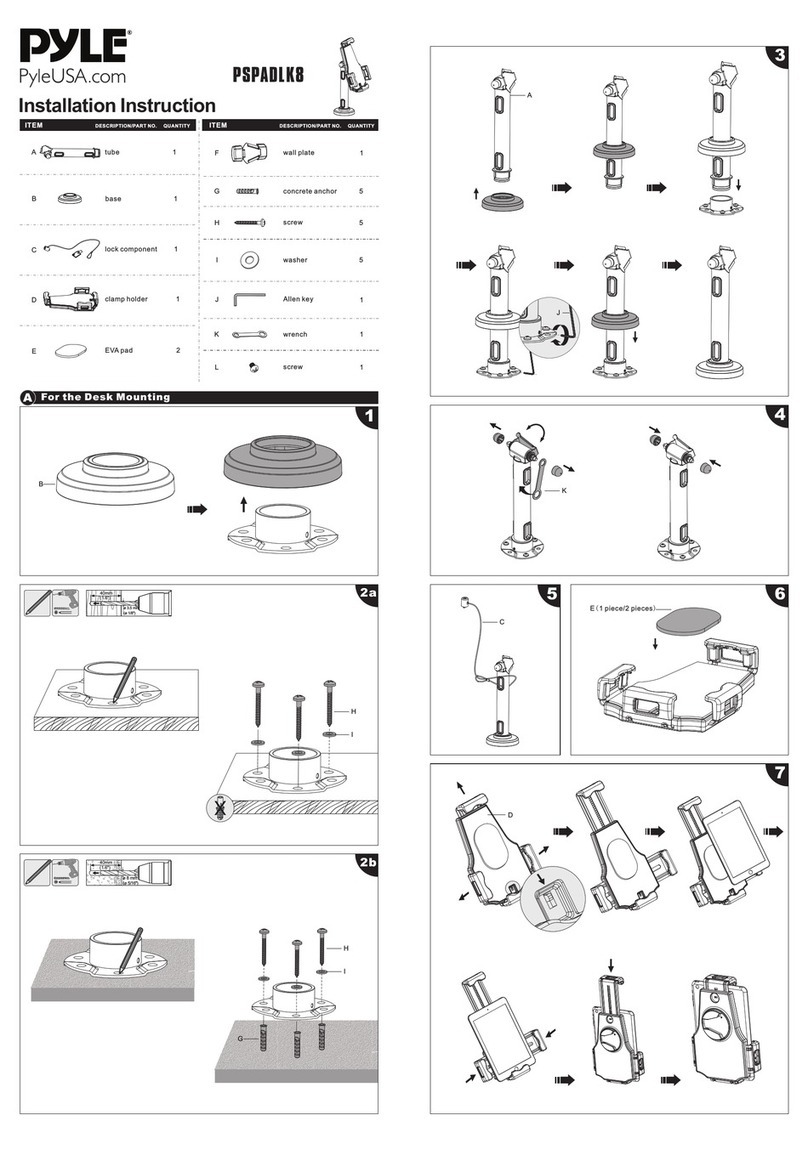
Pyle PSPADLK8 Installation instruction

Pyle

Pyle PSPADLK8 Installation instruction

MOB TUANUI user manual

MOB

MOB TUANUI user manual

Bretford PowerRack 10 manual

Bretford

Bretford PowerRack 10 manual

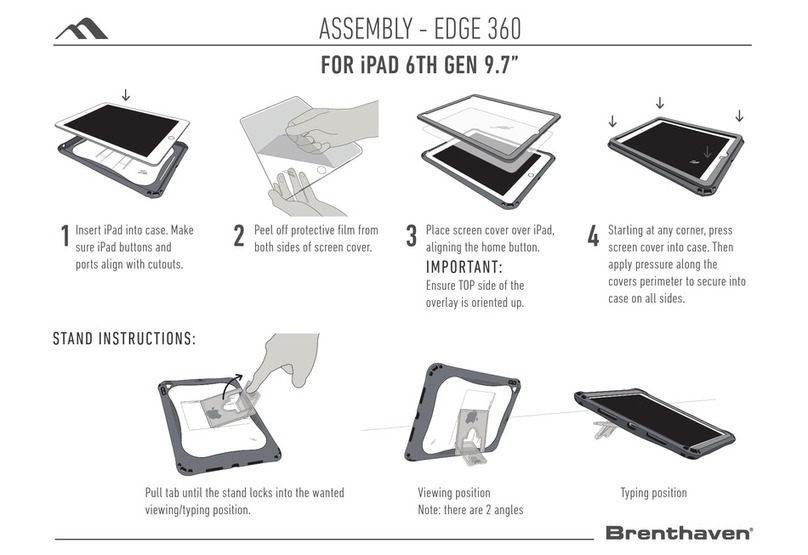
Brenthaven EDGE 360 manual

Brenthaven

Brenthaven EDGE 360 manual

Fujitsu Stylistic 3400 Installation and user guide

Fujitsu

Fujitsu Stylistic 3400 Installation and user guide

Logitech Hinge Setup guide

Logitech

Logitech Hinge Setup guide

Heckler Design WindFall STAND Assembly & installation

Heckler Design

Heckler Design WindFall STAND Assembly & installation

APLIC 303183 user manual

APLIC

APLIC 303183 user manual

Basalte eve Air quick start guide

Basalte

Basalte eve Air quick start guide

lilitab P Pro Assembly instructions

lilitab

lilitab P Pro Assembly instructions

Heckler Design WindFall CHECKOUT STAND Assembly & installation

Heckler Design

Heckler Design WindFall CHECKOUT STAND Assembly & installation

Zagg ZAGGfolio instruction manual

Zagg

Zagg ZAGGfolio instruction manual

Kensington KeyFolio Pro quick start guide

Kensington

Kensington KeyFolio Pro quick start guide

manuals.online logo
manuals.online logoBrands
  • About & Mission
  • Contact us
  • Privacy Policy
  • Terms and Conditions

Copyright 2025 Manuals.Online. All Rights Reserved.

iPadQuad
Assembly Instructions
www.xldisplays.co.uk
01733 511030
1
WARNING – large base plate is heavy (7.5kg).
Carefully position base plate over 8-way post and align 4 off fixing
holes to threads of post (ensuring the countersunk holes are
uppermost). Insert and tighten 4 off base plate screws to secure.
Carefully lay assembled base and post horizontally on floor.
NB – If you are not using cable management for charging,
please carefully stand base and post upright and proceed to
stage 6 .
iPad Quad
2
3
Feed figure 8 heads of both “Y” power
leads through base until they protrude
from top of post
4
Stand base and post upright ensuring
leads are kept clear of foot pads.
5
Feed figure 8 heads of power leads
through central hole of bottom support
plate and carefully place plate onto post.
Align 4 holes to threads inside post at
desired display angle.
6
Insert and tighten 4 off base plate screws to secure.
NB – If you are not using cable management for charging, please carefully place
bottom support plate onto post. Align 4 holes to threads inside post at desired display
angle. Insert and tighten 4 off base plate screws to secure and proceed to stage 8 .
Plug one figure 8 head into a USB
Power Adapter (supplied with Apple
iPad) and position into retaining
pins. Repeat for remaining power
leads and adapters.
7
8
Carefully position and lower octagonal centre cover onto bottom support plate. Align two
side holes of cover to any thread fixings of bottom support plate. Insert and tighten two hex
socket screws to secure octagonal centre cover.
If you are not using cable management for charging, please proceed to stage 13 .
Unlock each iPad enclosure by
inserting key into security lock and
rotate ‘QUARTER TURN ONLY’ clockwise
or counter-clockwise through 90
degrees, which releases the locking
pin. Return key back to original
position to remove.
9
10
Lift fascia out of enclosures. Insert cables (supplied
with Apple iPad) into all holders, allowing 10cm to
remain “free” at charge/sync connector end by gently
pressing into retaining moulding.
Feed USB end of charge/sync
cables through middle of
enclosures, below pin, so they
protrude from bottom of
support columns.
11 12
Plug one
cable into USB Power
Adapter.
Carefully position and slide top support plate onto end of bottom
support plate, ensuring the internal cables do not interfere with this
assembly.
Repeat stages 12 and 13 for remaining iPad holders.
NB – If you are not using cable management for charging,
carefully position and slide top support plate onto end of bottom
support plate. Repeat for remaining iPad holders.
13 14
Depress all lock
buttons on underside
of bottom support
plate and insert and
tighten remaining four
hex socket screws to
secure plates. Please gently
lift end of bottom support plate,
if required, to allow hole in top
support plate to align to thread fixing in octagonal centre cover.

15 16
Replace all
fascias and
depress lock
buttons to
secure
enclosures.
Plug charge/sync cable into one iPad
and place inside enclosure, gently press
all four corners of iPad down into
mouldings to hold. Repeat for
remaining iPads.
NB – If you are not using cable management for charging, unlock each iPad enclosure by
inserting key into security lock and rotate ‘QUARTER TURN ONLY’ clockwise or counterclockwise
through 90 degrees which releases the locking pin. Return key back to original position to remove.
Lift fascia out of enclosures, and place each iPad inside, gently pressing all four corners down
into mouldings to hold.