
zSpace 300 User manual
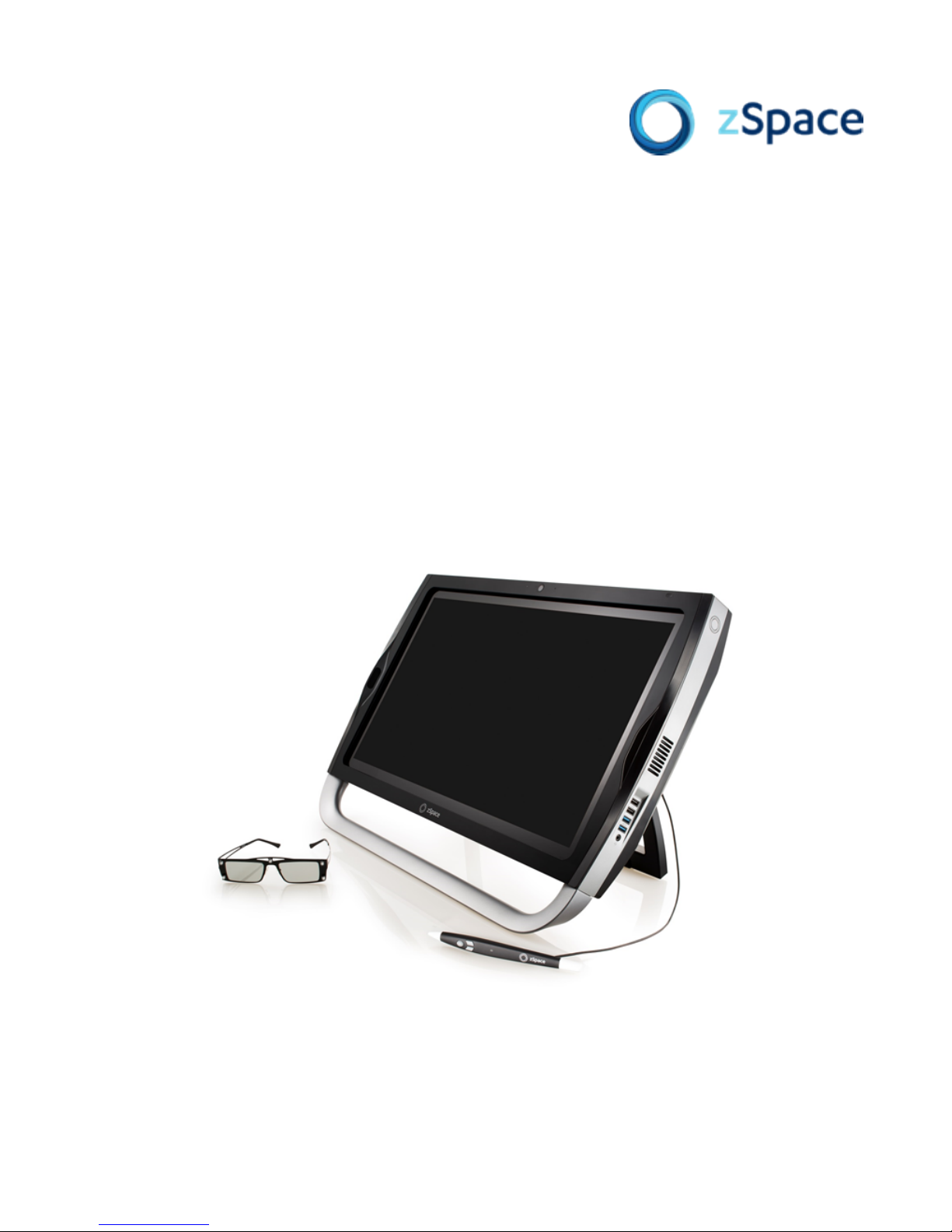
zSpace 300 Windows 10 Migration Guide


zSpace 300 Windows 10 Migration Guide
The zSpace 300 is shipped with Windows 8.1 Pro and, for many organizations, there is no requirement or need to
upgrade the operating system. However Microsoft is offering a free upgrade to Windows 10 for a limited period of
time, and some organizations are interested in taking advantage of this offer. If you choose to upgrade your zSpace
300 to Windows 10, use the steps in this guide to complete the upgrade.
Known issues
• While all zSpace STEM applications, zSpace partner applications (Corinth Classroom, Eureka's Designmate,
Leopoly, Geogebra) and other applications supplied by zSpace, are tested and confirmed to work with Windows
10 based on this migration workflow, zSpace cannot confirm the compatibility of any 3rd party applications .
Please check with your application provider before you upgrade.
• The Windows 10 upgrade process removes the specialized AMD Firepro GPU driver provided by zSpace. When
the upgrade process is complete, you will need to uninstall the current GPU driver and reinstall the zSpace
specialized driver. To get the driver, sign on to the zSpace support site and navigate to: zSpace recommended
hardware and GPU drivers. Find the link for the zSpace GPU driver and save the zip file to your Downloads
folder.
• EDU-Server users must update the The EDU-Server AnswerWeb application version 2.5.0 or later to use Windows
10. For information about obtaining the required version read the following support article: zSpace Education
Server and AnswerWeb Release.
Disable Sleep Mode
Before you upgrade use the following steps to disable sleep mode:
1. Right-click the Windows Start Menu button (in the lower left corner of the taskbar), and select Power
Options.
2. Select the Change Plan Settings, and select Turn off the display.
3. Select Never from the dropdown menu options.
4. Repeat these steps for the Put the computer to sleep option.
5. Select Save Changes.
Get the Windows 10 Upgrade
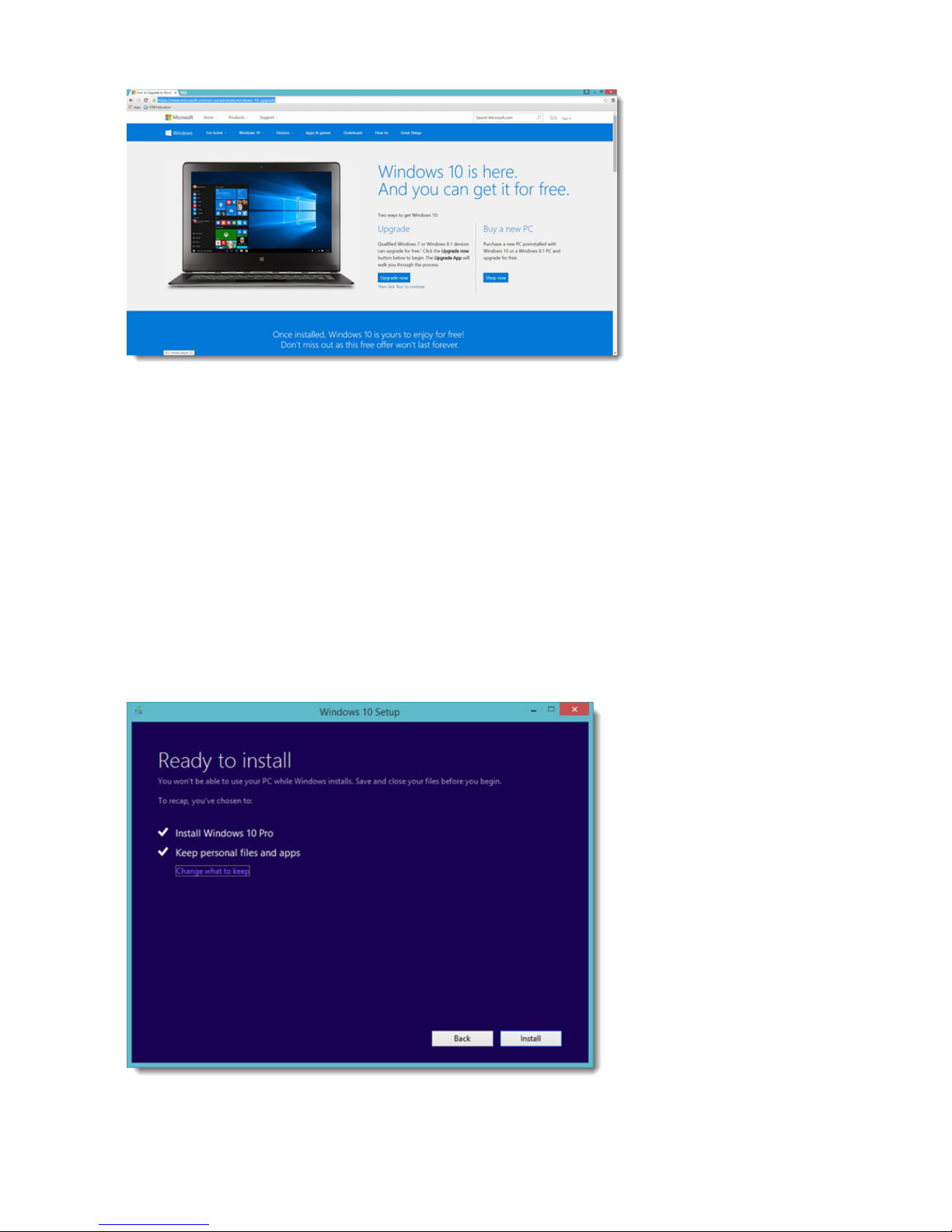
Windows 10 upgrade can be found on this website launch page: www.microsoft.com/en-us/windows/
windows-10-upgrade
4 | zSpace 300 Windows 10 Migration Guide
From the website launch page, click the Upgrade Now button and, once the download is complete, click on the
downloaded file on the bottom left of your Chrome window and click Run to continue with the following pre-
installation processes (the installation wizard will step you through these tasks:
1. Extract the downloaded installation files.
2. Create the local installation media.
3. Check the PC to make sure there is an eligible version of Windows to upgrade.
4. Check online for updates to the Windows 10 installation files.
5. Agree to and accept the presented licensing terms.
6. Get any updates to Windows 10.
7. Verify there is enough space on the PC to perform the update.
Windows 10 Upgrade
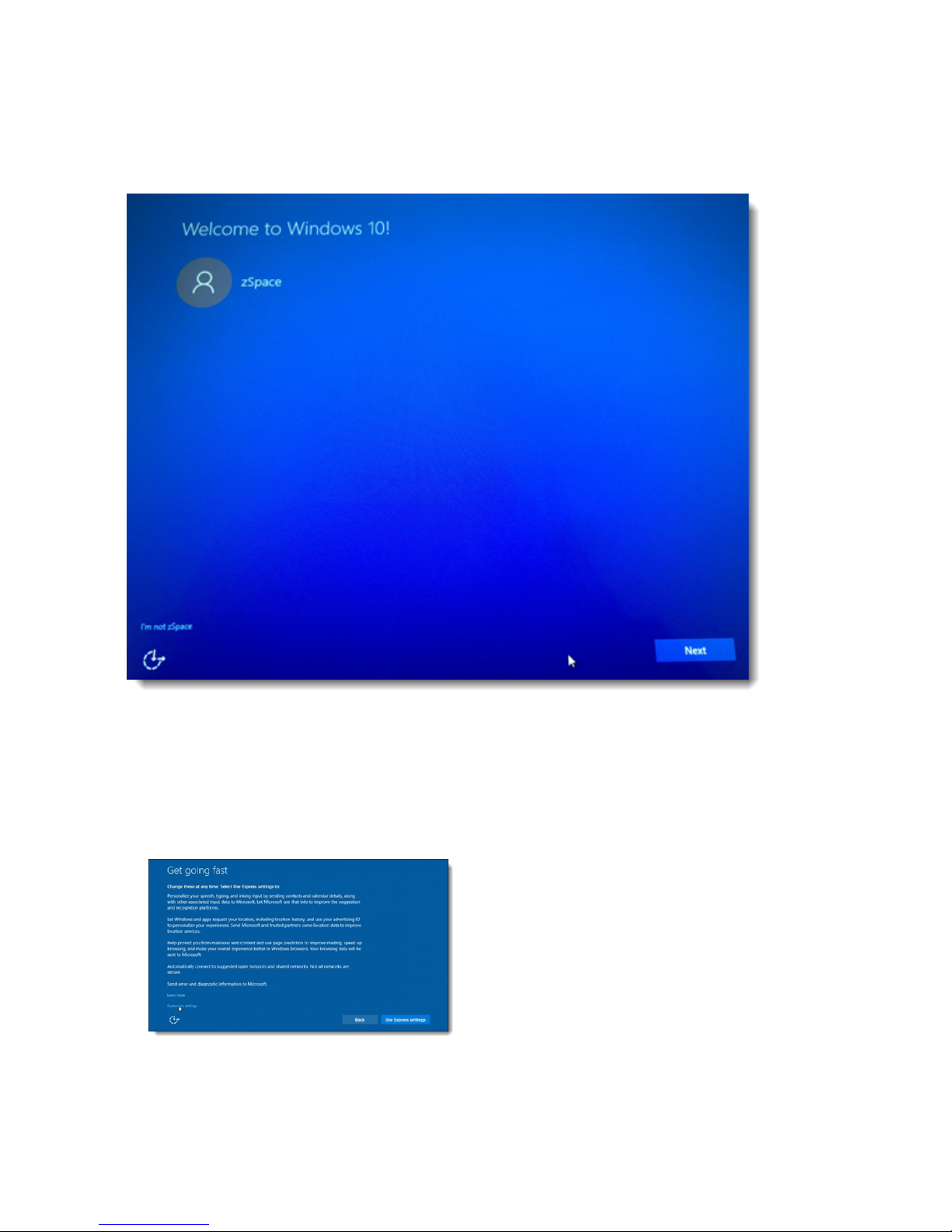
When the Windows 10 upgrade application presents the Ready to Install, click Install to continue.
Important: By default your existing files and applications are preserved. Do not select Change what to keep.
zSpace 300 Windows 10 Migration Guide | 5
Windows 10 Personalization
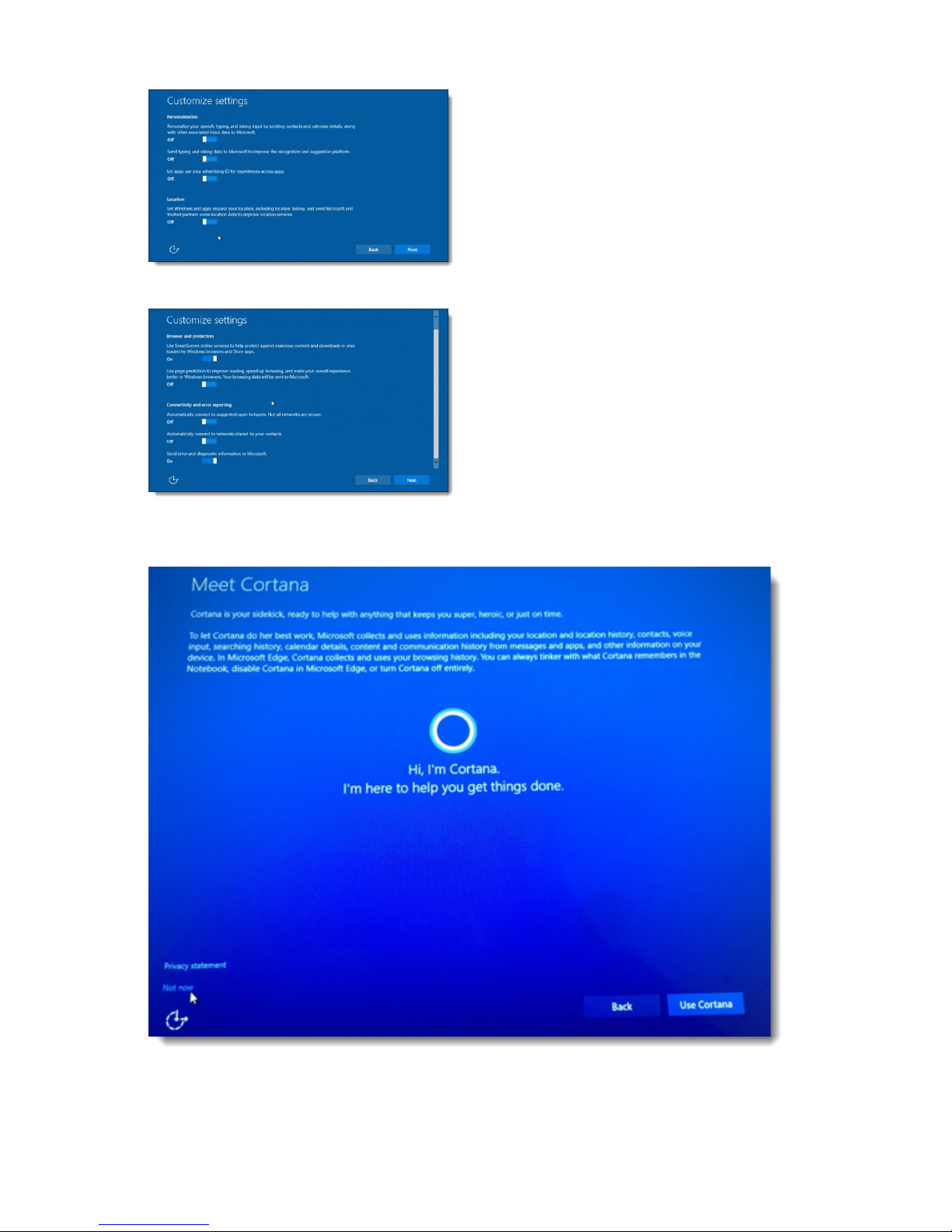
During the installation phase, the PC restarts several times, this is normal. Once the installation process is complete,
you are prompted to configure the personalization and settings options.
Press Next to begin the Windows 10 Personalization Phase.
Configure Windows 10 Settings
Use the following steps to configure you customized Windows 10 settings:
1. Click Customize settings:
Important: zSpace does not recommend using the Express settings as they have a negative impact on the
usability of zSpace applications.
2. Under Personalization and Location turn all options OFF and click Next.
6 | zSpace 300 Windows 10 Migration Guide
3. Turn of all options under Browser protection and Connectivity and error reporting, and click Next.
.
4. Click the Not now option, in the lower left corner of the Meet Cortana screen.
Note: Because the zSpace configuration does not use a Microsoft account it cannot be used with zSpace.
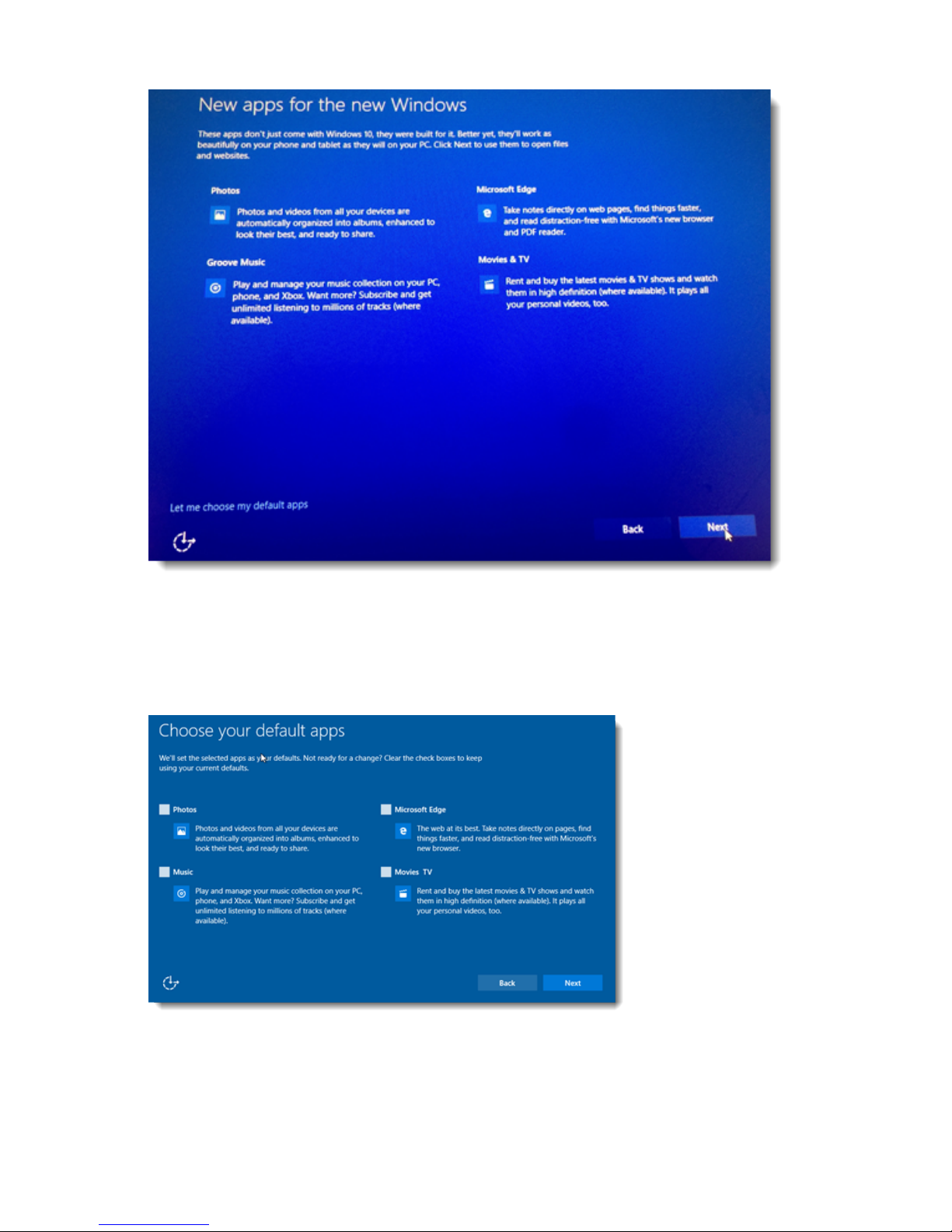
5. Select the Let me choose my default apps option and click Next.
zSpace 300 Windows 10 Migration Guide | 7
6. Deselect the following checkboxes and click Next:
•Photos
•Music
•Movies & TV
•Microsoft Edge
The zSpace system is now upgraded to Windows 10.

8 | zSpace 300 Windows 10 Migration Guide
Re-install zSpace AMD FirePro GPU Drivers
The Windows 10 upgrade process removes the specialized zSpace GPU driver and installs the standard Windows 10
driver. This driver is not optimized for the zSpace system. Use the following steps to uninstall the Windows 10 driver
and reinstall the zSpace GPU driver:
1. Sign on to the zSpace support site and navigate to: zSpace recommended hardware and GPU drivers. Find
the link for the zSpace GPU driver and download the zip file.
2. Go to your downloads folder and locate the GPU driver .zip file you just downloaded and unzip it to a folder.
Remember where this is, we will come back to it in just a bit.
3. Right-click the Windows Start Menu button (in the lower left corner of the screen) and select Programs
and Features.
4. You will see at the top of the list two AMD driver entries - AMD Catalyst Control Center and AMD Catalyst Install
Manager. We will uninstall the AMD Catalyst Install Manager only! DO NOT UNINSTALL THE AMD CATALYST
CONTROL CENTER!
5. Select AMD Catalyst Install Manager and click Change.
6. On the first page, click Next to continue.
7. Select Express Uninstall ALL AMD Software and click Next to continue.
8. Select All Versions to remove all driver remnants from the PC.
9. The existing driver is automatically removed. Please wait, after a short delay you are prompted to remove the
Catalyst Install Manager. Click the Remove button.
10. After the uninstall is completed, click Finish.
11. Right-click the Windows Start Menu button (in the lower left corner of the screen) and select Shut down
or sign out. Hover over and click Restart to reboot the PC and ensure the prior driver has been completely
removed.
12. Once rebooted, go back to your Downloads folder and open the folder you created with the zSpace GPU driver
in it. Double-click setup.exe to install the zSpace GPU drivers.
13. Select the Express installation option.
14. When the Windows Security dialog box opens, select Make sure Always trust software from “Advanced
Micro Devices, Inc.” and click Install to continue.
15. When the driver installation is complete, click Finish.
16. When the AMD Catalyst Install Manager dialog appears indicating that a system reboot is required, click Yes,
click yes to reboot the PC. to proceed.
17. After rebooting, the Chrome browser will automatically open the AMD registration page. Simply close the
browser.
The zSpace GPU driver is now installed.
Optional - Deleting Old Windows Install Files (C:\windows.old)
When the Windows 10 is completed, use the following steps to remove the Windows 8.1 installation (renamed
windows.old on your C:\ drive):
Note: If you choose not to delete the files manually, Windows automatically deletes the archived files one month
after the upgrade is completed. Once you remove these files you cannot restore the previous version of the
operating system.
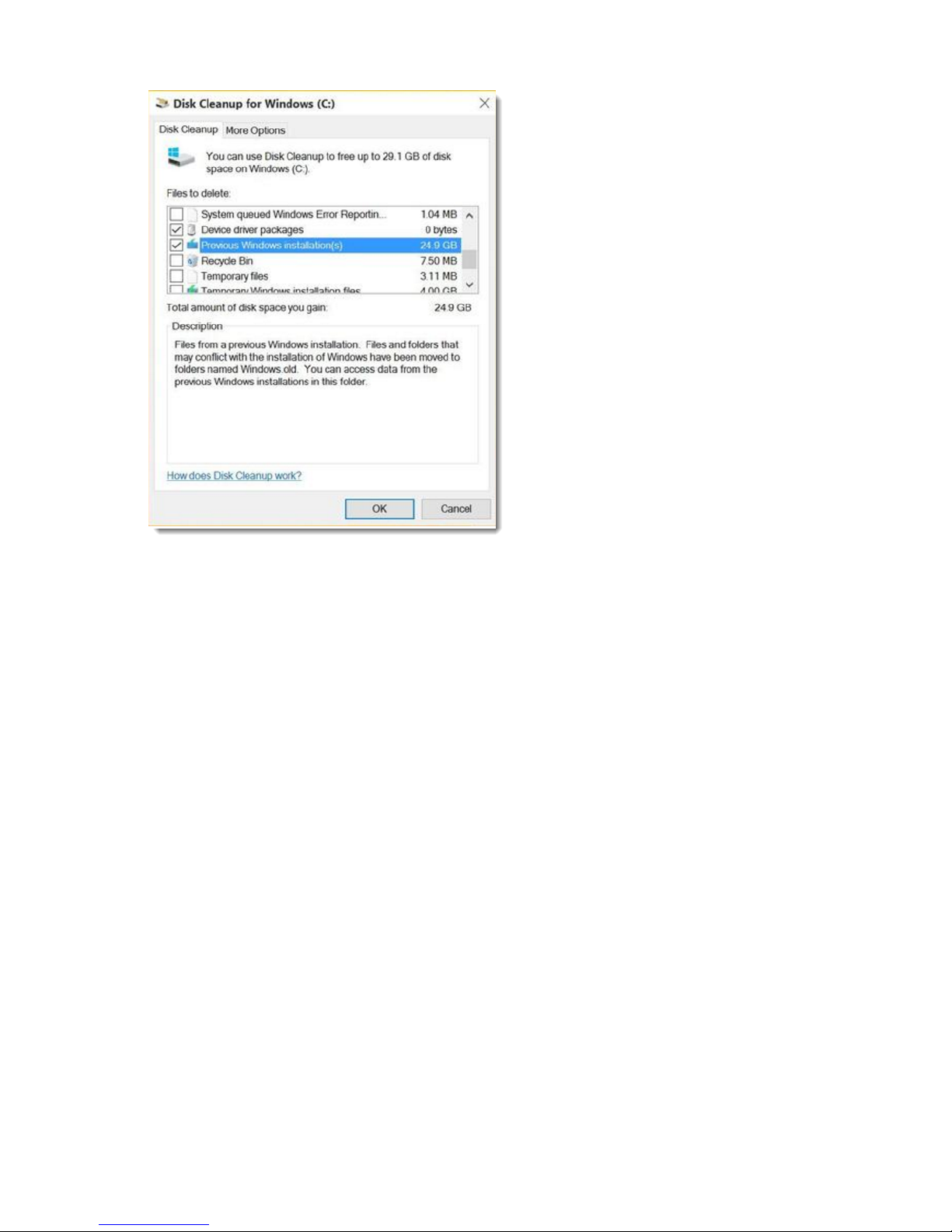
1. Click in the Windows search field, type Cleanup, and click Disk Cleanup.
2. Select C: Drive and click OK.
3. Click the Clean up system files button.
4. Select C: Drive again and click OK to continue.
5. When the Disk Cleanup for Windows dialog opens click to activate the Previous Windows installation(s)
checkbox.
zSpace 300 Windows 10 Migration Guide | 9
6. Click OK.
7. When the warning appears indicating the previous version cannot be restored, click Yes to proceed.

Other manuals for 300
3
Table of contents
Other zSpace Tablet manuals
Popular Tablet manuals by other brands

Laser
Laser MID-1060 Quick operation guide

MUNBYN
MUNBYN IRT09J Easy setup guide

Motorola
Motorola MC3090R - Win CE 5.0 Professional 520 MHz quick start guide

Dell
Dell Latitude ST Setup and features information

Lenovo
Lenovo IdeaTab S6000L Hardware Maintenance Manual

Venturer
Venturer WT9L11 quick start guide











