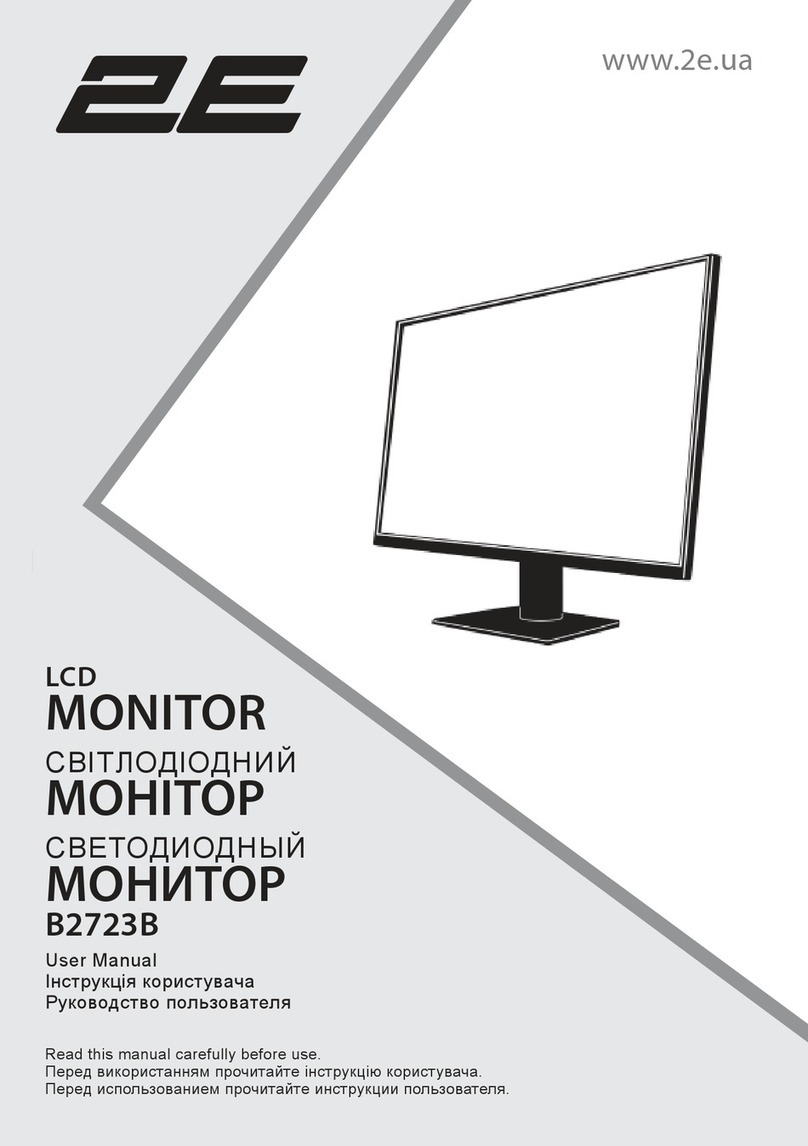
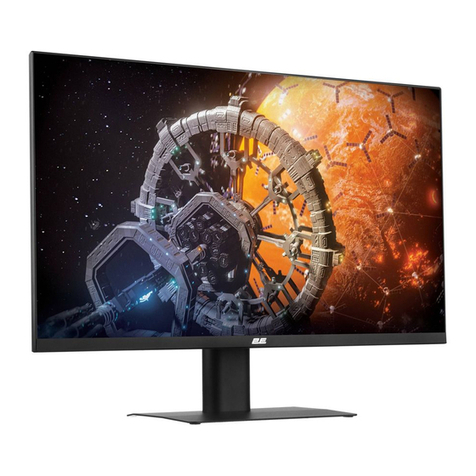
2E F2723B User manual

www.2e.ua
LCD
MONITOR
СВІТЛОДІОДНИЙ
МОНІТОР
СВЕТОДИОДНЫЙ
МОНИТОР
F2422B; F2723B
User Manual
Інструкція користувача
Руководство пользователя
Read this manual carefully before use.
Перед використанням прочитайте інструкцію користувача.
Перед использованием прочитайте инструкции пользователя.

– 2 –
EN
Content
WARNINGS/SAFETY PRECAUTIONS
WARNINGS
ATTENTION
Important safety instructions
OPERATING INSTRUCTIONS
Components and auxiliary equipment
Input voltage
Power indicator
FUNCTIONS
Control monitor
OSD MENU
Brightness
Image
Color
OSD setting
Reset
Misc
Specifications
Troubleshooting
Additional information
Warranty
3
3
3
4
5
5
5
5
6
6
7
7
7
7
8
8
8
9
10
10
29

– 3 –
EN
Warnings/Safety precautions
RISK OF ELECTRIC SHOCK
DO NOT OPEN
WARNINGS/SAFETY PRECAUTIONS
TO REDUCE THE RISK OF ELECTRIC SHOCK,
DO NOT REMOVE COVER AND BACK PANEL THERE
ARE NO USER-SERVICEABLE PARTS
INSIDE.
I CASE OF DAMAGE OR ERROR REFER SERVICING
TO QUALIFIED PERSONNEL.
Lightning flash with arrowhead symbol
within an equilateral triangle is intended
to alert the user to the presence of
non-insulated dangerous voltage within
the product’s enclosure that may be of
sufficient magnitude to constitute a risk
of electric shock in case of improper
usage of the product.
Exclamation point within an equilateral
triangle is intended to alert the user to
the presence of important operating and
maintenance instructions in the literature
accompanying the product.
WARNING:
Do not put the monitor in rainy or foggy places to prevent from fire or electric shock.
To prevent scratches or damages to the LCD screen, do not knock, apply or rub the surface with sharp
or hard objects or stiff cloths as well as try not to touch the LCD screen with your hands.
Any modifications to this product that have not been clearly and explicitly approved in advance by the
manufacturer responsible for compliance with these regulations are forbidden.
ATTENTION:
Excessive sound pressure from earphones and headphones can cause hearing loss.

– 4 –
EN
Important safety instructions
1. Please read all the instructions carefully before using this product.
2. The instructions should be retained after reading for future reference.
3. Please immediately pull out the AC power plug from an adapter if there is an abnormal sound or
smell or the monitor has no picture, and contact after sales support.
4. The monitor should be kept free from rain, damp and dust to prevent electrical shock and short
circuits. Do not cover the ventilation openings with table clothes, curtains, newspapers etc.
5. The monitor should be kept away from heating objects or direct sunlight. This product requires
good ventilation. Allow 10 cm between the monitor and other appliances or built-in cabinet walls.
6. You may clean the display panel with a soft clean cloth after pulling out the power plug. Do not
repeatedly wipe the panel, nor scrape, tap or strike the panel with hard objects, etc.
7. Do not wipe the monitor with any petrol chemical or alcohol-based solvents, as it will lead to
product damage to the panel and cabinet.
8. Do not place the monitor on an unstable surface.
9. Do not place the power cord or other cables across a walkway in case it is trampled on, especially at
the points of connection to the plug, sockets and the power cord to the appliance.
10. Unplug the appliance during a lightning storm or when it is not used for a long period of time.
11. Unplug this product when the device, power cord or plug are damaged or if the device has been
exposed to liquid or moisture, has been mechanically damaged and does not work properly and
contact an authorized service centre immediately.
12. Keep this appliance away from liquids, splashes of water and do not place objects filled with liquids
on it.
13. Do not disassemble the back cover as it contains high voltages inside and will cause electric shock.
There is no spare parts inside. Internal adjustments and checks should only be conducted by
qualified professionals.
14. Do not place naked flame sources, such as lit candles on or near the monitor. Please pull out the
power plug and contact after sales support if there are abnormal objects or water in the monitor.

– 5 –
EN
Operating Instructions
Components and auxiliary equipment
Before assembling and installing, check for following items to be included in this display package.
45
45
Monitor
Power cord
Stand base
HDMI cable
Microfiche and power
requirements label
User manual
45
PSU
Input voltage
F2422B: DC 12V 2.5A power input. External power supply: A 100-240V - 50/60Hz 0.8A.
F2723B: DC 12V 3A power input. External power supply: A 100-240V - 50/60Hz 1.0A.
Power indicator
Indicator Mode
No light Power off
Light Normal operation mode
Flash light No input signal
Functions
Statement: this document is a reference manual. Please refer tol the actual product.
HDMI HDMI input
VGA VGA input
DC input 12V DC 12V power input

– 6 –
EN
Control monitor
Control with 5 buttons:
MENU key
LEFT key/Contrast hot key
RIGHT key/Brightness hot key
Auto/Exit key
Power standby key
Function Key Guide may vary depending on the function or product model. Please refer to
the actual product.

– 7 –
EN
OSD menu
BRIGHTNESS
In this section, you can adjust brightness, contrast,
and other display settings.
BRIGHTNESS - This setting adjusts dark color balance
of the image. If the value is set too high, the image
will look blurred. If the value is set too low, the image
will be too dark and will not have clear outlines.
CONTRAST - This setting adjusts white balance of
the image. If the value is set too high, the image will
be too bright and will not have clear outlines. If the
value is set too low, the image will look blurred.
ECO - This setting has several standard display modes: Standard, Movie, Text, Game, FPS, RTS.
DCR (DYNAMIC CONTRAST) - Allows you to automatically adjust brightness and contrast of the screen to
display darker areas of the image.
IMAGE
In this section, you can adjust image position on
the monitor screen.
H.POSITION - This setting adjusts horizontal
position of the image.
V.POSITION - This setting adjusts vertical position
of the image.
CLOCK - This setting changes width of the image.
PHASE - This setting reduces halos and makes the
image clearer.
ASPECT - Allows you to select the following image
formats: «Wide» (16:9) or «4:3».
COLOR
In this section, you can adjust color temperature.
COLOR TEMP. - This setting allows you to select one
of the color presets: Cool, Custom, Warm, Normal.
RED - This setting adjusts display intensity of red
color.
GREEN - This setting adjusts display intensity of
green color.
BLUE - This setting adjusts display intensity of blue
color.
LOW BLUE FILTER - Provides comfort when
working for a long time, reduces eye strain.
e
e
n
f

– 8 –
EN
OSD menu
OSD SETTING
In this section, you can change and adjust the on-
screen menu settings.
LANGUAGE - This setting allows you to select the on-
screen menu language.
OSD H.POS. - This setting allows you to adjust
horizontal position of the on-screen menu.
OSD V.POS - This setting allows you to adjust vertical
position of the on-screen menu.
OSD TIMER - This setting allows you to set display
time of the on-screen menu.
TRANSPARENCY - This setting helps you adjust the transparency of the on-screen menu.
RESET
In this section, you can automatically adjust basic
image settings and reset all settings to their default
values.
IMAGE AUTO ADJUST - Automatically adjusts
image settings.
COLOR AUTO ADJUST - Automatically adjusts
image color settings.
RESET - This setting resets all the on-screen menu
settings to their default values.
MISC
Includes advanced image and sound settings.
SIGNAL SOURCE - Allows you to select the port
through which the input video signal will be fed to
the monitor:
HDMI - Sets the HDMI port as the monitor video
source.
VGA - Sets the VGA port as the monitor video
source.
Please note: OSD description is for reference only. Some OSD items may not be available on your model.
-
l

– 9 –
EN
Specifications
Model F2422B F2723B
Screen size 23.8’’ 27’’
Matrix type IPS IPS
Aspect ratio 16:9
Viewing angles 178 °/ 178 °
Displayable colours 16.7M (8-bit)
Resolution 1920x1080
FPS 75Hz
Response time 5 ms
Brightness 220 cd/m2230 cd/m2
Contrast 1000:1
Interfaces HDMI ., VGA
Frequency HDMI 1.4 1920*1080 / 75Hz
VGA 1920*1080 / 60Hz
Built-in speakers No
Screen tilt 15°/5°
Height adjustment No No
Screen rotation No No
Monitor Power Options 12V-2.5A 12V-3A
External power adapter parameters 100-240V, 50/60Hz, 0.8A 100-240V, 50/60Hz, 1.0A
Power consumption in operating mode
(max) <30W <36W
Standby power consumption ≤0.5W
Wall mounting VESA 100x100
Package dimensions 595*125*380mm 675*145*430mm
Weight (NET/GROSS): 2.5 kg/4.45kg 3.25kg/5.5kg

– 10 –
EN
Troubleshooting
Problem Solution
Power cannot be turned on Check that both ends of the power cable are plugged into the socket
appropriately and the wall socket is operational
No Input signal message
Check that the signal line is connected properly.
Check that the power of the relevant peripherals is turned on.
Check that the Input option tnat has been selected matches with the
input signal.
Image colour or quality
deteriarates
Check that all the video settings are adjusted appropriately, such
as brightnešs, contrast, colour etc.
Display warning message Check that the input signal line is properly xed.
Select the correct input signal source
Additional information
The production date is encrypted in the serial number in the format
ERC2E *** YYYYMMDD *******, where: YYYYMMDD - year, month and day of production.
This manual suits for next models
1
Table of contents
Languages:
Other 2E Monitor manuals