QuickGuide
English
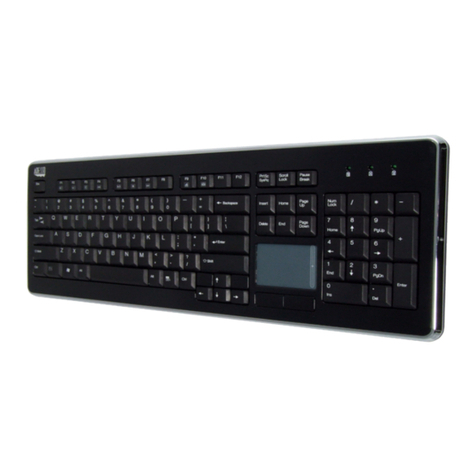
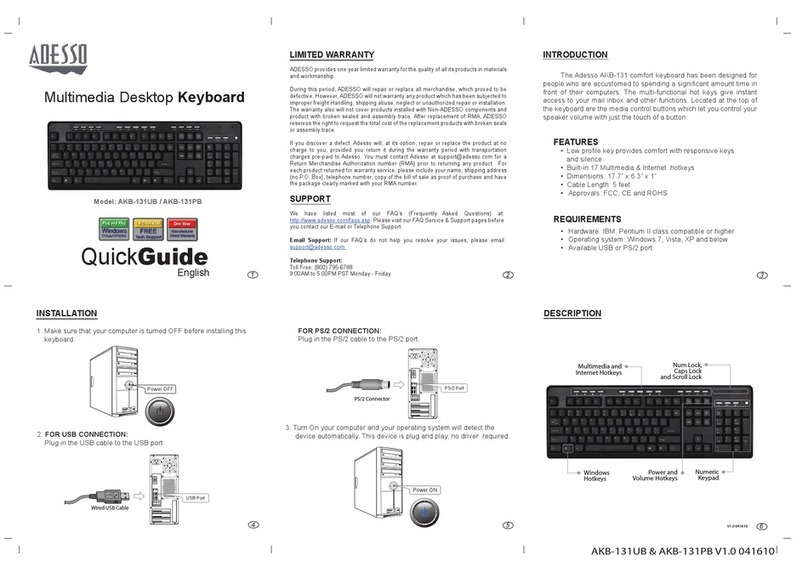
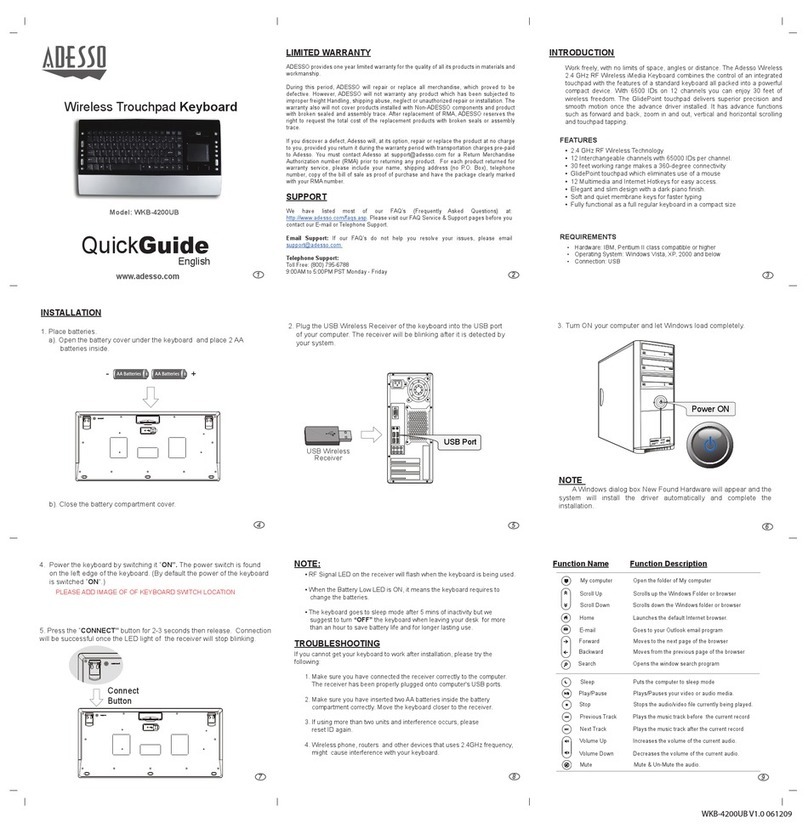
Model: WKB-4400UB
INSTALLATION
1. Place batteries.
a). Open the battery cover under the keyboard and place 2 AAA
batteries inside.
4. a. Power the keyboard by switching it “ON”. The power switch is
located on the left edge of the keyboard's backside. (By default the
power of the keyboard is switched “ON”.)
INTRODUCTION
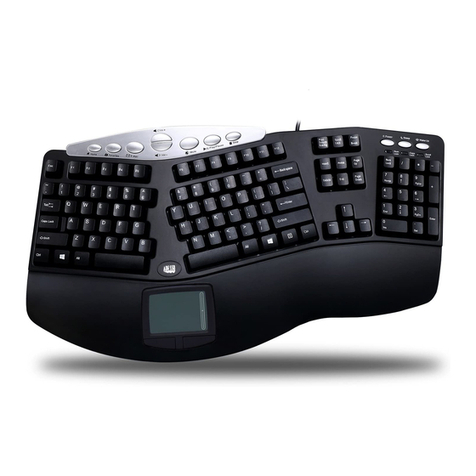
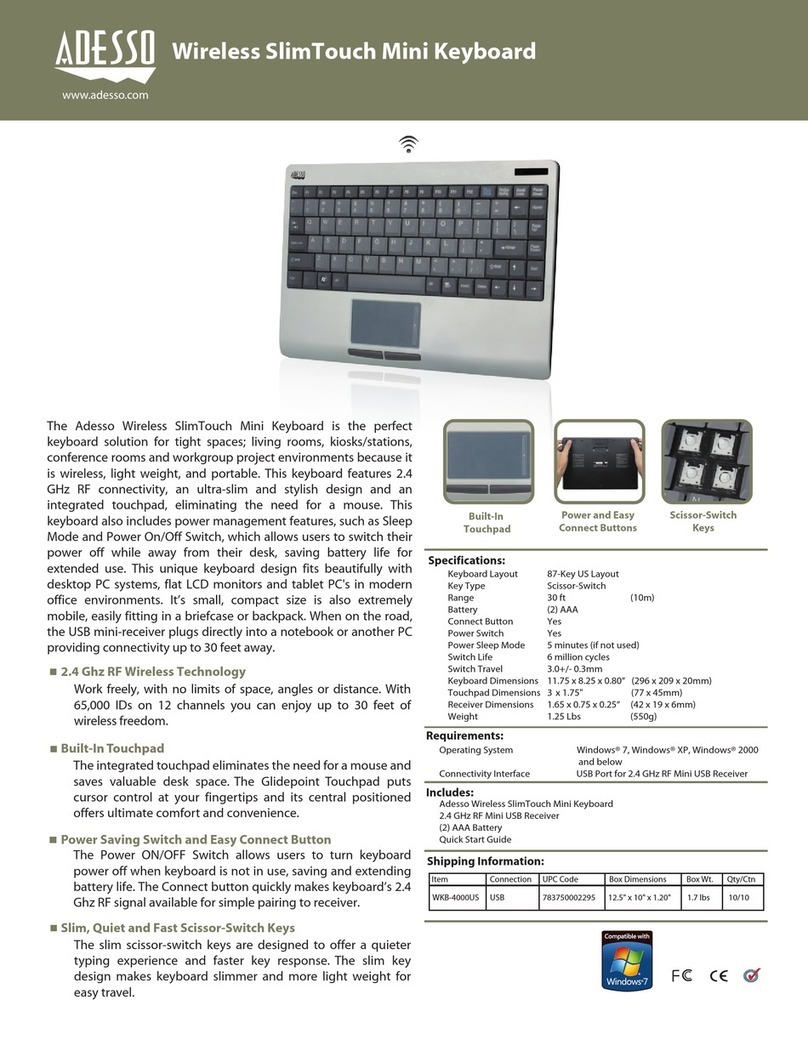
Work without the limitations created by cables, wires and line of sight
receivers. Whether you are working, surfing the web, or kicking back with your
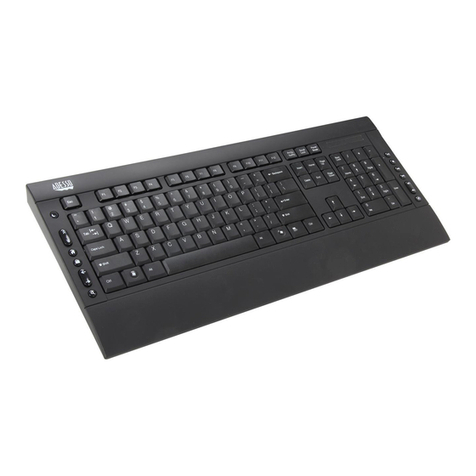
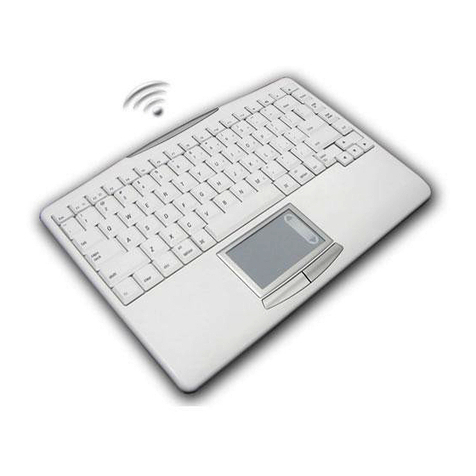
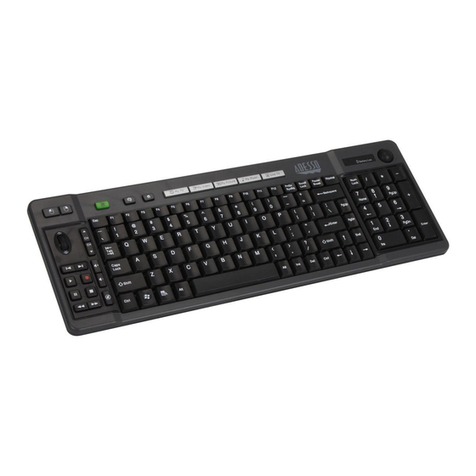
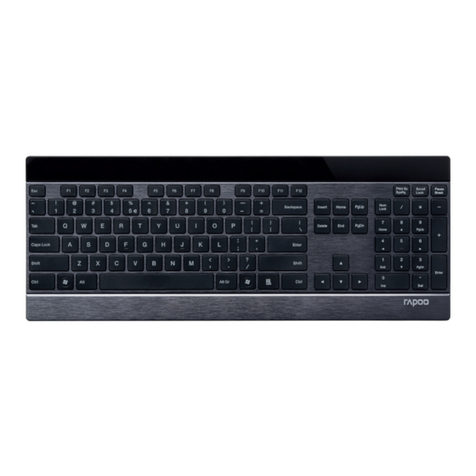
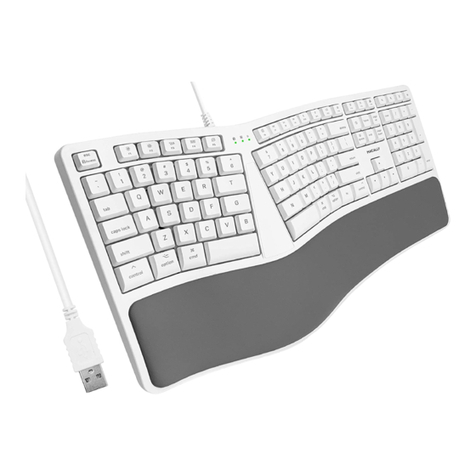
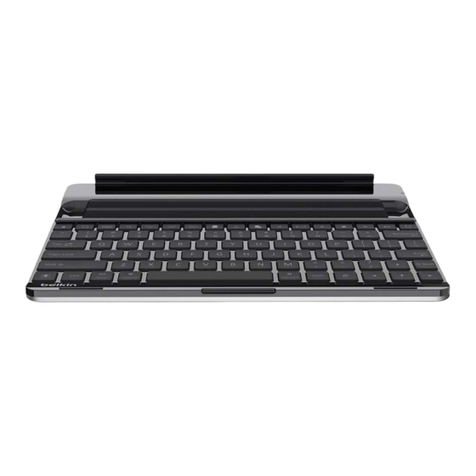
favorite tunes, everything you need is right here. The WKB-4400UB is an
all-in-one solution providing a full 104-key QWERTY keyboard and a built-in
touchpad. Now you can control every aspect your PC, including Multi-Media
functions from one convenient location. The WKB-4400UB also features left
and right mouse buttons with scroll wheel features so navigating long
documents or web pages is a breeze. With its clean lines and elegant metallic
accent, the SlimTouch keyboard is equally at home in the living room or the
boardroom. Perfect for media centers, conference rooms, small workstations
or any desktop. And the compact size means you can take it with you as it fits
easily into a briefcase or backpack. No drivers needed, simply plug in the mini
USB receiver and you are set.
FEATURES
• 2.4GHz Wireless Technology range up to 30 Ft
• 104 Keys Enhanced Desktop Keyboard
• Actual Dimensions: 18.4” x 6.7” x 1”
• Touchpad Dimensions: 2.24” x 1.53”
• 2 Mechanical Buttons
• Weight: 1.75 lbs
REQUIREMENTS
• Hardware: IBM, Pentium II class compatible or higher
• Operating System: Windows 7, Windows Vista, XP and below
• Connection: USB
LIMITED WARRANTY
ADESSO provides one year limited warranty for the quality of all its products in materials and
workmanship.
During this period, ADESSO will repair or replace all merchandise, which proved to be
defective. However, ADESSO will not warranty any product which has been subjected to
improper freight Handling, shipping abuse, neglect or unauthorized repair or installation. The
warranty also will not cover products installed with Non-ADESSO components and product
with broken sealed and assembly trace. After replacement of RMA, ADESSO reserves the
right to request the total cost of the replacement products with broken seals or assembly
trace.
If you discover a defect, Adesso will, at its option, repair or replace the product at no charge
to you, provided you return it during the warranty period with transportation charges pre-paid
Authorization number (RMA) prior to returning any product. For each product returned for
warranty service, please include your name, shipping address (no P.O. Box), telephone
number, copy of the bill of sale as proof of purchase and have the package clearly marked
with your RMA number.
SUPPORT
We have listed most of our FAQ’s (Frequently Asked Questions) at:
http://www.adesso.com/faqs.asp. Please visit our FAQ Service & Support pages before you
contact our E-mail or Telephone Support.
Email Support: If our FAQ’s do not help you resolve your issues, please email
Telephone Support:
Toll Free: (800) 795-6788
9:00AM to 5:00PM PST Monday - Friday
123
6
5
4
NOTE:
• RF Signal LED on the receiver will flash when the keyboard is being used.
• When the Battery Low LED is ON, it means the keyboard requires to
change the batteries.
• The keyboard goes to sleep mode after 5 mins of inactivity but we
suggest to turn “OFF” the keyboard when leaving your desk for more
than an hour to save battery life for longer lasting use.
TROUBLESHOOTING
If you cannot get your keyboard to work after installation, please try the
following:
1. Make sure you have connected the receiver correctly to the computer.
The receiver has been properly plugged onto computer's USB ports.
2. Make sure you have inserted two AAA batteries inside the battery
compartment correctly. Move the keyboard closer to the receiver.
3. Wireless phone, routers and other devices that uses 2.4GHz frequency,
might cause interference with your keyboard.
NOTE:
To help maximize the battery life of your keyboard, the Green LED of
the Caps Lock and Number Lock key will only stay on for approximately
30 seconds while the keyboard is idle. However, the Caps Lock and
Number Lock keys will still be engaged, even though the LED is off.
When you being typing, the LED will light again.
8
79
WKB-4400UB V1.0 031710
b. Press the “CONNECT” button for 1 second then release.
b). Close the battery compartment cover.
AAA Batteries AAA Batteries
+-
2. Turn ON your computer and let Windows load completely.
Power ON
3. Plug the USB Wireless Receiver of the keyboard into the USB port
of your computer. The receiver will be blinking after it is detected by
your system.
USB Port
USB Wireless
Receiver
NOTE:
A Windows dialog box New Found Hardware will appear and the
system will install the driver automatically and complete the
installation.
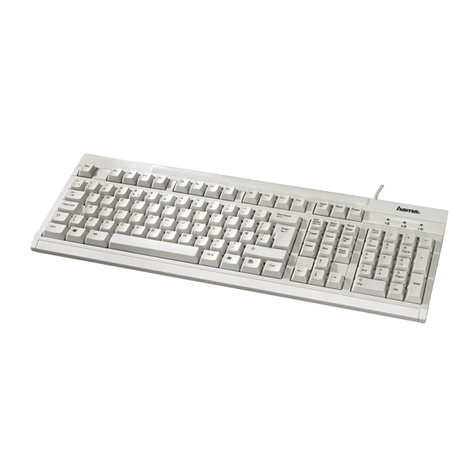
DESCRIPTION
Power ON/OFF Switch
Installation Label
Belly Label
Battery
Compartment
Receiver
Holder Connect Button
Safety Label
V1.0 031710
Wireless KeyboardSlimTouch
TM
Multimedia and
Internet Hotkeys
Windows
Hotkeys
Built- in Touchpad Numeric
Keypad
Num Lock
Low Battery Indicator
Caps Lock
c. Connection will be successful once the LED light of the receiver
will stop blinking.