AES global MON-11 User manual


MON-11
Important Notices
Unit 4C, Kilcronagh Business Park,
Cookstown, Co Tyrone, United Kingdom,
BT80 9HJ
Manufactured by AES GLOBAL:
Web: www.aesglobalonline.com
Tel UK Head Office: +44(0)288 639 0 693
Since the monitor software updates regularly, the user manual may not cover all aspects of new
features.
Copyright Information
All intellectual property rights in this publication are owned by and protected by applicable
copyright laws and international treaty provisions. No part of this publication may be reproduced
in any form whatsoever or used to make any derivative work without prior written approval by
AES Global Ltd.
AES Global Ltd reserves the right to revise this publication, and/or make improvements or changes
in the product(s) and/or the program(s) described in this documentation at any time without prior
notice. The information in this document is provided in good faith, but without any representation
or warranty whatsoever, whether it is accurate, or complete or otherwise, and on express
understanding that shall have no liability whatsoever to other parties in any way arising from or
relating to the information or its use.
All other trademarks are the property of their respective owners. Other company and brand
products and service names are trademarks or registered trademarks of their respective holders.
1. Do not push objects into holes and ventilation slots.
2. Do not expose this product to moisture or place any objects filed with liquids on or near the
product.
3. Do not place a naked flame source, such as lighted candles, on or near this product.
4. Do not store or operate the device in environments where the temperature is above 50
degrees Celsius or below -10 degrees Celsius.
5. Do not intentionally hit the device or place heavy or sharp objects on the device.
6. Only use accessories specified by the manufacturer.
7. Keep the device away from benzene, diluents, and other chemicals.
8. Do not attempt to repair this product yourself. Always use a qualified service agent to
perform adjustments or repairs.
9. While using earphones, if the volume is excessively high it may cause hearing damage.
Please adjust the volume to a safe level and moderate use.
10. Do not disconnect the monitor suddenly when formatting, uploading, or downloading.
11. The monitor is not moisture and water resistant.
12. Please do not use it in a damp environment.
13. Do not upgrade the firmware by yourself. The monitor should be upgraded with the right
firmware and right methods offered by us. If an upgrade is needed, please contact us.
This device complies with CE and FCC regulations.

MON-11
Index
Unit 4C, Kilcronagh Business Park,
Cookstown, Co Tyrone, United Kingdom,
BT80 9HJ
Manufactured by AES GLOBAL:
Web: www.aesglobalonline.com
Tel UK Head Office: +44(0)288 639 0 693
Section
Pages
Box Contents
4
Dimensions & Interface
5
System Specifications
6
Wall Mounting
7
-8
Touch Screen Basics
9
Your Home Screen
10
Moving Apps
11
Quick Settings & Notifications
12
Manage Notifications and Interruptions
12
Changing the Wallpaper
13
Network Connection
14
Connecting to a Computer
15
Using the Keyboard
16
monitor Settings
17
Included Apps
18
Using the Auto Power Off/On Feature
19
Adding a Reboot Schedule
19
Delete a Reboot Schedule
20
Adding your Intercom to Praetorian
Guard app
21
-22
Answering a call from your Intercom
23
Call Interface
23
FAQs
24

MON-11
Box Contents
Unit 4C, Kilcronagh Business Park,
Cookstown, Co Tyrone, United Kingdom,
BT80 9HJ
Manufactured by AES GLOBAL:
Web: www.aesglobalonline.com
Tel UK Head Office: +44(0)288 639 0 693
Please make sure all of the following are present when you unpack your
monitor.
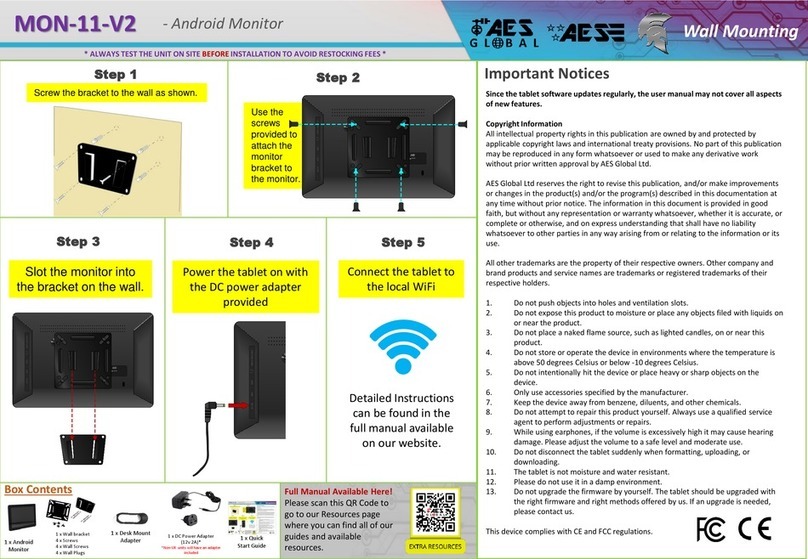
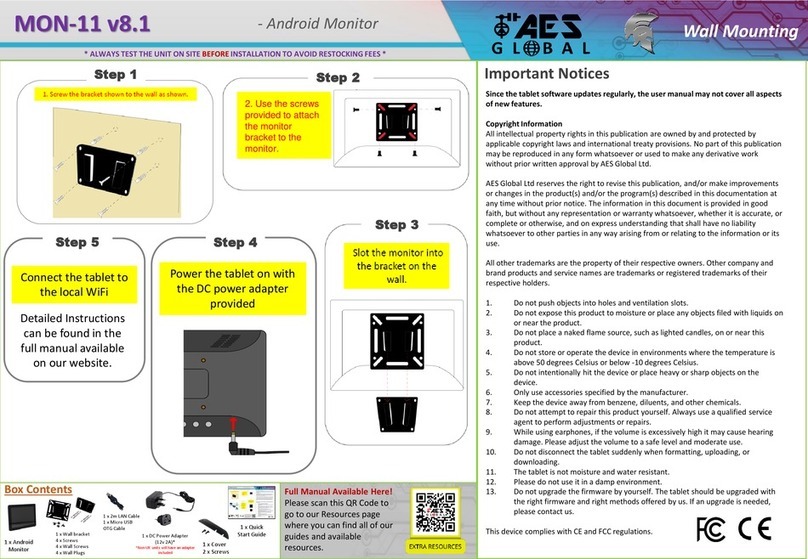
1 x Android Monitor
1 x 2m LAN Cable
1 x Micro USB OTG Cable
1 x Wall bracket
4 x Screws
4 x Wall Screws
4 x Wall Plugs
1 x Cover
2 x Screws
1 x EU POE Plug
1 x UK Adapter*
1 x USA Adapter*
*Location Dependent
Page | 4
1 x Quick Start Guide


MON-11
System Specifications
Manufactured by AES GLOBAL:
Web: www.aesglobalonline.com
Tel UK Head Office: +44(0)288 639 0 693
Unit 4C, Kilcronagh Business Park,
Cookstown, Co Tyrone, United Kingdom,
BT80 9HJ
System
CPU
RK3288, Quad
-core cortex A17, 1.6G
RAM
2GB
Internal memory
16GB
Operation system
Android 8.1
Other
VESA
75x75mm
Speaker
2 x 1.5W
Camera
2.0MP.Front camera
Working temp
0—
40degree
Certificate
CE/RoHS/FCC
Key
POWER/VOL+/VOL
-
Language
Multi
-language
Display
Panel
10.1” LCD IPS panel
Resolution
1280x800
Active area
216.96(H)x135.6mm(V)
Display Mode
Normally black IPS
Viewing angle
85/85/85/85(L/R/U/D)
Contrast ratio
800:1
Brightness
300 cd/m2
Aspect Ratio
16:10 / Display area: 215
×135mm
Network
WiFi
802.11b/g/n
Ethernet
10M/100M ethernet
Bluetooth
4.0
3G/4G
Support external 3G/4G USB dongle
Interface
Card slot
1
× SD card slot (max support 32GB)
USB
3
× USB 2.0 interface
Micro USB
Micro USB OTG
HDMI
Mini HDMI Output
RJ45
RJ45 POE Active
POE
IEEE802.3at
DC Power jack
1
× 4.0mm power DC jack (12v 2A)
AUX
1
× 3.5mm headphone jack
Media play
Video format
MPEG
-1, MPEG-2, MPEG-
4, H.263, H.264, RV,
etc. (supports up to 4K)
Audio format
MP3, WMA, AAC and more
Photo
JPEG
Page | 6


MON-11
Unit 4C, Kilcronagh Business Park,
Cookstown, Co Tyrone, United Kingdom,
BT80 9HJ
Manufactured by AES GLOBAL:
Web: www.aesglobalonline.com
Tel UK Head Office: +44(0)288 639 0 693
Touch Screen Basics
Tap the screen once to activate or open something.
Touch and hold to move an item by dragging.
*In many apps touch and hold can offer more options.
Some apps allow you to zoom in and out by touching the screen with two
fingers and pinching them together.
Tap a specific location on the screen where you would like to enter text. The
on-screen keyboard will pop up.
Page | 9

MON-11
Your Home Screen
Unit 4C, Kilcronagh Business Park,
Cookstown, Co Tyrone, United Kingdom,
BT80 9HJ
Manufactured by AES GLOBAL:
Web: www.aesglobalonline.com
Tel UK Head Office: +44(0)288 639 0 693
Your MON-11 will arrive with the Praetorian Guard app pre-installed and
placed on the Home screen.
Due to ongoing updates to the app your app version may be outdated. You can
check if there are any updates available by logging into or creating a Google
account and signing into the play store.
You can fill the home screen with any combinations of additional shortcuts,
widgets, and folders you like.
When you power up you will be greeted with an AES Global screen then your
Home screen will appear once fully booted.
You can access additional apps by swiping up from the bottom of the screen.
LAN Connection
Wi-Fi Signal
All Apps: Tap to view all apps.
Back: Go back to the previous screen.
Recent apps: Open a list of recent apps. Tap an app to
open or swipe left/right to remove the thumbnail.
Home: Go back to the home screen.
Increase Volume
Decrease Volume
Page | 10
Other manuals for MON-11
2
Table of contents
Other AES global Monitor manuals