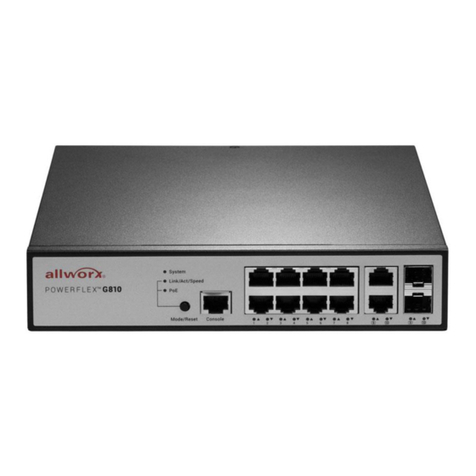
POWERFLEX G2426 Managed GbE PoE Switch
Quick Installation and Initial Configuration Guide
Page 3 Toll Free 1-866-ALLWORX • 585-421-3850
www.allworx.com
Version: A Revised: August 16, 2017
Table 2: Mode LEDs
Link/Act/Speed Green On
The Port Status LEDs are displaying link
status, network activity and speed of each
PoE Green On
The RJ45 Port Status LEDs are displaying
PoE powering status of each port.
By pressing the MODE button in less than 2 seconds to change LED
modes (Link/Act/Speed Mode or PoE Mode), users can check the port
status by reading the LED behaviors per the table below.
Table 3: Port Status LEDs
When Link/Act/Speed Mode LED Lit
RJ45
Ports
Green On
The port is enabled and established a link to connected
device, and the connection speed is 1000Mbps.
Green Blinking
The port is transmitting/receiving packets, and the
connection speed is 1000Mbps.
Amber
On
The port is enabled and established a link to connected
device, and the connection speed is 10/100Mbps.
Amber
Blinking
The port is transmitting/receiving packets, and the
connection speed is 10/100Mbps.
-- Off
The port has no active network cable connected, or it is
not established a link to connected device. Otherwise, the
port may have been disabled through the switch user
SFP
Ports
Green On
The port is enabled and established a link to connected
device, and the connection speed is 1000Mbps.
Green Blinking
The port is transmitting/receiving packets, and the
connection speed is 1000Mbps.
Amber
On
The port is enabled and established a link to connected
device, and the connection speed is 100Mbps.
Amber
Blinking
The port is transmitting/receiving packets, and the
connection speed is 100Mbps.
-- Off
The port has no active network cable connected, or it is
not established a link to connected device. Otherwise, the
port may have been disabled through the switch user