1
2
3
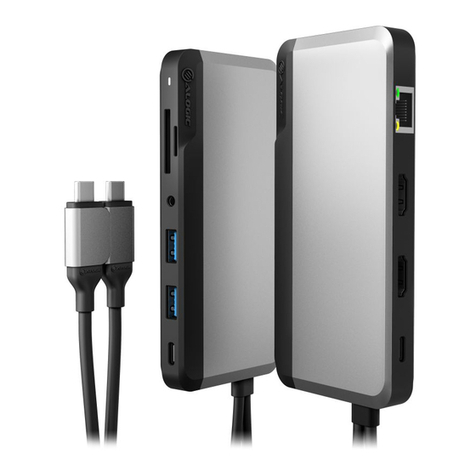
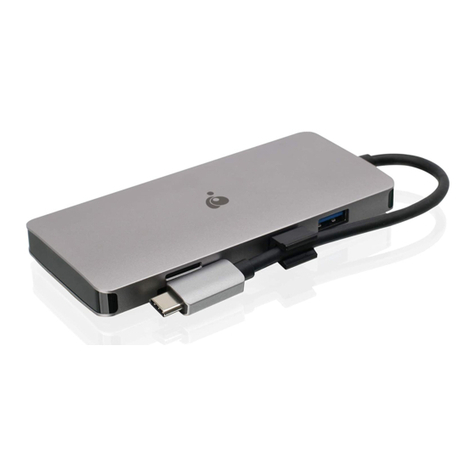
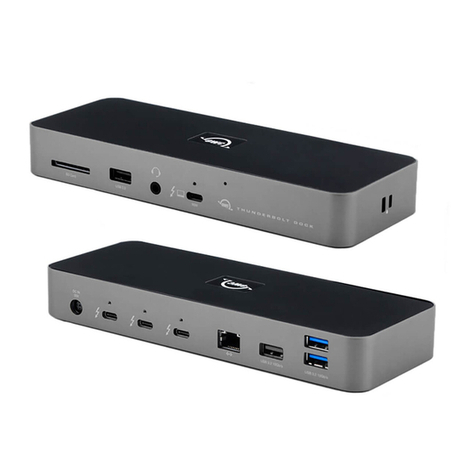
Congratulations on purchasing the ALOGIC Bolt Plus USB-C Hub Laptop Docking Station with 100W PD. To get the
most out of your purchase, please take the time to read these instructions before use. This product enhances your
connectivity options and desk space management. It supports the latest USB Type-C Power Delivery (PD) charging
standard to allow high power devices such as your laptop or MacBook to be charged up to 100W but can also
provide you access to a stable ethernet connection, dual HDMI video output of 4K@30Hz, SD and Micro SD Card
Slot, 3.5mm Audio Jack and USB-A ports for additional peripherals such as your keyboard & mouse.
Instructions
The Dock comes included with a USB-C cable to power the USB-C Hub and your laptop. Connect the USB-C
cable provided to the USB-C port at the back. Which can be identified by the marked word PD underneath
the port. Proceed to plug the end of the cable to your available USB-C enabled wall charger or USB-C
enabled power socket.
* disclaimer as wall charger does not come included
Connect the included USB-C to USB-C cable between the dock and your laptop.
The device is Plug and Play compatible and will be detected and configured by your computer automatically.
This process will take a few seconds the first time you plug the device into your laptop,and you may receive
a notification that it has been installed and is ready for use.Once the device has been recognisedand set up
by your computer it is ready for use and you can connect other devices as desired such as monitors, USB
devices and a network cable.Your laptop will also start charging with up to 100W of power when connected
to dock.
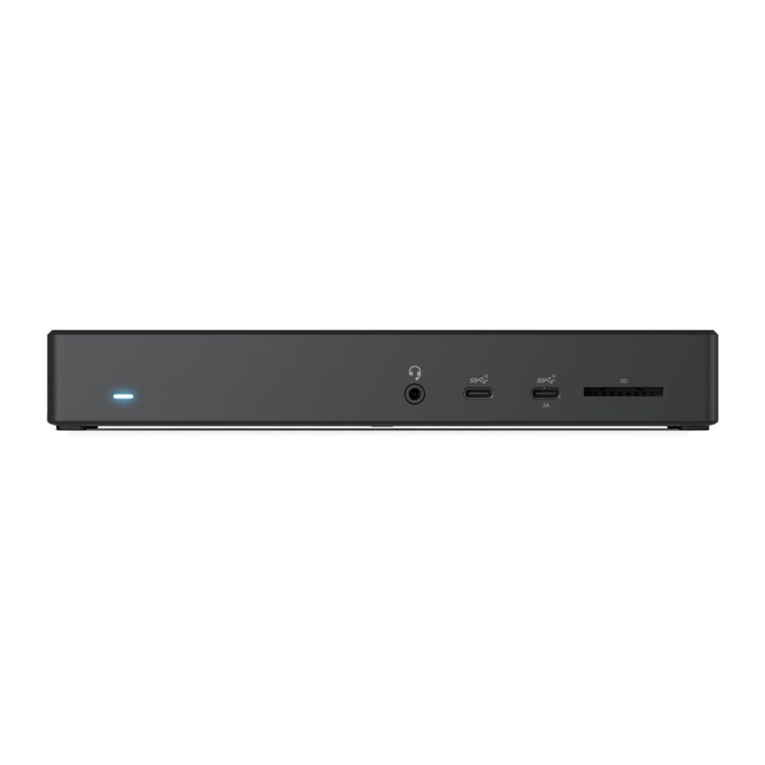
Connect external devices such as monitors, SD & Micro SD card, USB memory sticks, ethernet cableand
headphone/micro the dock,as necessary. The following outlines the available ports and their functions
Powering the Hub
(Refer to the images on the previous pages)
Connecting the Hub to the Laptop
(Refer to the images on the previous pages)
Connecting Devices to the Hub
(Refer to the images on the previous pages)
1
2
3
The following section outlinethe maximum video output resolution and refresh rate combinations available to
computers for a given HDMI.
*For extended mode, when laptop’s USB-C port supports DP1.4, one external monitor resolution can be up to
3840*2160@30Hz, and the other one is 1920*1080@60Hz, with dual external monitors resolution at 1080p@60Hz
when laptop’s USB-C port only supports DP1.2
*Mirror Mode clamshell (closed laptop lid)mode, ensure the MacBook is charging, feel free to attach MacBook’s
power adapter to the dock.
Single Display Dual Display Triple Display
Mirror Mode 3840 x 2160 @ 60Hz 3840 x 2160 @ 30Hz N/A
Extend Mode 3840 x 2160 @ 60Hz 1920 x 1080 @60Hz 1920 x 1080 @60Hz
Single Display Dual Display Triple Display
Mirror Mode 3840 x 2160 @ 60Hz 3840 x 2160 @ 30Hz N/A
Extend Mode 3840 x 2160 @ 60Hz 1920 x 1080 @60Hz N/A
Video Output Capabilities
Windows
Mac OS
ALOGIC recommend the use of ALOGIC cables to ensure reliable, trouble free operation for your computer and peripherals.
Multiple Displays Mode
Troubleshooting
Symptom Solution
Video doesn’t show
on external display
Check that the HDMI cable is connected securely between the monitor and device and the device is
securely connected to the computer
• Check that the external monitor is turned on and set to the correct input
• Check that your computer is detecting the external display and is set to show video on it
• Check that the USB-C port on the computer that you have connected the device to supports video
output using DisplayPort Alternate Mode
• If the computer doesn’t detect the external monitor or output video after checking the above, restart
your computer and attempt again
Video drops out
intermittently
Check that the HDMI cable is connected securely between the display and device
• Check that the device is securely connected to the computer
• Check that the HDMI cable being used to connect to the display is of good quality and isn’t damaged
Computer doesn’t
start charging
when the device is
connected
Ensure a USB Power Delivery power supply is connected to the USB-C port on the device marked PD
• Ensure that the power supply is connected at the wall and turned on, and the USB-C cable supplying
power is securely connected
• Verify that the USB-C port on the computer supports charging from a USB PD power source
Can’t get a dual
extended monitor on
Mac OS
This hub drives two extended monitor base on MST (Multiple Stream Transport), and the macOS only
support SST due to its system limitation, therefore 2 external monitor can’t display dierent contents.
No Audio output
from my HDMI
Monitor
Ensure the monitor supports audio output and set the external monitor as default audio output device.
Cable length
provided is too
short, can I use an
extension cable?
The cable length will aect the signal transmission, an extension cable is not recommended, the length of
most connection cables is between 50cm to 1m
Mirror Mode
Windows macOS A
A A
Windows macOS
Extended Desktop Mode
A
B B
Windows macOS
Extended Desktop Mode
A
B C