Anritsu MG3700A MG3700A Reference manual

PRODUCT INTRODUCTION
MG3700A
Vector Signal Generator
Connection to LAN
ANRITSU CORPORATION

CONFIDENTIAL 1
Copyright 2005 by ANRITSU CORPORATION
The contents of this manual shall not be disclosed in any way or
reproduced in any media without the express written permission of
Anritsu Corporation.
Connection to LAN MG3700A Vector Signal Generator
1
This document describes how to connect MG3700A Vector
Signal Generator and a PC via LAN.
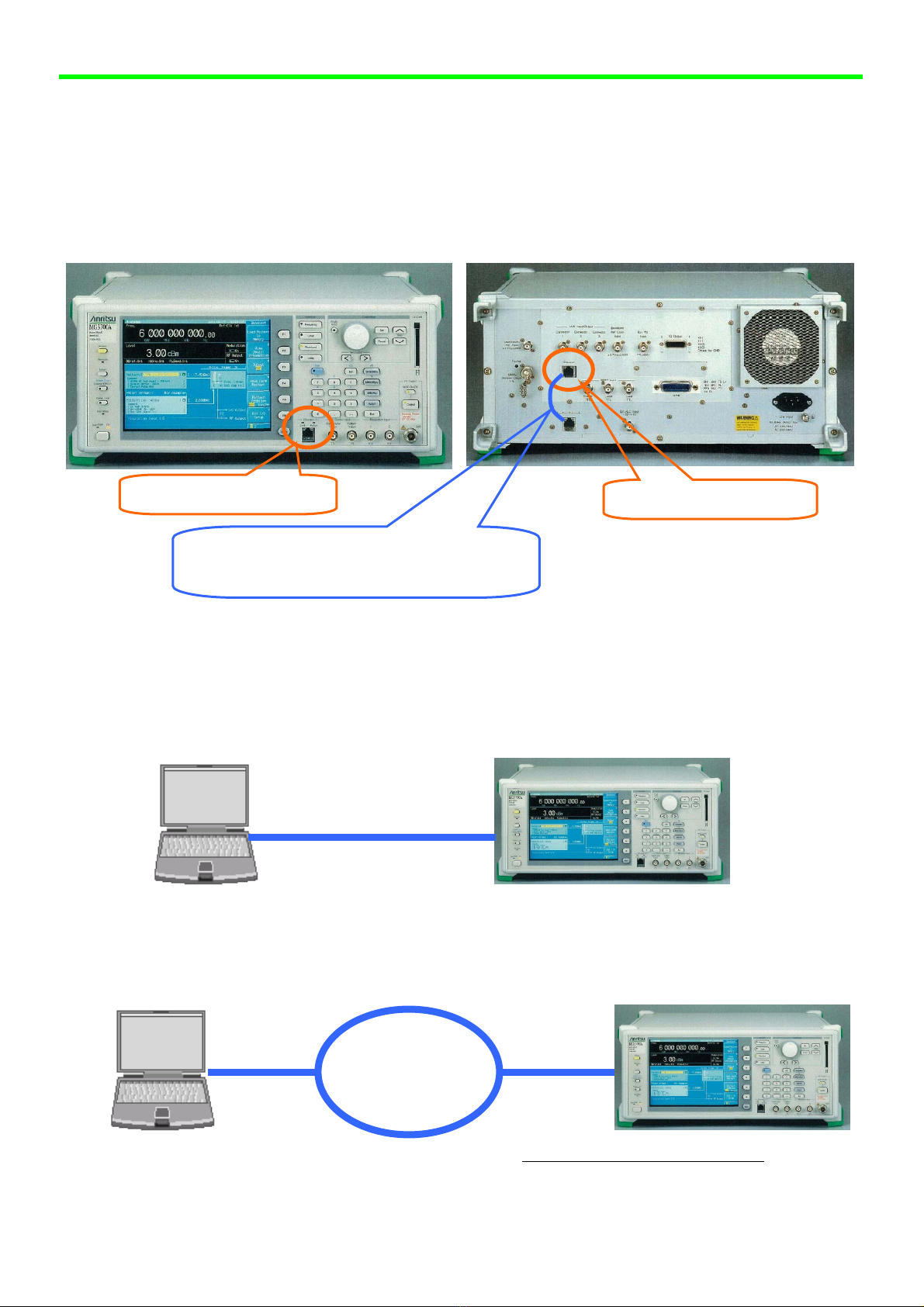
An Ethernet connector of MG3700A is used for LAN
connection.
[How to connect]
Method 1. Direct connection .................................................................................P2
Method 2. Network connection .............................................................................P6
LAN cable (cross type)
LAN cable
(straight type)
LAN cable
(straight type)
LAN
Ethernet connector Ethernet connector
MG3700A front panel MG3700A rear panel
Short-circuit two connectors in the rear panel
with an attached LAN straight cable when you
use an Ethernet connector on the front panel.
*Please use a hub for 100Base-Tx.

Connection to LAN MG3700A Vector Signal Generator
2
[Method 1: Direct connection] 1/4
1. Setting of a PC ........................................................................... P2
2. Setting of a MG3700A................................................................. P4
3. Connection by Transfer&Setting of IQproducer ............................ P5
1. Setting of a PC (slightly differs depending on the type of OS)
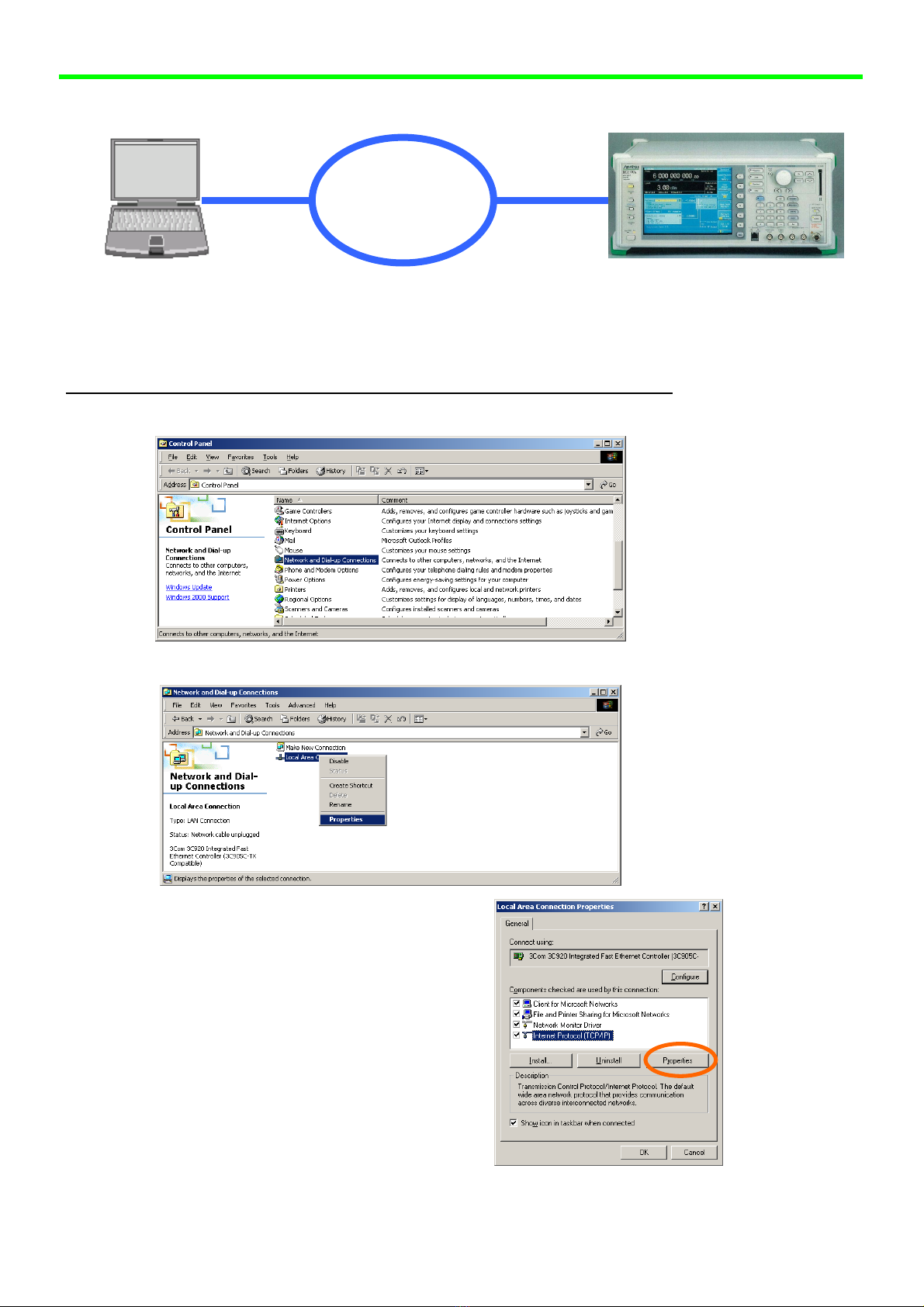
(a) Network setting
Open [Network and Dial-up Connections] from [Start] > [Settings] > [Control Panel].
Right-click on [Local Area Connection] and select [Properties].
Select [Internet Protocol
(TCP/IP)] in the [General] tab and
click [Properties].
LAN cable (cross type)

Connection to LAN MG3700A Vector Signal Generator
3
[Method 1: Direct connection] 2/4
1. Setting of a PC (slightly differs depending on the type of OS)…continued
Activate a radio button of [Use the following
IP address] and enter an arbitrary address in
the edit box of [IP address].
The IP address entered here must be different
from the address of MG3700A that will be
specified later.
Also, [Subnet mask] and [Use the following
DNS server addresses] are set automatically
in the course of operations above.
Click [OK] after specifying an IP address.
Click [OK] in the [Local Area Connection
Properties] window.
Open [Network and Dial-up Connections] from [Start] > [Settings] > [Control Panel].
Right-click on [Local Area Connection] and select [Disable].
Subsequently, right-click on [Local Area Connection] and select [Enable].
Connection to LAN MG3700A Vector Signal Generator
4
[Method 1: Direct connection] 3/4
2. Setting of a MG3700A
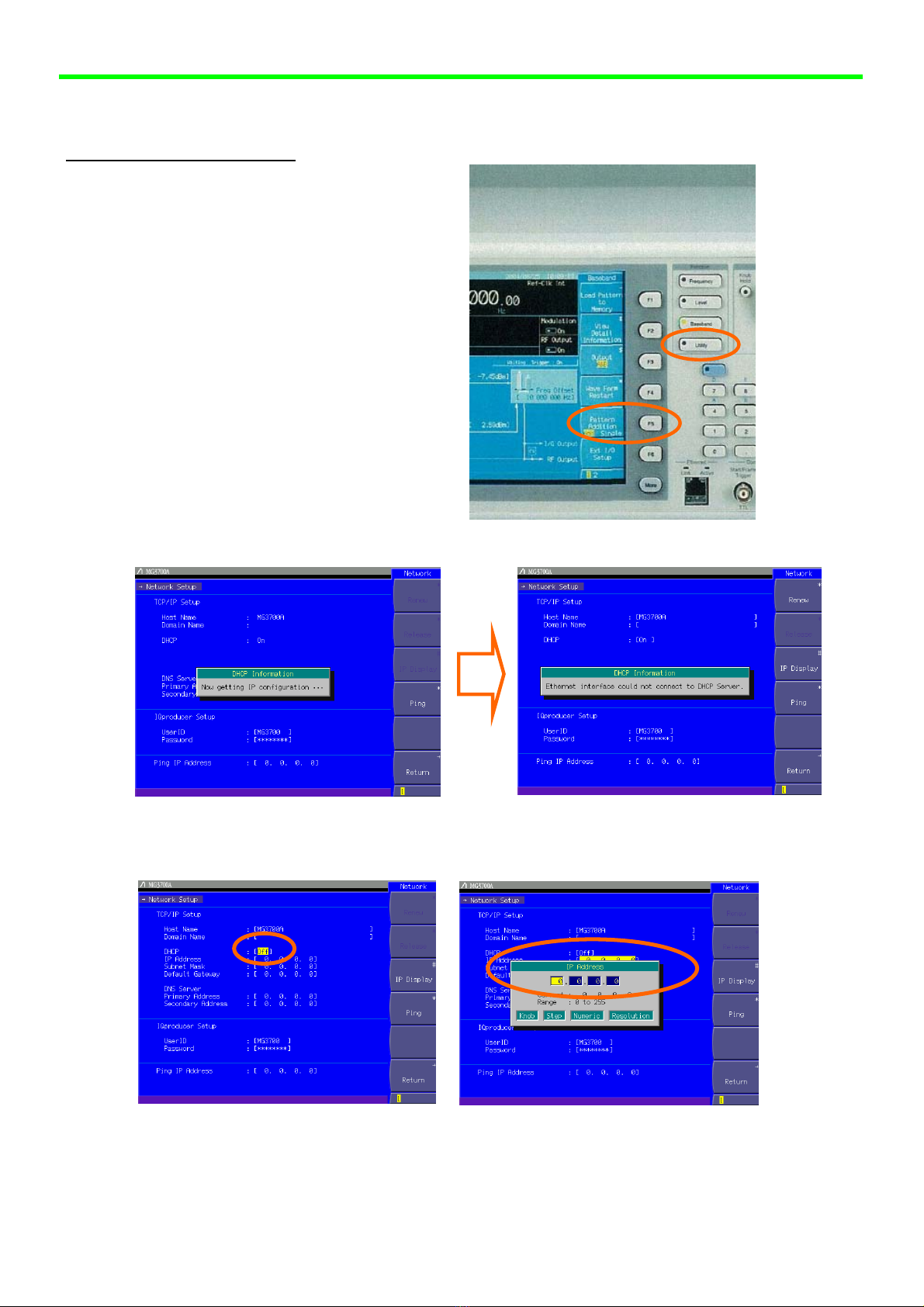
Press [Utility] on the front panel.
Press [F5: Network Setup].
Wait until the screen display (below left) changes to the right one.
Change the setting of [DHCP] from ON to OFF.
Enter an arbitrary address in [IP Address].
Connection to LAN MG3700A Vector Signal Generator
5
[Method 1: Direct connection] 4/4
3. Connection by Transfer&Setting of IQproducer
(The following describes the procedures in the state IQproducer that is the standard software of
MG3700A is installed.)
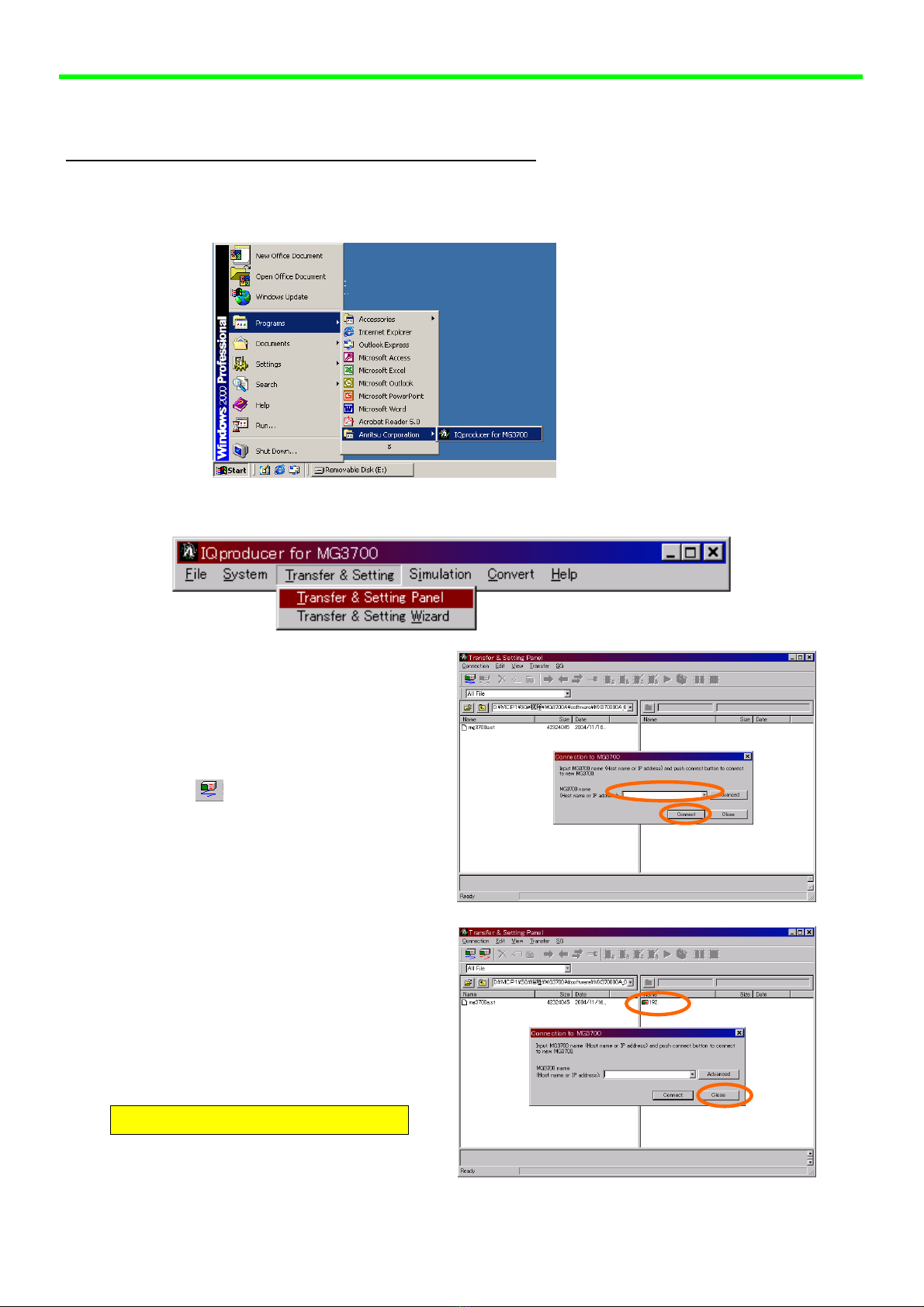
Open [IQproducer for MG3700A] from [Start] > [Programs] > [Anritsu Corporation].
Open [Transfer & Setting Panel] from [Transfer & Setting] of IQproducer.
When a [Connection to MG3700A]
window opens up automatically, enter
the IP address that was previously set
to MG3700A in the edit box and click
[Connect]. If you close the
[Connection to MG3700A] window by
mistake, you can reopen it by clicking
an icon at the upper left of the
screen or [Connection] > [Connect]
on the menu bar.
A MG3700A icon is displayed on the
right side of a screen in completion
of the connection. Close the
[Connection to MG3700A] window
by clicking [Close] when the
connection is done properly.
Connection is completed.
Connection to LAN MG3700A Vector Signal Generator
6
[Method 2: Network connection] 1/4
1. Setting of a PC ........................................................................... P6
2. Setting of a MG3700A................................................................. P8
3. Connection by Transfer&Setting of IQproducer ............................ P9
1. Setting of a PC (slightly differs depending on the type of OS)
(a) Network setting
Open [Network and Dial-up connections] from [Start] > [Settings] > [Control Panel].
Right-click on [Local Area Connection] and select [Properties].
Select [Internet Protocol (TCP/IP)] in
the [General] tab and click [Properties].
LAN cable
(straight type)
LAN cable
(straight type)
LAN

Connection to LAN MG3700A Vector Signal Generator
7
[Method 2: Network connection] 2/4
1. Setting of a PC (slightly differs depending on the type of OS)…continued
Activate radio buttons of [Obtain an IP
address automatically] and [Obtain INS server
address automatically] and click [OK].
Click [OK] in the [Local Area Connection
Properties] window.
Open [Network and Dial-up Connections] from [Start] > [Settings] > [Control Panel].
Right-click on [Local Area Connection] and select [Disable].
Subsequently, right-click on [Local Area Connection] and select [Enable].

Connection to LAN MG3700A Vector Signal Generator
8
[Method 2: Network connection] 3/4
2. Setting of a MG3700A
Press [Utility] on the front panel.
Press [F5: Network Setup].
Wait until the screen display (below left) changes to the right one.
Check [IP Address] above. Display/Non-display of the IP address can be switched by
pressing [F3: IP Display].
Please try any of the following actions if you cannot obtain the [IP Address].
Confirm that [DHCP] is [ON].
Restart MG3700A in the state a LAN cable is connected.
Press [F1: Renew].
Other manuals for MG3700A MG3700A
5
Table of contents
Other Anritsu Inverter manuals