3. Configuring for Dynamic IP through SCPI Commands
QSG-4 PN: 10580-00414 Rev. D MS2710xA QSG
3. Configuring for Dynamic IP through SCPI Commands
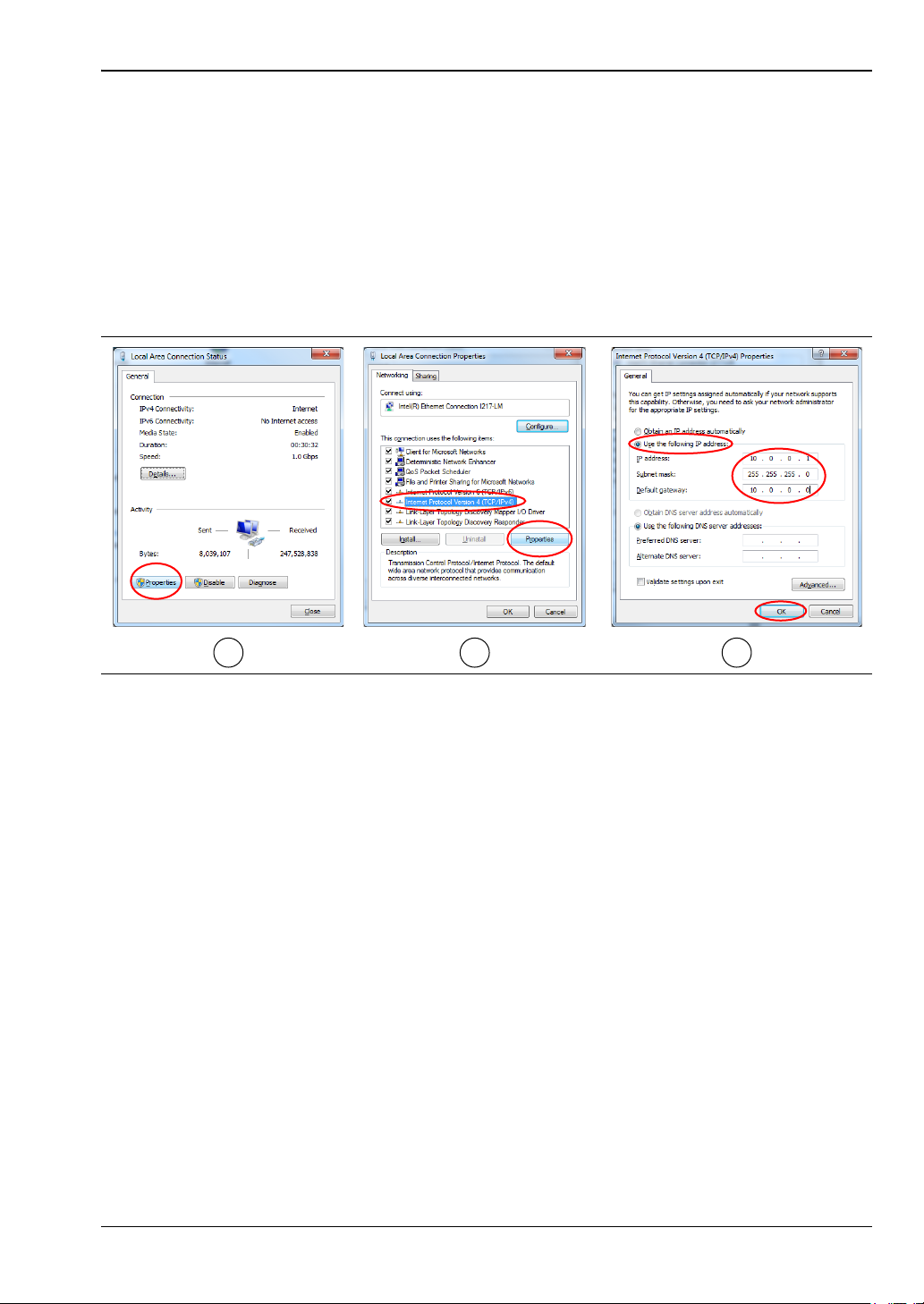
After the PC is properly configured, the connection can be tested. After a good connection has
been confirmed, either SCPI commands or the embedded instrument user interface (UI) may
be used to configure the Ethernet settings on the instrument to different values. Refer to the
embedded Help for details on using the UI.
The following steps describe how to verify and set the Ethernet configuration through SCPI
programming:
1. Using any SCPI client, send the *IDN? query command to 10.0.0.2 on port 9001. Verify
the response includes the model and serial numbers, and other instrument information.
2. To configure the instrument for DHCP, send the following SCPI commands to
10.0.0.2 on port 9001:
SYSTem:COMMunicate:LAN:DHCP?
Queries the DHCP setting. The return value should be OFF if the instrument is
currently configured for static IP.
SYSTem:COMMunicate:LAN:DHCP ON
Turns the DHCP setting ON. The setting is applied immediately upon sending
the command.
3. Disconnect the Ethernet crossover cable between the PC and instrument.
4. Reboot the instrument.
5. Connect the instrument and the controlling PC to your main network with a regular
Ethernet cable. The PC must be re-configured for dynamic IP as described in the next
section.
Caution Consult with your network administrator when configuring the network interface to
avoid potential loss of access or discovery of the device.
Note
If a response is not returned, try switching to a cross-over Ethernet cable and send
the query command again. Ensure that your SCPI client has the termination
character enabled: \n Line Feed (xA).
Note
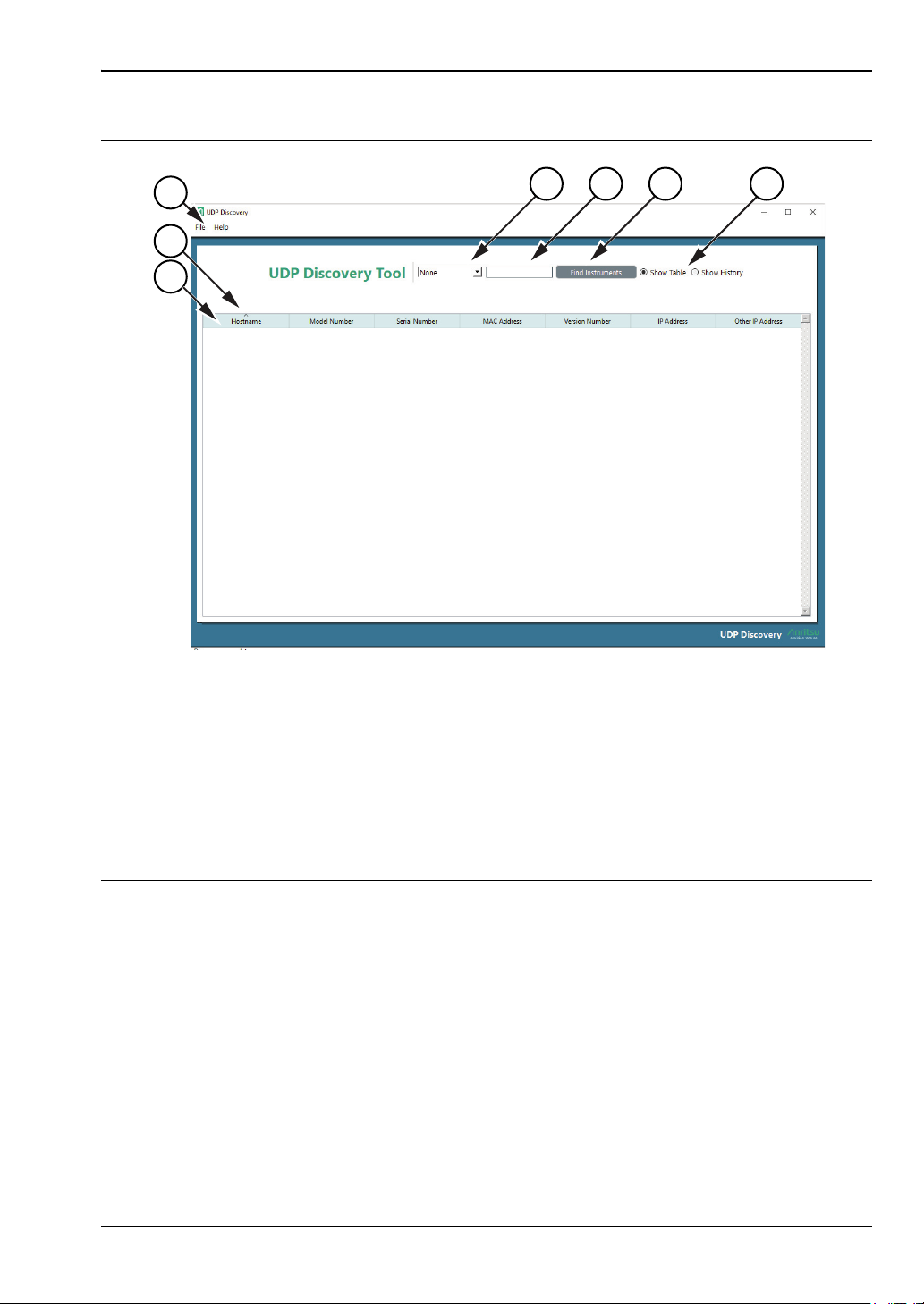
Turning DHCP ON will change the IP address. The Anritsu Discovery program will
need to be used to retrieve the new IP address. See “UDP Discovery Tool” for
instructions on using the discovery program.