manuals.online logo
Brands
  1. Home
  2. •
  3. Brands
  4. •
  5. Antec
  6. •
  7. Desktop
  8. •
  9. Antec P280 User manual

Antec P280 User manual

Other manuals for P280

1

Other Antec Desktop manuals

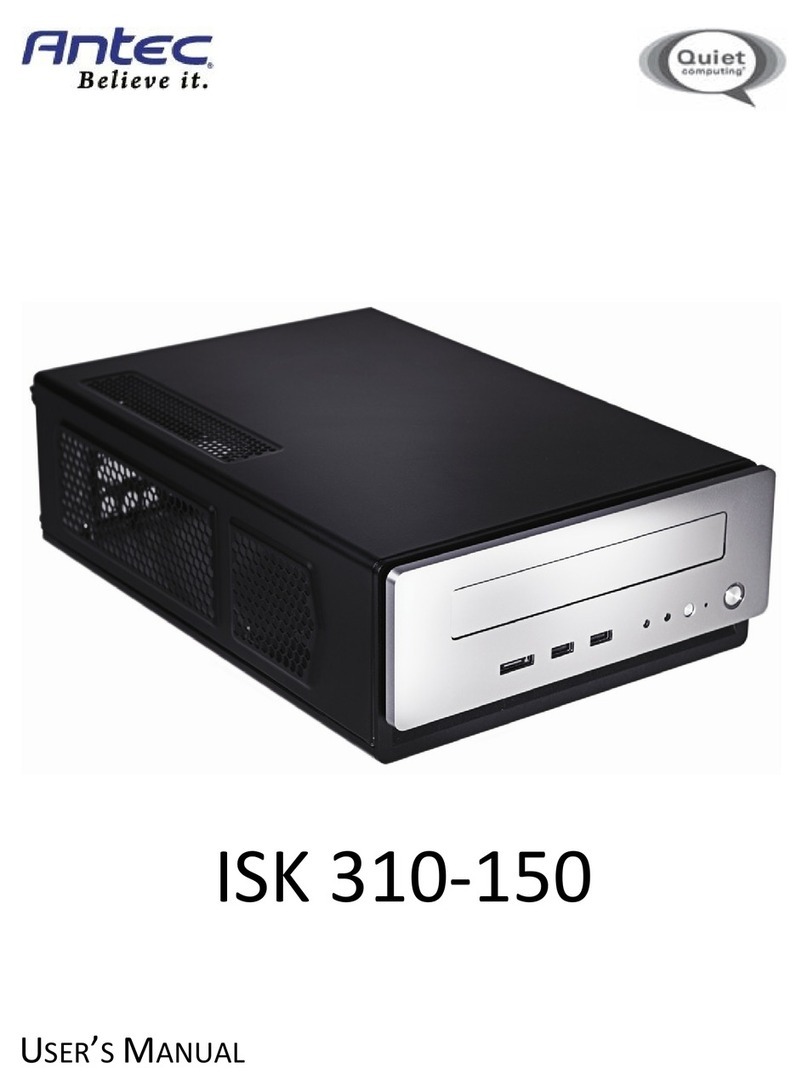
Antec ISK 310-150 User manual

Antec

Antec ISK 310-150 User manual

Antec SX800II Series User manual

Antec

Antec SX800II Series User manual

Antec Sonata Elite User manual

Antec

Antec Sonata Elite User manual

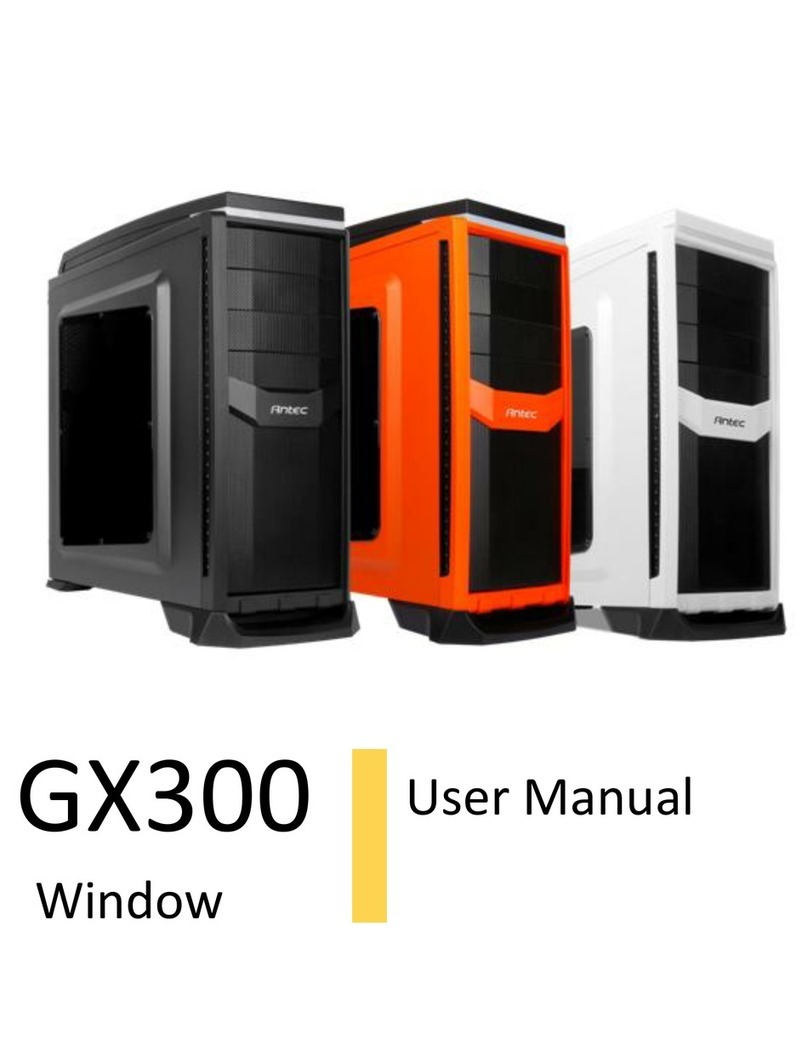
Antec GX300 User manual

Antec

Antec GX300 User manual

Antec MINUET II User manual

Antec

Antec MINUET II User manual

Antec SLK3700-BQE User manual

Antec

Antec SLK3700-BQE User manual

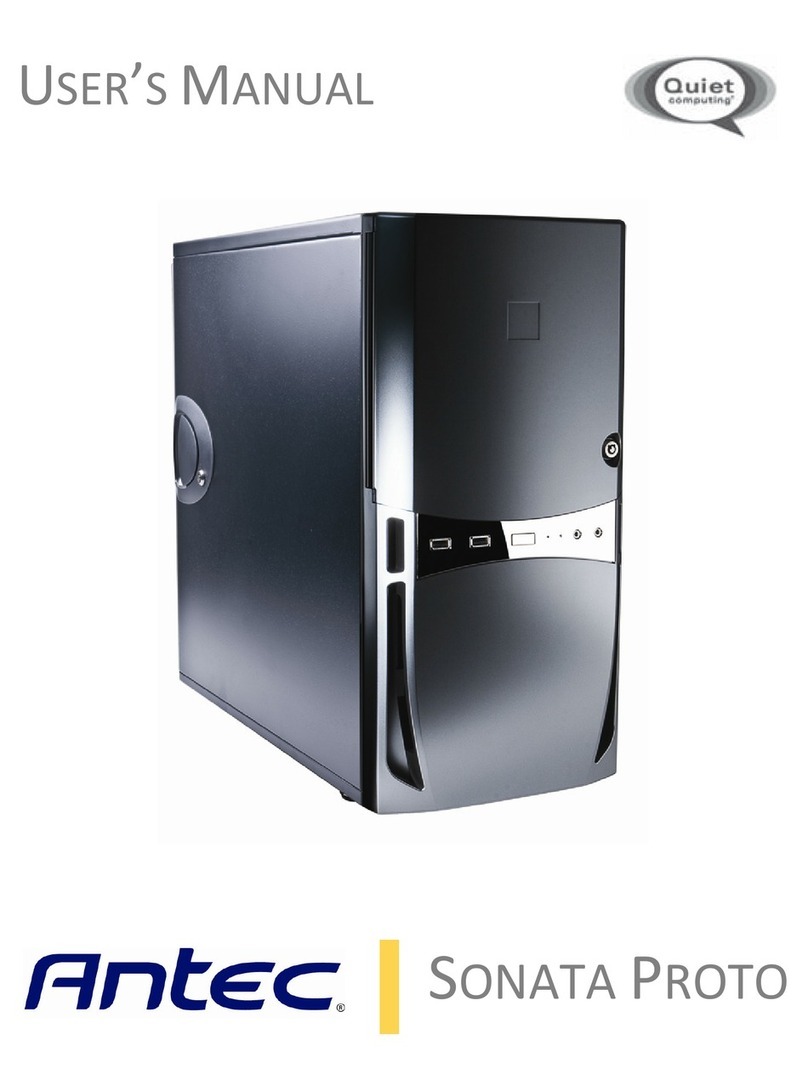
Antec Sonata Proto User manual

Antec

Antec Sonata Proto User manual

Antec Sonata Elite User manual

Antec

Antec Sonata Elite User manual

Antec ISK 110 VESA User manual

Antec

Antec ISK 110 VESA User manual

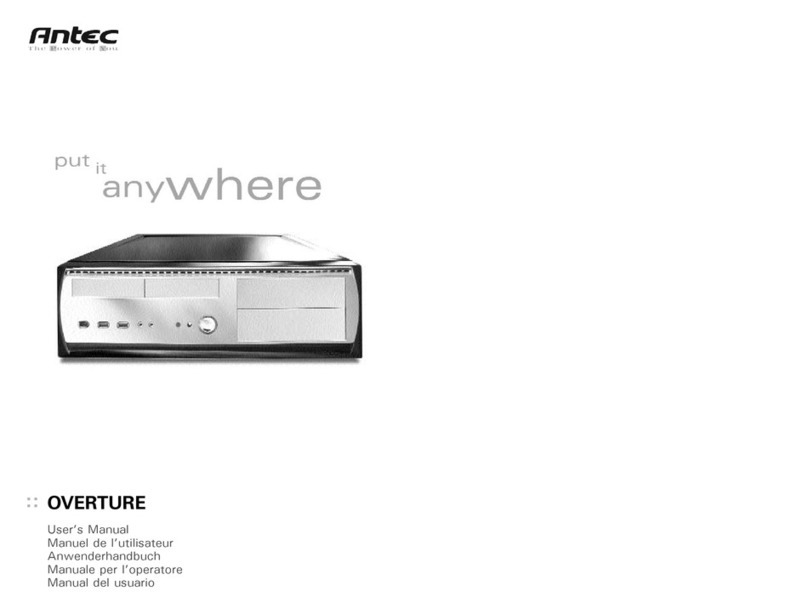
Antec OVERTURE User manual

Antec

Antec OVERTURE User manual

Antec ISK 310-150 User manual

Antec

Antec ISK 310-150 User manual

Popular Desktop manuals by other brands

StarTech.com ARMSTSL manual

StarTech.com

StarTech.com ARMSTSL manual

Dell Inspiron 5720 quick start guide

Dell

Dell Inspiron 5720 quick start guide

GÜDE WERKBANK GW 6/2 XL Translation of the original instructions

GÜDE

GÜDE WERKBANK GW 6/2 XL Translation of the original instructions

Lenovo ThinkCentre M62z Vodič za uporabnika

Lenovo

Lenovo ThinkCentre M62z Vodič za uporabnika

Lenovo ThinkCentre M71z user guide

Lenovo

Lenovo ThinkCentre M71z user guide

Fujitsu ESPRIMO C7xx operating manual

Fujitsu

Fujitsu ESPRIMO C7xx operating manual

Bosch DCU 130 operating instructions

Bosch

Bosch DCU 130 operating instructions

Zotac VR GO quick start guide

Zotac

Zotac VR GO quick start guide

HP 260 G2 DM Product End-of-Life Disassembly Instructions

HP

HP 260 G2 DM Product End-of-Life Disassembly Instructions

Sony VAIO VGC-LS21 Specifications

Sony

Sony VAIO VGC-LS21 Specifications

HP ProOne 400 G1 specification

HP

HP ProOne 400 G1 specification

IBM PS/2 60 Hardware maintenance service

IBM

IBM PS/2 60 Hardware maintenance service

Acer Aspire SA60 Service guide

Acer

Acer Aspire SA60 Service guide

Lenovo ThinkCentre M71z Uživatelská příručka

Lenovo

Lenovo ThinkCentre M71z Uživatelská příručka

IBM Aptiva 2198 reference guide

IBM

IBM Aptiva 2198 reference guide

Sony PCV-LX810 - Vaio Slimtop Computer System reference manual

Sony

Sony PCV-LX810 - Vaio Slimtop Computer System reference manual

Dell Precision U3525 Quick reference guide

Dell

Dell Precision U3525 Quick reference guide

MicroTouch IC-215P-AW2 user guide

MicroTouch

MicroTouch IC-215P-AW2 user guide

manuals.online logo
manuals.online logoBrands
  • About & Mission
  • Contact us
  • Privacy Policy
  • Terms and Conditions

Copyright 2025 Manuals.Online. All Rights Reserved.

1
Model
P280
P280 Window
P280 White
P280 White Window
Color
Finish
(interior)
Black
Black
White
White
Color
Finish
(exterior)
Black
Black
White
White
Window
No
Yes
No
Yes
Unit
Dimensions
20.7” (H) x 9.1” (W) x
22.1” (D) 526 mm (H) x
231 mm (W) x 562 mm
(D)
20.7” (H) x 9.1” (W) x
22.1” (D) 526 mm (H) x
231 mm (W) x 562 mm
(D)
20.7” (H) x 9.1” (W) x
22.1” (D) 526 mm (H) x
231 mm (W) x 562 mm
(D)
20.7” (H) x 9.1” (W) x 22.1”
(D) 526 mm (H) x 231 mm
(W) x 562 mm (D)
Net Weight
22.3 lbs / 10.2 kg
22.3 lbs / 10.2 kg
22.3 lbs / 10.2 kg
22.3 lbs / 10.2 kg
Packages
Color
Brown
Brown
Brown
Unit UPC
0-761345-82000-4
0-761345-82002-8
0-761345-82010-3
0-761345-82012-7
2
P280 User Manual
Congratulations on your purchase of the Antec P280!
Sophisticated and cutting-edge, the P280 emphasizes the ease of use, quiet technology and
unparalleled performance characteristic of Antec’s Performance One series. This advanced
enclosure comes equipped with features that will maximize your PC experience, from Quiet
Computing™ panels & HDD drive bays, to grommet-lined cable routing holes with ample space
behind the motherboard tray. The P280 accommodates motherboards up to XL-ATX and
includes nine expansion slots to support up to four 13.0” / 330 mm graphics cards. And with
convenient tool-less optical drive bays, easy-access front & bottom PSU intake air filters, two
front panel USB 3.0 ports and an affordable price, you get an elite enclosure that will last you
for builds to come.
The P280 does not include a power supply. Make sure you choose a power supply that is
compatible with your computer components and has a long enough power harness to reach
your motherboard and peripheral devices. We recommend our High Current Gamer, High
Current Pro or EarthWatts power supplies for the latest ATX specification compliance, broad
compatibility, and power savings capability.
At Antec, we continually refine and improve our products to ensure the highest quality. As
such, your new chassis may differ slightly from the description in this manual due to
improvements applied for the optimal building experience. As of November 15, 2011, all
features, descriptions, and illustrations in this manual are correct.
Disclaimer
This manual is intended only as a guide for Antec’s computer
enclosures. For more comprehensive instructions on installing the
motherboard and peripherals, please refer to the manuals that
come with those components.
3
Section 1: Introduction
1.1 Getting to Know Your Chassis ............................................................................ 6
1.2 Chassis Specifications......................................................................................... 7
1.3 Included Screws ................................................................................................. 7
1.4 Before You Begin ................................................................................................ 8
Section 2: Hardware Installation
2.1 Setting Up .......................................................................................................... 10
2.2 Motherboard Installation................................................................................... 10
2.3 Installing KUHLER H2O Liquid Coolers ................................................................ 11
2.4 Power Supply Installation .................................................................................. 12
2.5 External 5.25” Device Installation ...................................................................... 13
2.6 Internal 2.5” Device Installation ........................................................................ 14
2.7 Internal 3.5” / 2.5” Device Installation .............................................................. 14
2.8 Cable Management ............................................................................................ 15
Section 3: Front I/O Ports
3.1 USB 2.0 ............................................................................................................... 17
3.2 USB 3.0 ............................................................................................................... 17
3.3 AC’97 / HD Audio Ports ...................................................................................... 18
3.4 Power Switch / Reset Switch / Hard Disk Drive LED Connectors ....................... 18
3.5 Rewiring Motherboard Header Connections ..................................................... 19
Section 4: Cooling System
4.1 Included Fans ..................................................................................................... 21
4.2 Optional Fans ..................................................................................................... 21
4.3 Air Filters ............................................................................................................ 22
4
1. 3 x 5.25” tool-less drive bays
2. 2 x 2.5” drive trays (dedicated)
3. 6 x 3.5” / 2.5” drive trays
4. 2 x 120 mm top TwoCool™ exhaust fans
5. 1 x 120 mm rear TwoCool™ exhaust fan
6. 2 x 120 mm internal intake fans (optional)
2 x 120 mm front intake fans (optional)
7. 9 expansion slots
8. CPU cutout
9. Cable routing holes
10. Motherboard mount: XL-ATX, Standard ATX, microATX or Mini-ITX
11. Power supply mount / PSU intake filter
12. Front Ports (USB 3.0, USB 2.0, Audio I/O)
6
Chassis Type
Super Mid-Tower
Chassis Color
Black with aluminum door
Dimensions
20.7” (H) x 9.1” (W) x 22.1” (D)
526 mm (H) x 231 mm (W) x 562 mm (D)
Weight
22.3 lbs / 10.2 kg
Cooling
- 2 x 120 mm top TwoCool™ exhaust fans
- 1 x 120 mm rear TwoCool™ exhaust fan
- 2 x 120 mm internal intake fans (optional)
- 2 x 120 mm front intake fans (optional)
Drive Bays
- 3 x 5.25” tool-less drive bays
- 6 x 3.5” / 2.5” drive trays
- 2 x 2.5” drive-bays (dedicated)
Expansion Slots
9: supports up to 3-way NVIDIA® SLI® / AMD CrossFireX™
Motherboard Size
XL-ATX [13.6” x 10.3” (345 mm x 262 mm)], Standard ATX, microATX, Mini-ITX
Front I/O Panel
- 2 x USB 3.0 with internal motherboard connector
- 2 x USB 2.0
- Audio In/Out
- Power and Reset buttons located on top panel of chassis
An inventory of all screws and intended usage and quantity is provided here:
A. Power supply screw (4)
B. Motherboard standoff (4 included, 6 preinstalled)
C. Motherboard screw (10)
D. Optional 5.25” screw / dedicated 2.5” drive bay screw (6)
E. 3.5” tray-mount screw (25)
F. 2.5” tray-mount screw (8)
G. Front fan screw (4)
H. Not pictured: zip ties for cable management (6)
7
In order to ensure that your building experience with the P280 will be a positive one, please
take note of the following:
While working inside your P280, keep your chassis on a flat, stable surface. Make sure
your build environment is clean, well-lit, and free of dust.
Antec chassis feature rounded edges that minimize the occurrence of hand injuries.
Nonetheless, exercise caution and control when handling chassis interiors. We strongly
recommend taking the appropriate time and care when working inside the chassis.
Avoid hurried or careless motions.
Handle components and cards with care. Do not touch the unshielded components or
contacts on a card. Hold a card by its edges. Hold a component such as a processor by its
edges, never by its pins.
To avoid electrostatic discharge, ground yourself periodically by touching an unpainted
metal surface (such as a connector or screw on the back of this computer) or by using a
wrist grounding strap.
Before you connect a cable, ensure that both connectors are correctly aligned and
oriented. Bent pins can be difficult to fix and may require replacement of the entire
connector.
This manual is not designed to cover CPU, RAM, or expansion card installation. Please
consult your motherboard manual for specific mounting instructions and
troubleshooting. Before proceeding, check the manual for your CPU cooler to find out if
there are steps you must take before installing the motherboard.
Do not sit on your chassis. Although it is constructed of heavy-duty steel and internally
reinforced, it is not designed to support the weight of an adult, and may buckle.
Remember to use the right tools for each task. Do not use improvised screwdrivers like
coins, nails or knife blades as they may result in damage to screw threads or even injury.
Do not use your fingernails to separate edges or lift the sides of the chassis, as paint
chipping or injury may occur.
8

Put the case upright on a flat,
stable surface so that the rear
panel (power supply and expansion
slots) is facing you. To remove the
left and right side panels, remove
these thumbscrews first.
Note: Place the panel thumbscrews
aside carefully and remember
where they are.
Remove the panel by gripping the
end of the panel at the top &
bottom and swinging the panel
outward. Do not pull the panel
back toward the rear of the chassis.
Remove the panel by the end of the panel at the top &
bottom and swing the panel outward.
CAUTION: Do not use your fingernails to pry or lift the panels. Damage to the panels or injury to
your fingernails may result.
Before proceeding:
Check the manual for your CPU cooler to find out if there are steps you must do before
installing the motherboard.
Make sure you have the correct I/O panel for your motherboard. If the panel provided with the
chassis isn’t suitable, please contact your motherboard manufacturer for the correct I/O panel.
Make sure you have the correct I/O panel.
10