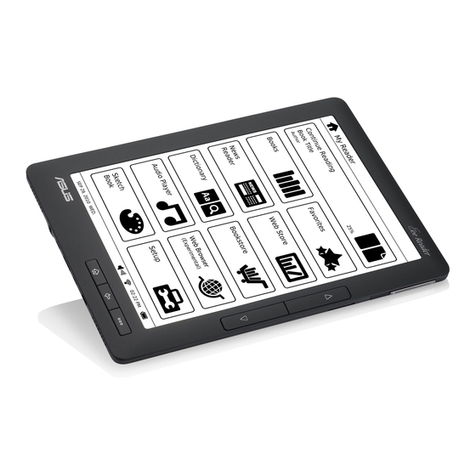
Asus Eee Reader DR-900 User manual
Eee Reader
DR-900
User Manual
E5973 / First Edition V1 / October 2010

Table of contents
Safety information........................................................................................ 3
1 A quick look
Package contents ..........................................................................................4
Your Eee Reader............................................................................................5
2 Getting started
Charging your device.................................................................................... 6
Turning your device ON................................................................................ 7
Turning your device OFF............................................................................... 7
Waking up your device from Sleep mode.................................................... 7
Shutting down your device......................................................................... 7
Hard resetting your device...........................................................................7
Installing a microSD card into your device..................................................8
Copying files to or from your device........................................................... 8
3 Using your device
The Home screen........................................................................................... 9
Using the touch gestures ............................................................................ 9
Accessing e-books.......................................................................................10
Reading an e-book ................................................................................... 10
Annotating an e-book .............................................................................. 11
Highlighting an e-book............................................................................. 13
Bookmarking an e-book ........................................................................... 14
Using the Go to, Export, and Import functions.......................................... 15
The Text-to-Speech function ..................................................................... 16
Tagging an e-book.................................................................................... 17
Accessing News Reader..............................................................................18
Subscribing to news feeds ........................................................................ 18
Getting connected wirelessly..................................................................... 18
Using the Wi-Fi function........................................................................... 18
Using the 3G function .............................................................................. 19
Connecting to the Internet.........................................................................20

Table of contents
Updating the firmware............................................................................... 20
Activating your digital reader for DRM-protected files........................... 21
4 Downloading online
Downloading from the Webstore.............................................................. 21
Downloading from the Bookstore............................................................. 22
5 Accessories
Eee Reader case........................................................................................... 22
Storing your device................................................................................... 22
6 FAQs
Frequently Asked Questions (FAQs) ..........................................................23
Appendices
Notices .........................................................................................................24
ASUS Contact information ......................................................................... 28
Safety information
DO NOT place on uneven or
unstable work surfaces. Seek
servicing if the casing has been
damaged. Refer all servicing to
qualified service personnel.
DO NOT expose to or use near
liquids, rain, or moisture.
SAFE TEMP: This device should
only be used in environments with
ambient temperatures between
5oC (41oF) and 35oC (95oF).
DO NOT place or drop items that
may damage or scratch the device.
Wipe the device using a clean cellulose sponge or chamois cloth dampened with
a solution of nonabrasive detergent and a few drops of warm water then remove
any extra moisture with a dry cloth.
DO NOT expose to extreme high
temperature or to direct sunlight.
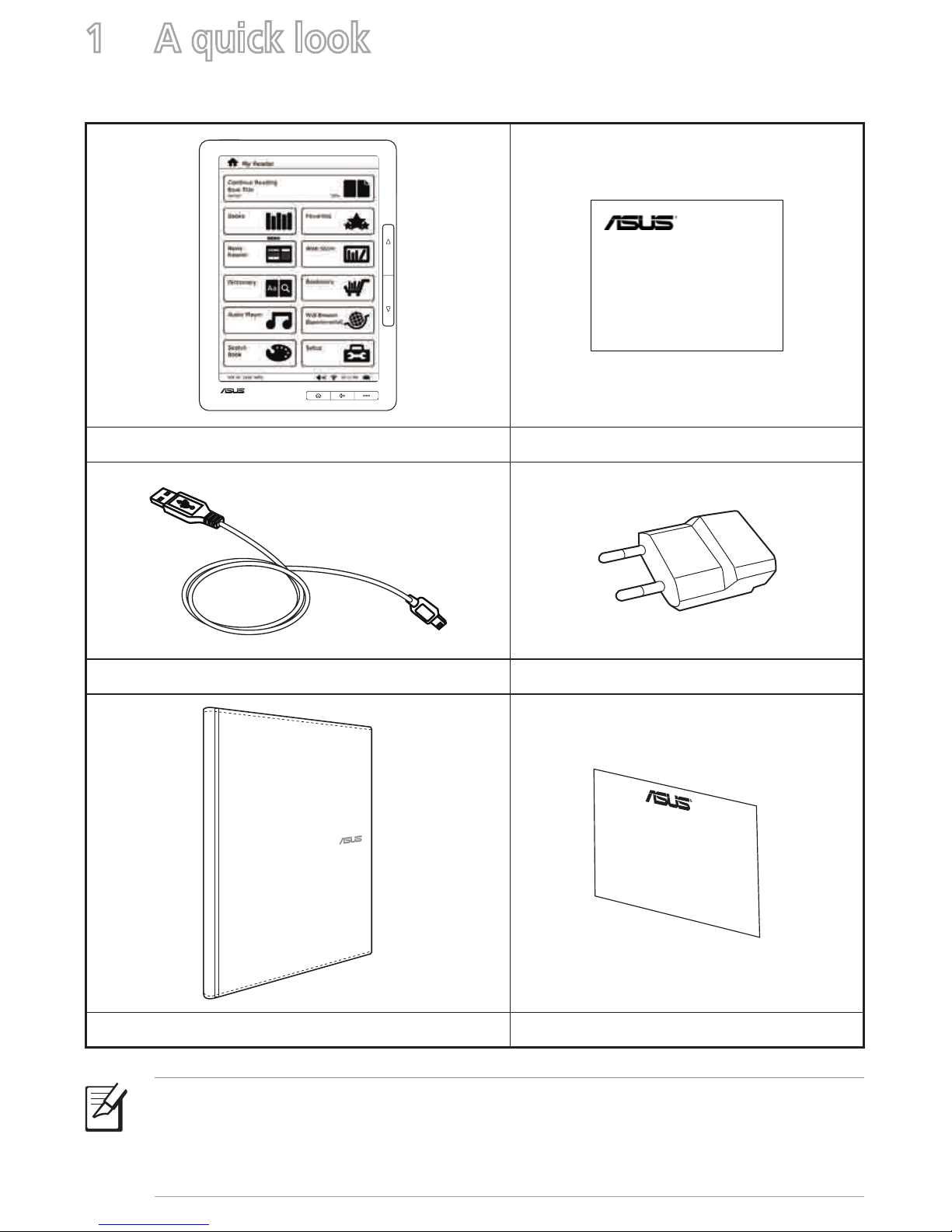
Package contents
NOTES:
• If any of the items is damaged or missing, contact your retailer.
• The USB charger varies with regions.
1 A quick look
Quick Start Guide
Eee Reader
DR-900
DR-900 Eee Reader Quick Start Guide
micro-USB cable USB charger
Eee Reader case Warranty card
Your Eee Reader
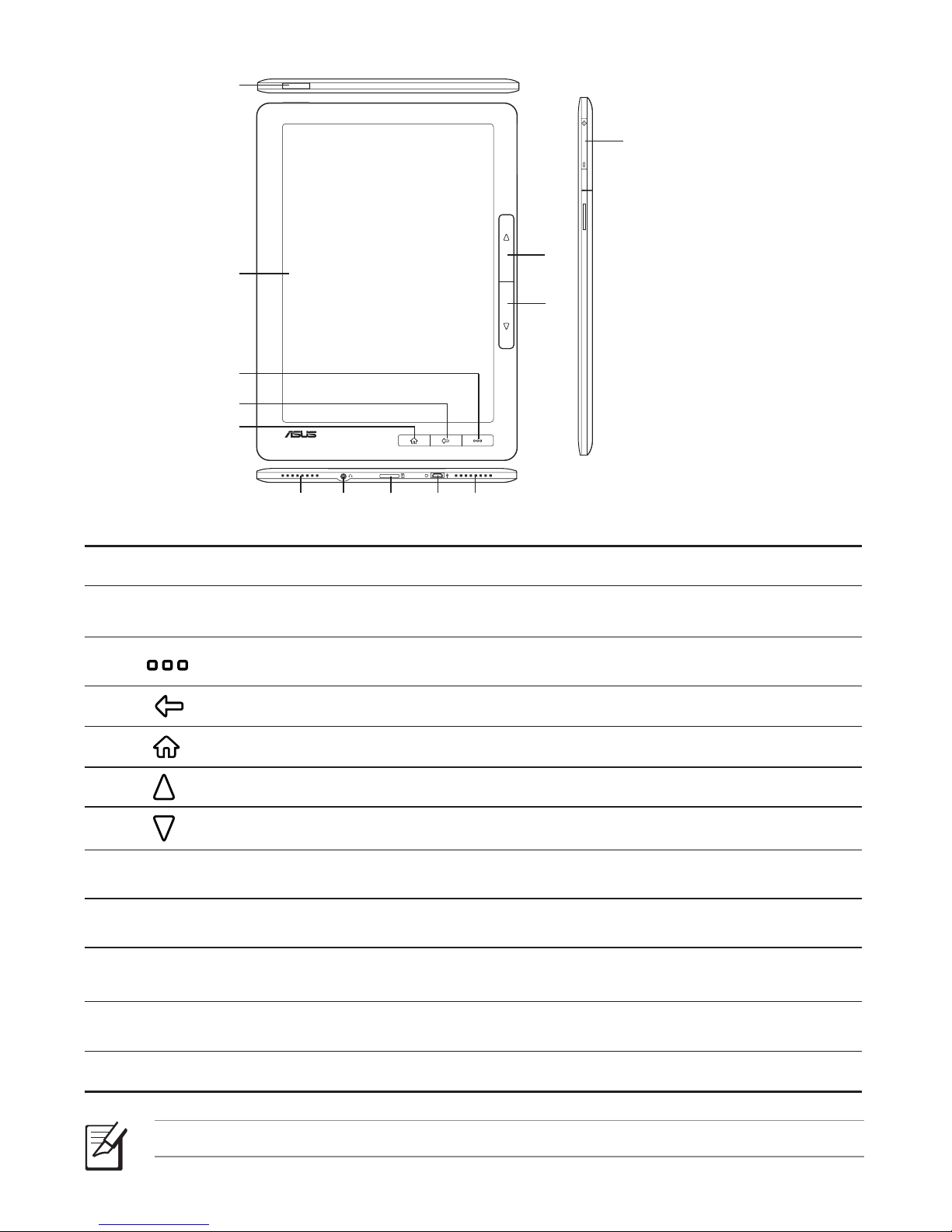
1Power key: Turns your device on/off.
2Touch panel: Lightly touch the screen to navigate through the features and
functions of your device.
3Function key: Press to display the function bar. You may also move
your finger in an upward motion to show the function bar.
4Back key: Press to go back to the previous screen.
5Home key: Press to go to the Home screen.
6Page up key: Press to go back to the previous page.
7Page down key: Press to go to the next page.
8Volume key: Press to increase/decrease the volume.
9Built-in speakers: The device is equipped with two built-in high quality stereo
speakers.
10 3.5mm Earphone jack: Insert your headphone connector into this jack. Using
this jack automatically disables the built-in speakers.
11 microSD card slot: Insert a microSD card into this slot.
12 micro-USB port: Insert the micro-USB cable into this port.
NOTE: Some ASUS Eee Reader models may include a built-in 3G function.
2
910 9
11 12
1
3
4
5
6
7
8
Charging your device
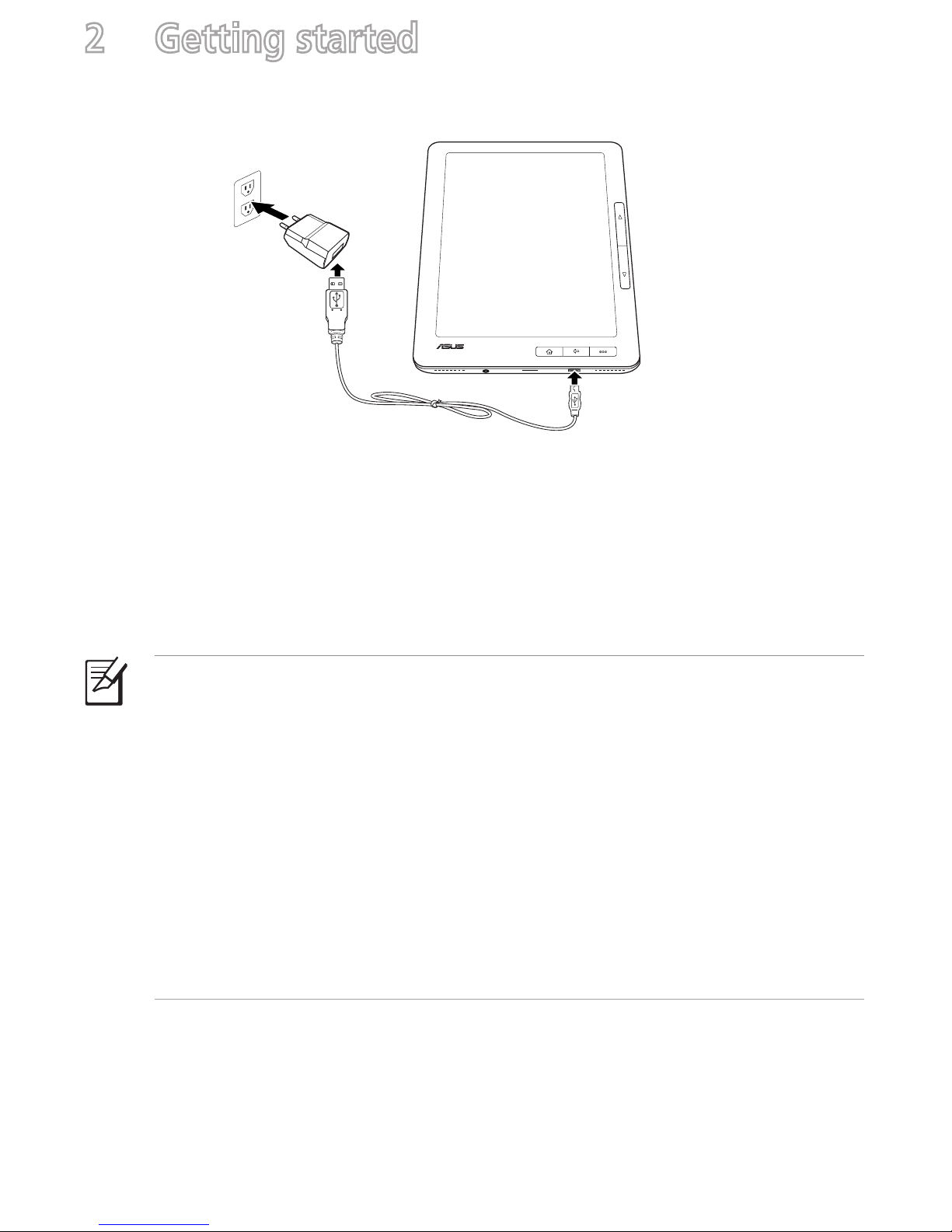
To charge your device:
1. Connect the USB cable’s micro-USB connector to the
micro-USB port of your device.
2. Connect the micro-USB cable to the USB charger.
3. Connect the USB charger to a power outlet.
NOTES:
• You may also connect the micro-USB cable to your computer’s USB port to
charge your device.
• Use only the USB charger that comes with your device. Using a different USB
charger may damage your device.
• The bundled USB charger varies with regions.
• Your device has an extended internal battery life of up to two weeks on a single
charge.
• All battery claims depend on several factors such network settings or wireless
usage and actual results may vary.
2 Getting started
1
2
3
Turning your device ON
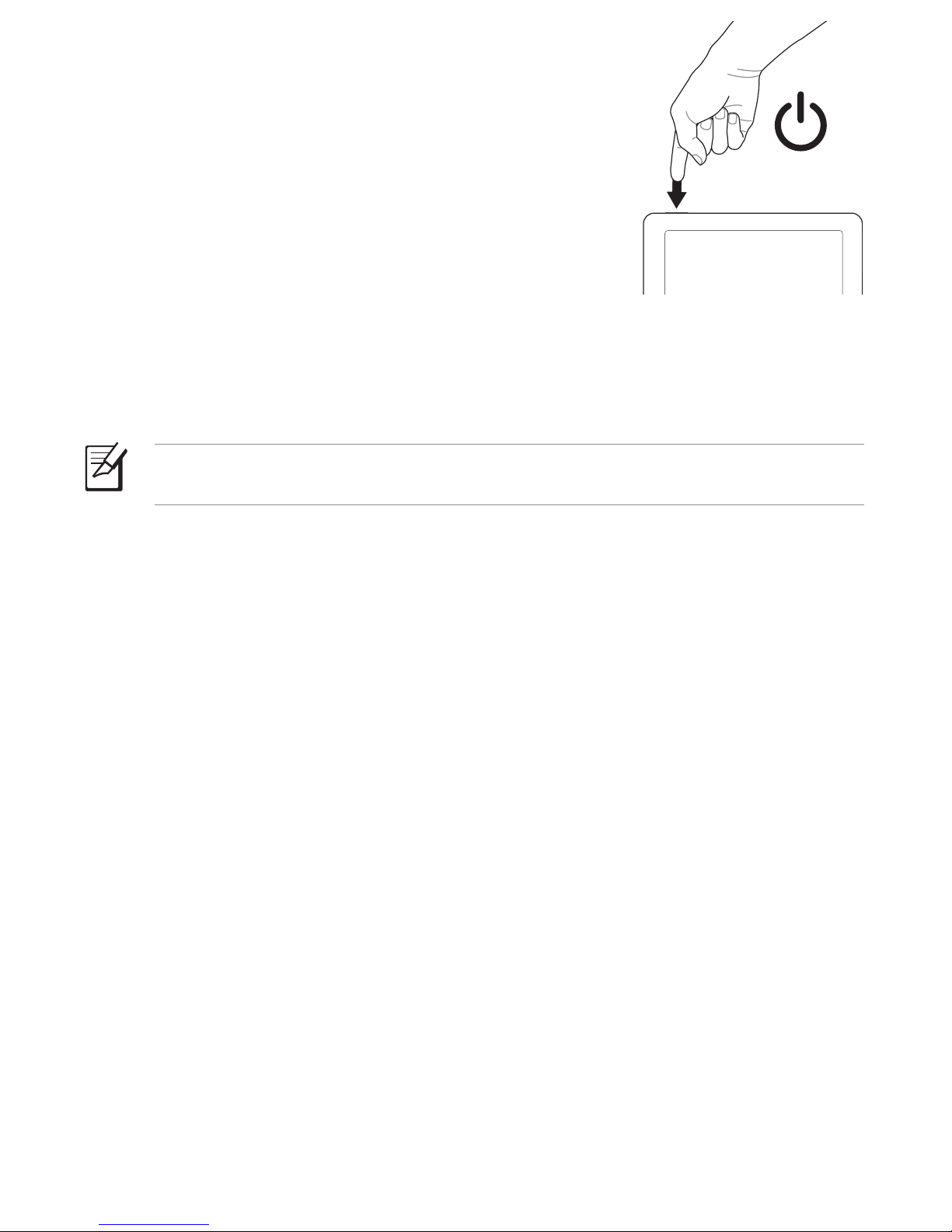
To turn your device ON:
• Long press the Power key for about three seconds.
Turning your device OFF
Waking up your device from Sleep mode
NOTE: By default, your device automatically enters the Sleep or Suspend mode
when you are not operating your device for some time.
To wake up your device from Sleep mode:
• Short press the Power key to wake up the system.
Shutting down your device
To shut down your device, do any of the following:
• From the home screen, tap Setup > Shut Down, then tap Yes on the
confirmation message.
• Long press the Power key for about three seconds to shut down your device.
Hard resetting your device
To hard reset your device:
• Simultaneously press the Home, Function, and Power keys.

Installing a microSD card into your
device
Your device is equipped with a microSD card slot. A microSD card provides you
with extended memory where you can store your files and other data.
To insert a microSD card:
1. Locate the microSD card slot at the bottom
of the device.
2. Insert the microSD card into the card slot. microSD card slot
Copying files to or from your device
You can download pdf, ePub, txt, or mp3 files from your computer to your device
and vice versa.
To copy files to your device:
1. Turn on your device.
2. Using the bundled micro-USB cable, connect your device to your computer’s
USB port.
3. Tap Connect to PC to display the directory on your device.
4. Copy the files to your preferred destination path.
5. When done, click the Safely remove hardware icon on the taskbar at the
bottom right of your computer screen.
IMPORTANT!
• For text format files such as ePub, pdf, or txt files: Create a folder named
Book and copy the ePub and pdf files into this folder.
• For audio format files such as mp3 files: Create a folder named Audio and
copy the audio files into this folder.

3 Using your device
The Home screen
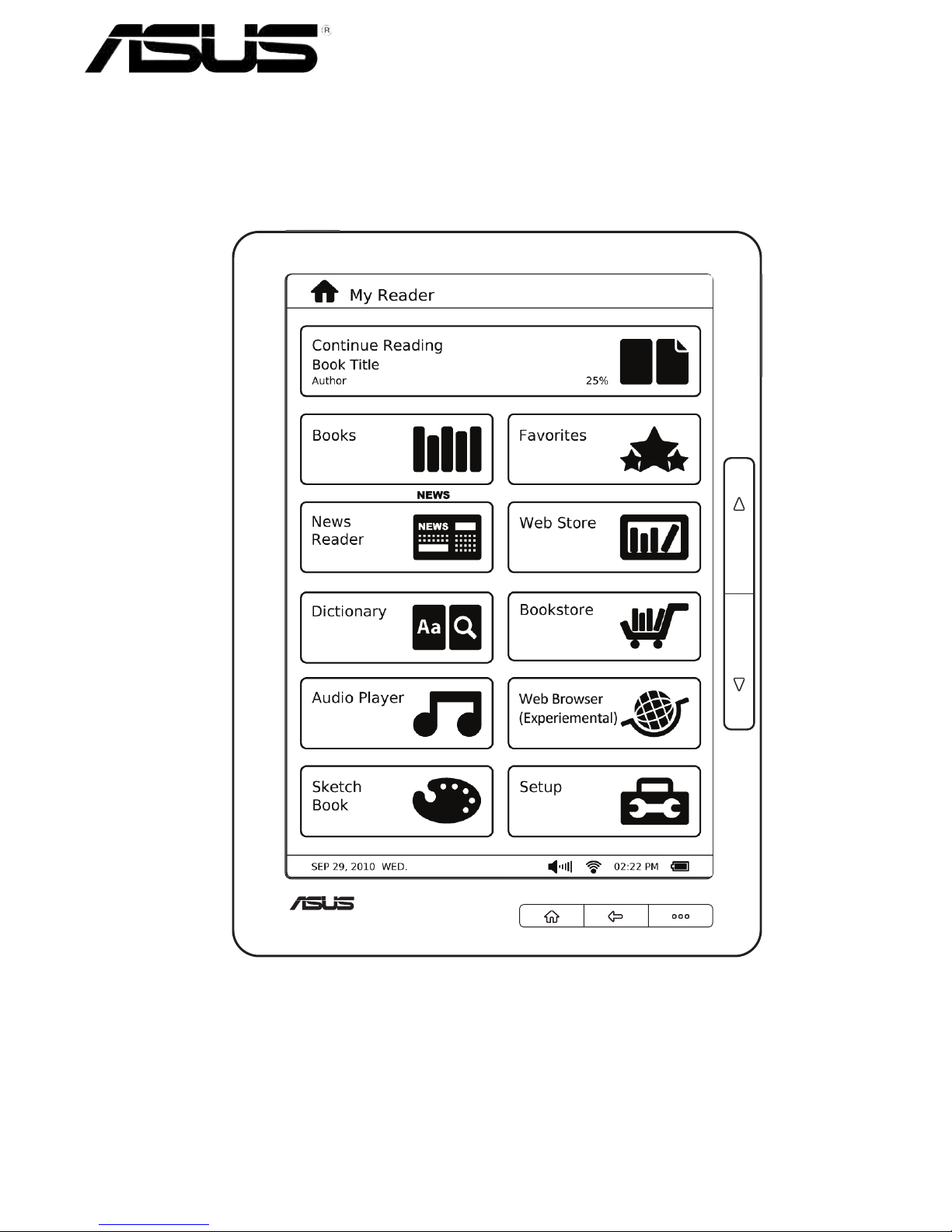
With the tap of your finger on the touch
panel, My Reader screen enables you to
quickly access Books, News Reader,
Dictionary, Audio Player, Sketch Book,
Favorites, Web Store, Bookstore, Web
Browser, and Setup.
Using the touch gestures
Touch gestures are movements that you make with your finger to select items or
navigate around your digital reader's touch panel.
NOTE: Use light pressure when making a touch gesture.
IMPORTANT! Do not use any objects in place of your finger to operate the
touch panel. Doing so may damage or scratch the touch panel’s surface.
Standard gestures
Show the function bar
When reading an e-book, move your
finger in an upward motion on the
touch panel.

Hide the function bar
When reading an e-book, move your
finger in a downward motion on the
touch panel.
Single tap
Tap once to select an item.
Next page
When reading an e-book, move your
finger from right to left on the touch
panel.
Previous page
When reading an e-book, move your
finger from left to right on the touch
panel.
Accessing e-books
Reading an e-book
To read an e-book:
1. From the home screen, tap Books.
2. From the menu at the bottom of the screen, tap Title, Author, Added Time,
Read Time or Tag to select an
e-book under these lists.
Other manuals for Eee Reader DR-900
1
This manual suits for next models
1
Table of contents
Other Asus Ebook Reader manuals