Atronic Seiko PSA-66 User manual

www.atronic.com
Wide Body Cabinet - Cashline™
Seiko PSA-66
Ticket Printer
Rev. 1.2
June 2004

2
June 2004
Seiko PSA-66-ST
Wide Body Cabinet (WBC) - Cashline™
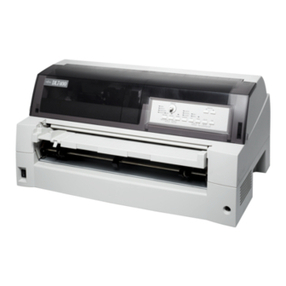
Seiko PSA-66 Ticket Printer
Rev. 1.2
Rel. June 2004
© 2001 - 2005 Atronic International GmbH. All rights reserved.
RELEASE INFO

3
June 2004
Seiko PSA-66-ST
Ticket Printer
Seiko Instruments Model PSA-66-ST
Information from the Seiko
PSA-66-ST Operator's Manual
Information in this Module
used with the expressed con-
sent of Seiko Instruments Inc.
Introduction
The PSA-66 thermal printing subassembly is de-
signed for coinless gaming machines as well as a
broad range of kiosk applications. Fanfold perforat-
ed voucher paper stock (in standard U.S. currency
size) can be quickly and easily loaded. Print quality
is outstanding so bar codes, containing security and
other data, are always clear and machine readable,
without the need for any type of bar code verifier.
Plus, there are no consumables such as printer rib-
bons to buy.
Features
· Simple Paper Loading
· Ticket Out Sensing
· Fanfold, perforated vouchers
· No consumable supplies required
· Clear, consistent output
· Security data contained in bar code
Caution:
The printer is not
hot-connect-
able and any attempt to do so
can permanently damage the
printer!
INTRODUCTION

4
June 2004
Seiko PSA-66-ST
Operator Controls and Indicators
The printer is equipped with 2 status indicators
and 2 operator controls to allow the operator to
know the status of the printer at all times.
The status indicators are:
•The Front Bezel Light
•The STATUS and ERROR LEDs on the keypad
The operator controls for the printer are:
•The FEED Button
•The Platen Release Lever
Bezel Operation
The front bezel display allows the operator to deter-
mine the state of the printer on the casino floor, at
a distance, without disturbing the game. The table
below lists the various conditions which the bezel
indicates.
Bezel Display Status
Components
1. Front Bezel Display
2. Error! LED
3. Status LED
4. FEED Button
5. CUT Button (no function)
6. Platen Release Lever
7. Paper Insertion Slot
8. Ribbon Cable
Bezel Display Status
Solid On Printer Idle and Ready
Slow Blink Paper Low
Fast Blink Ticket Printer and/or Ticket
in Chute
Off Printer power off
COMPONENTS

5
June 2004
Seiko PSA-66-ST
Paper Loading
Generally, the only service required for the printer
is to load new paper stacks. The automatic paper
loading feature of this system simplifies this pro-
cess to essentially two steps; putting the paper
stack into the printer Paper Tray, and presenting
paper to the Paper Feed Slot in the printer. The
Platen Release Lever and the Feed Button are pro-
vided to assist in loading paper, but are normally
not required.
Follow these steps to load paper:
1. Pull open the printer drawer until the paper tray
is completely accessible. Place the paper stack
in the printer as indicated by the label in the bot-
tom of the paper tray.
2. Insert paper into the paper loading slot. The
printer will automatically pull through one or two
tickets. Remove the excess tickets. Printer is now
ready to print.
HANDLING

6
June 2004
Seiko PSA-66-ST
Keypad LED Operation and
Printer Status Conditions
The keypad LEDs provide a more detailed reporting
of system status. The Table below lists the status
of the keypad LEDs in a variety of status which are
defined following.
Although there are a variety of error conditions which
can occur, most printer errors are a result of the
printer running out of paper or the operator lowering
the Platen lever. This section lists the possible error
which can occur, and how the condition is remedied.
UNIT FLUSHED: This condition results
when the printer has improperly loaded or firmware
is not installed. Remedy the condition by properly
reloading new firmware.
PAPER OUT:This condition results
when the printer detects that paper is not present.
The printer scans for a paper out condition at all
times. Remedy the condition by loading a new paper
stack.
Condition Status LED Error LED
Unit Powered Off OFF OFF
Unit Ready ON OFF
Unit Flushed ON ON
Paper Out OFF ON
Platen Down OFF ON
Temperature Error OFF Med Blink
Voltage Error OFF Slow Blink
Print Head Error ON Fast Blink
Mising Black Index Mark ON Fast Blink
Paper Jam ON Fast Blink
HANDLING

7
June 2004
Seiko PSA-66-ST
PLATEN DOWN: This condition results
from lowering the head release lever (Platen Lever).
To remedy the error, it is necessary to raise the blue
lever on the side of the unit.
TEMPERATURE ERROR: This condition results
when the printer is in an over temperature condi-
tion. If the printer is operating in an environment
where the ambient temperature is roughly room
temperature, this error would most likely be the re-
sult of a hardware problem. The printer will auto-
matically resume operation after the detected head
temperature reaches legal operation limits.
VOLTAGE ERROR: If the printer detects a
power supply voltage (+24VDC to +25VDC) outside
of legal limits, then a voltage error occurs. This
error could be the result of a poor cable connection.
The printer will automatically resume operation af-
ter the power supply is detected within legal limits.
PRINT HEAD ERROR: This type of error occurs
when the printer senses an internal error due to
connectivity or interfacing problem with the ther-
mal print head. This can be a result of a cable prob-
lem between the main controller board and the
printer engine. The printer will remain in this error
state until the power is cycled or the unit is reset.
If the problem persists, the printer will require ser-
vice.
MISSING BLACK INDEX MARK: If the paper
type selected is indexed paper, and while feeding
paper or printing a black mark is not seen within
approximately 10” of paper, then this type of error
will occur. The purpose of this error is to alert the
user to the presence of the wrong kind of paper in
the printer, or that the paper was inserted in the
wrong direction (so the black mark index is rotated
180 degrees. The condition is cleared by raising of
the head release lever (presumably to change the
paper).
PAPER JAM: This error indicates that the
printer detected an error in the paper path for pre-
senting the ticket to the customer. To clear this
condition, open the printer head and inspect for a
jammed ticket.
Note:
Ambient temperature under
bias = 0° C to +60° C
HANDLING

8
June 2004
Seiko PSA-66-ST
Paper Feed Operation
The printer has been designed to run with black
mark indexed paper. Paper feeding is accomplished
by use of the feed button. Each long press (~1 sec-
ond) of the feed key will result in paper being ad-
vanced to the top of the next form.
Cut Key Functions
The CUT key performs no function in the PSA-66-ST
printer and should be ignored.
Self Test
If the FEED key is depressed and held during power
up or reset, a self test will be triggered which will
result in the proper printing of a configuration ticket
if the self test is successfully.
Clearing a Paper Jam
The printer has been designed to operate reliably
with a minimum of paper jamming. Should it be nec-
essary to clear a paper jam however, follow the simple
instructions below. After the jam is cleared, per-
form these operations in reverse.
When clearing a paper jam:
DO:
Insure that all paper paths from the entry point at
the back of the paper well, through the printer and
the presentation chute are clear of paper or obstruc-
tions
Use the platen release lever located on the side of
the unit
Use the rotary screw at the top of the printer
DO NOT:
Ever allow a screw driver or other probing object to
come into contact with the printer; this can cause
permanent damage
HANDLING

9
June 2004
Seiko PSA-66-ST
Servicing the printer
Should the printer require service outside of the
game, the sliding module which includes the major-
ity of electronics may be easily removed and replaced.
Removing the Inner Module
The sliding module of the PSA-66-ST may be re-
moved from its stationary module by following the
simple steps given below. To re-install the sliding
module, repeat the steps in reverse order.
1. Turn off the machine power.
2. Slide the unit open until it locks in the open po-
sition.
3. Release the ribbon cable by spreading the finger
latches at the rear of the unit.
4. Push inward on the locking bar at the front of
the unit.
5. Slide the drawer module completely out of the
stationary module.
Caution:
The printer is not
hot-connect-
able and any attempt to do so
can permanently damage the
printer!
HANDLING

10
June 2004
Seiko PSA-66-ST
Seiko Printer Connections
Bezel Port Pinout
Base Printer Port (Bottom View)
Bezel Port (Front View)
Base Printer Port Pinout
PIN Function
1Modulated +24VDC
2
No Connection
3GND
PIN FUNCTION
1 No Connection
2 No Connection
3 No Connection
4 No Connection
5 No Connection
6 No Connection
7 GND
8 +24V
9 No Connection
10 RS232 GND
11 RS232 RXD
12 RS232 TXD
13 No Connection
14 No Connection
CONNECTORS
Table of contents
Other Atronic Printer manuals