manuals.online logo
Brands
  1. Home
  2. •
  3. Brands
  4. •
  5. August
  6. •
  7. LCD TV
  8. •
  9. August DA900C User manual

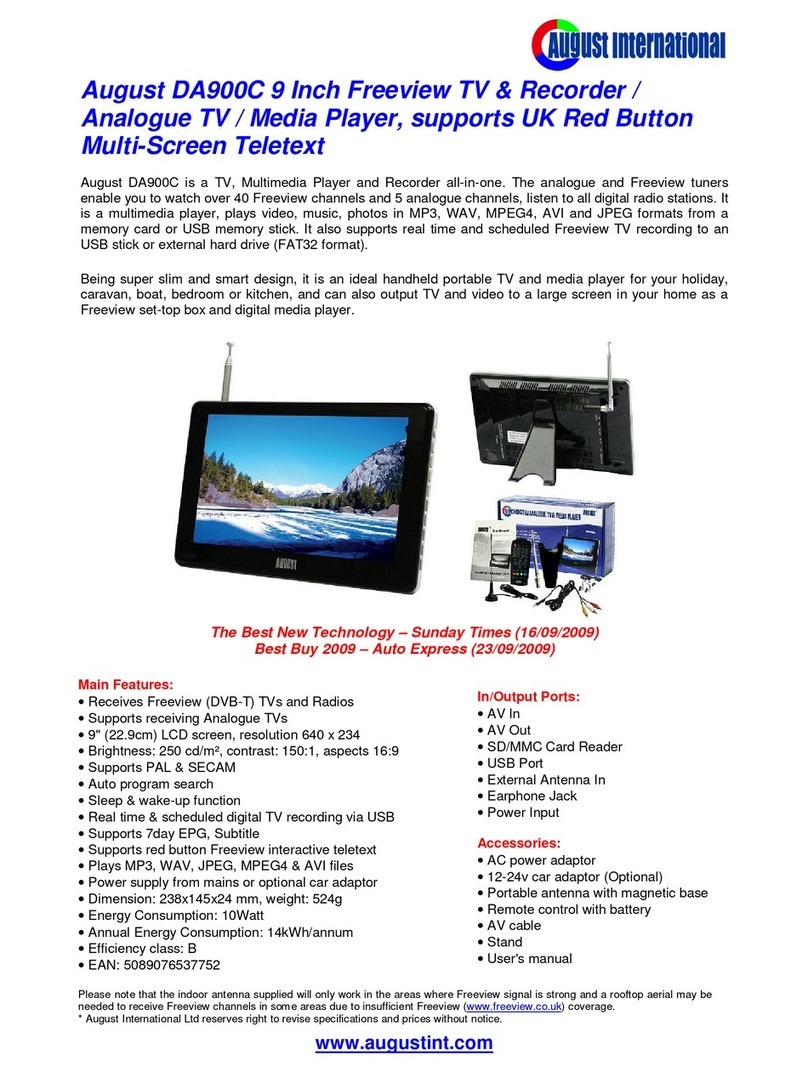
August DA900C User manual

Other manuals for DA900C

2

Other August LCD TV manuals

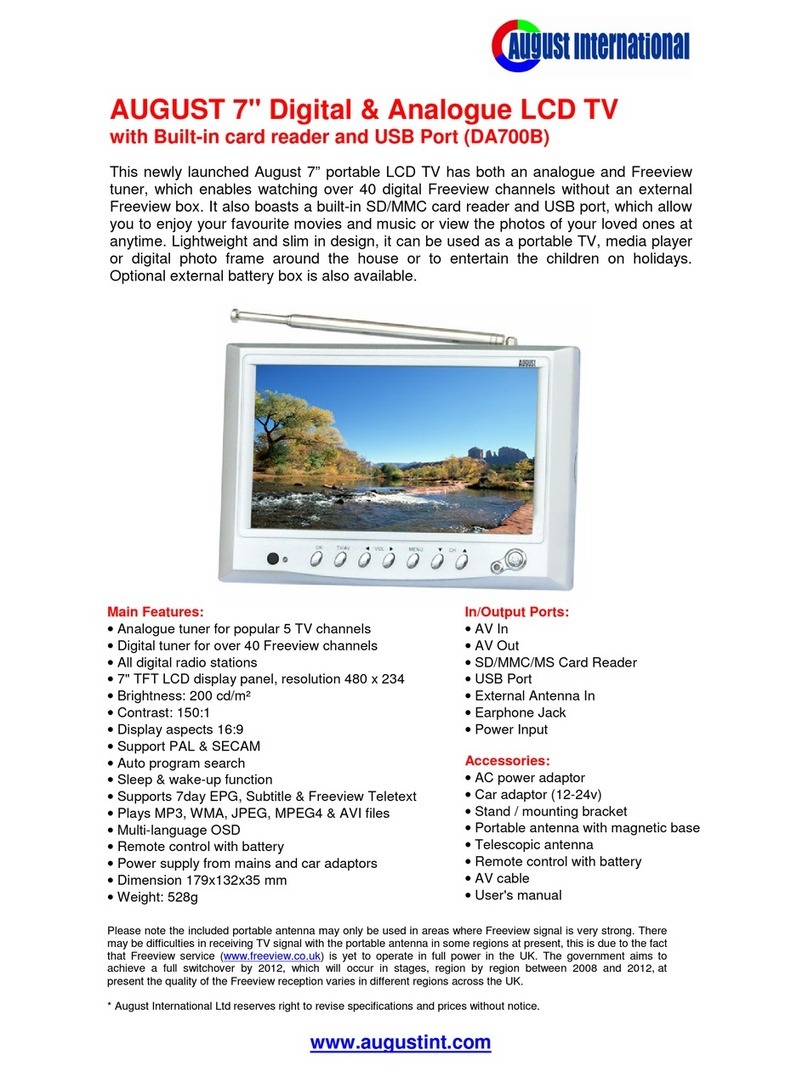
August DA701C User manual

August

August DA701C User manual

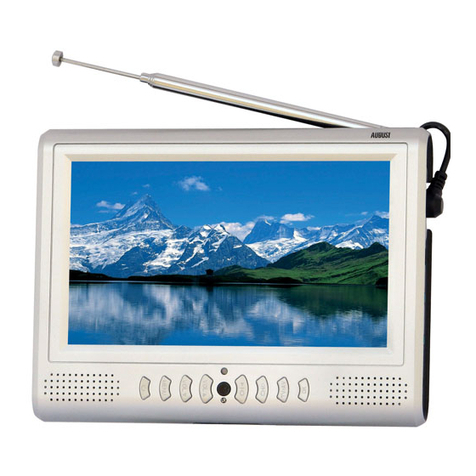
August DA700B User manual

August

August DA700B User manual

August DA110BD User manual

August

August DA110BD User manual

August DA100C User manual

August

August DA100C User manual

August DA102A User manual

August

August DA102A User manual

August DA900C User manual

August

August DA900C User manual

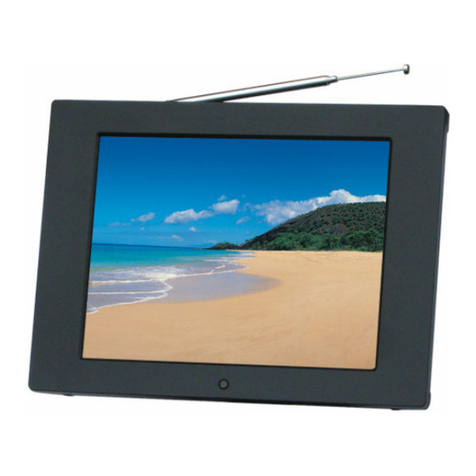
August DA104PF User manual

August

August DA104PF User manual

August DA701B User manual

August

August DA701B User manual

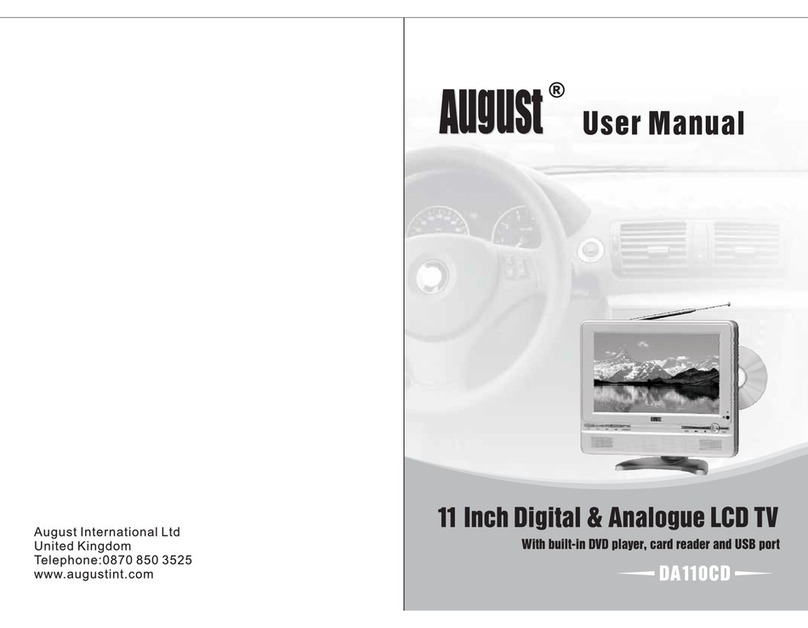
August DA110CD User manual

August

August DA110CD User manual

August DA700B User manual

August

August DA700B User manual

August DA701B User manual

August

August DA701B User manual

August DA900C User manual

August

August DA900C User manual

August DA102A User manual

August

August DA102A User manual

August DTV905 User manual

August

August DTV905 User manual

August DA920A User manual

August

August DA920A User manual

August DA920A User manual

August

August DA920A User manual

August DA104PF User manual

August

August DA104PF User manual

August DA701B User manual

August

August DA701B User manual

August DA920A User manual

August

August DA920A User manual

Popular LCD TV manuals by other brands

Panasonic Vieta TX-26LX600P null

Panasonic

Panasonic Vieta TX-26LX600P null

LG 22LK33 Series null

LG

LG 22LK33 Series null

Philips BDL323I null

Philips

Philips BDL323I null

LG 32LC4R* Service manual

LG

LG 32LC4R* Service manual

Samsung LA32E420 E-manual

Samsung

Samsung LA32E420 E-manual

Dell W1900 19 Setting up

Dell

Dell W1900 19 Setting up

Samsung LN40C670M1F user manual

Samsung

Samsung LN40C670M1F user manual

Toshiba 57X3000A owner's manual

Toshiba

Toshiba 57X3000A owner's manual

Runco CX-52HD Owner's operating manual

Runco

Runco CX-52HD Owner's operating manual

Sharp LC-32AX3H Service manual

Sharp

Sharp LC-32AX3H Service manual

Philips 47PFL7704D Specifications

Philips

Philips 47PFL7704D Specifications

Vizio VO42LFHDTV10A user manual

Vizio

Vizio VO42LFHDTV10A user manual

Philips 42PF7520D/79 user manual

Philips

Philips 42PF7520D/79 user manual

Insignia NS-LCD32-09 Service manual

Insignia

Insignia NS-LCD32-09 Service manual

Sony WEGA KLV-27HR3 operating instructions

Sony

Sony WEGA KLV-27HR3 operating instructions

Nexus NX32031 owner's manual

Nexus

Nexus NX32031 owner's manual

Zenith Z32LC2D Specifications

Zenith

Zenith Z32LC2D Specifications

Sony KDL-32S3000R - 32" Class Bravia S-series Digital Lcd... Specifications

Sony

Sony KDL-32S3000R - 32" Class Bravia S-series Digital Lcd... Specifications

manuals.online logo
manuals.online logoBrands
  • About & Mission
  • Contact us
  • Privacy Policy
  • Terms and Conditions

Copyright 2025 Manuals.Online. All Rights Reserved.

August International Ltd
United Kingdom
Telephone:+44 (0) 845 250 0586
www.augustint.com
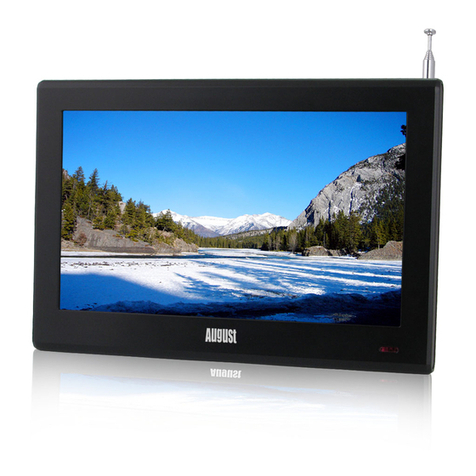
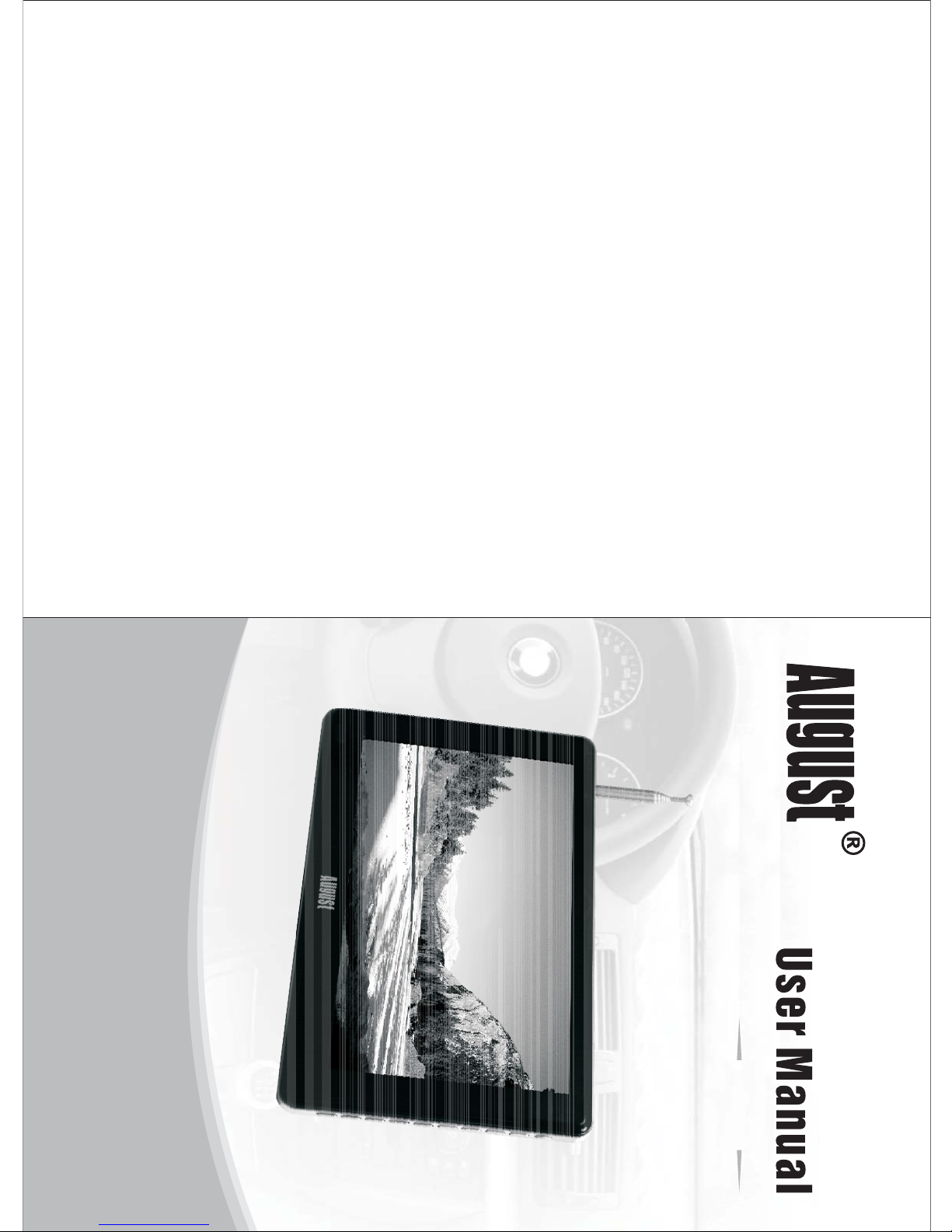
DA900C
9 Inch Digital & Analogue LCD TV
Thank you for buying our August TV. You may already be familiar with using
a similar product but please take time to read these instructions carefully. It is
designed to familiarise you with the product’s many features and to ensure
that you get the very best from your purchase.
To ensure your safety and the safety of others, please ensure you read the
Safety Instructions before you use this product.
Please ensure the product and its accessories are disposed in compliance with
WEEE (Waste Electrical and Electronic Equipment) Directive and other
regulations. Please check with your local authority for disposal regulations.
If you need help, please contact our Customer Service:
Telephone: +44 (0) 845 250 0586
Email: [email protected]
Safety
Disposal
Customer Service:
User Manual
Quick Start Guide
DA900C
It is suggested that you use a roof top aerial when scanning for TV channels
for the first time, if any signal is detected, the channel information will be
saved on the TV, you may then switch back to the portable antenna supplied
and change your location to find the best place to receive the signal.
Connect the device to the mains power, press POWER on the remote to
turn on the device, or press and hold POWER on the device for 1.5 seconds
to turn it on.
The MODE on the device or remote allows you to switch between: DTV
(Digital Freeview TV & Media Player), ATV (Analogue TV), AV IN,
BRIGHTNESS, CONTRAST, COLOR, SCALE (Aspect Ratio) and
INVERT.
When turning on the device for the first time, “Initial Install” will show,
follow the instructions to select OSD Language and Area, then press
ENTER, it will ask whether to install, select YES, the auto search will then
start. Once the search has finished, press CH+, CH- or EPG to select
channels. Press TV/R to switch between Freeview TV and Radio channels.
If you have done the first time installation before, and would like to search
for Digital Freeview channels again, or if you have moved to a different
region and need to scan channels again, press MODE to switch to Digital
TV & Media Player mode, press MENU, select “Digital TV” by pressing
ENTER, select “Installation”, then select “Auto Search”, press ENTER to
start the search. Once the search has finished, press CH+, CH- or EPG to
select channels. Press TV/R to switch between Freeview TV and Radio
channels.
To search for Analogue TV, press MODE repeatedly until it shows ATV,
press LEFT or RIGHT to switch to the Analogue TV mode. Press MENU, it
shows the ATV SETUP menu, set the TV FORMAT to “PAL I” for UK,
then move to AUTO SEARCH, press ENTER to start the search.
1.
2.
3.
4.
5.
6.
To play video, music, or photos on a SD card or memory stick, press
MODE to switch to Digital TV & Media Player mode, insert the SD card or
memory stick to the card slot or USB port, press MENU to select “Movie”,
“Music”, or “Photo”, press ENTER or PLAY to start playing, press MENU
to stop and exit to the main menu. During the photo playback, press UP for
the mirror effect, press again to back to normal, press DOWN for upside
down effect, press again to back to normal, press RIGHT to rotate
clockwise, press LEFT to rotate anticlockwise, press ENTER for photo
slideshow, photos in the selected folder will show repeatedly.
Please note the included portable antenna may only be used in areas where
signal is very strong. As mentioned on the Freeview website, only some
households might be able to use a set top aerial at present. This only applies
if you live in an area with coverage close to a transmitter, but reception
would still be unreliable and they strongly recommend that you use a roof
top aerial for good reception.
The reception will improve along with the progress of the Digital
Switchover Program. Reception may also be affected by various factors
such as how close you are to transmitters, tall buildings, thick walls,
ceilings and weather etc.
For any further queries, please telephone August International Ltd helpline
or email [email protected]+44 (0) 845 250 0586
7.
8.
9.
1. Safety Instructions
2. Accessories
3. Part Names and Functions
4. Connection
5. Basic Operation
6. Digital Freeview TV (DVB-T)
7. Digital TV Recording
8. Card Reader & USB Functions
9. Games
10. Analogue TV (ATV)
11.
12. Troubleshooting
13. Warranty
Specifications
1
3
4
9
12
13
19
20
22
23
25
27
28
-1-
1. Safety Instructions
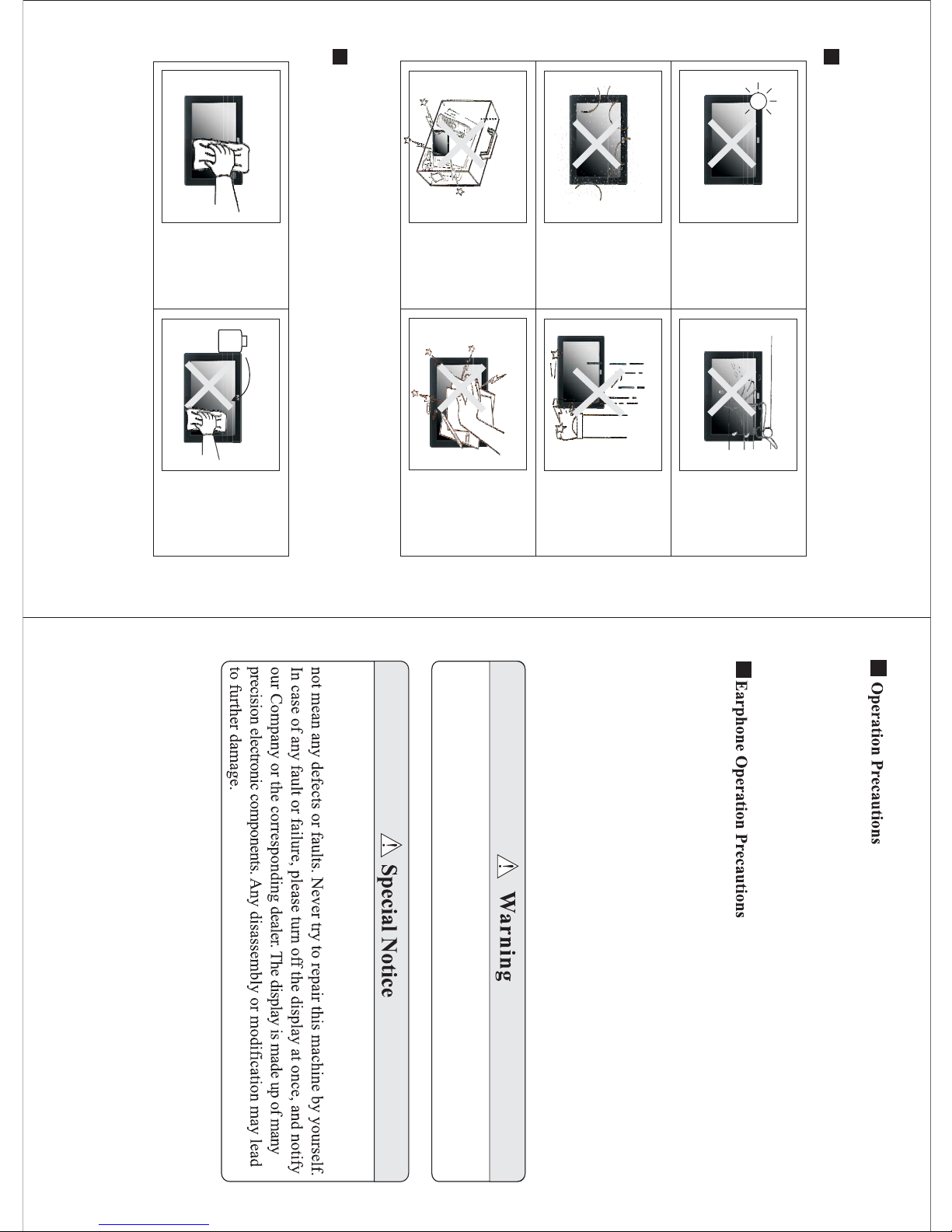
Maintenance
Please unplug all connection wires before start cleaning this machine.
Storage and Use
Never expose
the TV set to
moisture,dust
oil or smoke.
Never put this
machine in
containers that
are unstable as
this may cause
damage.
Never extrude
or chafe this
machine with
sharp objects.
Keep this machine
away from hot or
cold places.
The storage
temperature of
this machine is
-20~ 60 , the
application
temperature of
this machine is
5~ 35 .
℃
℃
Keep the TV
set away from
water or damp
environment.
Avoid
dropping or
exposing to
impacts.
Please wipe the
display screen
and buttons with
a soft cloth. Only
clean the screen
with professional
LCD TV screen
cleanser.
Never wipe this
machine with an
abrasive cloth,
detergent
powder, alcohol
and benzene etc.
various
propellants or
chemical
cleaning products.
Alcohol
-2-
1.Please do not tune your headphone / earphone at high volumes, otherwise,
it may lead to ear damage.
2.For open-designed earphone, to avoid annoying those close by, please tune
down the volume.
3.In case of any tinnitus, please turn down the volume or stop using this
machine.
4.It is recommended by aurists that the earphones should not be used
continuously for a prolonged period.
For the sake of safety for yourself and others, please do not watch the TV
while driving.
1.Use only the supplied power adaptor with this device. Failure to do so can
cause damage to the device and risk personal injury.
2.For the sake of safety, when you do not intend to use the display, please
switch off the AC adaptor or car adaptor.
A few highlights or dark spots may appear on the LCD screen. It is a very
common phenomenon of active matrix display technology, and does
-3-
Earphones
AV cable
Telescopic antenna
Stand
User manual
Digital TV antenna
AC/DC adaptor Remote control
2 Accessories.
1. Antenna input jack
3. AV OUT
5. Earphone jack
3.3 Left
2. USB jack
4. AV IN
6. 12V DC IN jack
-4-
1. IR receiver window
2. LCD display
1. Speakers
2. Stand
3. Part Names and Functions
3.1 Front
3.2 Back
12
11
2
23 4 561
-5-
3.4 Right
1
234
5678910
1
3
5
7 Channel Down/ Down/ Previous Track or Chapter
8 Channel Up/ Up / Next Track or Chapter
9 Volume Up / Volume Down
10 / MODE
Press and hold to power on/off the device.
Press repeatedly for mode switch. More details can be found on page 12.
.
.
.
.
.
SD/MMC card slot
2 Play / Pause / Resume
Main Menu / Exit the menu
4 Right / Forward
Left / Reverse
6 Enter/ Confirm
.
.
.
.
.
MENU
-6-
3.5 Remote Control
3.5.1 Remote Button Functions
DA900C
2
4
7
8
9
12
13
15
16
19
20
21
24
26
27 28
3
REC
MOVE
6
1
5
10
11
14
17
18
22
23
25
-7-
20. Switch off / on the sound
21. Move channels when using Channel Organizer
22. Set favourite channels when using Channel Organizer
Shortcut for favourite channels list when watching TV or
listening to the radio
23. Zoom in on the picture
24. Set parental lock when using Channel Organizer
25. Switch on / off subtitle
26. 7 day electronic program guide
Press RIGHT and UP/DOWN to view today's program information.
Press to view next days program information, press
to come back.
27. Freeview channel information
28. Freeview interactive teletext
1. Power on/off the device
2. Mode switch
3. Freeview TV and Radio switch
4. Select audio channel or audio language
5. Numbers
6. Start recording or stop recording
7. Main Menu / Exit the menu
8. Next track or chapter
9. Up / Channel Up
10. Previous track or chapter
11. Left / confirm or change settings in ATV mode
12. Right / confirm or change settings in ATV mode
13. Confirm settings
14. Reverse in media player mode
15. Forward in media player mode
16. Down / Channel Down
17. Volume Up
18. Volume Down
19. Play / Pause / Resume
0-9
MOVE
REC
-8-
3.5.2 Use of the Remote Control
Please remove the PVC packaging before using the remote control for the first time.
1.Do not expose the remote control to direct sunlight or very strong/bright light.
2.Do not drop or step on the remote control or subject it to shocks.
3.Keep the remote control away from extreme hot or humid environment.
4.Keep the remote control away from water.
Operating range
1.The IR sensor on the remote control
should aim directly to the sensor on
the front of the device. It may not be
possible to operate the device if
there are obstacles between it and the
remote sensor.
2.Use the remote control no further
than 5 meters away from the sensor.
Replacing the battery
If the remote control does not function or if the operating range becomes
reduced, replace the old battery with a new one.
Remove the old battery, then insert the new battery into the battery holder
with the + side facing upwards.
a
b
30 30
<5m
30
30
Push back the holder.
+
Lithium battery(CR2025)
-9-
4.Connection
4.1 Connecting the power supply
1.Connect the DC output of the AC/DC adaptor to the DC IN 12V jack on
the device.
2.Plug the power adaptor to the AC power socket.
4.2 Connecting the earphones
Connect the earphone plug to the earphone jack on the device.
*Note:
If earphones are used, sound is only transmitted through the earphones, and
no sound is available from the stereo speakers of the device.
Earphones
1
2
*Note:
1.Please ensure proper disposal of used batteries.
2.To prevent leakage of fluid from the lithium battery, remove the battery when
not using the remote control for a long period of time. If the battery leaks fluid,
carefully wipe it out of the battery case, then change to a new lithium battery.
4.3 Connecting to a TV set via AV Output
Turn off all devices before connecting or disconnecting any cables.
*Note:
The AV output function is only available in Freeview (DVB-T) and Media player mode.
-10-
Audio/Video output
AV cable (Included)
Left side of
the device
To video input jack
(Yellow)
To audio input jack
(White)
To audio input jack
(Red)
Signal flow
Black
Yellow White
Red
TV
-11-
4.4 Connecting to an Audio/Video device via AV Input
Turn off all devices before connecting or disconnecting any cables.
*Note:
To use the AV IN function of this device, please set it to AV IN mode first.
Left side
of the device
Audio/Video output
AV cable (Included)
Connect to the Video
Output of the AV device
Signal flow
Black
Yellow White
Red
Connect to the Audio Output
of the AV device
5. Basic Operation
5.1 Turning on/off the device
5.1.1 Turn power on
5.1.2 Turn power off
5.2 Mode settings
Connect the device to the mains power, press POWER on the remote to turn on
the device, or press and hold POWER on the device for 1.5 seconds to turn it on.
Press POWER on the remote to turn off the device, or press and hold POWER on
the device for 1.5 seconds to turn it off.
Press MODE repeatedly to select between the following modes:
DTV: Freeview TV & Media Player, press RIGHT to change
ATV: Analogue TV, press RIGHT to change
AV IN: AV input, press RIGHT to change
BRIGHTNESS: Press LEFT or RIGHT to change
CONTRAST: Press LEFT or RIGHT to change
COLOR: Press LEFT or RIGHT to change
HUE: Press LEFT or RIGHT to change
SCALE: Press LEFT or RIGHT to change aspect ratio to 16:9 or 4:3
INVERT: Press LEFT or RIGHT to change the display to upside down or normal
-12-
6. Digital Freeview TV (DVB-T)
6.1 Channel Manager
In Digital TV mode, select Channel
Manager, press ENTER for the submenus.
If the device is not in the Digital Freeview
TV mode, press MODE repeatedly until
it shows DTV, press LEFT or RIGHT to
change .
Channel Manager allows the user to sort,
edit, delete, and classify the channels.
6.1.1 Channel Organizer
Channel organizer is used to set favourite
channels, change channel positions, lock
and delete channels, and edit channel's name.
1. Channel Organizer can be accessed by
selecting MENU -> Digital TV ->
Channel Manager -> Channel Organizer.
2. If there is no channel saved on the TV,
Channel Organizer can not be accessed,
and it will show “Channel not available”.
3. Use UP/DOWN to select the channel
you want to edit.
- Press RED to delete or undelete a channel,
it will ask you to enter the password, the
system default password is 0000.
- Press GREEN to select or cancel a favourite.
- Press YELLOW to set or cancel a
channel's position change.
- Press BLUE to lock or unlock a channel,
it will ask you to enter the password, the
system default password is 0000.
4. To change the channel name, use
UP/DOWN to select the channel line,
press LEFT/RIGHT to enter the page to
change the name, press RED/GREEN
/YELLOW/BLUE to edit the name.
5. Press MENU to exit Channel Organizer.
-13-
6.1.2 Channel Sorting
It allows the user to sort the channels by
area, alphabetically or by number sequence.
1. Channel Sorting can be accessed by
selecting MENU-> Digital TV->
Channel Manager->Channel Sorting.
6.1.3 Channel Grouping
It allows the user to sort channels into 8
different categories: News, Science, Sports,
Movie, Kids, Music, Fashion and None.
1. Channel Sorting can be accessed by
selecting MENU-> Digital TV->
Channel Manager->Channel Grouping.
2. If there is no channel saved on the TV,
Channel Grouping can not be accessed,
and it will show “Channel not available”.
3. Use UP/DOWN to select the channel,
and then select the category by pressing
the numbers (1-8).
4. After setting, press MENU it will show
“Successfully updated”.
It allows the user to add and edit channels.
1. Edit Channels can be accessed by
selecting MENU-> Digital TV->
Channel Manager-> Edit Channels.
6.1.4 Edit Channels
-14-
2. If there is no channel saved on the TV,
Edit Channels can not be accessed, and it
will show “Channel not available”.
3. To add a new channel, press RED, and
then press UP/DOWN to select between
the 6 parameters as shown:
2. If there is no channel saved on the TV,
Channel Sorting can not be accessed,
and it will show “Channel not available”.
3. Press UP/DOWN to select:
First Option: Sorting by area, press RIGHT
to enter the area list, use UP/DOWN to select,
press ENTER to confirm.
Second Option: Sorting alphabetically or by
number sequence, press RIGHT to enter the
option list, use UP/DOWN to select, press
ENTER to confirm.
4. Sorting rules can be selected by pressing
RIGHT/UP/DOWN/LEFT.
5. After sorting rules is selected, press
ENTER to confirm, it will ask “Are you
sure?”, select “Yes” to confirm and to
proceed the sorting, or select “No” to cancel.
①
②
6. Press MENU to exit Channel Sorting.
①
②
③
④
Area Name: press RIGHT to enter the
area list, use UP/DOWN to select, press
ENTER to confirm.
Carrier: press RIGHT to enter the
carrier list, use UP/DOWN to select,
press ENTER to confirm.
Channel Name: press RIGHT to enter
the edit page, use RED/GREEN
/YELLOW/BLUE to edit, press ENTER
to confirm.
Audio PID: can be changed by pressing
the numbers.