Barska Point 'n View User manual

1
Point ‘n View
Binocular and Digital Camera
Owners Manual
www.barska.com
Meijer.com

2
For more information about BARSKA®
and our optic products, please visit
www.barska.com
Meijer.com

3
Features......................................................................................
Specications .............................................................................
Basic Binocular Use ...................................................................
Operation of Menu Buttons ........................................................
Taking/Deleting Pictures ............................................................
Taking/Deleting Video ................................................................
Settings
Picture Pixel ..............................................................
Image Quality ..............................................................
Scenes Effect ..............................................................
Expose Values ............................................................
White Balance .............................................................
ISO .............................................................................
Color Mode .................................................................
Color Saturation ..........................................................
Image Sharpness ........................................................
Preview Function .........................................................
Time Stamp .................................................................
Burst ............................................................................
Format .........................................................................
Button Beep .................................................................
Language ....................................................................
Automatic Shut Off .......................................................
System Reset ..............................................................
Light Frequency ............................................................
Date ..............................................................................
USB Online ...................................................................
Using Binocular as a PC Camera
Installing CD ................................................................
PC Cam .......................................................................
Warranty Information....................................................................
Table Of Contents
4
5
6
7
8
9
10
10
10
11
11
12
12
12
13
13
13
14
14
14
15
15
15
16
16
16
17
18
19
www.barska.com

Meijer.com

4
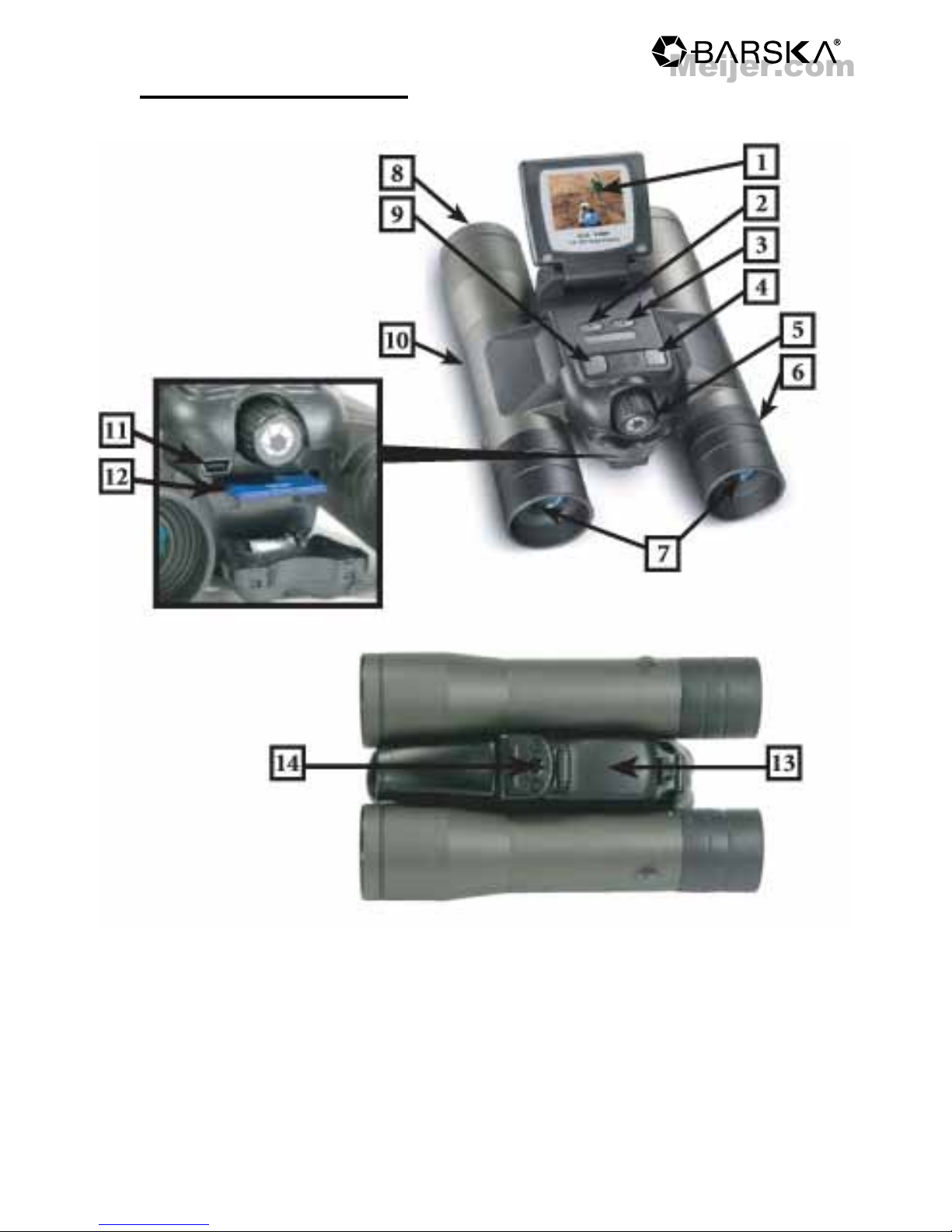
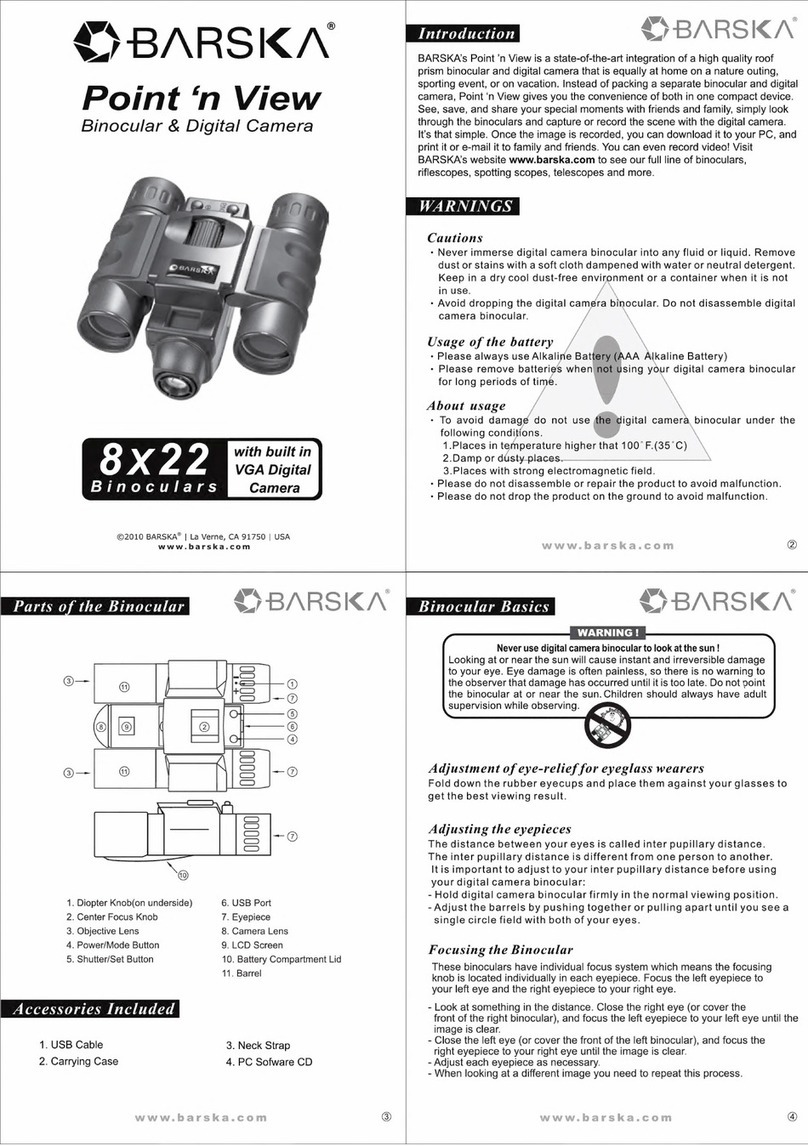
1. TFT LCD Display
2. Up Button
3. Down Button
4. Set Button
5. Focus Knob
6. Diopter Adjustment
7. Eyepiece
Parts of the Binocular
8. Objective Lens
9. On / Mode Button
10. Barrel
11. USB Port
12. SD Slot
13. Battery Compartment
14. Tripod Adaptor Screw
www.barska.com
*SD Card not included
Meijer.com

5
Product Specications
Camera Specications
1. Resolutions: 12.0MP
2. Image Size: Still image: 0.3MP---640*480
3.0MP--2048 x 1536
5.0MP--2560 x 1920
8.0MP--3264 x 2448
12.0MP--4032 x 3024
Movie: 30fps@QVGA / 20fps@VGA
3. Image Format: Still image –JPEG
Movie—AVI (no time limits)
4. Storage media : SD/MMC Memory Card (up to 16GB)
5. Zoom: 1x-4x
6. Exposure and White Balance : Automatic
7. Display:1.5” TFT LCD color Screen
8. Interface: USB 1.1
9. Power Supply: 4 - AAA Alkaline Batteries
10. Language: Traditional Chinese / Simplied Chinese
English / France / Germany / Japanese / Spanish /
Portuguese / Italian
Binocular Specications
1. Magnication: 8x
2. Objective Lens: 32mm
3. Eye Relief: 14mm
4. Exit Pupil: 3.9mm
5. Angular Field of view: 6.3°
Included Accessories
- Installation CD
- User’s Manual
- Cleaning Cloth
- Pouch
- USB Cable
- Neck Strap
www.barska.com
Meijer.com

6
Basic Binocular Use
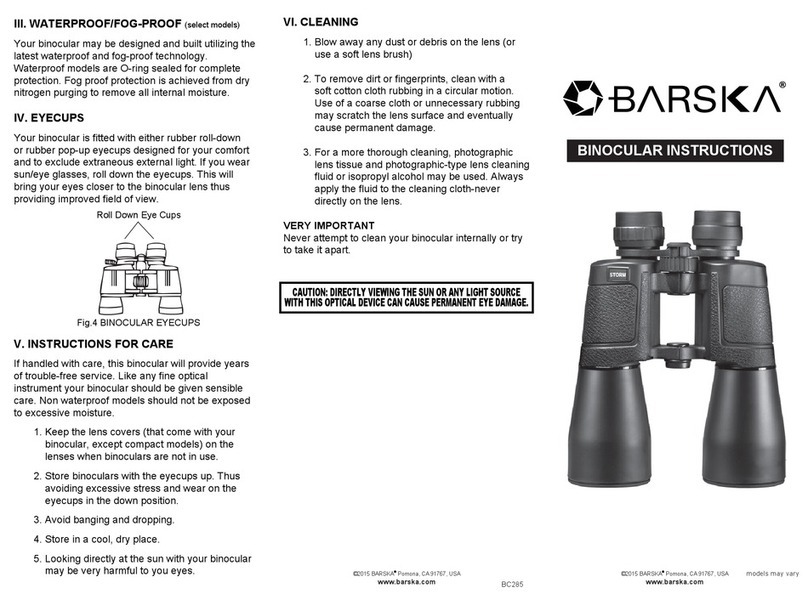
1. If you wear eye glasses, fold down the eyecups and hold the
eyepieces up against your glasses.
2. Hold up the binocular to your eyes in the normal viewing
position, use both hands to hold each barrel rmly.
3. Pull the barrels apart or push the barrels together until you
see a single circular eld with both of your eyes.
4. Choose your target object.
5. Looking with only your left eye, turn the focus knob until the
object you are looking is focused.
6. Looking with only your right eye, turn the diopter scale until
the object you are looking is focused.
7. Now, looking with both eyes, turn the focus knob to focus
on both far and near objects.
WARNING
NEVER USE YOUR BINOCULAR TO LOOK AT THE SUN
Looking at or near the sun will cause instant and
irreversible damage to your eyes.
www.barska.com
Meijer.com

7
Operation of Menu Buttons
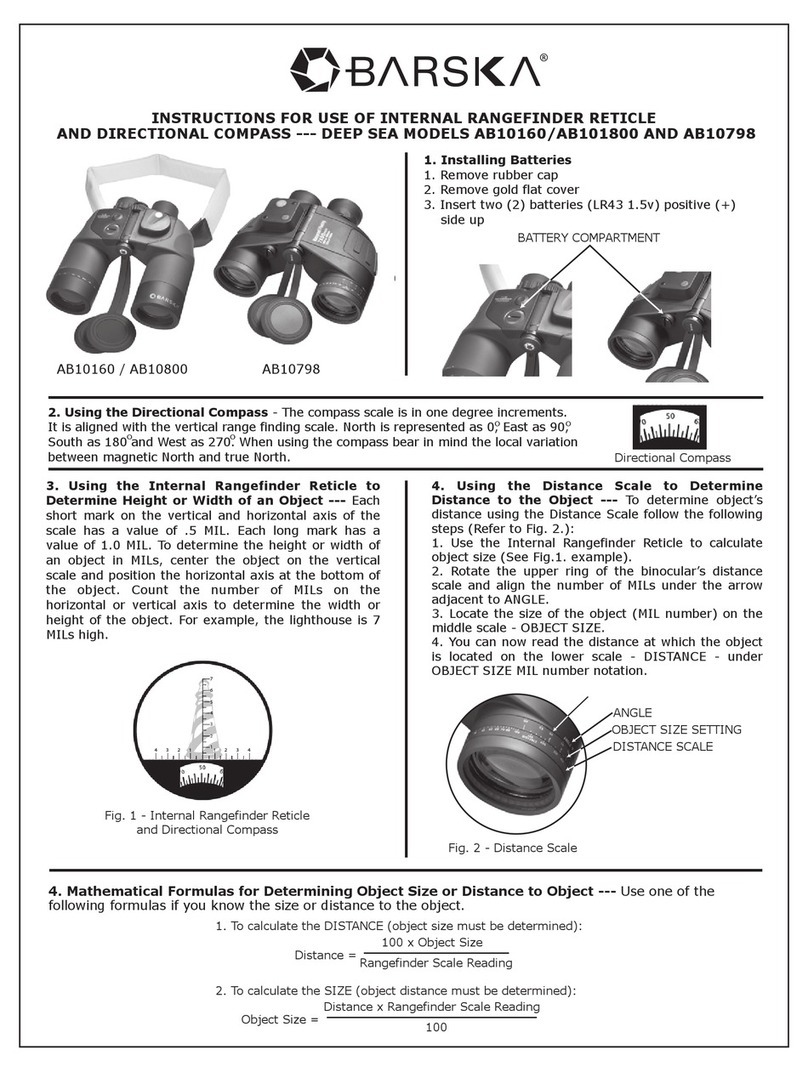
1. Use down arrow key to
move around menus
2. Reduces image button
1. Use up arrow key to
move around menus
2. Enlarges image button
1. Video mode key
2. Menu options key
3. Hold down for 2
seconds then it will
be in menu mode
1. Press once
- Photograph mode
2. Press twice
- Video mode
3. Press once more
- Preview photos
4. Press four times
- Taking mode
5. Menu switch (catch / set)
6. Hold down for 3 seconds to
turn unit off
www.barska.com
Meijer.com

8
Taking a Picture
Note: Insert SD card to the unit before taking pictures, or unit will
not function.
Warning: The unit will be turned off when you insert or extract
memory card. Please make sure that the unit is off before
removing SD card
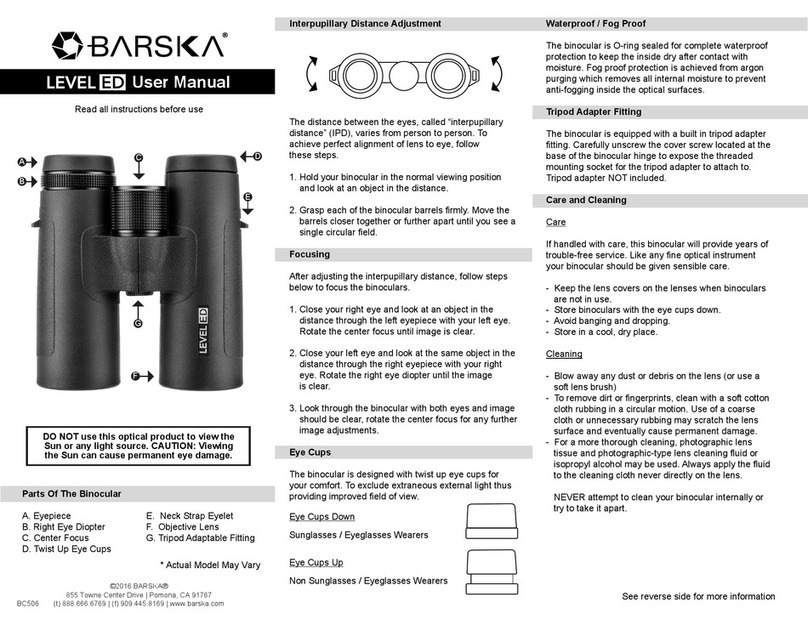
1. To turn camera on press
“On” button for about
1-2 seconds, it will start
functioning, with the
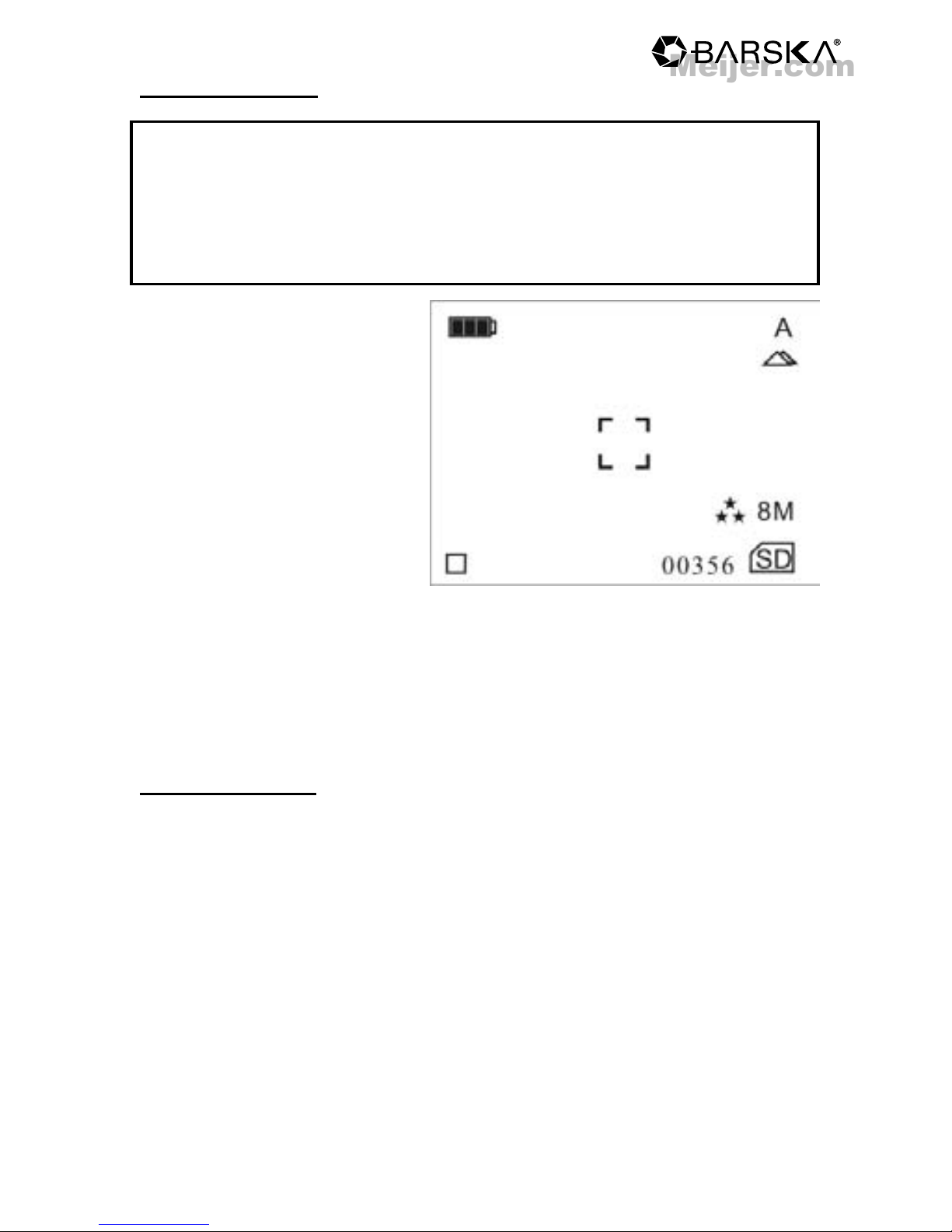
image of this screen.
2. You are now in
photograph mode, press
the shutter to take
pictures.
3. To turn unit off hold down
“on” button about 3 seconds,
and unit will turn off
4. Automatic shutdown: Automatic shut down time can be set in
the menu option. (See page 15 for more information)
Deleting Picture
1. Go into preview mode
2. Select picture to be deleted by using the arrow keys
3. Hold set button down “Delete menu” will appear
4. Press set button, you can delete a single image or all images
press set to permanently delete image(s)
www.barska.com
Meijer.com

9
1. After turning unit on
press mode button twice,
you will be now be
in video mode. To start
recording press set
button, press set button
again when you are
nished recording.
2. Press mode button once
more, it will be in
preview video mode,
and will start the video
when you press the
shutter.
3. Press mode button once
more, it will return to the
photograph mode.
Taking Video
www.barska.com
Deleting Video
1. Hold down set key to bring delete menu to screen
2. Select video to be deleted by using the arrow keys
3. Hold set button down “Delete menu” will appear
4. Press set button, you can delete a single video or all
videos press set key to permanently delete video(s)
Meijer.com

10
Picture Pixel Setting
Press mode button, select “size”, then press menu options to
select the pixel needed, then press set button, press it once
more, it will return to taking pictures mode.
→
Image Quality Setting
Press mode button, select “Quality”, then press menu options to
select the quality needed, then press set button, press it once
more, it will return to taking pictures mode.
→
Scenes Effect Setting
Press mode button, select “Scene mode”, then press menu
options to select the effect needed, then press set button, press
it once more, it will return to taking pictures mode.
→
www.barska.com
Meijer.com
Other manuals for Point 'n View
1
Table of contents
Other Barska Binoculars manuals