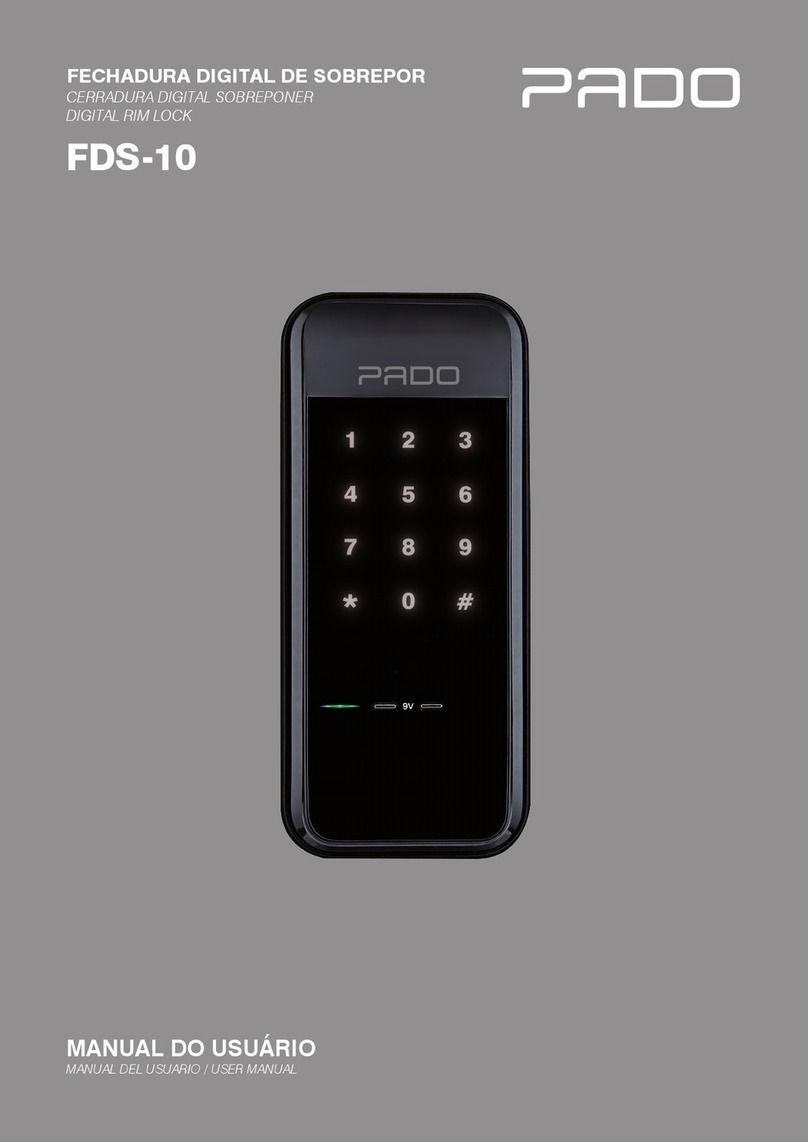
Barska EA12442 User manual

Biometric Key Pad
Security Door Lock
© 2014 BARSKA® | Pomona, CA 91767, USA
(t) 888.666.6769 | (f) 909.445.8169 | www.barska.com
10/14
BC407
Installation page 2
Operation page 8

2
Diagram oflock
Lock
Body
FrontBack
S
T
N
M
Appropriate for door thickness
(in/mm)
Diagram code Size
(in/mm)
Quantity
The checklist of spare parts
1-3/16” - 2-3/8” (30mm - 60mm)
1-3/16” - 1-9/16” (30mm - 40mm)
1-9/16” - 1-31/32” (40mm - 50mm)
1-31/32” - 2-3/8” (50mm - 60mm)
C
R
S
1
1
2
(M4*7)
(M4*7)
(M4*10)
(M5*20)
(M5*30)
(M5*40)
N
T
2
1
Note: N/T please use the appropriate screw set based on your own door thickness.
A. Front lever handle
B. Mechanical key
C. Hexagonal screws for fixing the
front handle(M4*7)
D. Front lock body
E. Front lock body gasket
F. Wire connector
G. Screw
H. Strike plate
I. Strike box
J. Latch
K. Back lock body gasket
L. Spindle
M. Back plate
N. 3 different set of screws are provided
M5*20, M5*30 and M5*30, the
screws are used to fix the position
of the inner metal plate.
O. Back lock body
P. Battery cover
Q. Back lever handle
R. Hexagonal screws for fixing the
back handle
S. M4*10 screw
T. 3 different set of screws are provided
M5*20, M5*30 and M5*30, the screws
are used to fix the position of the back
lock body.
Installation Instructions

3
Door frame preparation
13
3
70
31.5
22
14
11
(1/8")
(1/2")
(7/16")
(1-1/4")
39
mm/in
Door-drilling
Door-drilling Diagram
1-17/32”
1、To ensure a successful installation, please do not use power tools to
tighten the screws to avoid damage on the screw.
Before installation
① ②
1
φ54
φ25
φ10
60/70
26
2.5
100
55.6
58
(7/8")
(1/4")
(2-3/8"/
2-3/4")
(2-3/4")
(1-1/32")
(3/32")
(3-15/16")
(2-3/16")
(2-9/32")
(13/32")
(2-1/8")
(1")
2、Use the correct fixed-screw tools, and wear eye protection.
3、In order to prevent any unnecessary damage to the door, please
drill the holes from both sides of the door separately.

4
Note: Drill from both sides of the door to prevent unsightly damage.
1. Place paper template (last page ) onto door and mark for holes.
Next drill the hole.
New Door Preparation
1. Mark location of strike on the door frame, making certain that the strike
opening is aligned with latch bolt.
Installing the strike plate
2
General door’s installation diagram
Type T-door’s installation diagram.

5
60mm 70mm
Installing Latch
The latch has two backsets available: 2 3/8” [60mm] backset or
2 3/4” [70 mm] backset
Secure the latch to the door using two wood screws supplied.
Latch unit face plate must be flush with door.
Installing spindle, and front lock body
Close view
Spindle
Very important note:
As the photo shows there is an arrow
pointing up to the small triangle. This is
the only position where the clutch can be
activated during normal operation.
Cable connector
Front lock body gasket
Note:
The wire goes under the latch
2 3/8” [60mm] backset or 2 3/4” [70 mm] backset
34

6
Installing the back plate and
back lock body gasket
1. The back plate fits into the back lock body gasket
2. Secure the back plate and back lock body gasket with two M5*L screws
Installing the back lock body
1. Connect the cable as shown
2. Push the wire connector into the hole under the latch
3. Secure the back lock body with two M4*8 screws and one M4*L
Battery 1. Put the batteries in and install the battery cover
2. Handle lever is field changeable, assemble or disassemble the handle lever
with the tool supplied.
Note: field changeable handle lever
5
7
6
M4X7(mm)
Hexagonal screws

7
Testing the operation of the lock
1. Rotate the inside handle lever and hold. Ensure that the latch is fully
retracted and flush with the latch face plate. Release the inside
handle lever, the latch should be fully extended.
2. After batteries putting in the lock, it is going in a normal situation if the
latch is retracted inside once rotating the indoor handle and holds it,
and also the latch is fully extended once releasing the indoor handle.
Please see the following diagrams in Figure 1.
3. Place your finger on the fingerprint sensor, you should see the sensor
is flashing with red LED, the number display shows “- -”, a long beep,
a green light and a motor clutch sound. Rotate the front handle lever
and hold. Ensure that the latch is fully retracted.
4. With the door open, verify functionality of the mechanical key override
as shown. Take off the front handle lever, insert the mechanical key,
turn the key to vertical position then rotate the handle bar. Ensure the
latch is fully retracted.
How to use mechanical key
8
Figure 1

8
Read all instructions before using this door lock
WARNING
- New door lock is in Factory Default mode, ANY ngerprint can open the door lock. Only successful registered ngerprint and
PIN code can terminate Factory Default mode.
- For security purposes, register ngerprint and change the factory default code as soon as possible. Default pin code is 12312312312.
- Door lock can be opened by either Fingerprint, PIN code and/or Emergency Keys.
- If user resets door lock to Factory Default mode: Any ngerprint can open the door lock Default pin code is 12312312312.
- Register ngerprints and PIN code and test a few times before closing the door.
- Test with a non-registered ngerprint. If the door lock opens, the door lock is still in Factory Default mode.
- Test the Emergency Keys and store them in a secure place.
- To maximize the security and performance of the door lock, test registered ngerprints every 6 months.
- Do not mix old and new batteries.
- Intended for indoor use only; keep ngerprint scanner clean.
PARTS OF THE DOOR HANDLE
A. Fingerprint Scanner
B. Indicator Lights
C. Keypad
D. Handle
E. External Power Socket
F. Battery Cover Button
G. Battery Cover
INSTALL BATTERIES
1. Press in the Battery Cover Button and gently lift the Battery Cover to expose the battery compartment.
2. Insert 4 new Alkaline AA batteries into the Battery Compartment and pay attention to the polarity of the batteries.
3. Gently replace the Battery Cover back into place.
NOTE: Do not mix old and new batteries.
FINGERPRINT REGISTRATION
Initial Registration
Please register an Admin Fingerprint to start door lock operations. In order to do so press “0,” place any nger on Fingerprint Scanner,
Press “1” then press “1” again and place and hold admin nger on ngerprint scanner until green indicator light ashes.
Successful Registration Green Indicator Light will ash.
Unsuccessful Registration Red Indicator Light will ash.
Module stores 10 Admin Fingerprints.
90 User Fingerprints.
20 Guest Fingerprints.
Register Admin
Press “0,” place admin nger on Fingerprint Scanner, Press “1” then press “1” again and place and hold admin nger on ngerprint
scanner until green indicator light ashes.
Register User
Press “0,” place admin nger on Fingerprint Scanner, Press “1” then press “2” again and place and hold user nger on ngerprint
scanner until green indicator light ashes.
B
E
C
A
G
D
F
0
1
2
3

9
Register Guest
Press “0,” place admin nger on Fingerprint Scanner, Press “1” then press “3” again and place and hold guest nger on ngerprint
scanner until green indicator light ashes.
TEST A NON REGISTERED FINGERPRINT
1. With door open, press “0” and place a Non-Registered nger on Fingerprint Scanner.
2. A few beeps will be heard and red indicator light will ash.
3. Door should NOT unlock.
IMPORTANT: If registration was unsuccessful repeat steps under FINGERPRINT REGISTRATION, and TEST NON-REGISTERED
FINGERPRINT.
TEST A REGISTERED FINGERPRINT
1. With door open, press “0” and place a Non-Registered Finger on Fingerprint scanner.
2. Place a Registered nger on the Fingerprint Scanner.
3. A few beeps will be heard, green Indicator Light will ash, and internal mechanism will make a rolling sound.
4. Door should unlock, Fingerprint registration was successful.
Important: If ngerprint registration was unsuccessful repeat steps under FINGERPRINT REGISTRATION and TEST NON-
REGISTERED FINGERPRINT.
PIN CODE REGISTRATION
Retains one 11 digit Pin code.
Pin Code CANNOT start with 0.
Default Pin Code: 12312312312.
Press “0” place Admin Finger on Fingerprint Scanner, press “3” and enter desired Pin Code.
Successful Registration
Green Indicator Light will ash.
Unsuccessful Registration
Red Indicator Light will ash. Please repeat PIN CODE REGISTRATION PROCESS.
To reset Pin Code, See RESET.
TEST REGISTERED PIN CODE
1. With door open, on Keypad enter Registered Pin code.
2. A few beeps will be heard, green Indicator Light will ash, and internal mechanism will make a rolling sound.
3. Door should unlock. Pin code registration was successful.
OPENING DOOR
WITH FINGERPRINT
1. Press “0,” place a registered nger on the Fingerprint Scanner.
2. A few beeps will be heard and green Indicator Light will turn on.
3. Turn the Handle to open the door.
WITH PIN CODE
1. On Keypad enter Pin code.
2. A few beeps will be heard and green Indicator Light will turn on.
3. Turn the Handle to open the door.
WITH EMERGENCY KEY
1. Remove the screw with provided Allen wrench.
2. Gently slide Handle out to expose emergency key access.
3. Insert emergency key into key access emergency key access
to open the door.
Note: Store emergency keys in a secure place.

10
RESET
There are 2 methods to reset ngerprints and pin code to the door lock.
Method 1
This method will completely reset the door lock.
Remove Battery Cover and remove 2 batteries. Press on any number on the keypad, then locate
the 2 reset button, refer to image on the right. Press and hold the 2 reset buttons while re-inserting
the 2 batteries. Upon hearing the internal mechanism roll reset is complete and you can release
the 2 reset buttons. See image.
Note: Any Fingerprint can open the door.
Default Pin Code is 12312312312.
Method 2
This method allows specic set of ngerprints to be reset:
Delete all Fingerprints / Reset Pin Code:
Press “0,” Place admin nger on ngerprint scanner and press “2” then press “1” again.
Delete User Fingerprints:
Press “0,” Place admin nger on ngerprint scanner and press “2” then press “2” again.
Delete Guest Fingerprints:
Press “0,” Place admin nger on ngerprint scanner and press “2” then press “3” again.
DOOR UNLOCKED MODE
You can change door lock to unlocked mode, which will allow the door to be opened without a Pin Code or Fingerprint.
Press “0,” Place Admin or User Finger on Fingerprint Scanner and press and hold “0.”
Cancel Normal Door Handle Mode
Press “0,” Place Admin or User Finger on Fingerprint Scanner and press and hold “0.”
LOW BATTERY WARNING
When 3 repetitive beeps are heard, this indicates the batteries are low, replace batteries immediately.
See INSTALL BATTERIES.
EXTERNAL POWER SOCKET
If door lock fails to operate due to low or dead batteries use the External Power Socket which is located
underneath the front body of the door lock.
Use a 9V battery for emergency power supply; put the battery to the lock and hold in place. Place a registered
ngerprint on Fingerprint Scanner OR use registered Pin code on Keypad to open the door.
COMMON ERRORS / DISPLAYS
Causes:
Access denied or Registration failed.
Low Battery.
Low Battery.
No Battery.
Finger is wet, dry, or dirty Scanner is dirty.
Finger placed on Fingerprint Scanner after pressing “0”
was not an Admin Finger.
Issues:
Red Indicator Light ashes with two short beeps.
Red Indicator Light is always on.
Alarm sounds when accessing door.
No response after pressing keypad.
Often fails to verify ngerprints.
Failure to enter enrolment not an Admin Finger.
Table of contents