Beijer Electronics BoX2 base v2 Instruction sheet

Configuration and Image Manual
BoX2 base v2, pro (SC), extreme (SC),
(pro motion)
MAEN363
2023-06

Foreword
This manual contains information about the image/firmware/system program (from now on referred
to as image) and how to get started with the device in the most common applications.
The information in this manual is valid for the latest versions of hardware at the time the manual was
released. All documentation is available in our Download center.
Visit Beijer Electronics SmartStore for image updates and software downloads.
Copyright © 2023 Beijer Electronics AB. All rights reserved.
The information in this document is subject to change without notice and is provided as
available at the time of printing. Beijer Electronics AB reserves the right to change any
information without updating this publication. Beijer Electronics AB assumes no responsibility
for any errors that may appear in this document. All examples in this document are only
intended to improve understanding of the functionality and handling of the equipment. Beijer
Electronics AB cannot assume any liability if these examples are used in real applications.
In view of the wide range of applications for this software, users must acquire sufficient
knowledge themselves in order to ensure that it is correctly used in their specific application.
Persons responsible for the application and the equipment must themselves ensure that each
application is in compliance with all relevant requirements, standards, and legislation in respect
to configuration and safety. Beijer Electronics AB will accept no liability for any damage
incurred during the installation or use of equipment mentioned in this document. Beijer
Electronics AB prohibits all modification, changes, or conversion of the equipment.
Head Office
Beijer Electronics AB
Box 426
201 24 Malmö, Sweden
www.beijerelectronics.com / +46 40 358600

Table of Contents
1. Introduction ................................................................................................ 5
1.1. Note, Tip and Important Icons ................................................................. 5
1.2. Trademarks ........................................................................................ 5
1.3. References ......................................................................................... 6
1.4. Operating Systems ............................................................................... 6
2. General Information ...................................................................................... 7
2.1. Default IP Addresses ............................................................................. 7
2.2. Open Ports ......................................................................................... 7
2.3. LED Indication .................................................................................... 7
3. Configuration .............................................................................................. 9
3.1. How to Set the IP Address in BoX2 ............................................................. 9
4. Image and CODESYS Runtime Update ................................................................. 14
4.1. Update the Image Using USB or SD Card ..................................................... 15
4.2. Update the Image Over Ethernet ............................................................. 16
4.3. Update the Image Version Using Recovery SD Card ........................................ 17
4.4. Update the CODESYS Runtime Version Using USB or SD Card ............................. 18
4.5. Update the CODESYS Runtime Version Over Ethernet ..................................... 19
5. Getting Started and Commonly Used Functions ..................................................... 22
5.1. Create and Download Project Using iX Developer .......................................... 22
5.2. Data Exchange Between Two Controllers .................................................... 24
5.3. Enable Diagnostics Page ........................................................................ 28
5.4. Create a Project in BCS Tools and Download the PLC Program ........................... 30
5.5. Reduce Flash Wear by Storing Data on SD Cards ........................................... 35
Beijer Electronics, MAEN363 3 2023-06

4
1. Introduction
BoX2 is a series of protocol converters, IIoT gateways and edge controllers that combine clever
connectivity with smart functions such as local data base storage, alarm servers, data exchange,
reporting, C# scripting, etc. BoX2 series is configured (except BoX2 pro motion) with iX Developer.
For BoX2 pro SC/BoX2 extreme SC, BCS Tools 3.50 or later is used to write the PLC program.
Please refer to the BoX2 Hardware and Installation manuals (with technical data as well as cutout
and outline dimensions) and iX Developer manuals for further information. All documentation is
available in our Download center.
1.1. Note, Tip and Important Icons
This publication may include Important and Note icons where appropriate to point out safety-related,
or other important, information. It may also include Tips to point out useful hints to the reader. The
corresponding symbols should be interpreted as follows:
NOTE
The Note icon alerts the reader to pertinent facts and conditions.
TIP
The Tip icon indicates advice on, for example, how to design your project or how to
use a certain function.
IMPORTANT
The Important icon highlights important information.
1.2. Trademarks
Microsoft, Windows, Windows Embedded CE 6.0 R3, Windows Embedded Compact 2013, Windows 7,
Windows Embedded Standard 7 are registered trademarks or trademarks of Microsoft Corporation
in the USA and/or other countries. Any additional trade names given in this documentation are
trademarks of their corresponding owners.
Introduction
Beijer Electronics, MAEN363 5 2023-06

1.3. References
Name Description
MAEN361 Best Practice Image Update
MAEN362 Hardware and Installation Manual BoX2 base v2
MAEN275 Hardware and Installation Manual BoX2 pro
MAEN276 Hardware and Installation Manual BoX2 extreme
MAEN355 Reference Manual iX Developer
Version: 2.40 SP7 b 2.47.473 and later
MAEN831 Reference Manual iX Developer
Version: 2.40 SP7 b 2.47.417 and earlier
MAEN832 User's Guide iX Developer
MU299609 BCS Tools - User Manual
KI00390 BoX2 pro motion and BSD Start up manual
The installation, technical data as well as cutout and outline dimensions of the devices are
described in the Hardware and Installation manual for each device. Please refer to the Hardware
and Installation manuals and the iX Developer manuals for further information.
NOTE
For image and software updates/downloads, visit Beijer Electronics SmartStore.
Additional information, such as Start Up guides, manuals and “Best practice"
documents are available in our Download center.
NOTE
For specifications on supported USB memories and SD cards, please refer to the
Hardware and Installation manual for your specific BoX2 device.
1.4. Operating Systems
Image family Operating system license Runtime licenses
BoX2 base v2
Windows Embedded Compact 2013
(General Embedded)
iX Runtime
BoX2 pro iX Runtime
BoX2 pro SC iX Runtime and CODESYS
Runtime
BoX2 pro motion CODESYS motion runtime
iX Runtime excluded.
BoX2 extreme iX Runtime
BoX2 extreme SC iX Runtime and CODESYS
Runtime
Introduction
2023-06 6 Beijer Electronics, MAEN363
2. General Information
NOTE
BoX2 pro motion is only partly covered in this manual. For more information on
configuring the BoX2 pro motion, see the BoX2 pro motion and BSD Start up manual
(KI00390).
IMPORTANT
When updating the system image through “Make recovery SD card” an SD card
formatted with FAT16/FAT32 and maximum 32 GB must be used.
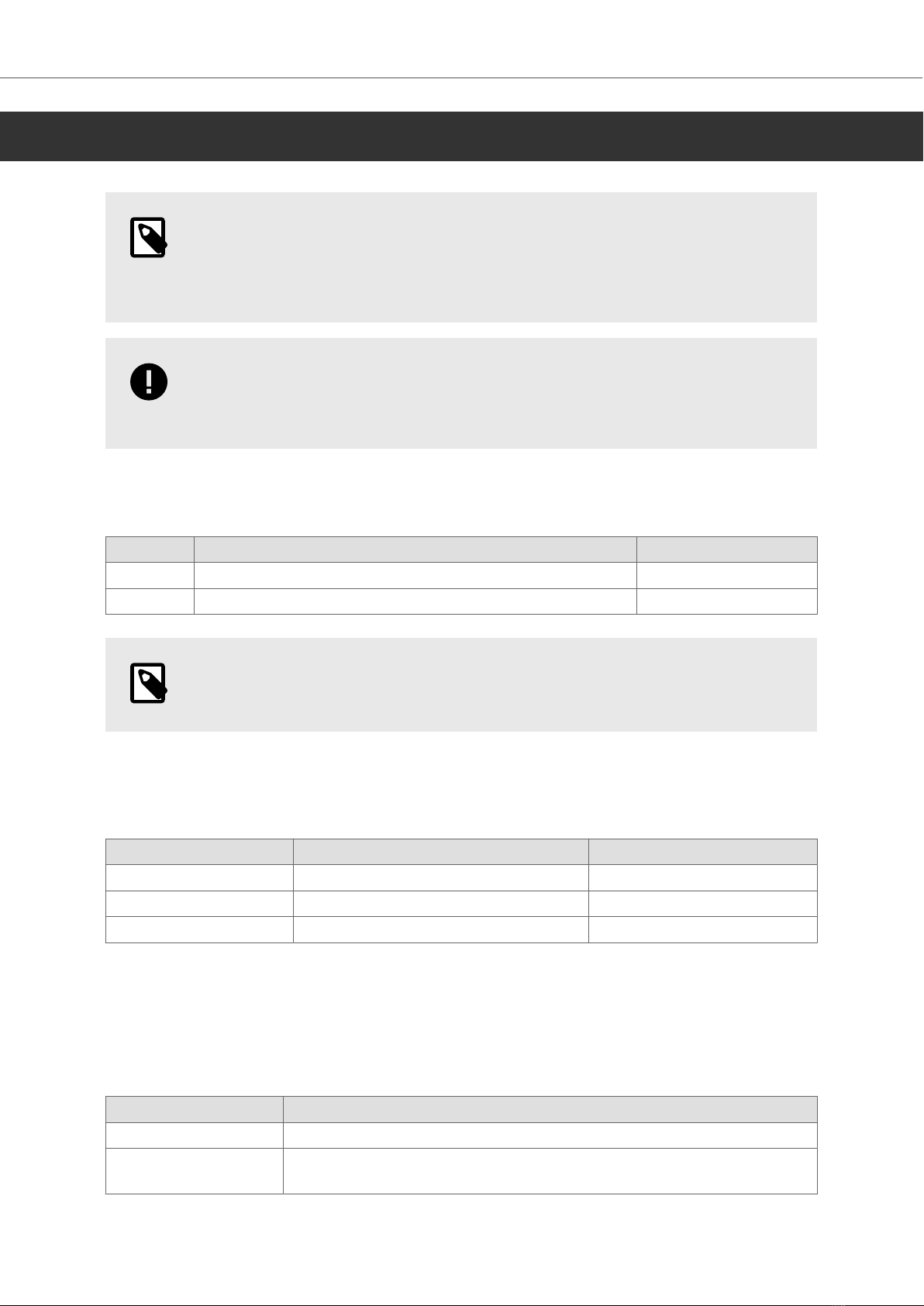
2.1. Default IP Addresses
These are the default IP addresses for the BoX2 devices:
BoX2 base v2, extreme (incl. SC), pro (incl. SC) BoX2 pro motion
LAN A 192.168.1.1 None (EtherCAT)
LAN B DHCP 192.168.1.1
NOTE
Devices with 2 Ethernet ports MUST NOT have IP addresses in the same subnet.
2.2. Open Ports
In the firmware there are some ports that are open by default due to the operating system or that
the internal application requires it.
Type Description Open by default
UDP and TCP Project transfer (9999) Yes
UDP Netbios (137) Yes
UDP Netbios (138) No1
1Filtered.
2.3. LED Indication
BoX2 uses three colors for LED indication; Red, Purple and Blue.
2.3.1. Red
State Description
Constant on Unit is busy booting, or updating image through recovery SD card.
Every 2 seconds
on/off
Unit is in standby/update mode. If image recovery has been run, then
this indicates it has finished, eject SD card and reboot unit.
General Information
Beijer Electronics, MAEN363 7 2023-06
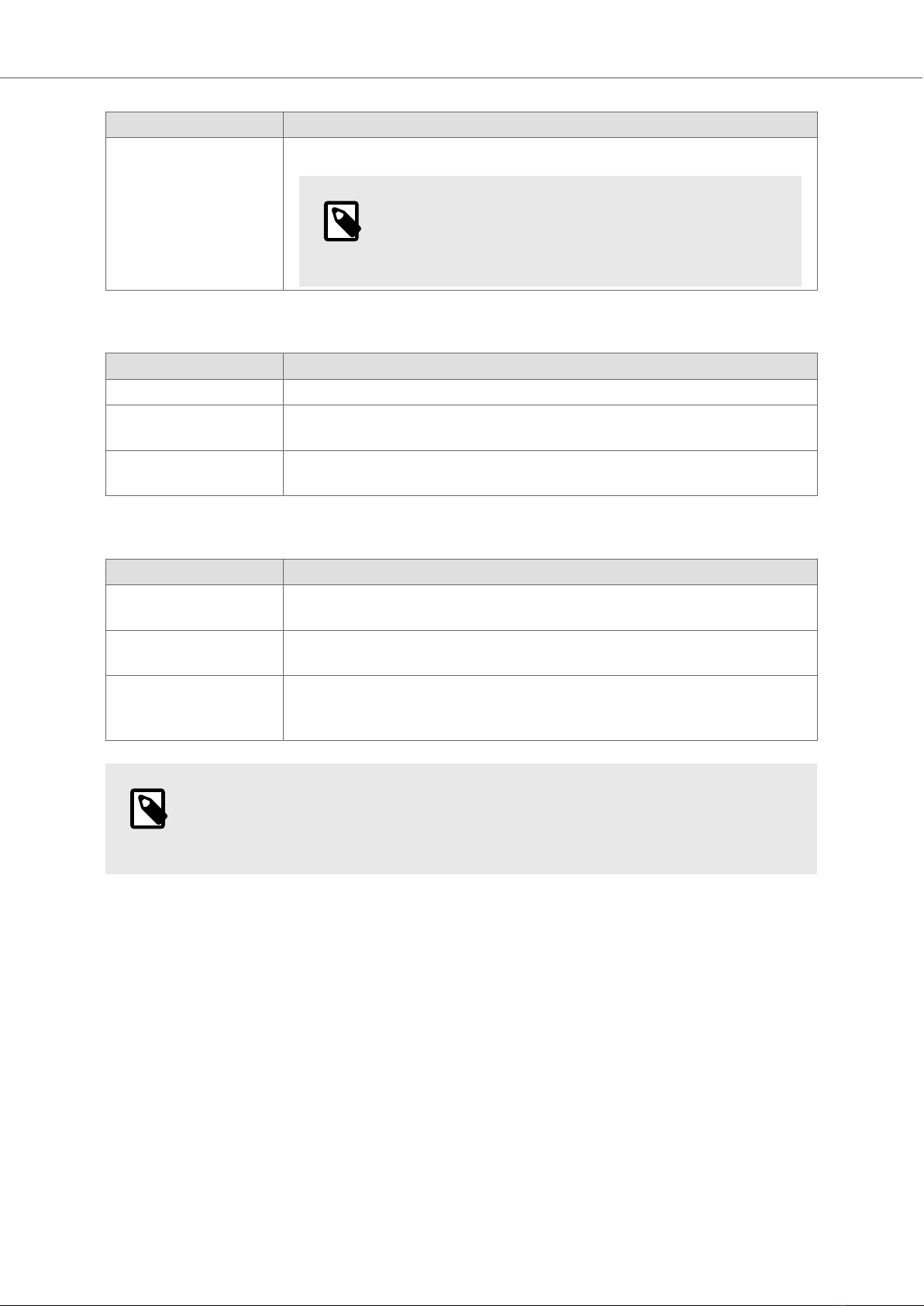
State Description
Fast flashing Eject USB/SD card.
NOTE
Fast flashing continues for a couple of seconds after
ejecting the USB/SD card.
2.3.2. Purple
State Description
Constant on Operating system is booting up.
Every 0.5 seconds
on/off
The unit is on standby and no iX Runtime or CODESYS project is
running.
Fast flashing for 5
seconds
USB/SD card project (iX or CODESYS) update successful.
2.3.3. Blue
State Description
Every 0.5 seconds
on/off
The iX project is running.
Every 0.5 seconds,
short flash
CODESYS project is running.
Every 0.5 seconds,
alternately short
and long flash
Both iX and CODESYS running.
NOTE
If the LED alternatively flashes Red to Blue to Purple, the wrong image type is
installed. Please reinstall correct image.
General Information
2023-06 8 Beijer Electronics, MAEN363

3. Configuration
To be able to configure the BoX2 device, the following software might be required:
•iX Developer
NOTE
Not applicable for BoX2 pro motion.
•BCS Tools for BoX2 with CODESYS Runtime.
•WARP Engineering Studio can be used to set the IP address.
3.1. How to Set the IP Address in BoX2
Changing the IP address on a BoX2 device can be done in two ways. Either by editing a JSON-file
manually or by configuring it through WARP. For instructions on both methods, see the following
chapters.
3.1.1. Manually Editing the JSON-file
NOTE
On BoX2 pro SC, BoX2 pro motion and BoX2 extreme SC, if the EtherCAT driver is
enabled, LAN A is used for EtherCAT only.
LAN B is for programming and communication.
Follow these steps to edit the network settings on a BoX2 base v2, BoX2 pro (incl. motion) and BoX2
extreme:
1. Download and extract this zip-file on your computer.
The zip-file and instructions can also be found here.
2. Edit the JSON-file to change the network settings.
In the following example, IP-address on LAN B is changed:
Original content in JSON-file:
{
"Number": "6",
"Enabled": true,
"Command": "LAN B IP",
"Entry": [
"192.168.1.1"
],
"Comment": ""
},
Configuration
Beijer Electronics, MAEN363 9 2023-06

Edited content in JSON-file:
{
"Number": "6",
"Enabled": true,
"Command": "LAN B IP",
"Entry": [
"192.168.1.2"
],
"Comment": ""
},
NOTE
"Enabled" must be set to 'true' for the change to take effect.
Several settings can be changed at the same time, but they must all be set to
'true'.
NOTE
Do not change the file name.
3. Put "BoX2ConfigSet.json" on a USB flash drive or SD card and connect it to your BoX2 device.
This will immediately update the network settings. When the change is done the LED on the BoX2
will change temporarily to a red flash.
4. A log file will be created on the USB flash drive, this can be used to verify that the setting was
changed. Example:
"New result file input
Time: 2000-5-28 21:32:37
LAN B set IP: 192.168.1.2
Adapter rebind LAN B successful"
The network settings have been updated.
3.1.2. Using WARP Engineering Studio
WARP can be used to generate a configuration file, in JSON-format, for the BoX2 devices.
The network settings of the BoX2 device will be saved to the file. The file can be stored on, or copied
to, a USB flash drive or SD card, to configure the BoX2 at the first start-up.
Configuration
2023-06 10 Beijer Electronics, MAEN363
This manual suits for next models
9
Table of contents
Other Beijer Electronics Media Converter manuals

Beijer Electronics
Beijer Electronics JetCon 1701GP-U User manual
Beijer Electronics
Beijer Electronics BoX2 pro User manual
Beijer Electronics
Beijer Electronics 100-0973 User manual

Beijer Electronics
Beijer Electronics BoX2 extreme User manual
Beijer Electronics
Beijer Electronics BoX2 extreme User manual