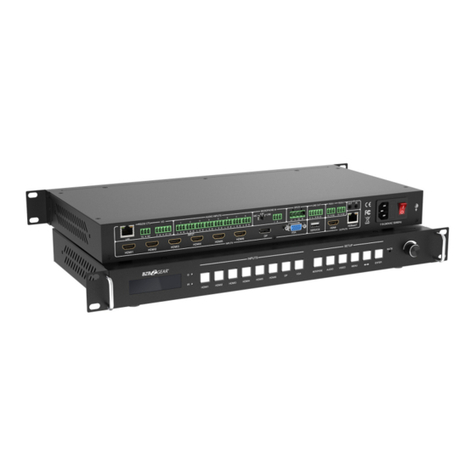
BZBGEAR BG-UMV-HA41 PRODUCT MANUAL
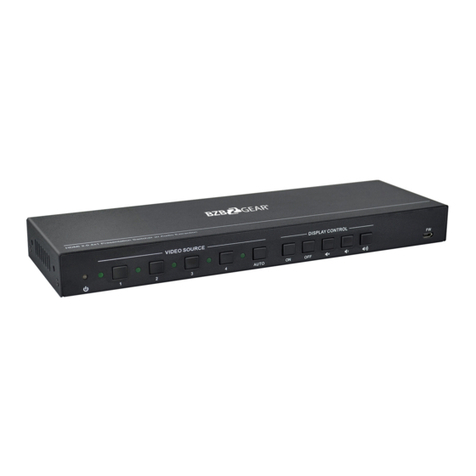
Front Panel Control
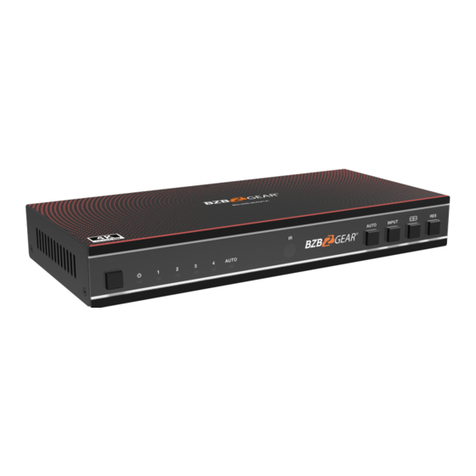
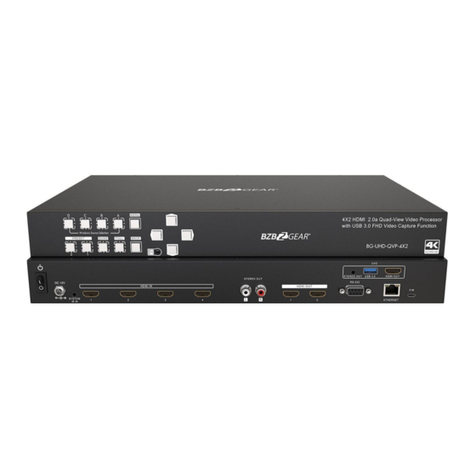
Multiview Selection
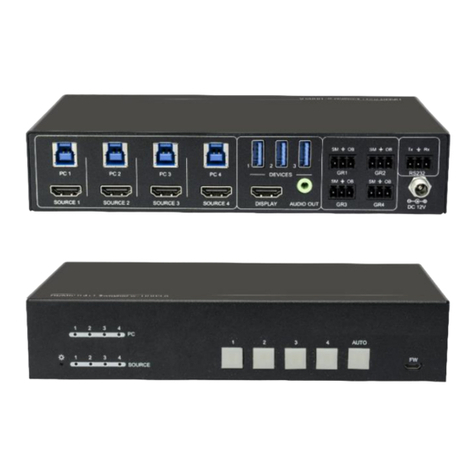
Factory default is four quarter views and default input and output is as follows: input1 ->
window A, input2 -> window B, input3 -> window C, input 4-> window D. Press one of the
other two multi-view buttons to change the layout and the selected multiview mode LED will
illuminate blue.
Full Screen mode: Press Windows A~D button to select the corresponding window to
display in full-screen. Meanwhile, the corresponding input source button LED and window
button A LED illuminate blue, other window buttons and previous multi-view mode button
LED will turn off.
Video Signal Switching
●In the Multi-view mode
Operation: Input# + Window#
Example: Switch Input 1 to Window B:
Press INPUT 1(The input 1 LED illuminates blue, the windows A-D LEDs flash.)
Press Window B (The window A, C and D LEDs go out, then input 1 and windows B LED
flash three times, last, input 1 LED goes out and windows A-D LEDs illuminate blue.)
●In the Full Screen mode
1. Manual Switching
Operation: Input# + Window#
Example: Switch Input 2 to Window A:
Press INPUT 2 (The input 2 LED illuminates blue.) Press Windows A (The input 2 and
windows A LEDs illuminate blue).
2. Auto Switching
Press AUTO button to enter auto-switching mode, and the corresponding LED illuminates
blue.
When in the AUTO mode, signal switching complies with the following principles:
●Input sources priority: HDMI 1 > HDMI 2 > HDMI 3 > HDMI 4. When input source
and output window are connected, the corresponding LEDs illuminate blue.
●When a new input signal is detected the unit will automatically switch to the input.
●The switcher will retain the last input source when powered off.
●Manual switching is available in the auto switching mode.
●When AUTO mode changes to multiview mode AUTO mode will not be turned off.
Address: 830 National Drive #140, Sacramento, CA 95834, USA ·Tel: +1(888)499-9906 ·Email: support@bzbgear.com 10