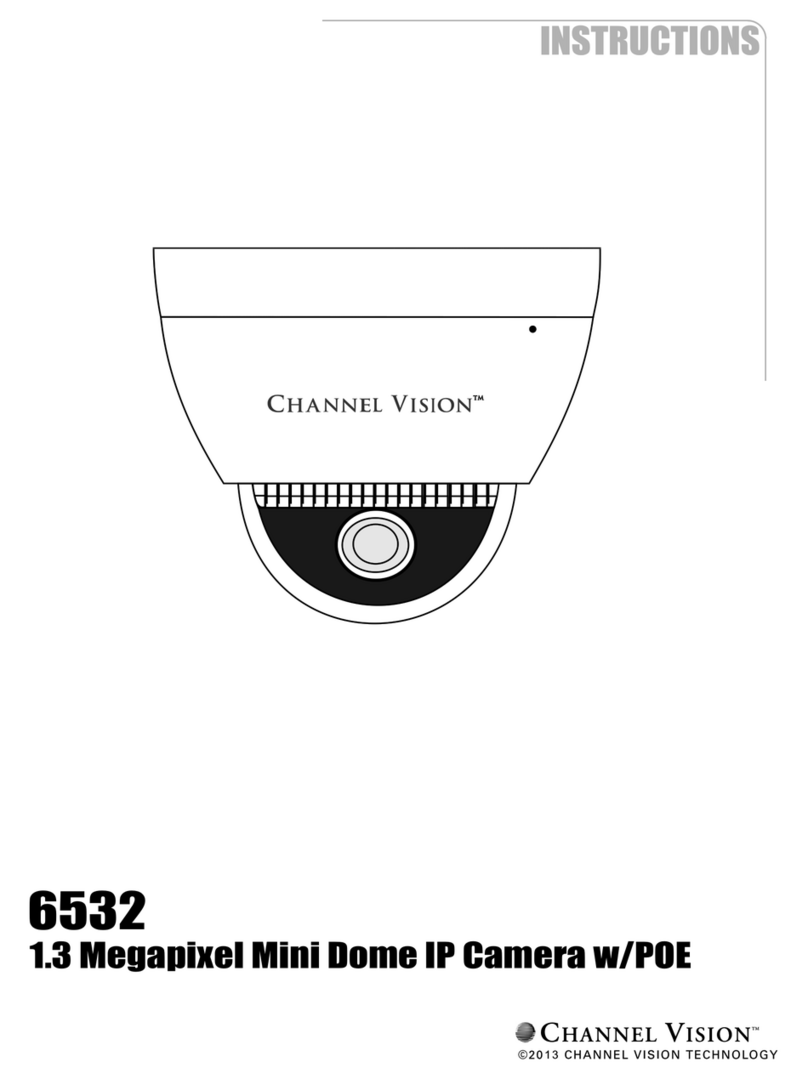
Channel Vision 6521 User manual

6522
6521
Bullet Color Megapixel IP Camera w/IR Illuminators
Dome Color Megapixel IP Camera w/IR Illuminators

Table Of Contents
Model Info Page 3
Warnings Page 4
Cable Pin Out Page 5
Power Over Ethernet Page 6
Assigning An IP Address Page 7
Assigning An IP Address continued Page 8
Assigning An IP Address continued Page 9
Assigning An IP Address continued Page 10
Connecting Your Camera Page 11
Installing The ActiveX Control Page 11
Configuring Internet Explorer Page 12
Live Viewing Page 13
Live Viewing continued Page 14
Configuration Page 15
System Configuration Page 16
User Management Page 17
System Update Page 18
Network Page 19
Network continued Page 20
Network continued Page 21
Network continued Page 22
Video Settings Page 23
Video Settings continued Page 24
Video Settings continued Page 25
Video Settings continued Page 26
Video Settings continued Page 27
Video Settings continued Page 28
Video Settings continued Page 29
Recommended Video Settings Page 30
Recommended Video Settings/Cont Page 31
Audio Page 32
Audio continued Page 33
Event List Page 34
Event List continued Page 35
Schedule Page 36
I/O Setting Page 37
I/O Setting continued Page 38
SD Card (6521 only) Page 39
Port Forwarding Example Page 40
6521 Specifications Page 41
6522 Specifications Page 42
Warranty Statement Page 43
2

The 6521 & 6522 are 2 Megapixel bullet and dome CMOS IP cameras.
Built-in web server, allows users to view high quality, real-time video with the Internet Explorer browser.
Uses H.264, MJPEG and MPEG4 codecs
Live video can be recorded to a computer and played back remotely, as well as viewed from many
mobile phones and other devices.
Designed for large commercial projects with 100’s of cameras or a single family house requiring a
camera at the front door.
6521 Features:
Channel Vision’s 6521 Vandal Proof IP Dome offers superior image quality with a 2 megapixel CMOS
sensor and has the ability to capture images up to UXVGA (1600 x 1200 pixels).
With H.264 compression, less bandwidth and storage space are used, while delivering full resolution at
max frame rate with faster speeds over the internet.
The 6521 also features event triggered SD card recording, as well as 18 IR LED for a viewing distance
of 50 feet in total darkness.
Monitoring can be done anywhere an internet connection is available even from a 3G Smart-phone
6522 Features:
Channel Vision’s 6521 Vandal Proof IP Dome offers superior image quality with a 2 megapixel CMOS
sensor and has the ability to capture images up to UXVGA (1600 x 1200 pixels).
With H.264 compression, less bandwidth and storage space are used, while delivering full resolution at
max frame rate with faster speeds over the internet.
The 6522 has a varifocal lens with built-in 35 IR LED for a viewing distance of 60 feet in total darkness
Monitoring can be done anywhere an internet connection is available even from a 3G Smart-phone
Models 6521/6522
3
6522
6521
•
•
•
•

CAUTION
RISK OF ELECTRIC SHOCK
DO NOT OPEN
CAUTION:TO REDUCE THE RISK OF ELECTRIC SHOCK.
DO NOT REMOVE COVER (OR BACK).
NO USER-SERVICEABLE PARTS INSIDE.
REFER SERVICING TO QUALIFIED SERVICE PERSONNEL.
WARNINGS
TO REDUCE THE RISK OF FIRE OR ELECTRIC SHOCK, DO NOT EXPOSE THIS PRODUCT TO
RAIN OR MOISTURE.
DO NOT INSERT ANY METALLIC OBJECT THROUGH VENTILATION GRILLS.
COPYRIGHT
ALL TRADEMARKS MENTIONED IN THE MANUAL ARE LEGALLY REGISTERED TO THEIR
RESPECTIVE COMPANIES.
Warnings
4

ALARM IN
RELAY OUT
The breakout cable on Channel Vision’s IP Cameras are used for motion detection, event
triggering, alarm notifications etc.
The provided interface connections are explained below.
1.) Digital Input (GND+Alarm):
An alarm input for connecting devices that can toggle between an open and closed circuit, for
example PIRs, door/window contacts, broken glass detectors, etc. When a signal is received, the
state changes and the input becomes active.
2.) Relay output (COM +N.O.) / (COM+N.C.)
A selectable output for a relay switch, for example LEDs, Sirens, etc.
Normally Open and Normally Closed can be selected via the Internet Explorer ActiveX control
under the “I/O Setting” section on the left.
(See pages 35, 36 for I/O settings)
Cable Pin Out
5
1
Rev 1
Rev
n n P
DC 12V (Optio if not usi g oE switch
n n P
DC 12V (Optio if not usi g oE switch
V tut
ideo ou pV tut
ideo ou p
O
I/ Terminal
O
I/ Terminal
r ho n tMic op ne Ipu
r ho n tMic op ne Ipu
ho Microp ne Output ho Microp ne Output
Ethernet Port
5
(T 68B Standard)
Ethernet Port
5
(T 68B Standard)
V o i n sDC 12 (Opti n f ot u ing PoE switch
V o i n sDC 12 (Opti n f ot u ing PoE switch
Vi eo outputd
Vi eo outputd
/O T nalI ermi
/O T nalI ermi
Micr pho e In ut o np
Micr pho e In ut o np
Mi r pho e t utc o n Ou p
Mi r pho e t utc o n Ou p
etEthern Connector
5d(T 68B Standar )
etEthern Connector
5d(T 68B Standar )
R v 2e
R v 2e
WARNING
DO NOT CUT THE BREAKOUT CABLE.
CUTTING THE CABLE WILL VOID THE WARRANTY ON THE DEVICE.
Channel Vision will still provide technical support if the cable is cut,
but cannot guarantee functionality.
GND
Alarm
N.C.
Common Ground
N.O.

Power over Ethernet (PoE) is a technology that integrates power into a standard LAN infrastructure. It
enables power to be provided to the network device, such as an IP phone or a network camera, using the
same cable that is used for the network connection.
The PoE switch eliminates the need for power outlets at the camera locations and enables an easier
application of uninterruptible power supplies (UPS) to ensure 24 hours a day, 7 days a week operation.
A 802.3af, 15.4W PoE Switch is recommended with 6521 and 6522.
If using a PoE switch that does not meet this specification, full functionality may not be supported.
PoE Ethernet Switch
(Not sold by Channel Vision)
6522 6521
Ethernet Cable
oer Sup y PoE P w pl of Switch
thernet Ca e
E bl
PoE (Power Over Ethernet)
6

1.) Use the software, “IP Installer” to assign the IP address to your 6521 or 6522. You can find
"IP Installer" in the supplied CD.
2.) Execute IP Installer. This is located on your disk under the folder “Megapixel Camera
Network Search Application”
3.) If Windows prompts you to unblock IP Installer, you must select “unblock”
There are 3 kinds of IP configuration
A.) Fixed IP (Public IP or Virtual IP)
B.) DHCP (Dynamic IP)
C.) Dial-up (PPPoE)
"IP Installer" will search all IP Cameras connected to your LAN network.The user can
click “Search Device” to search again.
Assigning an IP Address
7

1.) Click the start icon on your computer
2.) Click the ‘Run’ icon on your computer.
3.) Type in ‘cmd’ and press enter on your keyboard, or press ok.
4.) Type in ‘ipconfig /all’ into the DOS prompt that appears. Press enter.
5.) Write down your computer’s IP address.
It is important that we do not use the same IP address for our IP Camera.
In the example below, the computer’s IP address is 192.168.1.74.
The IP address of the IP Camera must be different than the IP address in the computer.
Each networkable device in your network has an IP address assigned. You need to be sure the IP you
choose for your IP camera is not the same as any other device on your network.
Assigning an IP Address /cont
8

Assigning an IP Address /cont
6.) Copy/write down the following information from the DOS prompt.
A.) Default Gateway (Example 192.168.1.1)
B.) DNS Server (if 2 servers, use the first one, for example 192.168.1.9)
C.) Subnet Mask (Example 255.255.255.0)
9

Assigning an IP Address /cont
To change numbers, select the appropriate area on IP installer
with your mouse, and type in the info.
Name
Fourth number (different than computer)
Select “Static”
Subnet Mask (same as computer)
Default Gateway (same as computer)
DNS Server 1 (same as computer)
DNS Server 2 (same as computer)
Port (A port between 8000-8999 is
recommended, but any network
port can be used)
First 3 numbers are
same as computer
7.) Enter the information you wrote down from step 6 on page 9 into the IP camera network page
A.) Default Gateway (Enter this number under “Gateway”)
B.) DNS Server (Enter this number under “DNS 1”)
C.) Subnet Mask (Enter this number under “Netmask”)
8.) Giving the IP Camera a unique IP address.
Assign and IP address to the IP Camera by using the first 3 sets of numbers of your default gateway. A
IP address, has 4 sets of numbers, each followed by a period. For example, xxx.xxx.xxx.xxx My default
gateway is 192.168.1.1 So, for example, my IP Camera’s address will start with 192.168.1.xxx
9.) Make sure you use a number different that your computer’s IP address.
(Generally between 2-250) This number needs to be out of the range of DHCP. DHCP is assigned with
your router, and can be checked by logging into the router.
My computer’s IP address is 192.168.1.74. I have used 192.168.1.208 for my IP Camera.
You must choose a number that is different from your computer’s IP.
If your IT technician has designated a static internal IP for your IP Camera, use that address.
10.) To assign the port, choose a port between 5400-9000, and type it into “Port 1” If a specific port has
been designated for your security system, that can also be used, even if the number is not within the
range of 5400-9000.
10
*Disclaimer: This is an example based on a general network setup.
All networks do not match these settings exactly, as all networks are different
This manual suits for next models
1
Other Channel Vision IP Camera manuals