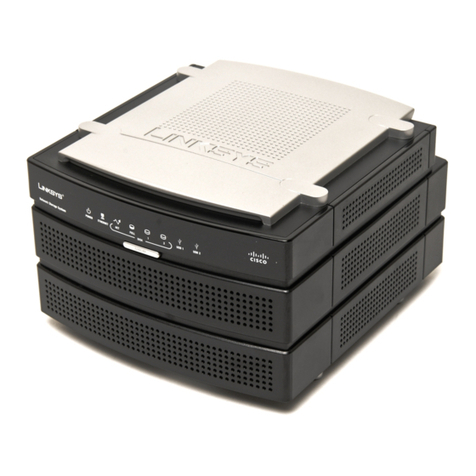
Cisco Smart Storage NSS322 User manual

Quick Start Guide
Cisco Small Business
NSS322 Smart Storage
Package Contents
•Smart Storage
•Power Adapter
•Quick Start Guide
•Ethernet Cable (2)
•Disk Tray Screws (2 Packs)
•Inline Switch Module
•HDD Sequence Label
•Product CD
Versión en Español para México en el CD
Version en français sur CD
Versione italiana sul CD
Deutsch Version auf CD

2 Cisco Small Business NSS322 Smart Storage
Welcome
Thank you for choosing the Cisco Small Business Smart Storage. The
NSS322 is a 2-bay Network Attached Storage (NAS) device that appears
as a native file server for the various clients within your network, including
Microsoft Windows, Apple Macintosh, UNIX, and Linux platforms. The
biggest benefit to your users is that they can now access data that might
be stored across different physical platforms as simply as if it were on their
own computers. The Smart Storage provides a single repository that is
completely dedicated to storage, ensuring the integrity, reliability, and
accessibility of your data for a relatively low cost.
This guide describes how to physically install your NAS and launch the
Cisco Setup Wizard. If you are a new NAS user, you are strongly
encouraged to use the Setup Wizard, located on the product CD.
The Setup Wizard will help you with:
•Installing the Disk Drives
•Connecting the Equipment
•Starting NAS Configuration
•Mapping a Network Drive
•Installing the Client Utility for Windows
•Installing the Client Utility for Mac
The localized language Quick Start Guide is available on the CD shipped
with the product.
Before You Begin
Before you begin the installation, make sure that you have the following
equipment and services:
•Internet connectivity (optional)
•Small Phillips screwdriver
•Ethernet switch or router
•1-2 SATA 2.5-inch disk drives or 3.5-inch disk drives (not included with
some models). It is not required that the disk drives be the same
physical size.
•Uninterruptible Power Supply (UPS), with a USB connection, which is
able to supply power for 10 minutes or more with at least 200 watts of
capacity. Strongly recommended to provide backup power and reduce
the risk of system damage after power interruptions. After the initial

1

Cisco Small Business NSS322 Smart Storage 3
installation of the NAS device, see the Cisco Small Business NSS300
Series Smart Storage Administration Guide to configure the NAS to
communicate with the UPS.
•Properly grounded anti-static wrist strap (recommended).
Getting to Know the NSS322
The following section describes the front and back panels of the
NSS322 Smart Storage.
Front Panel
2
277555
LAN
HDD2
HDD1
eSATA
NSS 322
1
2
3
4
5
Smart Storage

4 Cisco Small Business NSS322 Smart Storage
Number LED Indicator Description
1 HDD1, HDD2 •(Green) Flashes green when the disk
drive data is accessed. Solid green
when the disk drive is accessible.
•(Red) A hard drive read/write error
occurs.
LAN (Orange) Flashes when there is network
traffic to or from the NAS. Solid orange
when the NAS is connected to the
network.
eSATA (Orange) Flashes orange when an eSATA
device is being accessed.
2 Power •(Off) Disk drives are in standby mode
or the device is powered off.
•(Solid Green) The NAS is ready.
•(Flashing Green) One or more of the
following conditions apply:
– The NAS is starting up.
– The NAS is not configured.
– Disk drive is not formatted.
•(Flashing Red) The NAS is in
degraded mode. One of the disk
drives failed in RAID 1 configuration.
3 One Touch Copy (Blue) USB device is detected.
Number Item Description
2 Power Button Press Power to power on or shutdown
the NAS.
3 One Touch Copy
Button
Press One Touch Copy to copy files to or
from an external USB drive.
4 USB 2.0 USB port for accessing external USB-
attached storage.
5 Disk Tray Lock Lift the silver tab up to lock the disk tray.
Press the silver tab down to unlock the
disk tray. See Locking and Unlocking
the Disk Trays, page 9.

Cisco Small Business NSS322 Smart Storage 5
Back Panel
Number Item Description
1 VGA Console output to VGA monitor. Used for
device recovery.
2 Reset Restores the network settings and
password to the factory. See Reset
Network Settings and Password,
page 29.
3 Ethernet Port (2) Dual Ethernet ports.
4 eS ATA (2) eS ATA por t s for ac c e s sing ex te r nal
eSATA-attached storage. Use eSATA
connector.
5 Power Connector Connects the device to the external
power adapter, which connects to a
standard power outlet.
277556
8
1
2
5
76
4
3

6 Cisco Small Business NSS322 Smart Storage
Installing the NSS322
Please place your NSS322 on a desktop or flat surface.
Placement Tips
• Ambient Temperature—To prevent the device from overheating, do
not operate it in an area that exceeds an ambient temperature of 104°F
(40°C).
•AirFlow—Be sure that there is adequate air flow around the device.
Avoid any obstructions to air flow either in front of or behind the chassis.
• Mechanical Loading—Be sure that the device is level and stable to
avoid any hazardous conditions. Do not place any other devices on top
of the NAS.
•Vibration/Impacts—Be sure that the device is installed in a location
where it will not be subject to vibration or impact.
Installing the Disk Drives
CAUTION When storing unused disk drives, do not stack multiple disk
drives because this can cause drive failures.
When installing the disk drives, follow the suggestions in
Cisco
Electrostatic Discharge and Grounding Best Practices
, located on the
product CD.
Follow these steps to install disk drives in the NSS322 NAS chassis.
STEP 1Remove the contents of the NAS package from the box.
STEP 2Place the chassis upright on a flat surface.
STEP 3From disk bay 1, remove the disk tray.
6 USB 2.0 (4) USB port for accessing USB attached
storage and UPS status.
7 Kensington Lock
Slot
Attach a Kensington lock to protect the
device from theft.
8Fan Systemfan.
Number Item Description
3
4

Cisco Small Business NSS322 Smart Storage 7
To remove the disk tray, push the silver tab down to unlock the tray,
and push the lower tab to release the tray lever. Using the tray
lever, pull the tray out.
NOTE If your device has the disk drives already installed, continue to
the next section, Connecting the Equipment, page 10.
STEP 4Position the disk drive into a disk tray. The electrical connectors of
the disk drive must face toward the back of the drive tray.
STEP 5Attach the disk drive to the tray by inserting the disk drive screws
into the four holes at the bottom of the tray and tightening them
with a Phillips screwdriver.
NOTE Use the screws provided in the box with the device. Using
other screws can cause damage to your disk or disk tray.
There are clearly marked disk holes to accommodate the following
disk drives:
•3.5-inch disk drive (use the included silver screws)
•2.5-inch disk drive (use the included black screws)
277587
LAN
HDD2
HDD1
eSATA
NSS 322
Smart Storage

8 Cisco Small Business NSS322 Smart Storage
STEP 6Insert the tray back in the correct sequence into the empty bay of
the chassis.
NOTE Drive trays should not be swapped from slot to slot.
There is also a HDD sequence label included in the package
contents that can be placed on the top of the chassis, showing the
disk drive sequence. For example, 1-2 for the NSS322.
277517
2.5 inch 3.5 inch
277585
HDD
Sequence
1
2

Cisco Small Business NSS322 Smart Storage 9
The disk drive sequence number is also located on the inside of
the disk tray.
STEP 7Using your thumb, apply even pressure to the middle of the tray
while you insert the tray slowly and fully into position in the
chassis.
The disk tray lever should be in the open position.
STEP 8Gently push the disk tray lever down until you hear a click.
STEP 9Repeat steps 3 through 8 to install the second disk drive.
Locking and Unlocking the Disk Trays
An icon is located on the silver tab indicating:
•When the silver tab is up, the disk tray is locked.
•When the silver tab is down, the disk tray is unlocked.
5

10 Cisco Small Business NSS322 Smart Storage
To lock the disk tray:
STEP 1Verify that the disk tray is fully inserted in the chassis with the disk
tray lever down.
STEP 2Lift the silver tab up to lock the tray.
STEP 3Continue to Connecting the Equipment, page 10.
To unlock and remove the disk tray:
STEP 1On the disk tray, press the silver tab down to unlock the tray.
STEP 2Press on the button below the silver tab to release the disk tray
lever.
STEP 3Using the disk tray lever, gently pull the disk tray out from the
chassis.
Connecting the Equipment
Follow these steps to connect the NAS device to the network.
STEP 1Connect the supplied Ethernet cable to one of the Ethernet ports on
the back of the chassis.
STEP 2Connect the other end of the Ethernet cable to a switch or router on
your network.
6
Other manuals for Smart Storage NSS322
1
Table of contents
Other Cisco Network Storage Server manuals

Cisco
Cisco UCS S3260 Quick start guide

Cisco
Cisco C880 M4 Owner's manual

Cisco
Cisco ASR 5000 Series Instruction Manual

Cisco
Cisco Linksys NAS200 User manual

Cisco
Cisco UCS 6400 Series Manual

Cisco
Cisco NSS2000 - Gigabit Storage System Chassis Instruction Manual

Cisco
Cisco Linksys NAS200 Original operating instructions
Popular Network Storage Server manuals by other brands

HP
HP NetStorage 6000 user guide

Seagate
Seagate U10 ST320423A installation guide

Synology
Synology RackStation RS816 Hardware installation guide

D-Link
D-Link ShareCenter Pro DNS-1200-05 user manual

Avid Technology
Avid Technology VideoRAID ST Setup and user guide

Western Digital
Western Digital My Cloud Home Duo user manual