manuals.online logo
Brands
  1. Home
  2. •
  3. Brands
  4. •
  5. Classe Audio
  6. •
  7. Recording Equipment
  8. •
  9. Classe Audio SSP-800 User manual

Classe Audio SSP-800 User manual

Other manuals for SSP-800

4

Other Classe Audio Recording Equipment manuals

Classe Audio SSP-800 User manual

Classe Audio

Classe Audio SSP-800 User manual

Classe Audio SSP-75 User manual

Classe Audio

Classe Audio SSP-75 User manual

Classe Audio SSP-800 User manual

Classe Audio

Classe Audio SSP-800 User manual

Classe Audio SSP-800 User manual

Classe Audio

Classe Audio SSP-800 User manual

Classe Audio SSP-800 User manual

Classe Audio

Classe Audio SSP-800 User manual

Popular Recording Equipment manuals by other brands

ThermoFisher Scientific Dionex DRS 600 Installation checklist

ThermoFisher Scientific

ThermoFisher Scientific Dionex DRS 600 Installation checklist

Shure ANIUSB-Matrix user guide

Shure

Shure ANIUSB-Matrix user guide

Nady Audio HE-1 user guide

Nady Audio

Nady Audio HE-1 user guide

AUDAC APM 01 User manual & installation guide

AUDAC

AUDAC APM 01 User manual & installation guide

Teac GF-350 owner's manual

Teac

Teac GF-350 owner's manual

Fractal Audio MFC-101 MARK III owner's manual

Fractal Audio

Fractal Audio MFC-101 MARK III owner's manual

bmcm USB-OI16 manual

bmcm

bmcm USB-OI16 manual

HHB BurnIT CDR-830 Service manual

HHB

HHB BurnIT CDR-830 Service manual

GE VersaMax IC200CPUE05 manual

GE

GE VersaMax IC200CPUE05 manual

IntesisBox MH-RC-MBS-1 user manual

IntesisBox

IntesisBox MH-RC-MBS-1 user manual

Attero Tech unD4l user manual

Attero Tech

Attero Tech unD4l user manual

Sennheiser UI 765 instruction manual

Sennheiser

Sennheiser UI 765 instruction manual

Sony RCD-W1 Operating Instructions  (primary... Service manual

Sony

Sony RCD-W1 Operating Instructions (primary... Service manual

Roland Planet-P  MKS-10 owner's manual

Roland

Roland Planet-P MKS-10 owner's manual

Roland BOSS GT-PRO Turbostart

Roland

Roland BOSS GT-PRO Turbostart

8x8 Inc Valcom V-2001A manual

8x8 Inc

8x8 Inc Valcom V-2001A manual

Waves SUB Align user guide

Waves

Waves SUB Align user guide

Mitsubishi Electric MAC-334IF-E installation manual

Mitsubishi Electric

Mitsubishi Electric MAC-334IF-E installation manual

manuals.online logo
manuals.online logoBrands
  • About & Mission
  • Contact us
  • Privacy Policy
  • Terms and Conditions

Copyright 2025 Manuals.Online. All Rights Reserved.

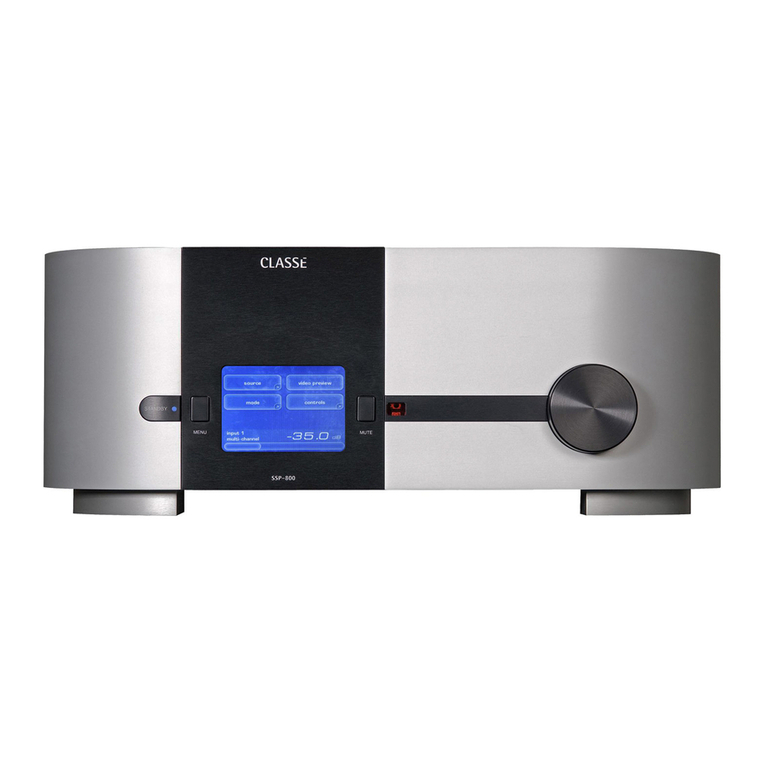
CLASSE SSP-800 SURROUND SOUND PROCESSOR
Introduction
Classé is considered one of the finest audio product manufacturers in North America.
They market preamplifiers, power amplifiers, and surround sound processors (SSPs).
The SSP-800 is their current processor. It’s been around for awhile, and they have no
plans to replace it with a new model in the near future, but there have been some
firmware updates along the way. So, I decided that Secrets should have a look and
listen to what I was sure would be a fine product.
SPECIFICATIONS
Design: 7.3 Channel Surround Sound Processor (SSP)
Codecs: All, Including Dolby TrueHD, DTS-HD Master Audio
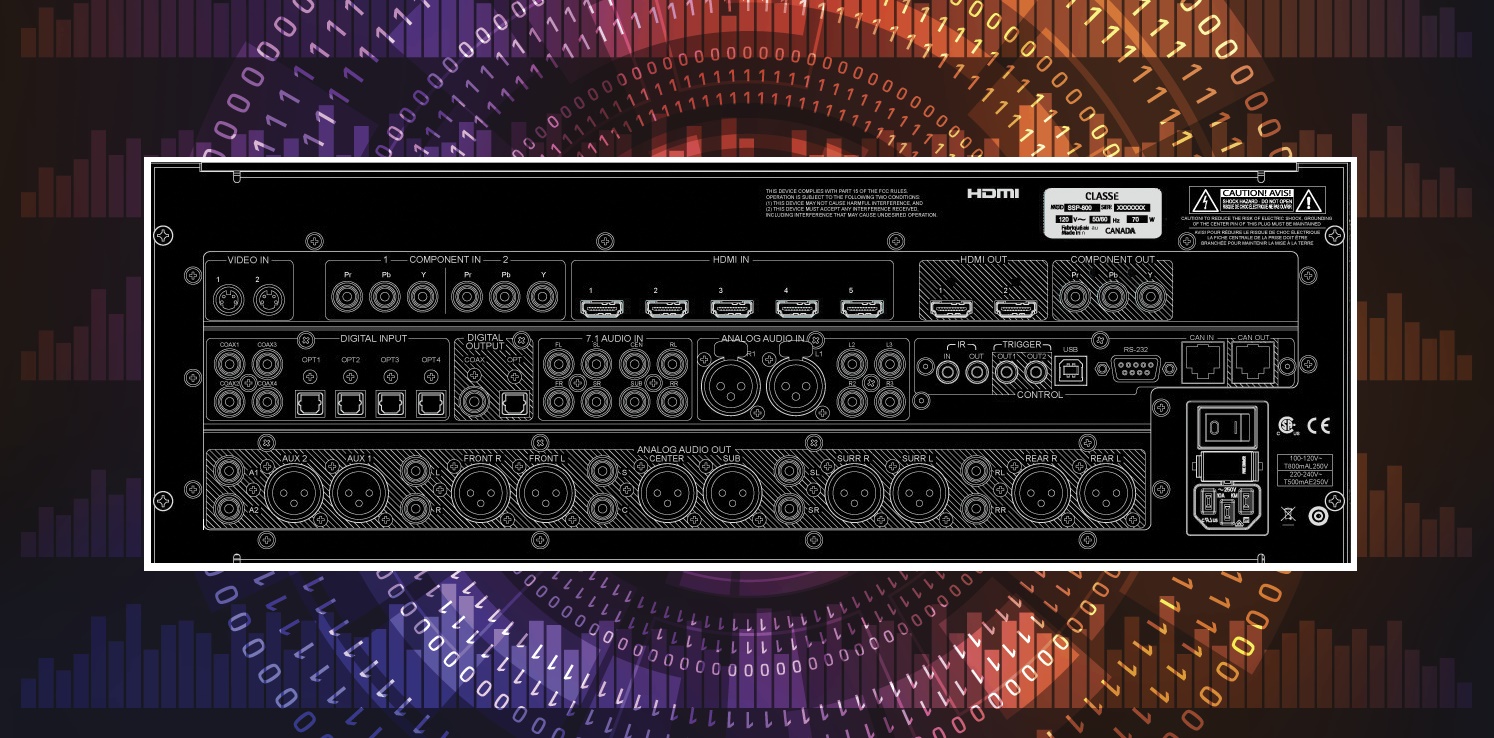
Inputs: 5 x HDMI (v1.4), 2 x Component, 1 x Composite, 4 x Coax, 4 x Toslink, 1
x Analog XLR,
Outputs: 2 x HDMI, 1 x Component, 1 Coax, 1 Toslink, 7.1 Analog XLR and
RCA, 2 x Aux Analog XLR and RCA, DC Trigger, USB, RS-232, CAN Bus
Video Support: 1080p, Deep Color, 3D, xvYCC; Composite and Component can
be Up-converted to HDMI Output
MFR: 20 Hz – 20 kHz ± 0.2 dB
THD+N: 0.001% Digital Source, 0.002% Processed Analog Source
Input Impedance: 100 kOhms
Maximum Output Voltage: 15 Volts XLR, 8 Volts RCA
Dimensions: 6.75″x 17.5″W x 17″D
Weight: 29 pounds
MSRP: $9,500 USD
Classe
Tags: Classe, SSPs, 7.3
The Design
The Classé SSP-800 is basically designated at 7.1 because it has one XLR/RCA
output labelled as SUB. However, there are two XLR/RCA output jacks labelled AUX,
which means you can configure the processor with up to three subwoofers (the AUX
outputs can be assigned to other tasks as well). This is the reason Classé calls it a
10-channel processor.
Two Texas Instruments DSP chipsets operat e at 2800 MIPS (I guess we need to start
using the acronym BIPS, or Billion Instructions per Second, in which case the
chipsets operate at 2.8 BIPS).
Classé gave me the following, more specific, details about the circuit design: “The
DAC is a current output DAC, so there is an I/V converter followed by a
reconstruction filter (TI OPA2134), then the volume control, then a buffer stage
(National LM4562) followed by a gain stage (also LM 4562). The signal is differential
thru the output and biased in Class A. The single-ended output just uses the non-
inverting side of the LM4562. There are two DSPs and both are the TI
TMS320DA710.”
The inside of the chassis, shown below, is Spartan compared to some other
processors on the market (this is the HDMI v3.1 chassis, which had four HDMI input
jacks – the latest version has a v1.4 board, and five HDMI input jacks). This compact,
short conductor path design is integral to the unit’s very low distortion rating (and
bench test results later in this article).
The SSP-800 does not perform video processing, except for up-converting
composite video and component video for HDMI output.
This is primarily a product for handling digital input signals, but there are three pairs
of analog audio inputs including one XLR and two RCA sets. There is also a 7.1
channel analog bypass input that is primarily used for multichannel SACD sources.
The analog audio output stage operates in pure Class A bias, and consists of stereo
op-amps, each configured in a balanced design for an individual channel output.
Most processors and receivers these days come with Automated Room Correction,
which means you set a microphone in several listening positions, and the unit
outputs test signals through each channel, then calculating and adjusting for the
frequency response of each speaker as well as its distance from the listening
position (or averaged for several listening positions).
The SSP-800 allows for frequency response and distance, but it is performed
manually, which is to say that there is a five-band parametric EQ for each channel,
with each band adjustable in 1 Hz steps from 1 Hz to 200 Hz, then 10 Hz steps from
200 Hz to 2 kHz, and 100 Hz steps from 2 kHz to 20 kHz. You can also adjust
individual speaker levels (volume) and enter the distance to each speaker. So, it’s not
as sophisticated as the auto room correction circuits in other products, but it is also
one less step in digital processing that can induce distortion. Frankly, I am on the
fence about automated room correction. In general, I like the results, but sometimes,
when I change the furniture and run the Auto EQ function, the results are not quite
what I expect, so I re-run the program using different microphone placement, and re-
run it again if I have to, in order to end up with something that sounds pleasant. I
have to say at this point that the Classé, even with no EQ added at all, sounds better
than any processor – with Auto EQ – that I have ever encountered. I may take the
time to tweak the EQ at some point, just to make the sound more laid back, because
my aging hearing likes it that way, but that is a personal preference, and it would not
be a flat response.
Below is a series of screen shots illustrating the main menu and sub-menus.
The first one is what you see while using the SSP-800. You can select the source (for
me that is the Blu-ray player – Input 1, and the HDTV cable box – Input 2). The Mode
button accesses the available playback/surround modes. Touching the Video Preview
button will bring up whatever video signal is passing through, and the Controls
button gives you access to Configurations (different speaker combinations or
configurations of levels and subwoofer settings) and the System Trims, which is a
second set of volume controls that allows you to adjust individual channels’ volume
levels for the particular program you are watching. This defaults back to 0
adjustment when you change sources, or turn the SSP-800 off. The reason for this is
that as part of the setup, you are able to listen to some white noise in each channel
and adjust the volume of each speaker so that it is whatever you want it to be at the
listening position. So, by using the Trims to adjust a channel(s) volume when
watching a particular program, this does not disturb the calibrated volume control
settings.

When you press the Menu button on the front panel or on the remote control, here is
what you see:
The next step – when you are first using the SSP-800 – is the System Setup.
I selected Configuration from the menu above, and this is what was next.
Pressing Configuration 1, I now had the ability to rename Configuration 1 to whatever
I wanted (I left it as Configuration 1 just to keep myself from getting lost in a maze
when I first used the processor). The box on the right says, “In Use” which means it
is enabled. With up to six configurations available, you may choose to not use all of
them, so disabling the unused configurations removes them from the list. In every
day use, when scrolling through your configurations, you only see those that you
have set up and are “in use.” Then there are the Distance and Levels menus for
putting in the distance from each speaker to your sitting position, and the volume
level settings for each of the speakers. The Speakers menu lets you choose which
speakers you want in the configuration (for instance, if you have no Center channel,
this is where you would configure the system for no Center channel), and what
crossover frequencies and slopes for each speaker if your speakers are not full
range. A typical setup might be no crossover for the front left right, but a crossover
for the remaining speakers, either 12 dB/Octave or 24 dB/Octave.
In this menu set (above), you can choose what you want the two Aux outputs to be
connect to – if anything at all – which includes bi-amping (e.g., the front left/right
channels), and having up to three subwoofers. All in all, a very flexible and easy to
use menu structure.
The rear panel is a sea of connections, and fortunately, the jacks are far enough apart
that I could easily get my fingers in between other connectors to insert a plug here
and there. Isn’t it amazing how long it has taken to pare down the sets of component
and composite video connections and move towards a full array of HDMI
connectors?
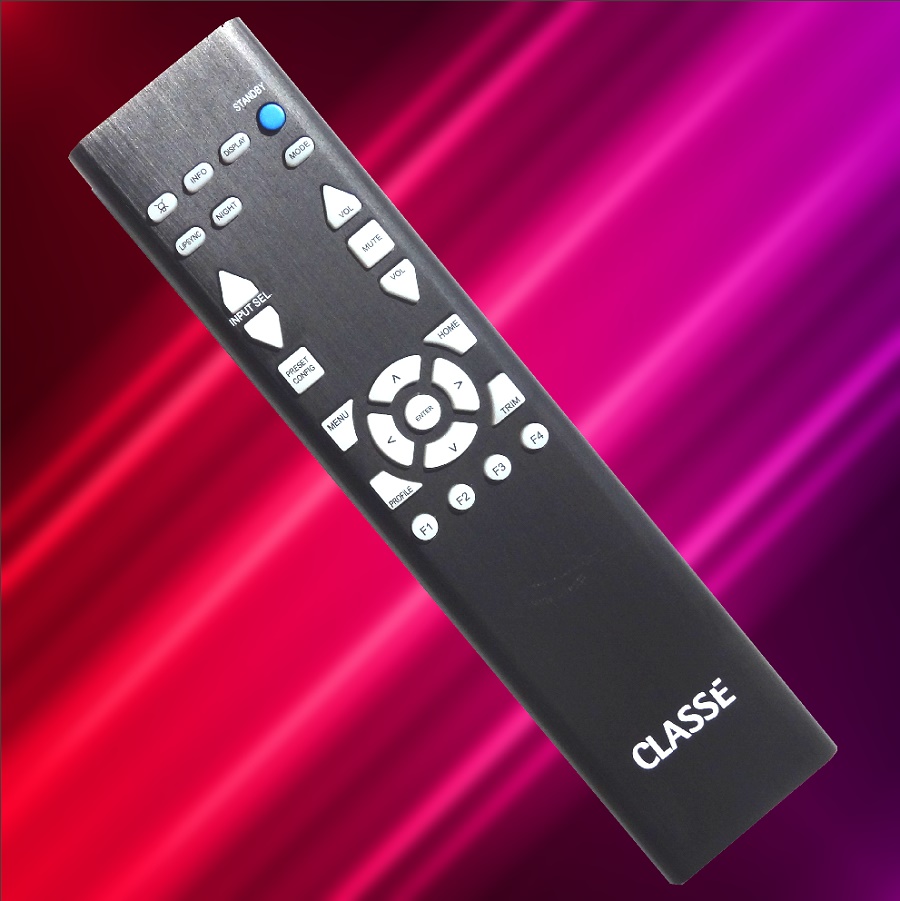
The remote control is Classé all the way. It’s made of anodized and brushed
aluminum, and the battery compartment is at the bottom end. The buttons are
tactile, shaped so you can recognize them by feel, and there is bright blue
backlighting when you press any button.
In Use
The first thing I did was update the software. It involves going to the Classé website,
then CUSTOMER SUPPORT/SOFTWARE/DOWNLOADS/OPERATING SOFTWARE.
Download the latest firmware (*.pkg) and the downloader.exe file. Run the
downloader, and make a note of which COM port it is connected to by going into
your device management menu and search for “Silicon Labs CP210x USB to UART
Bridge Controller (COMx)” Then connect the SSP-800 to your PC with a USB cable,
and when it asks for the COM port number, use the one you noted. The installation is
guided, and I experienced no problems. Here are a few screen shots of what is seen
during the process.
Here is a list of files that I downloaded:
In the next screen shot, note that COM8 is the port to select during the firmware
upgrade.
Selecting the process of updating the firmware.
Detecting the device (the SSP-800 is connected to your computer via USB).
Device detected.
Firmware is being transferred.
Firmware has been transferred to the SSP-800.