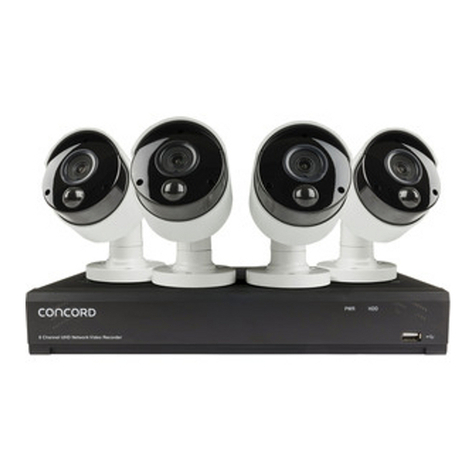
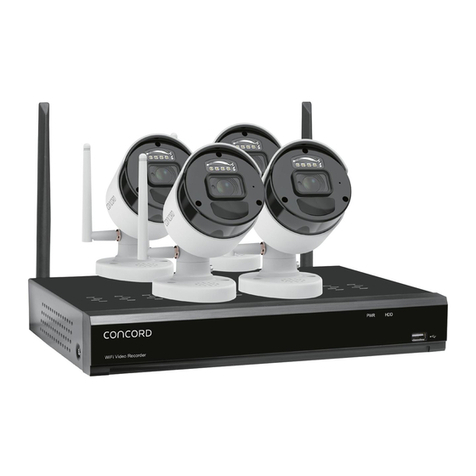
CONCORD QV5522 User manual

8 Channel Wireless NVR
with 4 x 2K Battery Cameras
CNK8244WPB-A

2
Chapter 1: Safety Instruction
Chapter 2: Product Overview
2.1 Rear Panel
Chapter 3: Wireless NVR Common Operations
3.1 Using the Supplied Mouse
3.2 Using the Virtual Keyboard
3.3 Password
Chapter 4: Wireless NVR Starting Up
4.1 Startup Wizard
4.1.1 Start Wizard
4.1.2 Network Configuration
4.1.3 Date/Time
4.1.4 Disk
4.1.5 Resolution
4.1.6 Mobile
4.1.7 Summary
4.2 Live Viewing Screen
4.2.1 Camera Quick Toolbar
4.2.2 Taskbar
4.2.3 Start Menu
Chapter 5: Wireless NVR System Setup
5.1 Channel
5.1.1 Channel
5.1.2 Spotlight
5.1.3 Alarm
5.1.4 Video Cover
5.2 Record
5.2.1 Record
5.2.2 Encode
5.2.3 Record Schedule
5.2.4 Capture
5.3 Alarm
5.3.1 Exception
5.3.2 Alarm Schedule
2

3
5.4 Network
5.4.1 General
5.4.2 DDNS
5.4.3 Email
5.4.4 FTP
5.4.5 IP Filter
5.5 Device
5.5.1 Disk
5.5.2 S.M.A.R.T
5.5.3 Cloud
5.6 System
5.6.1 General
5.6.2 Output Configuration
5.6.3 Multi-User
5.6.4 Maintenance
5.6.5 IP Camera Maintain
5.6.6 System Information
Chapter 6: Search, Playback & Backup
6.1 Using Search Function
6.1.1 Search & Play Video in General
6.1.2 Event Search, Playback & Backup
6.1.3 Sub-periods Playback
6.1.4 Picture Search & View
6.1.5 Picture Preview Control
Chapter 7: Remote Access via Web Client
7.1 Web Plugin Download and Installation
7.2 Web Client Manager
7.2.1 Live Interface
7.3.2 Playback
7.3.3 Local Setting
Chapter 8: Remote Access via Mobile Devices
Chapter 9: Appendix
9.1 Troubleshooting
9.2 Usage Maintenance
9.3 Accessories (For Reference Only)
3

4
Safety Precautions
Please carefully read the following safety precautions so as to avoid personal injuries and prevent the equipment and
other connection devices from being damaged.
1. Power supply
Never operate the equipment with any power supply other than the one supplied in the box.
2. Never push objects of any kind through the openings of the NVR
Never push objects of any kind through any openings of the NVR to avoid electric shock or damage to your NVR.
3. Do not place the NVR in a dusty environment
Dust could affect the connections and damage the electronics.
4. Do not place the NVR in a wet or humid environment
Do not position the NVR in a location that is likely to get wet or humid such as outdoors or in a basement. If the NVR
comes into contact with water, unplug the power cable immediately and contact your local dealer.
5. Keep the surface of the equipment clean and dry
Use a soft slightly damp cloth to clean the outer case of NVR and make sure it is dried straight away (do not use
liquid aerosol cleaners).
6. Do not operate if you notice any unusual problems
If you notice any strange smells, sounds or smoke coming from your NVR, unplug the power cable immediately and
contact an authorised dealer or service centre.
7. Do not try to remove the upper cover
Warning: Do not remove the cover of your NVR to avoid electric shock or damage to the electronics.
8. Handle with care
If your NVR does not work normally after dropping it or being hit by a hard object, disconnect the power
immediately and contact an authorised dealer or service centre.
9. Position the equipment in a place with good ventilation
The NVR system includes a HDD, which can produce a significant amount of heat during normal operation. As a
result, do not block the ventilation openings (on the top, bottom, both sides and the reverse side) for cooling the
system during operation. Make sure your NVR is kept in a well ventilated area and that the cables are kept tidy and
do not obstruct air flow.
10. The included power supply can only be used for one NVR system, do not connect more equipment to the
power supply, it will not have enough power to operate correctly.
11. Do not place objects containing water, such as a flower vase, on or near the equipment.
4

5
Chapter 2: Product Overview
2.1 Rear Panel
NO Physical interface Connection
1 HDMI port HDMI high-definition port.
2 WAN port Router network input port/camera-connecting port
3 USB port 1 Connect with USB mouse or plug in a U disk for backup.
4 USB port 2 Insert a U disk as a redundant hard disk for recording.
5 Power port Connect with the power supply DC12V 2A.
6 Reset button Press three seconds for password reset. Press ten seconds for
factory reset.
7 SD card port Plug in SD card as a hard disk to record. (When the hard disk is
working, the SD card is not working)
Note Antenna (Inside the NVR
structure)
It is used to transmit and receive wireless signals, so that the
NVR and the camera can communicate well.
5

6
Chapter 3: Wireless NVR Common Operations
3.1 Using the Supplied Mouse
A USB Mouse is supplied to navigate the on-screen menus. Plug the mouse into an available USB port on the front or
back of the NVR.
1. Left Button:
• Click to select menu options.
• During live viewing in split-screen view, double-click on a channel to view it in full-screen. Double-click the
channel again to return to split-screen viewing.
• Click on a channel on Live Viewing screen to open Camera Quick Toolbar.
• Click and hold to drag sliders and scales on menu mode
2. Right Button:
• Click once to open the Taskbar on the Live Viewing screen. View Taskbar on 4.2.2 Taskbar
• In menus, click to go back / close menus.
3. Scroll Wheel:
• In menus, scroll to move up / down through the menu content.
• While hovering over the volume control wheel, scroll to turn system volume up / down.
3.2 Using the Virtual Keyboard
A virtual keyboard will automatically appear on the screen when you need to enter data.
Use the mouse to operate this keyboard.
Click to toggle the keyboard to
upper case and more punctuation
Click to delete
a character
Click to complete
the enter
Move the cursor to right
Move the cursor to left
1 2
3
6

7
3.3 Password
The first time you run the NVR, you will be asked to set your own password, which is important to help protect your
privacy. You can also change the Admin username for extra security. You may want to write down your username
and password in a safe place in case you forget them in the future.
Language: Choose your preferred language to be shown on-screen.
Device ID: Input the device ID shown in the parentheses (). Default ID is 000000.
View more about Device ID on 5.6.1 General further within this manual.
New Admin name: To set your own administrator name.
New Admin Password: To set your own password. The password must be a combination of 8 characters.
Confirm Password: Enter your own password again.
Click Apply to confirm your settings you will then be taken to the login interface. Enter your user name & password
to Login.
NOTE: If you forget your password, you will be unable to login to the system. You will need to contact Concord to
reset the password if you are locked out. Visit: www.concord.support.
7

8
Chapter 4: Wireless NVR Starting Up
4.1 Start Wizard
The Startup Wizard will help configure the system and get the NVR working quickly.
4.1.1 Start Wizard
Click the Start Wizard to proceed to the next step
1HWZRUN&RQࢉJXUDWLRQ
If you have connected your NVR to your network, the NVR will need to identify itself on the network with an IP
address. In most cases, you will be able to simply tick the DHCP box so your network router automatically assigns
the IP Address.
If your network requires you to manually assign an IP address you will need to perform the steps on the next page.
8

9
IP Address: The IP address identifies the NVR in the network. It consists of four groups of numbers
between 0 to 255, separated by periods. For example, “192.168.001.100”.
Subnet Mask: Subnet mask is a network parameter which defines a range of IP addresses that can be used in a
network. If IP address is like a street where you live then subnet mask is like a neighbourhood. The subnet address
also consists of four groups of numbers, separated by periods. For example, “255.255.000.000”.
Gateway: This address allows the NVR to access the Internet. The format of the Gateway address is the same
as the IP Address. For example, “192.168.001.001”.
DNS1/DNS2: DNS1 is the primary DNS server and DNS2 is a backup DNS server. Usually, it should be enough just to
enter the DNS1 server address. You will need to consult your Internet Service Provided (ISP) for these details if you
do not know how to find them yourself.
Port
Web Port: This is the port that you will use to log in remotely to the NVR (e.g. using the Web Client).
If the default port 80 is already taken by other applications, please change it.
Client Port: This is the port that the NVR will use to send information through (e.g. using the mobile app).
If the default port 9000 is already taken by other applications, please change it.
RTSP Port: This is the port that the NVR will be allowed to transmit real-time streaming to other device (e.g. using a
streaming Media player.).
UPNP: If you want to log in remotely to the NVR using Web Client, you need to complete the port forwarding in
your router. Enable this option if your router supports the UPnP. In this case, you do not need to configure manually
port forwarding on your router. If your router does not support UPnP, make sure the port forwarding is completed
manually in your router.
4.1.3 Date/Time
This menu allows you to configure the Date, Time, Date Format, Time Format, Time Zone, NTP and DST.
Date and Time
Click on the calendar icon to set the current system date.
Date: Click on the calendar icon to set the system date.
Time: Click to set the system time.
Date Format: Choose from the dropdown menu to set preferred date format.
Time Format: Choose time format between 24Hour and 12Hour.
Time Zone: Set the correct time zone
9

10
Check the “NTP” box, and select the NTP server.
NTP
NTP stands for Network Time Protocol. This feature allows you to synchronise the date and time automatically on the
NVR over Internet. Therefore, the NVR needs to be connected to the Internet.
DST
DST stands for Daylight Savings Time.
DST: Enable if Daylight Saving Time (DST) is observed in your region
Time Offset: Select the amount of time to offset for DST
Time Mode: Choose to set the daylight saving time in weeks or in days
Start Time/End Time: Set the start time and end time for daylight saving
10
This manual suits for next models
1
Table of contents
Other CONCORD DVR manuals