manuals.online logo
Brands
  1. Home
  2. •
  3. Brands
  4. •
  5. Corinex
  6. •
  7. Adapter
  8. •
  9. Corinex AnyWire Connectivity AV200 Reference manual

Corinex AnyWire Connectivity AV200 Reference manual

Other manuals for AnyWire Connectivity AV200

8

Other Corinex Adapter manuals

Corinex CXC-HD200-W2e User manual

Corinex

Corinex CXC-HD200-W2e User manual
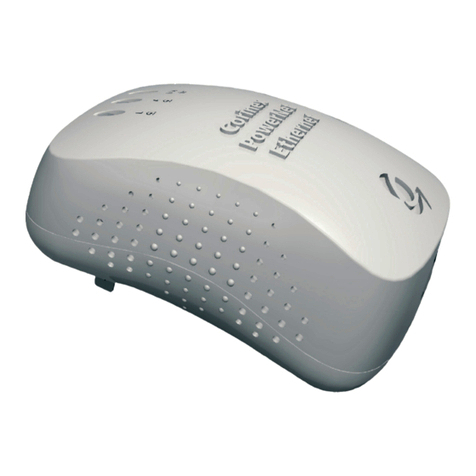
Corinex Powerline Router User manual

Corinex

Corinex Powerline Router User manual

Corinex AV CableLAN Adapter User manual
Corinex

Corinex AV CableLAN Adapter User manual

Corinex PowerNet User manual

Corinex

Corinex PowerNet User manual
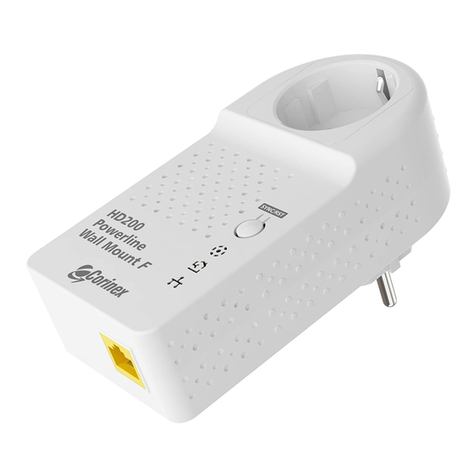
Corinex CXP-HD200-WMEFe User manual

Corinex

Corinex CXP-HD200-WMEFe User manual

Corinex AnyWire Connectivity AV200 User manual
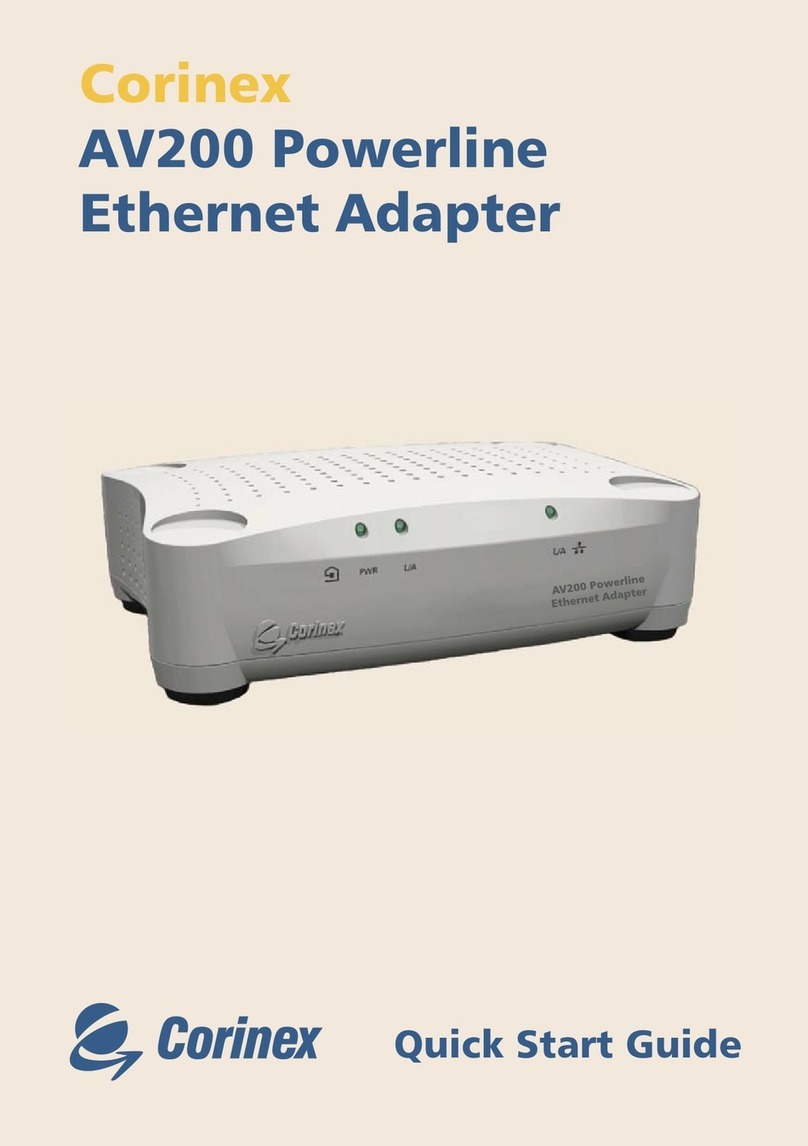
Corinex

Corinex AnyWire Connectivity AV200 User manual
Corinex AnyWire Connectivity AV200 User manual

Corinex

Corinex AnyWire Connectivity AV200 User manual

Corinex Wireless G USB Mini Adapter User manual
Corinex

Corinex Wireless G USB Mini Adapter User manual

Corinex AnyWire Connectivity AV200 User manual

Corinex

Corinex AnyWire Connectivity AV200 User manual

Corinex PoerNet User manual

Corinex

Corinex PoerNet User manual
Corinex AnyWire Connectivity AV200 User manual

Corinex

Corinex AnyWire Connectivity AV200 User manual

Corinex Intelligent PowerNet User manual

Corinex

Corinex Intelligent PowerNet User manual
Corinex Intelligent PowerNet User manual

Corinex

Corinex Intelligent PowerNet User manual

Corinex Wireless G USB Mini Adapter User manual
Corinex

Corinex Wireless G USB Mini Adapter User manual

Corinex AnyWire Connectivity AV200 User manual
Corinex

Corinex AnyWire Connectivity AV200 User manual

Corinex Corinex GameNet User manual

Corinex

Corinex Corinex GameNet User manual

Corinex AnyWire Connectivity AV200 User manual
Corinex

Corinex AnyWire Connectivity AV200 User manual

Corinex Corinex GameNet User manual

Corinex

Corinex Corinex GameNet User manual
Corinex AnyWire Connectivity AV200 User manual
Corinex

Corinex AnyWire Connectivity AV200 User manual
Popular Adapter manuals by other brands

Mini Gadgets BB2Outlet user manual

Mini Gadgets

Mini Gadgets BB2Outlet user manual

LSI LSISAS3442E-R Quick installation guide

LSI

LSI LSISAS3442E-R Quick installation guide

Moeller BBA -16 Series installation instructions

Moeller

Moeller BBA -16 Series installation instructions

Acer MWA3 quick start guide

Acer

Acer MWA3 quick start guide

Connect Tech ADG095 user guide

Connect Tech

Connect Tech ADG095 user guide

cable matters 604002 user manual

cable matters

cable matters 604002 user manual

Solwise PL-85PEW Easy start

Solwise

Solwise PL-85PEW Easy start

HP Photosmart 7100 user guide

HP

HP Photosmart 7100 user guide

HP E2494A installation guide

HP

HP E2494A installation guide

StarTech.com USB150WN1X1 quick start guide

StarTech.com

StarTech.com USB150WN1X1 quick start guide

Lindy 43198 user manual

Lindy

Lindy 43198 user manual

A&D AD-8527 instruction manual

A&D

A&D AD-8527 instruction manual

Motorola WU830G user guide

Motorola

Motorola WU830G user guide

Hawking HUF2 Specifications

Hawking

Hawking HUF2 Specifications

Allen-Bradley E3 Plus installation instructions

Allen-Bradley

Allen-Bradley E3 Plus installation instructions

Trust BT-2210Tp manual

Trust

Trust BT-2210Tp manual

HP NC7170 overview

HP

HP NC7170 overview

Uconnect BLE-485C user manual

Uconnect

Uconnect BLE-485C user manual

manuals.online logo
manuals.online logoBrands
  • About & Mission
  • Contact us
  • Privacy Policy
  • Terms and Conditions

Copyright 2025 Manuals.Online. All Rights Reserved.

Corinex AV200 Powerline and CableLAN set the pace for alternative
home networking
Tim Higgins March 24, 2006 15:20
Introduction
At a Glance
Product Corinex AV200 Powerline Ethernet and CableLAN Adapters
Summary Ethernet to powerline and coax bridges targeted at household
distribution of IPTV and other streaming media without running
CAT 5
Pros • 2X - 3X better average throughput than HomePlug Turbo
• Multicast binding and QoS and VLAN tagging
Cons • Does not interoperate with HomePlug devices (and vice versa)
• Severely interferes with HomePlug devices (and vice versa)
• QoS features difficult to configure
• Expensive (Powerline $159, CableLAN $179)
My last look at powerline networking products was in the HomePlug Turbo Adapter Round Up, where I
found that the “85 Mbps” advertised speed turned out to be typically 10 Mbps of real, usable bandwidth.
Although this is twice the 5 Mbps delivered by non-turbo HomePlug 1.0 products, it’s still borderline for
IPTV service providers, which is the target customer. The real HomePlug solution for video streaming lies
in HomePlug AV, which, unfortunately seems to remain six to nine months away - as it has for the past
year or so.
This delay has opened a market window that Madrid-based DS2 (Design of Systems on Silicon) has
attacked with a vengeance using its high speed “200 Mbps” powerline technology. DS2’s success to date
has been mostly in markets outside the U.S., since that’s mainly where the action is in IPTV right now. The
company claims an installed base of around 600,000 units with 30,000 in Spanish telecommunications
company Telefonica alone. DS2’s success seems likely to continue, given that Netgear recently
announced that it will be shipping products aimed at the IPTV market, based on DS2’s technology.
But we don’t need to wait to see what “200 Mbps” powerline networking technology is like, because
Vancouver-based Corinex is shipping its AV200 Powerline products today. This review will take an in-
depth look at Corinex’ powerline product and a shorter one at a version of the product for use with coax-
based TV distribution systems.
Product Features
The AV200 Powerline adapter doesn’t opt for “wall-wart” form factor now common in powerline adapters,
but is instead packaged in an off-white plastic enclosure about 6” X 4” X 2” (148 mm X 106 mm X 47
mm). Power, Powerline Link/Activity and Ethernet Link/Activity LEDs are arrayed across the front of the
product and the rear panel (Figure 1) contains only an AC line cord receptacle and 10/100 Ethernet RJ45
jack.
Figure 1: AV200 Powerline rear panel and specifications
Figure 2 shows the back panel of the AV200 Coax version, which differs only in the addition of a coax “F”
type connector.
Figure 2: AV200 Coax rear panel
With the proper line cord, you can connect either product to an AC supply from 85 to 265 V AC and 50
or 60 Hz. Contrary to the instructions in the Installation Guide, I found that the Ethernet port has auto
MDI / MDI-X capability built in, so you can connect any Ethernet device you like without having to find
a crossover cable.
Note that the AV200 adapters are designed as bridges and support connection of up to 64 devices, 32 of
which can be AV200 Powerline or Coax adapters.
Inside Details - Powerline
The powerline and coax AV200’s have very similar designs, differing only by a small amount of circuitry
that couples the DS2 guts to either the AC mains or a single “F” type coax connector. Figure 2 is an photo
of the inside of the AV200 Powerline version that shows that most of the interesting circuitry is hidden
by a thick aluminum heatsink.
Figure 2: AV200 Powerline Internal view w/heatsink
Figure 3 shows the heatsink removed so that you can see the DS2 DS9001A processor and DSS7700S
analog front end devices (the DS9001A has white heatsink compound on it). The other ICs used in the
design are RAM, flash (on the underside of the board) and a Realtek RTL8201CL Single-Port 10/100M
Fast Ethernet PHYceiver.
Figure 3: AV200 Powerline Internal view w/o heatsink
The component grouping at the top of Figure 3 is the power supply. You can also see the coupling
transformer and associated components clustered near the power receptacle, which connect the AC
line and DS2 circuitry. You can also see empty mounting pads for the coax connector and its coupling
transformer, which are not loaded in the powerline version at the bottom center of the photo.
Inside Details - Coax
Figure 4’s photo shows the AV200 Coax inside view, which as noted above, is very similar to the powerline
version. You can see that the AC line coupling components in the lower right-hand corner are not loaded
in this version, but you’ll have to refer to Figure 5 to see the coax connector coupling components.
Figure 4: AV200 Coax Internal view w/heatsink
If you carefully compare the larger versions of Figures 3 and 5, you can see that the coax version board
is slightly different, with a cluster of passive components that have no blank mounting pads in the
powerline version of the board.
Figure 5: AV200 Coax Internal view w/o heatsink
Figure 6 provides a view of the underside of the coax version board, which has a string of passive
surface-mount components running in a line up from the left side of the coax connector. The mounting
pads for these components are also not present on the powerline version of the board. You can also see
the single flash memory device with its firmware revision label toward the right side of the board.
Figure 6: AV200 Coax Internal view board bottom
Setup And Administration
Both the AV200 adapters come set so that they will just plug and play if you don’t feel the need to mess
with their settings. Like HomePlug adapters, they use a Network Identifier to let you keep your network
separated from your neighbor’s. It ships with a blank setting, which is essentially as good as the default
“HomePlug” that the other guys use. This Network Identifier also serves as the key for the combination
of DES and 3DES encryption used to secure data between AV200 adapters.
Both AV200 adapters are a bit unusual for these types of devices in that the adapters have IP
addresses and built in web-based administration. I’ll touch on both as I describe the devices’ settings. The
AV200 comes with its IP address set to 10.10.1.69, so Corinex’ Quick Start Guide advises changing the
computer you use to set up the adapter to an IP of 10.10.1.1. Of course, since all adapters come set
to the same IP address, you should power up only one device at a time if you want to access its web-
based admin features. Figure 7 shows the main page of the web admin that you are presented with upon
login.
Figure 7: Web-based admin main page
The interface departs from the design found in most networking devices in that it doesn’t have a
navigation bar to direct you to its various sections. Instead, there are only the subtle “Further
information” and “Change configuration” links that aren’t even underlined to help announce their
existence. The PLC Connections section shows information about other connected AV200 powerline
devices, including the Phy receive and transmit throughput. The “Phy” rate is that of the physical
interface, i.e. the best-case “raw” bit rate. Of course, you’ll never get this throughput in your actual
network connection, but it’s the same game played by every other networking product manufacturer.
If you are running Windows, you can opt to install the AV200 Configuration Utility, which has its settings
organized into separate pages, instead of the single long page used by the web interface. The other plus
the Utility provides is that you don’t need to futz with your computer’s IP address settings, since the
utility can find and connect to AV200 adapters with any LAN IP address scheme. Note that this utility is
relatively new and didn’t come on the CD included with the product. Corinex said the utility has since
been added to the CD, but it would be nice if it were also posted for download.
Figure 7: Corinex Setup Tool Search screen
Figure 7 shows the Windows-based Configuration Utility’s opening screen. The Search for devices button
will find only “locally connected” AV200 devices, which means that they need to plugged into the same
Ethernet LAN that the computer running the Utility is on. Once you find a device, you just double click on
it to proceed into the admin and status pages of the Utility.
Alternatively, if you have copied down the MAC address from the label on the bottom of each of your
AV200 devices, you can enter it into the MAC address field at the right of the page and click the Configure
button. I think I prefer the utilities that came with the HomePlug Turbo devices I recently reviewed, an
example of which is shown in Figure 8.
Figure 8: NETGEAR Utility Main screen
Both the Windows application and the web-based admin provide access to the same status information
and configuration options, so I’ll mostly show the Windows app, since its screens are better organized.
Many of the controls (Multicast, VLAN, QoS) appear to be intended for use by the AV200’s primary
target market, IPTV service providers, with settings that are fairly cryptic. The User Guide at least
explains what each setting is intended to do, but falls a bit short on providing consumer-level guidance
on the how, when and why.
The MAC page lets you force an AV200 to End Point (EP) or Access Point (AP) mode - the latter only if
you’ve entered a Network Identifier, however. Each AV200 network has a single AP and up to 31 EPs, with
APs in charge of sharing channel access within the nodes of each network. If two or more networks share
the same power lines, one of the access points becomes a “QoS Controller” (QC), which is responsible for
controlling how the multiple networks share the OFDM spectrum to avoid collisions and interference. This
determination is normally made automatically, and these settings are mainly needed in situations such
as apartment buildings or hotels, where multiple networks might need to share the same power grid.
NOTE: Both HomePlug and DS2 200 Mbps based devices use OFDM as part of their base
technologies. OFDM is a modulation technique also used by ADSL modems and 802.11a and g wireless
networking products.
The Network Settings page contains the IP address controls for the device, letting you set static IP
information or change to having the AV200 pick up the info via DHCP.
Figure 9 shows the PHY settings page, which I’ve included because I thought its function was interesting,
if not a bit cryptic. All you get is Enable / Disable, so enable at your own risk.
Figure 9: PHY settings
Multimedia content is often distributed using IP multicasting, which allows the same content to be more
efficiently delivered to multiple recipients. Figure 10 shows the AV200’s Multicast settings, which allow
bindings between adapter MAC addresses and multicast IP addresses. No bindings are set by default, and
the results are saved in the adapter’s non-volatile RAM (NVRAM).
Figure 10: Multicast settings