manuals.online logo
Brands
  1. Home
  2. •
  3. Brands
  4. •
  5. D-Link
  6. •
  7. Network Router
  8. •
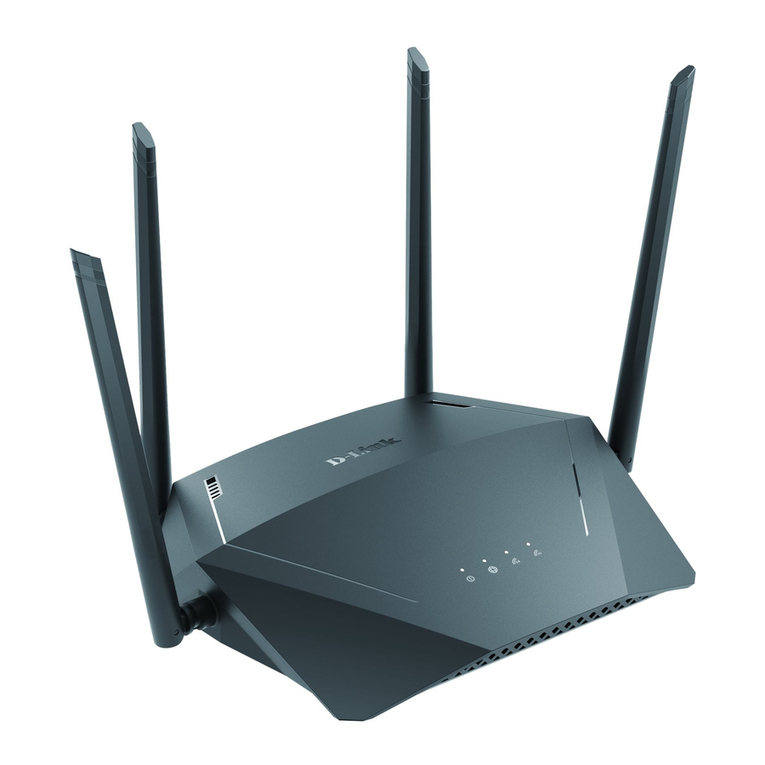
  9. D-Link DIR-X4860 User manual

D-Link DIR-X4860 User manual

Other D-Link Network Router manuals

D-Link DIR-825/AC User manual

D-Link

D-Link DIR-825/AC User manual

D-Link EXO AX DIR-X1870 User manual

D-Link

D-Link EXO AX DIR-X1870 User manual

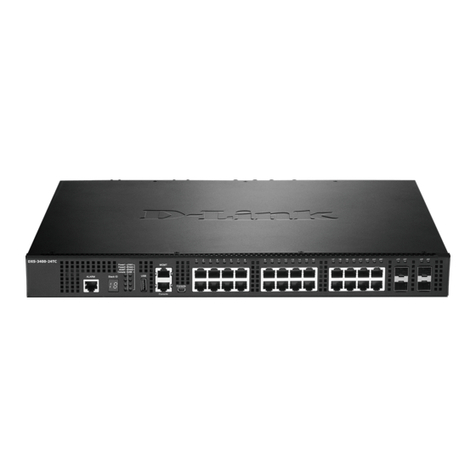
D-Link xStack DES-3200 Series User manual

D-Link

D-Link xStack DES-3200 Series User manual

D-Link DIR-615 - Wireless N Router User manual

D-Link

D-Link DIR-615 - Wireless N Router User manual

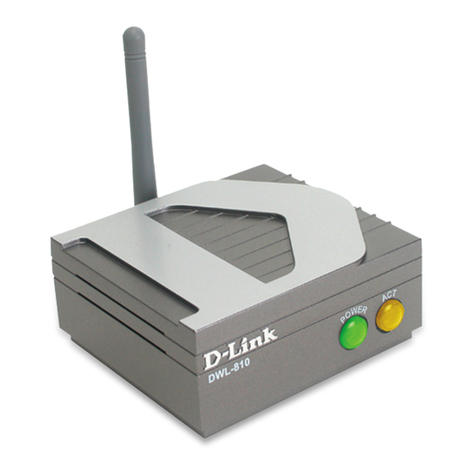
D-Link Air DWL-810 User manual

D-Link

D-Link Air DWL-810 User manual

D-Link DSR-150 User manual

D-Link

D-Link DSR-150 User manual

D-Link AirPremier N DAP-2690 User manual

D-Link

D-Link AirPremier N DAP-2690 User manual

D-Link D-Link User manual

D-Link

D-Link D-Link User manual

D-Link DIR-850L User manual

D-Link

D-Link DIR-850L User manual

D-Link DVG-5008S User manual

D-Link

D-Link DVG-5008S User manual

D-Link mydlink DSP-W215 User manual

D-Link

D-Link mydlink DSP-W215 User manual

D-Link DSL-224 User manual

D-Link

D-Link DSL-224 User manual

D-Link DES-1526 User manual

D-Link

D-Link DES-1526 User manual

D-Link DES-3010G User manual

D-Link

D-Link DES-3010G User manual

D-Link 2Voice + 4SW VoIP Router DVG-1402S User manual

D-Link

D-Link 2Voice + 4SW VoIP Router DVG-1402S User manual

D-Link DIS-200G-12S User manual

D-Link

D-Link DIS-200G-12S User manual

D-Link DSL-514 User manual

D-Link

D-Link DSL-514 User manual

D-Link DIR-619L Instruction Manual

D-Link

D-Link DIR-619L Instruction Manual

D-Link DIR-506L User manual

D-Link

D-Link DIR-506L User manual

D-Link DES-3204 User manual

D-Link

D-Link DES-3204 User manual

D-Link DFL-900 User manual

D-Link

D-Link DFL-900 User manual

D-Link DES-1016D - Switch User manual

D-Link

D-Link DES-1016D - Switch User manual

D-Link DIR-640L User manual

D-Link

D-Link DIR-640L User manual

D-Link xStack DGS-3324SRi User manual

D-Link

D-Link xStack DGS-3324SRi User manual

Popular Network Router manuals by other brands

NETGEAR JNR3210 null

NETGEAR

NETGEAR JNR3210 null

Allnet ALL0333AU user guide

Allnet

Allnet ALL0333AU user guide

HomeSeer HT-SEL Getting started guide

HomeSeer

HomeSeer HT-SEL Getting started guide

Sercomm Genesis OC3505D Quick installation guide

Sercomm

Sercomm Genesis OC3505D Quick installation guide

Billion BIPAC 5102 Series user manual

Billion

Billion BIPAC 5102 Series user manual

TP-Link TD-8817 QIG

TP-Link

TP-Link TD-8817 QIG

Motorola MR1900 user guide

Motorola

Motorola MR1900 user guide

Digi IX14 user guide

Digi

Digi IX14 user guide

Cisco NCS 540 Hardware installation guide

Cisco

Cisco NCS 540 Hardware installation guide

XAVi X8821e user manual

XAVi

XAVi X8821e user manual

BEC 6200WZL Quick installation guide

BEC

BEC 6200WZL Quick installation guide

MikroTik hAP ac3 Series quick start

MikroTik

MikroTik hAP ac3 Series quick start

Korenix JetNet 5428G Series user manual

Korenix

Korenix JetNet 5428G Series user manual

NETGEAR FS526T - Switch installation guide

NETGEAR

NETGEAR FS526T - Switch installation guide

Automated Logic ZN551 Technical instructions

Automated Logic

Automated Logic ZN551 Technical instructions

Cisco ASR 1000 Series Installation and configuration guide

Cisco

Cisco ASR 1000 Series Installation and configuration guide

EnGenius ESR-9710 quick start guide

EnGenius

EnGenius ESR-9710 quick start guide

Cisco 805 Series Product overview

Cisco

Cisco 805 Series Product overview

manuals.online logo
manuals.online logoBrands
  • About & Mission
  • Contact us
  • Privacy Policy
  • Terms and Conditions

Copyright 2025 Manuals.Online. All Rights Reserved.

INSTALLATION
• AX4800 Mesh Wi-Fi 6 Router
• 2 x Detachable Antennas
• Power Adapter
• Ethernet Cable
• Quick Installation Guide
• Quick Installation Card
You’re all good to go! Once the setup is complete, you can connect your devices using the Wi-Fi name (SSID) and password that you
created during the setup. Enjoy the Internet!
ENGLISH
PACKAGE CONTENTS
OPTION 1 DLINK WIFI APP SETUP WEB BROWSER SETUP
OPTION 2
ANTENNA SETUP
Quick Installation Guide
DIR-X4860
AX4800 Mesh Wi-Fi 6 Router
Download the D-Link Wi-Fi app and launch it.
Attach the antennas to the router by twisting them on in a clockwise direction as demonstrated in the diagram below. Keep the router in an open area for
better wireless coverage.
1 /
1 /
Tap Install New Device. Scan the QR code on the Quick
Installation Card. Follow the on-screen instructions to complete
the setup.
2 /
D-Link Wi-Fi
D-Link Wi-Fi
Plug the router into a power source. Make sure that the power button
is on. Wait for the wireless LED’s to be lit solid.
1 /
Connect your computer to the Wi-Fi details printed on the Quick
Installation Card. Type http://dlinkrouter.local./ or http://192.168.0.1
into a web browser. You will be asked for your Device/Admin Password.
By default this password is“password”. Type that in and follow the on-
screen instructions to complete the setup.
2 /
2.4 5G
QUICK INSTALLATION CARD
www.dlink.com
Model Name: DEVICE
Wi-Fi Name: dlink-XXXX
Password: XXXXXXXX
S/N: 123456789
SETUP QR CODE
dlink-xxxx
Connect
xxxxxxxxx
xxxxxxxxx
http://dlinkrouter.local./ IIAdmin Password = passwordII
Admin Password:
QUICK INSTALLATION CARD
www.dlink.com
Model Name: DEVICE
Wi-FiName: d-link-XXXX
Password: XXXXXXXX
S/N: 123456789
SETUP QR CODE
Wi-Fi Name: dlink-XXXX
Password: XXXXXXXX

ENGLISH
VOICE ASSISTANTS
Why can’t I access the web-based conguration utility?
Verify that http://dlinkrouter.local./ or http://192.168.0.1 has been
correctly entered into your Web browser. Make sure that you are
connected to the correct Wi-Fi Name/SSID and password printed on the
Quick Installation Card.
Why can’t I access the Internet?
Ensure that your modem/gateway is powered on. Also ensure that the
Ethernet cable is securely connected to both the router and modem.
Verify that the Internet LED is illuminated on your router. If you still cannot
access the Internet, power off your modem and router and power them
back on, wait until all the LED’s are lit and try again.
What do I do if I forgot my Wi-Fi password?
If you forgot your password, you must reset your router. This process will
revert all of your settings back to the factory defaults.
How do I restore the router to its factory default settings?
Locate the reset button on the rear panel of the router. With the router
powered on, use a paper clip to hold the button down for 10 seconds.
Release the button and the router will go through the reset procedure.
FREQUENTLY ASKED QUESTIONS
?
This D-Link product includes software code de-
veloped by third parties, including software code
subject to the GNU General Public License (“GPL”)
or GNU Lesser General Public License (“LGPL”). As
applicable, the terms of the GPL and LGPL, and
information on obtaining access to the GPL code
and LGPL code used in this product, are available
to view the full GPL Code Statement at:
https://tsd.dlink.com.tw/GPL
The GPL code and LGPL code used in this product
is distributed WITHOUT ANY WARRANTY and is
subject to the copyrights of one or more authors.
For details, see the GPL code and the LGPL code
for this product and the terms of the GPL and
LGPL.
Written Oer for GPL and LGPL Source Code
Where such specific license terms entitle you
to the source code of such software, D-Link will
provide upon written request via email and/or
traditional paper mail the applicable GPL and LG-
PLsource code files via CD-ROM for a nominal cost
to cover shipping and media charges as allowed
under the GPL and LGPL.
Please direct all inquiries to:
Snail Mail: Email:
Attn: GPLSOURCE REQUEST
D-Link Systems, Inc.
14420 Myford Road, Suite 100
Irvine, CA 92606
GPLCODE@dlink.com
GPL CODE STATEMENT
i
2021/06/09_90x130 v1.10(US) 610000011450
Amazon Alexa Setup for D-Link Wi-Fi
https://www.dlink.com/en/alexa
The Google Assistant Setup for D-Link Wi-Fi
https://www.dlink.com/en/google-assistant
Having trouble installing your new product? D-Link’s website
contains the latest user documentation and software updates for
D-Link products. Customers can contact D-Link Technical Support
through our website or phone by choosing the relevant region.
TECHNICAL SUPPORT
United States
Website: http://support.dlink.com
Telephone: (877) 453-5465
Canada
Website: http://support.dlink.ca
Telephone: (800) 361-5265
This device is complies with Part 15 of the FCC Rules. Operation is subject
to the following two conditions:
(1) The device may not cause harmful interface, and
(2) this device must accept any interface received, including interface that
may cause undesired operation.
FCC WARNING
i
QUICK INSTALLATION CARD
www.dlink.com
Model Name: DEVICE
Wi-Fi Name: d-link-XXXX
Password: XXXXXXXX
S/N: 123456789
SETUP QR CODE
Wi-Fi Name: dlink-XXXX

Password: XXXXXXXX