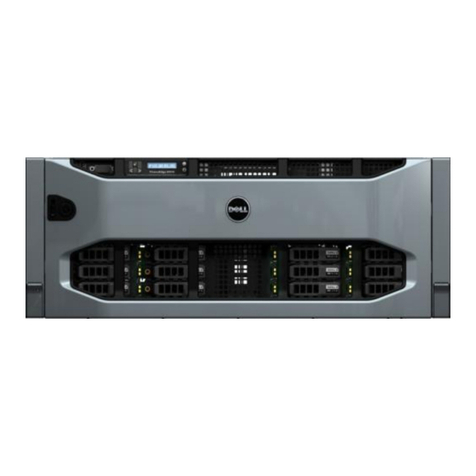
Dell PowerEdge SE400 User manual
Other Dell Server manuals
Dell
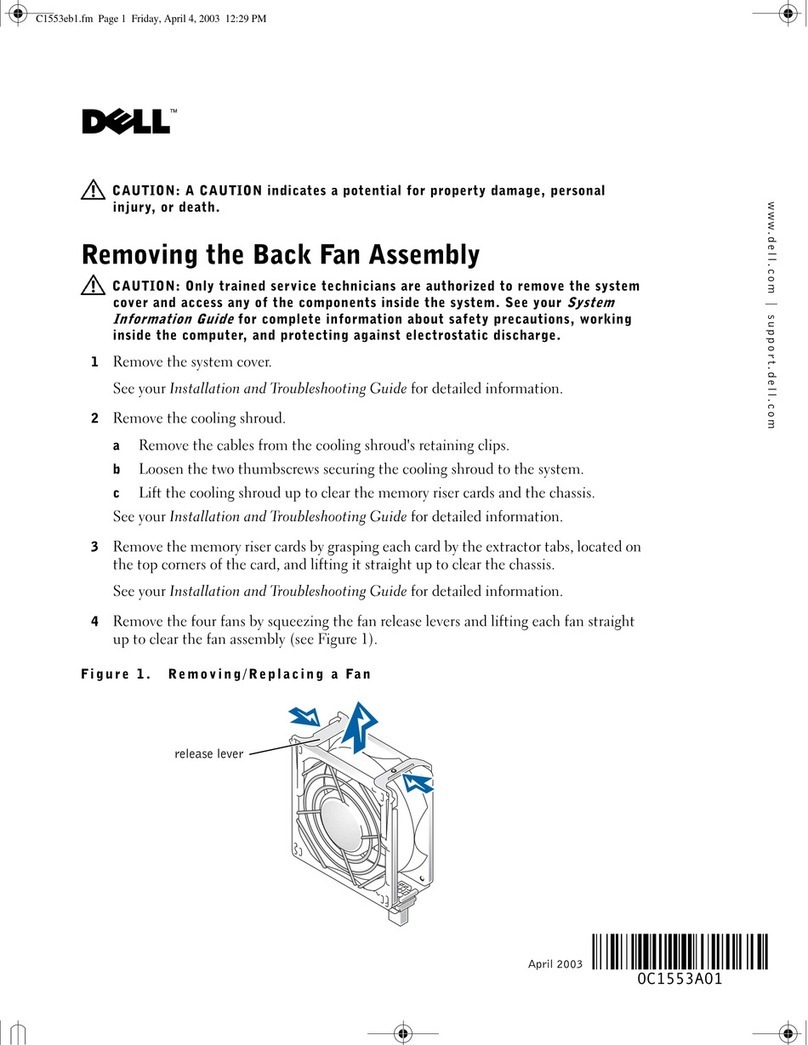
Dell PowerEdge 4600 User manual
Dell
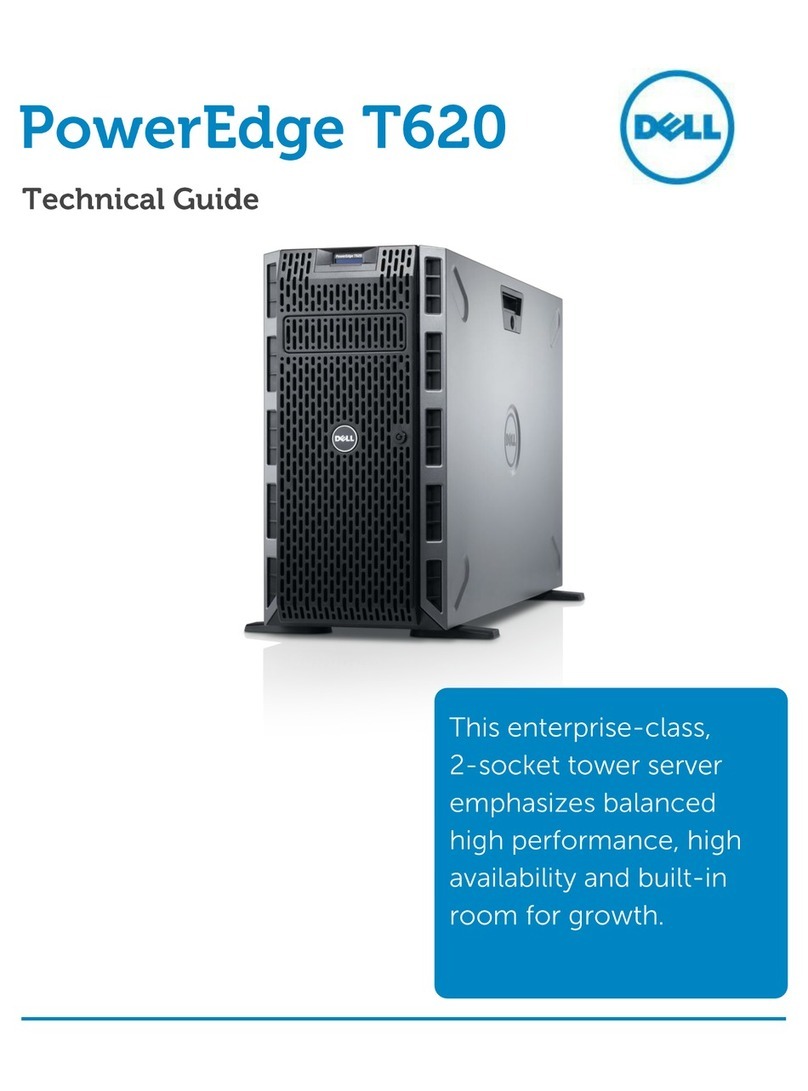
Dell PowerEdge T620 Quick start guide
Dell
Dell PowerEdge FD332 User manual
Dell
Dell PowerVault DL2300 User manual
Dell
Dell PowerEdge R310 User manual
Dell
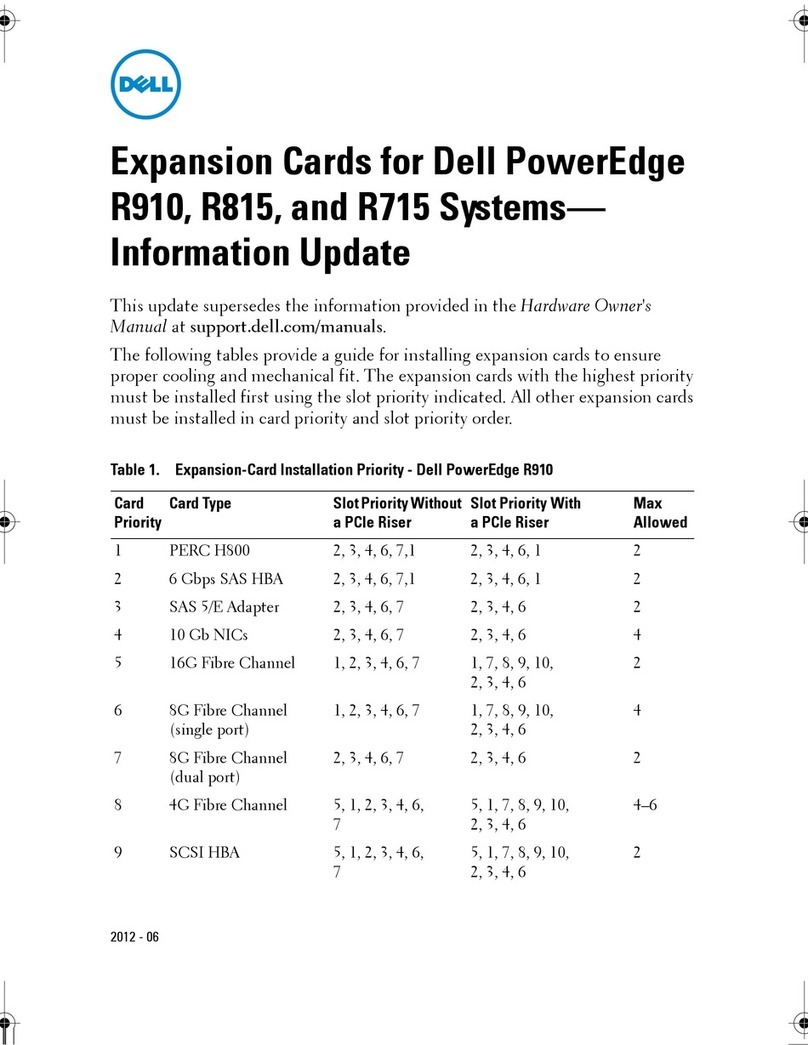
Dell PowerEdge R910 Technical manual
Dell
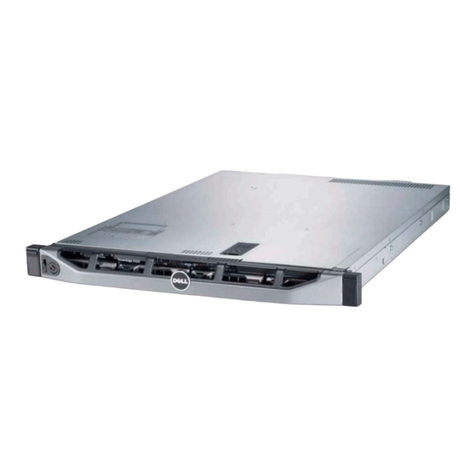
Dell PowerEdge R320 Quick start guide
Dell
Dell PowerEdge R905 User manual

Dell
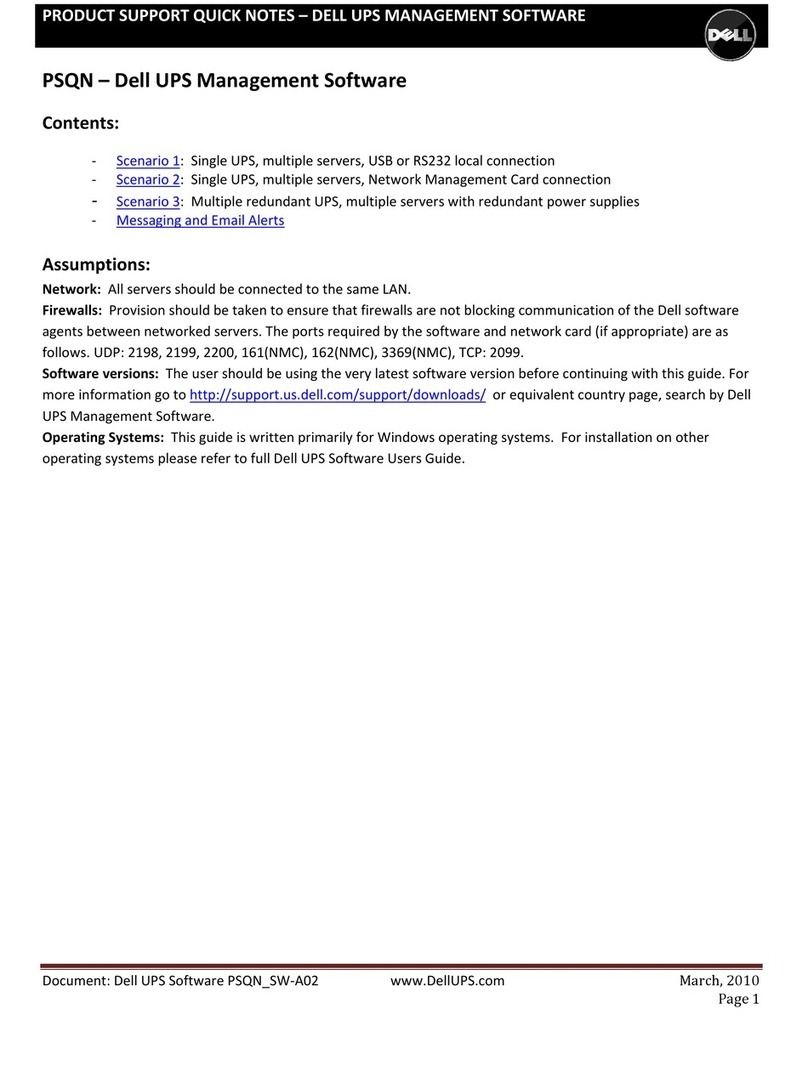
Dell EMC Connectrix EC-1700 Series User guide
Dell
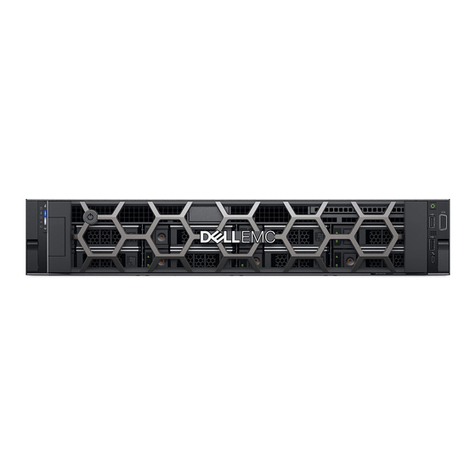
Dell PowerEdge UPS 500T User manual
Dell
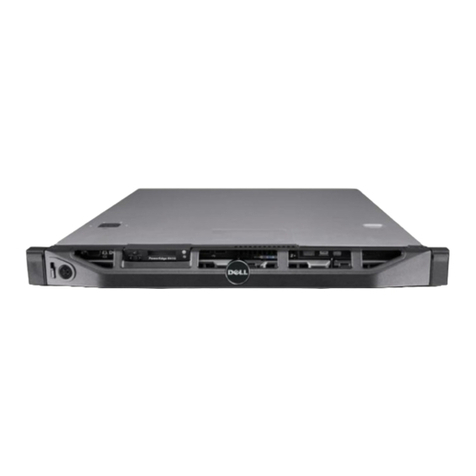
Dell EMC PowerEdge R7515 User manual
Dell
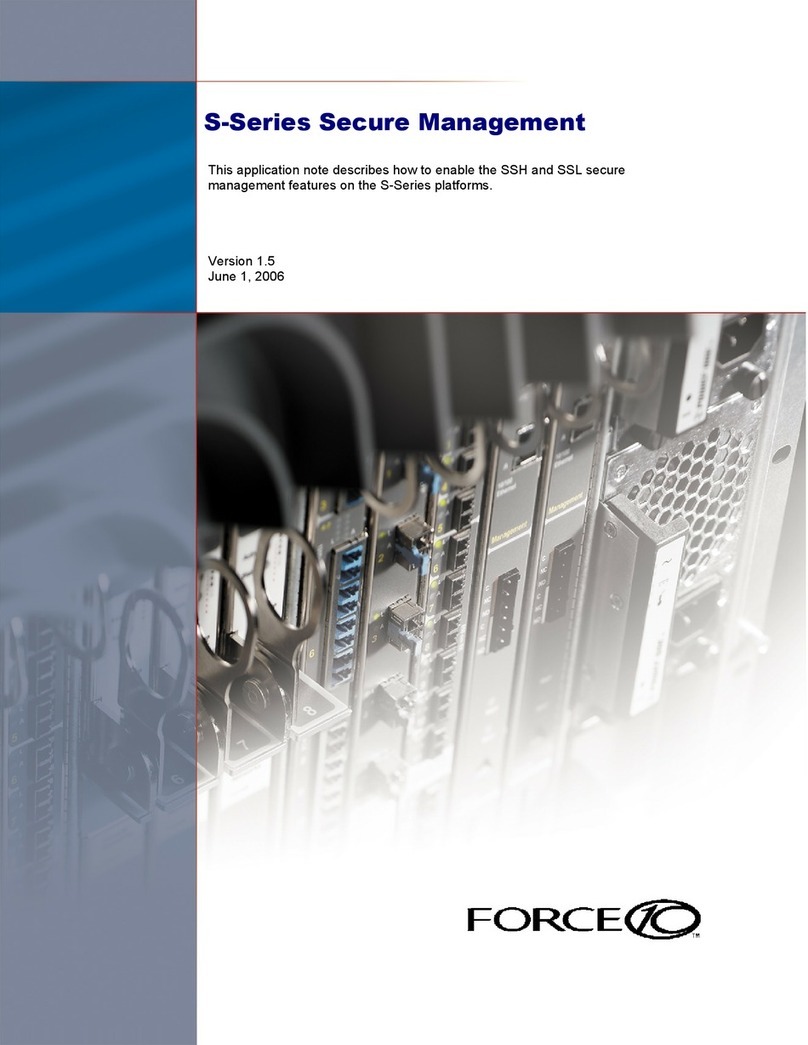
Dell PowerEdge R410 User manual
Dell
Dell Force10 S2410-01-10GE-24P Installation and operating instructions

Dell
Dell PowerEdge T20 Series User manual
Dell
Dell PowerApp 110 User manual

Dell
Dell PowerEdge M610 Quick start guide
Dell
Dell PowerEdge C410X User manual
Dell
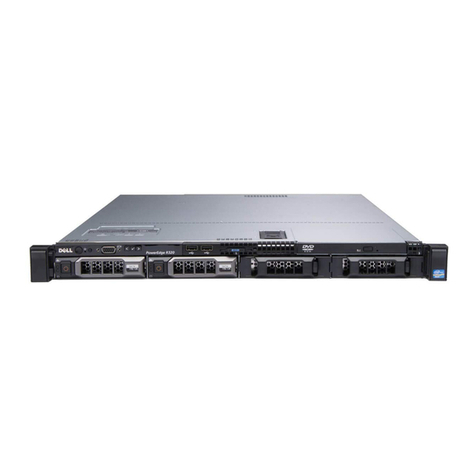
Dell PowerEdge R320 Technical manual
Dell
Dell 8TTX3 Manual
Dell
Dell PowerEdge T310 User manual