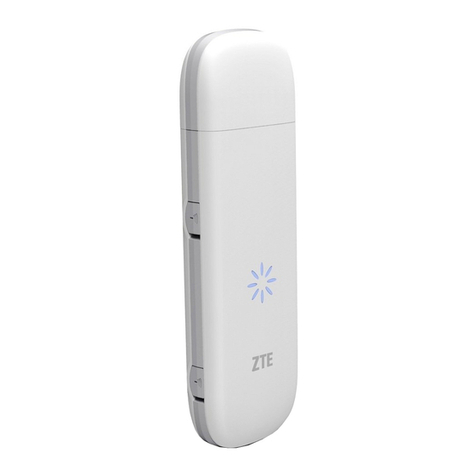
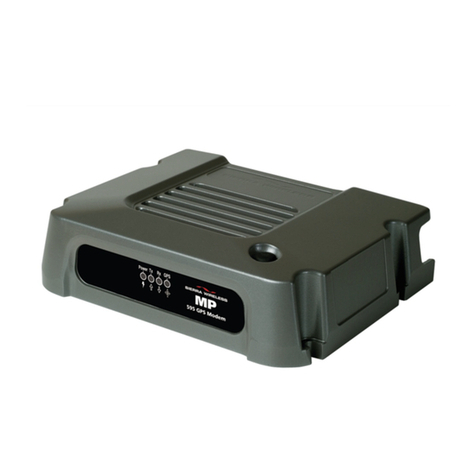
Digimobile Diginet User manual

net
User Guide
USB Modem
V 1.0

At DIGI mobil we want to oer you the easiest way to navigate on the Internet and be
always informed. DIGI net (Internet using USB modem) allows you to connect to the
Internet using your PC computer or tablet with the máximum 3G speed oered by DIGI
mobil.
This guide will help you using DIGI net Service with your new USB modem.
The DIGI net USB modem allows you to :
Browse the Internet: you will be able to access the Internet anytime and
anywhere, using the best network in Spain.
Browse the Internet in Spain and Romania: you will be able to use the DIGI net
USB modem to connect to the Internet in Spain and, also, in Romania.
Check your emails: you will be able to check your email account wherever you
are.
42
net Welcome to DIGI mobil

Send and receive SMS´s: using the same application, you will be able to send and
receive short text messages.
Organize your contacts: the application will allow you to save the frequently used
numbers in order to send them SMS´s.
Connect to Mi cuenta DIGI (My DIGI Account): you will be able to manage the
services that DIGI mobil oers you and access to all the information about them in the web
page https://micuentadigi.digimobil.es/en/
43
net
1200 (Customer Care Service – free of charge from DIGI mobil network)
642.642.642(Customer Care Service – for calls from other networks)
www.digimobil.es
For more information, you can reach us at:

The activation of the DIGI net service will be complete once the following steps are
completed: 1. insert the SIM into your modem (if it is not already inserted), 2. install the
application on your PC, 3. insert the PIN code and 4. connect for the rst time to DIGI net
with the USB modem.
In any case, to complete the activation, the client must have been duly identied with a
valid identication document and giving its correct and exact information.
44
net
Installing and activating the DIGI net service.
1. Preparing
the modem
2. Installing
the application
3. Introducing
the DIGI net
Pin code
4. Connection

1. Open the back cover and pull it o from the modem .
2. Insert the SIM card and the micro SD if you have one, into the appropiate slots, as
shown in the following image.
3. Replace the cover and slide it back to the original position.
45
net
TarjetaSIM
TarjetaM icroSD
1. Preparing
the modem
Follow the instructions below to insert the DIGI net SIM card in the USB
modem (if it isn´t already inserted) and connect the modem to a USB port
in your computer or tablet. We also recommend to check the Quick guide
included with the modem.

Note: The microSD is an optional accessory. If the product you have purchased doesn’t
include it, you may buy it by yourself.
Please make sure you’ve inserted the SIM card and the microSD card correctly, according
to the direction of the drawing shown in your equipment.
Don’t remove the microSD card or the SIM card while in use. The modem or the data
from your card might be damaged.
When you connect the USB modem for the rst time, it will be necessary to install the
DIGI net application that works the modem and connects you to Internet. This application
depends on your opperating system. The conguration of your modem may take a few
minutes and you will have to follow several steps (see the Quick Guide attached).
2. Install
DIGI net
application
Now you need to install the DIGI net application in your device. The
following steps will help you install it in a PC using Windows operating
system.
46
net

Press “Siguiente”.
47
net
If the window of the automatic
installation does not appear, it will be
necessary to install the application from the
new drive taht appears . Double – click on the
le “Autorun.exe”
An installation wizard will help you installing the DIGI net application. Select
the language “Spanish “ (or any other language you like) and then press ”OK”.
INSTALL GUIDE
Once you’ve installed the les, the following window will appear in
your screen.

48
net
You have to click “Acepto” button in order to install the
application.
In the next step, you have to choose the
folder where you wish to install the
application (we reccomend you to choose
the default one) and then click “Next”..
Next, you will have to choose the folder to install the
shortcut in your windows start menu for an easier access to
the application (we recommend you to accept the default
name) and then press “next”.
Next, the installation will begin. Please wait untill the installation is complete. Once it is
nished, click “Terminar”

49
net
The PIN code and the PUK code of your DIGI net SIM card are written on the plastic card
where you can nd the SIM card as well. Keep these codes in a safe place. For your safety, we
recommend that you change your PIN code using the DIGI net application (Menu-Tools –
Pin Operations – change PIN) in order to prevent a fraudulent use.
The DIGI net application has been succesfully installed in your pc.
A new window with the application will automatically appear (if it
doesn’t, you may open it manually from your Windows start menu).
The application will ask you to type the PIN code of your
DIGI net SIM card in order to continue.
3. Introducing
the DIGI net
Pin code

50
net
In case you enter a wrong PIN code for three consecutive times, your SIM card will be
blocked and you will have to enter the PUK code written on the plastic card, next to the PIN
code. In case you don’t have access to this code, you can call Customer Care Service 1200
(free of charge within DIGI mobil network) or 642.642.642 (for calls made from other
networks).
VERY IMPORTANT: If the application doesn’t ask for you for the PIN code, ensure that
the SIM card is correctly inserted into the modem.
After you enter the PIN code, the next window will show you the default prole,
DIGI mobil (DIGI ES).
Table of contents