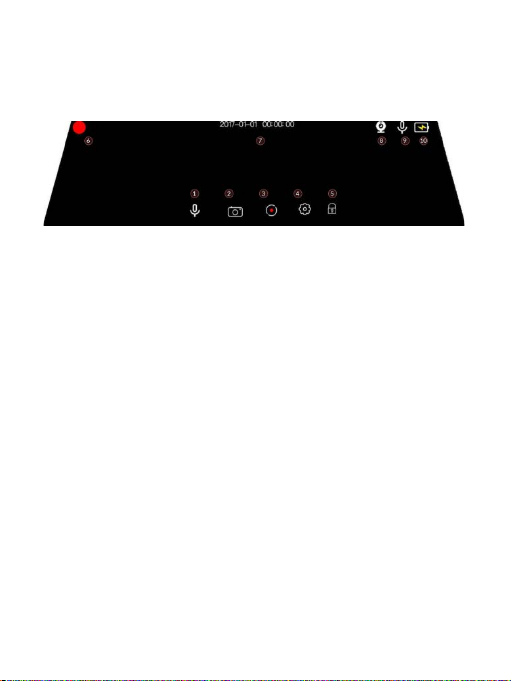
Video Recording Mode Setting
Tips:How to turn on the setting menu?
Slides down the 1/3 part of the screen to the setting menu or clicks the setting button
when in the video or standby state。
Video Recording Setting Interface
•Resolution (Front + Rear):2K + 1080P / 1080P +2K
•Split Time : 1 MIN / 3 MIN / 5 MIN
The dash cam records video to the camera Micro SD card automatically when start the
car engine, and saves the recorded video automatically when the car engine is off . If the
memory card is full, the device will automatically overwrite the video recorded earlier.
The time period for loop recording can be set to 1 minute/3 minutes/5 minutes.
•Time Lapse: OFF / 1S / 2S / 3S
Adjust the time lapse.The dash cam can record all the time in working status.In order to
use the storage of TF card efficiently.You can set the time lapse in four mode:OFF / 1S /
2S / 3S.When the dash cam identify the recording is almost in stationary status,The video
display speed will increase when you playback.When the dash cam identify the recording
is in motion status,The video display speed is still normal when you playback.
•Record Audio: OFF / ON
Turn on/off the recording audio. It is suggested to turn on this function.
•G-Sensor: OFF / LOW / MIDDLE / HIGH
With built-in G-sensor, dash camera can automatically detect a sudden shake/collision
and lock the footage to prevent the video from being overwritten even in loop recording.
Accident scene can be truly restored.
•Parking Monitor: OFF / LOW / MIDDLE / HIGH
With the parking monitor feature, the dash camera will automatically turn on and record
when the car camera detects vibration OR dash cam will capture frames for a time lapse
video for 20 seconds.
•License: OFF / ON
Add your car license into the video recording
-8-