Dreamus Astell & Kern PPS22 User manual


CONTENTS
Package Contents
Product Overview
Power Management
Charging
Connections
Firmware Updates
02
03
05
06
07
13
Getting Started _01
Basic Operations
Home Screen
Notification Bar
Using Open APP Service
AK CONNECT
AK File Drop
Listening to Music
Playlist Management
USB DAC Installation
How to Use USB Audio
CD Ripping
AK CD-Player
Car Mode
Bookmark Function
Favorites Function
Settings
Connecting to Wi-Fi
Using Bluetooth
Equalizer Setup
Using the Device _02
Safety Pre-Cautions
Troubleshooting
Copyright
Certifications
Registered Trademarks
Disclaimers
Specifications
14
19
21
24
25
30
32
35
38
39
40
42
43
44
45
46
54
55
58
61
63
64
65
67
68
69
Miscellaneous _03

User Guide
Contents may be changed without prior notice to improve the
performance or quality of the product.
Package
Contents
Getting Started 02
Protective Film: Protect the device and its screen.
microSD Card Slot Cover: The cover is used to protect the
microSD card slot when not in use. It is installed in the
product by default.
USB Type-C Cable: For charging and data transfer.
Quick Start Guide: Basic overview of device functionality.
Warranty Card: Provides warranty details for your device.
Maintain a copy of this card as it may be required for future
technical support requests.
User Guide: The User Guide can be downloaded from the
Astell&Kern website.
[http://www.astellnkern.com > Support > Download]
Quick Start Guide
& Warranty Card
USB Type-C CablemicroSD Card
Slot Cover
Protective FilmPPS22

Getting Started
03
User Guide
The appearance of the product, as well as the printed and
engraved information, may vary depending on the model.
Product
Overview
microSD Card Slot
LCD Touchscreen
2.5mm Balanced Port
4.4mm Balanced Port
3.5mm Unbalanced Port
Volume
Power Button
Previous/Rewind
Play/Pause
Next/
Fast-Forward
USB Type-C Port

Power: - Power symbol.
Short press - Turns the screen on or off.
Press and hold - Turns the device on or off.
Volume: Turn the wheel to adjust the playback output
volume level.
3.5mm Unbalanced Port:
- 3.5mm Unbalanced Port symbol.
For audio output, connect earphones or headphones that
utilize a 3.5mm jack.
4.4mm Balanced Port: - 4.4mm Balanced Port symbol.
For audio output, connect earphones or headphones that
utilize a 4.4mm jack.
2.5mm Balanced Port: - 2.5mm Balanced Port symbol.
For audio output, connect earphones or headphones that
utilize a 2.5mm jack.
Previous/Rewind:
Short press - Play the previous song or restart the current
song.
Press and hold - Rewind the current song.
Play/Pause: Play or pause the current song.
Next/Fast-Forward:
Short press - Play the next song.
Press and hold - Fast-forward the current song.
LCD Touchscreen: Display screen with touch control features.
microSD Card Slot: - microSD Card Slot symbol.
Insert a microSD card to access its files.
USB Type-C Port: - DC Power symbol.
For charging and data transfer.
User Guide
Getting Started
04

Getting Started
05
User Guide
Resetting the device will not affect stored data or time settings. Do
not use the reset function while the product is in use. Doing so may
corrupt the data on the device.
This device has an automatic timeout feature to save battery power.
The screen will turn off if there is no user input during the period
defined in [Menu - Settings - Timer Settings - Screen Timeout]. (See
Page 51)
Reset Function
1. In case of unexpected device failure or freeze, press and
hold [Power] for 7 seconds to force a shutdown. The device
can then be restarted after the shutdown is complete.
Turning the Screen On/Off
1. While the screen is on, press the [Power] button to turn
off the screen.
2. Press [Power] button again to turn it on.
This device has an automatic shutdown feature to save battery
power. The device will turn off if there is no user input during the
period defined in [Menu - Settings - Timer Settings - Auto Power
Off] (See Page 51)
Powering the Device On/Off
1. Press and hold the [Power] button to turn on the device.
2. While the device is on, press and hold the [Power] button
to shut down the device. A confirmation message
will appear.
3. Press [OK] to turn off the device.
Power
Manage-
ment

User Guide
Getting Started
06
Normal charging: Approx. 5 hours (Fully discharged, Power-off, 5V
2A adapter)
The manufacturer shall not be responsible for problems caused by
the use of adapters that do not adhere to the recommended
specifications.
Charging via USB Wall Adapter
1. Commercially available 5V 2A output adapters may be used
for charging.
Charging
Getting Started
07
User Guide
Connec-
tions
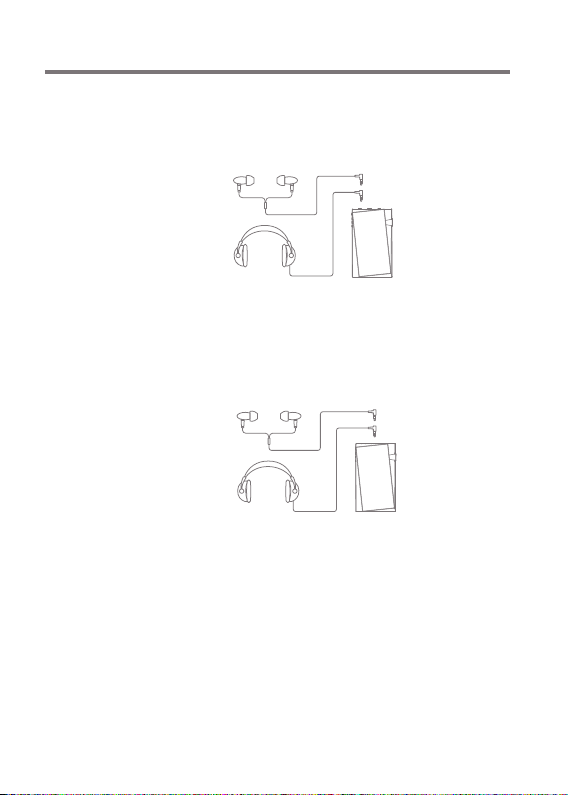
3.5mm Unbalanced Port
1. Connect earphones or headphones to the 3.5mm
unbalanced port.
OR
2.5/4.4mm Balanced Port
1. Connect earphones or headphones that support a 2.5mm
or 4.4mm headphone jack to the 2.5mm or 4.4mm balanced
port.
OR

Getting Started
08
User Guide
Connecting to a Balanced Audio Device
1. Connect to an external audio device by using the 3.5mm
unbalanced port and 2.5mm balanced port.
Unbalanced Port
(Ground)
Balanced Port
(LR)

Getting Started
09
User Guide
Connecting to a Computer
1. Turn on the device and your computer.
2.
Use the USB Type-C cable to connect the device to a computer
in accordance with settings in [Menu - Settings - USB Mode].
[Default] Media Device (USB Drive): Transfer files from a
computer to the device.
DAC Input: Listen to music on a connected computer
through the device. (See Page 39)
Mac users need to download and install Android File Transfer from
the Astell&Kern website. [http://www.astellnkern.com > Support >
Download]
For an optimal connection, quit any unnecessary programs before
connecting the device to the computer.
Do not use cables other than the USB Type-C cable provided with the
device. Doing so may cause malfunctions.
Use USB 2.0 only on Mac.
Type-C-to-Type-C cable is recommended when connecting with a
MAC that supports Type-C port.
When a USB connection is established while playing a DSD or DXD
file, a mode selection pop-up box will appear with the following
options:
External device connection: Connect the player to the computer to
transfer files, USB DAC for audio playback or CD Ripper connection.
Charge device: Charge the device.
Other Dreamus Media Player manuals